# Android 模拟器自动脚本
> 使用 Proxyman 自动脚本为 Android 模拟器设置 HTTP 代理并安装 Proxyman 证书,一键抓取 HTTPS 流量。
## 1. 这是什么? {#1-whats-it}
手动覆盖 HTTP 代理,再在 Android 模拟器上安装并信任 Proxyman 证书,过程复杂且容易出错。
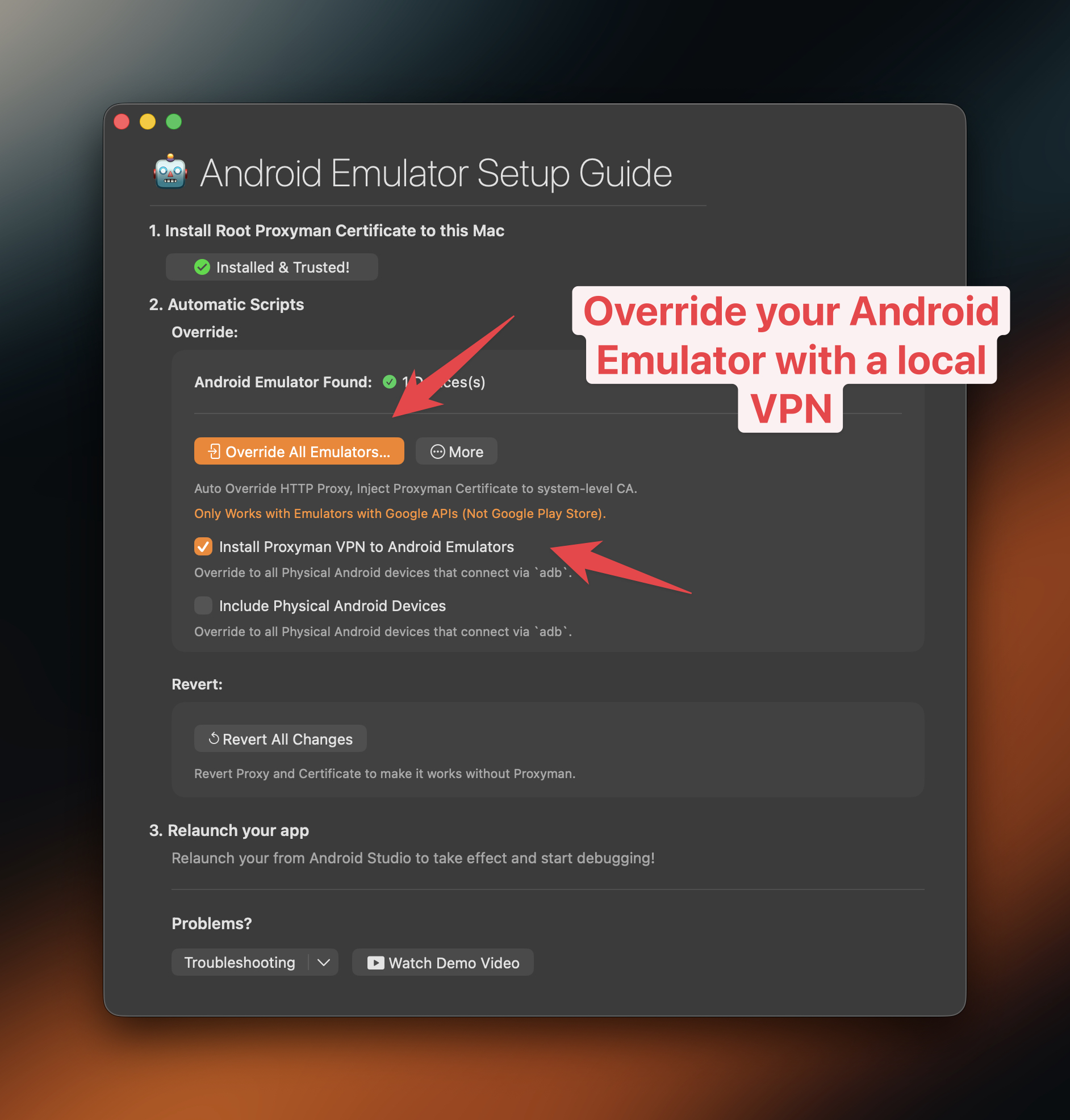
Proxyman 内置了一个脚本,几秒钟即可自动完成上述操作。你可以在 **Certificate Menu -> Install Certificate on Android -> Emulators…** 中打开该脚本。
> **提示:** 从 Proxyman 5.16.0 版本开始,Proxyman 可以将 Proxyman 证书安装到系统级证书存储中。这样就能解密 Android 模拟器的全部 HTTPS 流量。
> **备注:** Proxyman 现已支持 Google Play 和非 Google Play 模拟器,只需一键即可覆盖其设置。请参阅 [google-play-android-emulator-with-magisk.md](https://proxyman.com/docs/zh-cn/debug-devices/android-device/google-play-android-emulator-with-magisk)
## 视频 {#video}
[在 API 36 的 Android 模拟器上抓取原生 Android 应用(OkHttp)的 HTTPS 流量](https://www.youtube.com/watch?v=CWInB7gZj6g)
## 2. 有哪些好处? {#2-benefit}
**一键完成:**
* **✅ 自动** 覆盖 / 还原 HTTP 代理
* **✅ 自动** 下载、安装并信任系统级证书存储中的 Proxyman 证书,解密模拟器的全部 HTTPS 流量。(需要 Proxyman 5.16.0 或更高版本)
* 无需 **network\_security\_config.xml**
* **✅** 不易出错,只需几次点击即可完成
> **提示:** 通过 `adb` 同时支持 Android 模拟器和 Android 真机(仅适用于 Proxyman v5.19.0 及以上版本)
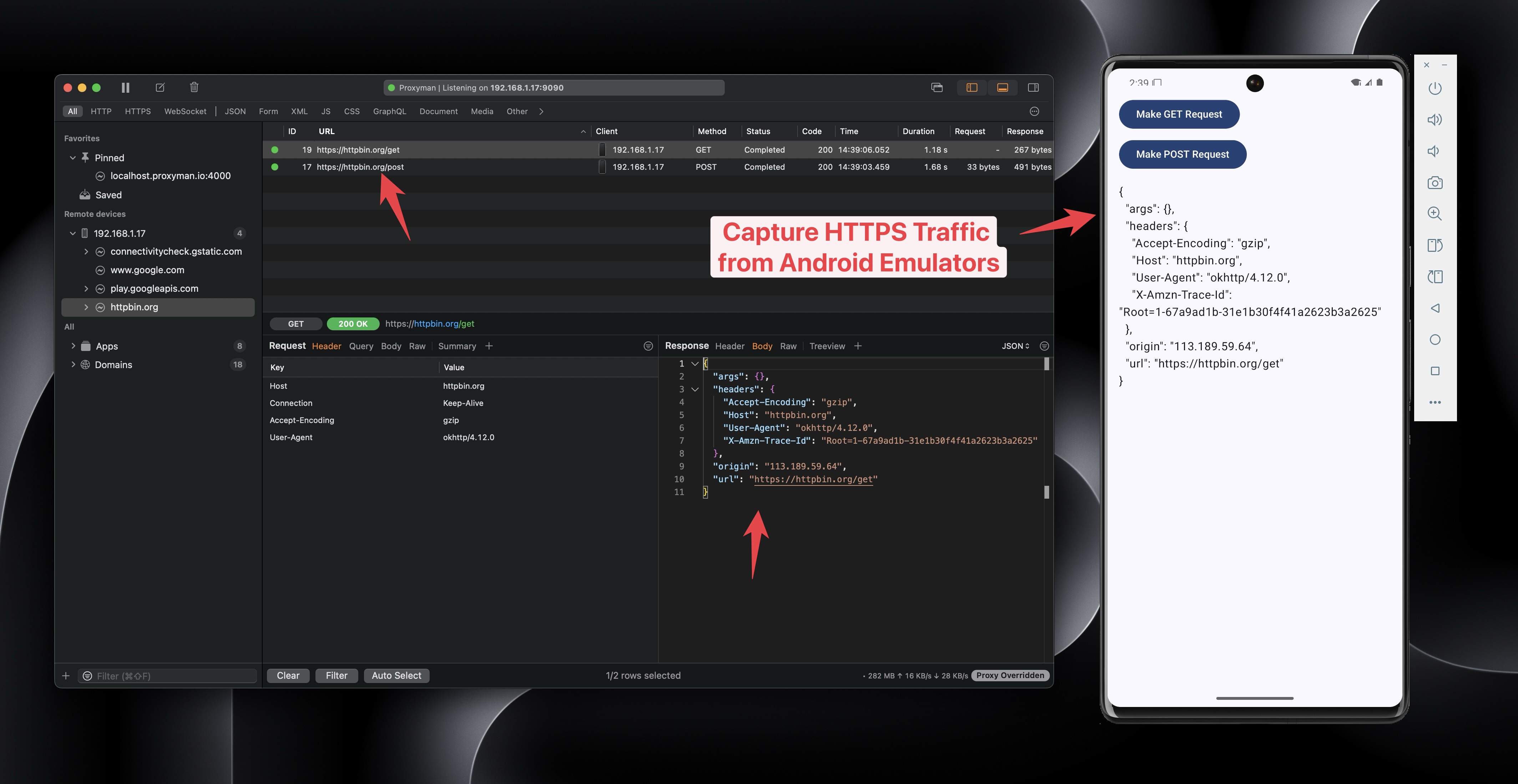
_使用 Proxyman 抓取并解密 Android 模拟器的 HTTPS 流量_
* 将 Proxyman 证书安装到系统级证书存储中。
### ✅ Flutter / React Native 应用 {#-flutter--react-native-app}
从 Proxyman macOS 6.4.0 版本开始,Proxyman 无需修改任何代码即可抓取 Flutter 应用的 HTTPS 流量。
了解更多信息,请参阅 [flutter.md](https://proxyman.com/docs/zh-cn/debug-devices/flutter) 文档。
## 3. 如何使用? {#3-how-to-use-it}
1. 确保已安装 `adb` 命令。如果没有安装,请先安装:
```bash
brew install android-platform-tools
```
2. 使用 Android Studio 打开你的 Android 应用
3. 在 Android Virtual Device Manager 中创建一个新的模拟器。**请确保它不是 Google Play 镜像,必须是 Google APIs 镜像。**
* ✅ 新功能:Proxyman 现已支持对 Google Play Store 模拟器进行 Root 操作。请阅读 [google-play-android-emulator-with-magisk.md](https://proxyman.com/docs/zh-cn/debug-devices/android-device/google-play-android-emulator-with-magisk)
4. 打开 Proxyman -> Certificate Menu -> Install Certificate on Android -> Emulators… -> 点击 Override All Emulators 按钮
5. 等待终端脚本执行完成
6. 在 Android Studio 中重新启动你的 Android 应用
7. Proxyman 将抓取全部 HTTPS 数据 ✅
> **备注:** 如果关闭 Proxyman,请务必点击 Revert All Changes 按钮。否则,Android 模拟器将无法访问互联网。
## 4. ⚠️ Proxyman 5.15.0 或更早版本 {#4-️-proxyman-5150-or-earlier}
* Proxyman 5.15.0 或更早版本只能在用户级别安装 Proxyman 证书。
* 这意味着你还需要完成下一步:
* 在你的源代码中:
* 添加 res/xml/network\_security\_config.xml
```xml
```
* 添加到 AndroidManifest.xml
<?xml version="1.0" encoding="utf-8"?>
<manifest xmlns:android="http://schemas.android.com/apk/res/android"
    xmlns:tools="http://schemas.android.com/tools">

    <uses-permission android:name="android.permission.INTERNET" />

    <application
        android:networkSecurityConfig="@xml/network_security_config">
        <activity
            ...
        </activity>
    </application>

</manifest>
## 5. 进阶:手动运行脚本 {#5-advanced-run-the-script-manually}
你可以在终端应用中手动运行脚本,无需在 Privacy & Security 中授予 Automation 权限。
### **脚本路径**: {#script-path}
```bash
/Applications/Proxyman.app/Contents/Frameworks/ProxymanCore.framework/Resources/install_certificate_android_emulator.sh
```
* 适用于 Proxyman 5.19.0 或更高版本
```bash
Usage: /Applications/Proxyman.app/Contents/Frameworks/ProxymanCore.framework/Resources/install_certificate_android_emulator.sh -m [options]
Modes:
all Set proxy and install certificate
proxy Set proxy only
revertProxy Revert proxy settings only
certificate Install certificate only
Required Options based on Mode:
-m, --mode : Operation mode (all, proxy, revertProxy, certificate)
-i, --ip : IP address (required for all, proxy, certificate)
-p, --port : Port number (required for all, proxy, certificate)
-c, --cert : Path to Proxyman certificate (required for all, certificate)
Optional Options:
--include-physical : Include physical devices (default: only emulators)
-h, --help : Show this help message
```
### 准备证书 {#prepare-the-certificate}
1. 打开 Proxyman 应用
2. 在主工具栏中找到当前 IP
3. 依次选择 Certificate 菜单 -> Export -> Root Certificate as PEM,并保存到桌面文件夹
### 5.1 覆盖 HTTP 代理并将证书安装到系统级证书存储 {#51-override-http-proxy-and-install-the-certificate-to-system-level-store}
* Proxyman v5.19.0 或更高版本(新增)
```bash
bash /Applications/Proxyman.app/Contents/Frameworks/ProxymanCore.framework/Resources/install_certificate_android_emulator.sh --mode all --ip --port --cert
```
* Proxyman v5.18.0 或更早版本
```bash
bash /Applications/Proxyman.app/Contents/Frameworks/ProxymanCore.framework/Resources/install_certificate_android_emulator.sh all
```
### 5.2 仅覆盖 HTTP 代理 {#52-only-override-http-proxy}
* Proxyman v5.19.0 或更高版本(新增)
```bash
bash /Applications/Proxyman.app/Contents/Frameworks/ProxymanCore.framework/Resources/install_certificate_android_emulator.sh --mode proxy --ip --port
```
* Proxyman v5.18.0 或更早版本
```bash
bash /Applications/Proxyman.app/Contents/Frameworks/ProxymanCore.framework/Resources/install_certificate_android_emulator.sh proxy
```
### 5.3 还原 HTTP 代理 {#53-revert-http-proxy}
* Proxyman v5.19.0 或更高版本(新增)
```bash
bash /Applications/Proxyman.app/Contents/Frameworks/ProxymanCore.framework/Resources/install_certificate_android_emulator.sh --mode revertProxy
```
* Proxyman v5.18.0 或更早版本
```bash
bash /Applications/Proxyman.app/Contents/Frameworks/ProxymanCore.framework/Resources/install_certificate_android_emulator.sh revertProxy
```
## 6. 叶证书有效期 {#6-left-certificate-expiry-date}
6.1 问题:拦截 Android WebView 的 HTTPS 流量时出现此错误
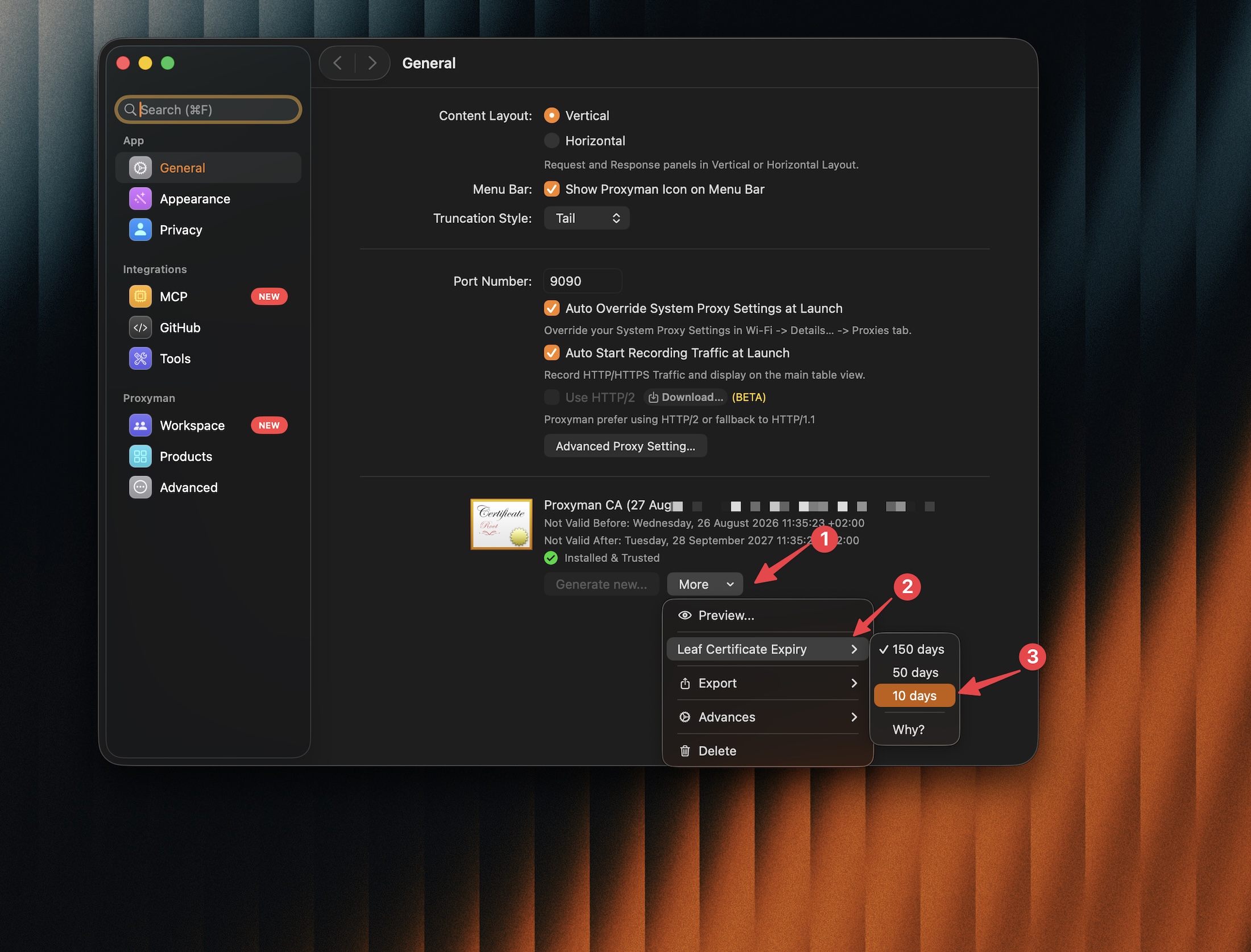
❗️ Android WebView 报错 ERR\_CERT\_VALIDITY\_TOO\_LONG
你可以在 Proxyman 的 Settings -> General -> **More**(位于证书旁)-> **Leaf Certificate Expiry** 中修改叶证书的有效期,然后选择一个较短的有效期,例如 10 天。
* 参考:[https://github.com/ProxymanApp/Proxyman/issues/2751](https://github.com/ProxymanApp/Proxyman/issues/2751)
## 了解更多 {#learn-more}
* [如何抓取 API 35 Android 模拟器的 HTTPS 流量](https://proxyman.com/posts/capture_https_android_emulators)
* [如何抓取 Android 模拟器上 Flutter 应用的 HTTPS 流量](https://proxyman.com/posts/Capture-https-flutter-android-emulator)
* [使用 Proxyman 抓取 Android 模拟器的 HTTP/HTTPS 流量](https://proxyman.com/android-emulator)(Proxyman 官网)