Proxyman으로 Android 기기 HTTPS 트래픽 캡처하는 방법
업데이트 #1: 2025년 2월 11일, 새 Android Studio 버전과 샘플 프로젝트 반영
1. 실제 Android 기기에서 HTTP/HTTPS 트래픽 요청/응답 가로채기 및 캡처
Android 기기에서 HTTPS 트래픽을 가로채는 것은 iOS보다 더 복잡합니다. 이 글에서는 Android 기기에서 HTTPS 트래픽을 가로채는 방법을 안내합니다.
이 튜토리얼에서는 다음 내용을 다룹니다.
- Android 기기에 프록시를 설정하고 인증서를 설치하는 방법
- Proxyman으로 HTTPS 트래픽을 가로채는 방법
- 문제 해결
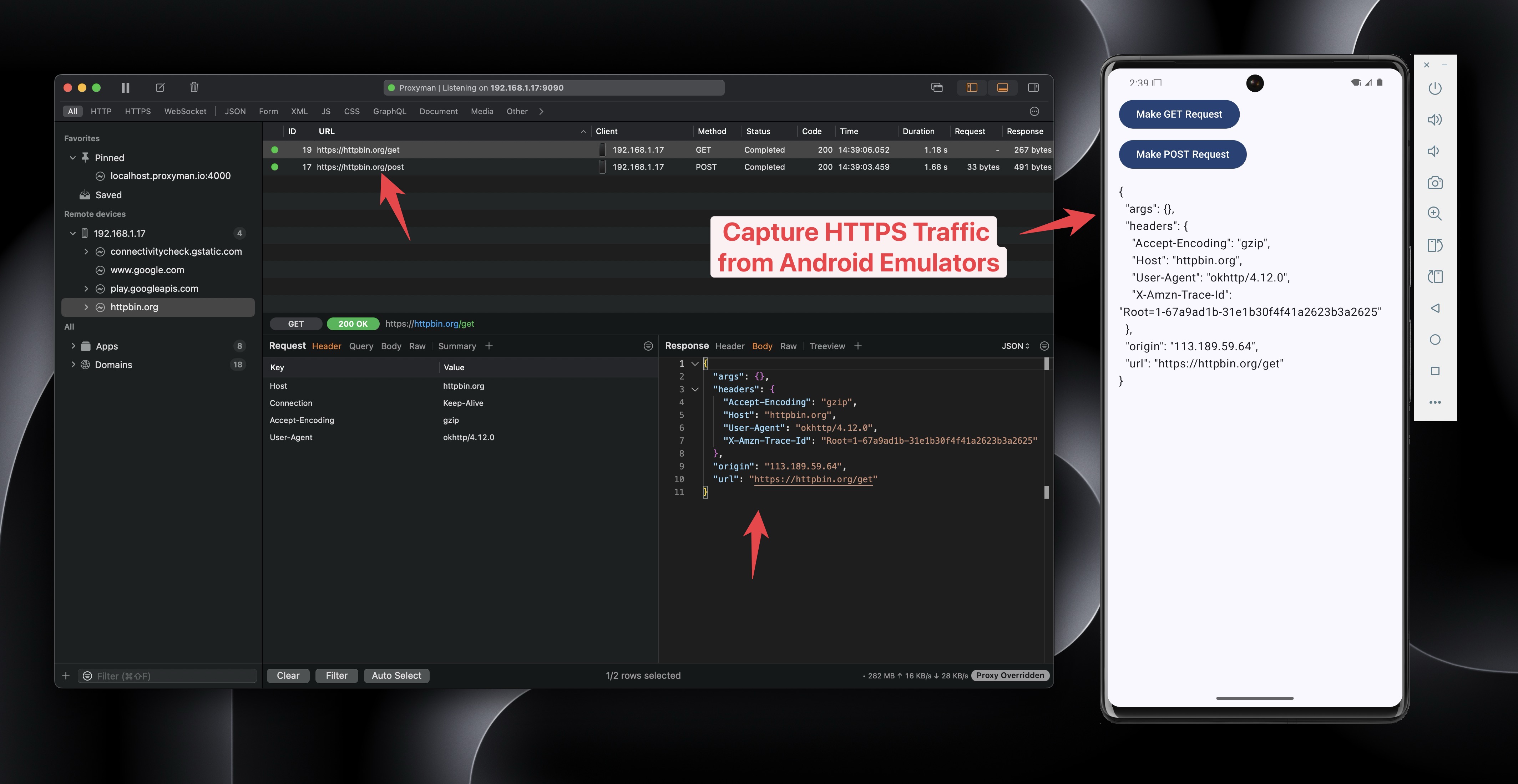
이 튜토리얼은 실제 Android 기기를 위한 것입니다. Android 에뮬레이터를 사용하는 경우에는 Android 에뮬레이터에서 HTTPS 트래픽 가로채기를 참고하세요.
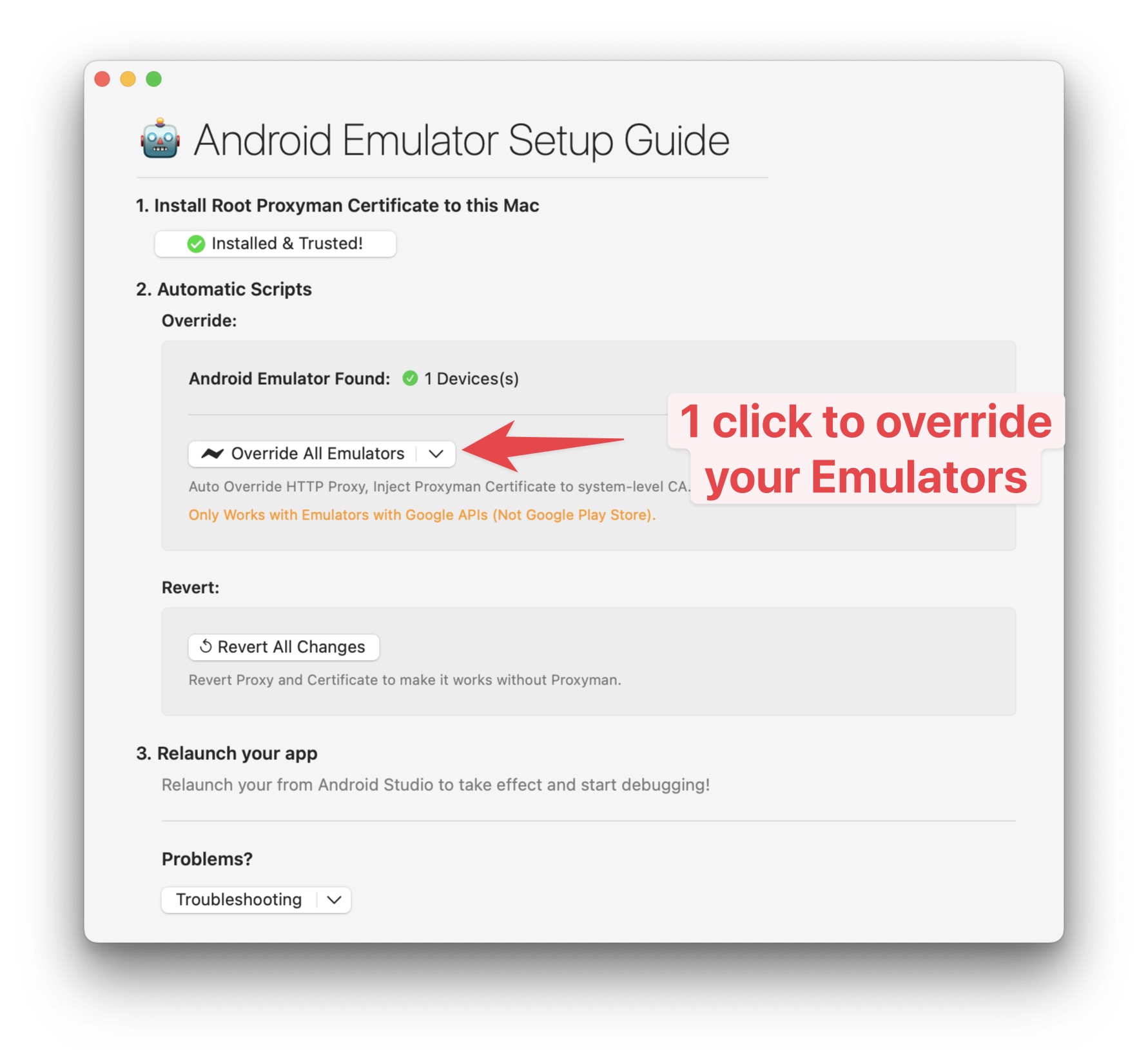
Proxyman에는 Android 에뮬레이터용 자동 스크립트가 포함되어 있습니다. 클릭 한 번으로 모든 설정을 마칠 수 있어 더 빠르고 쉽습니다.
2.0 실제 Android 기기
2.1 준비
- Android Studio
- 실제 Android 기기. 이 튜토리얼에서는 데모 목적으로 에뮬레이터를 사용합니다.
- 샘플 Android 앱을 다운로드하세요.
2.1 Android 설정 가이드
- Proxyman 앱을 열고 Certificate 메뉴 → Install Certificate on Android → Physical Devices를 선택합니다.
- 이 단계에서 아래와 같은 설정 가이드가 표시됩니다.
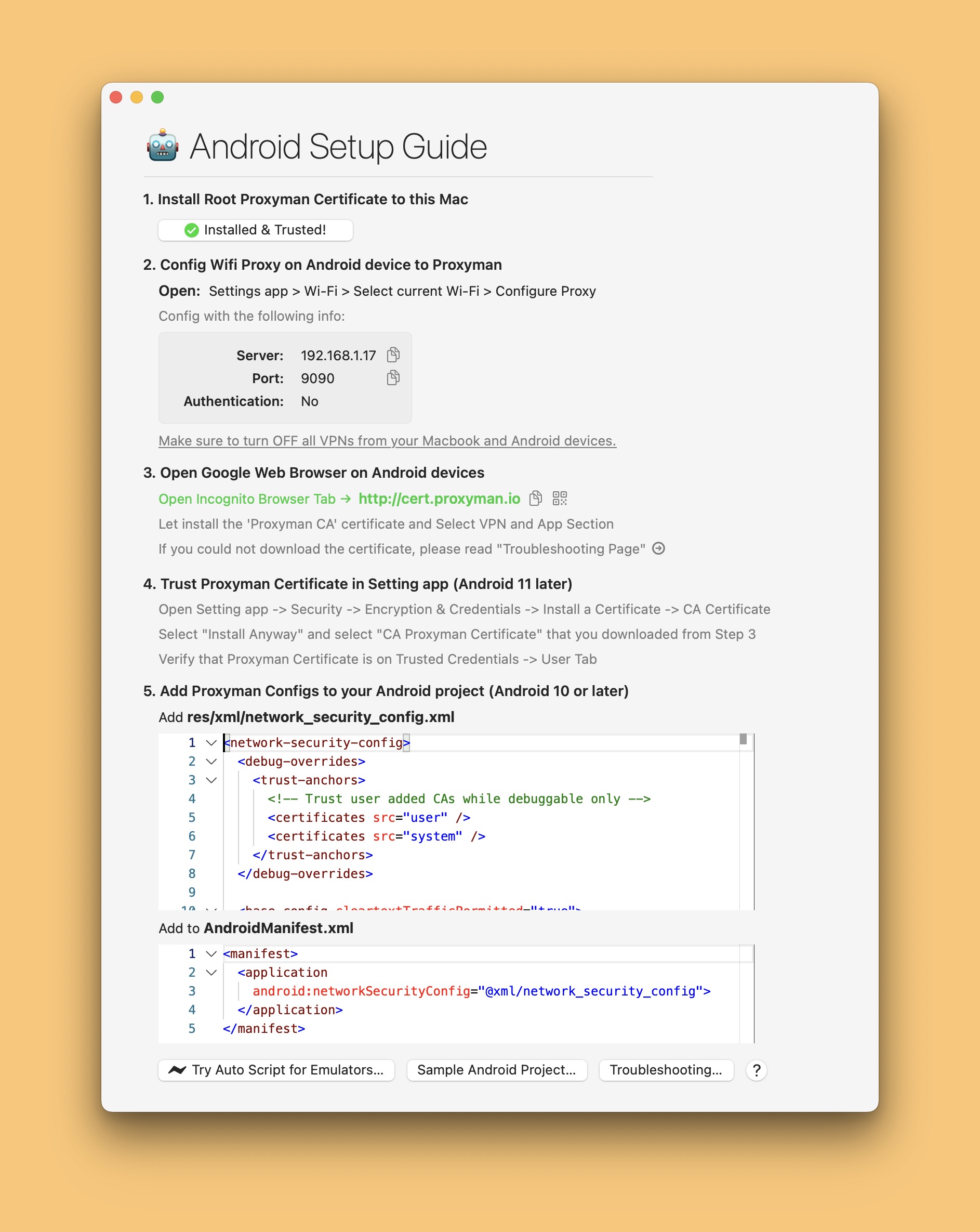
2.2 Proxyman으로 Wi-Fi 프록시 설정하기
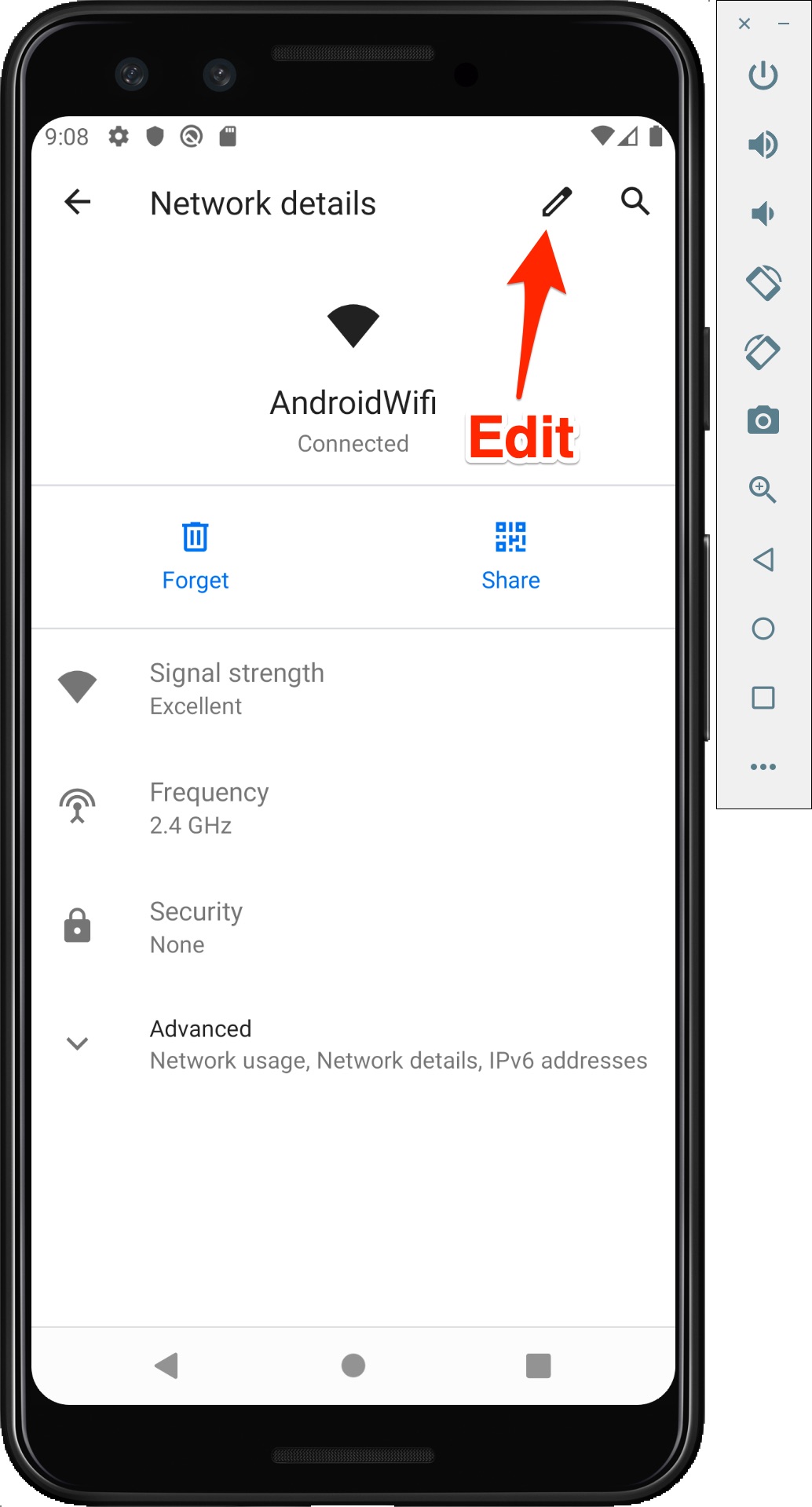
- Android 에뮬레이터를 열고 Setting 앱 → Wifi로 이동합니다. Wi-Fi 연결 상태가 양호한지 확인하세요. 때로는 "Limited Connection" 상태여서 Wi-Fi 프록시를 설정할 수 없을 때가 있습니다. 이런 경우에는 에뮬레이터를 삭제하고 새로 만드세요.
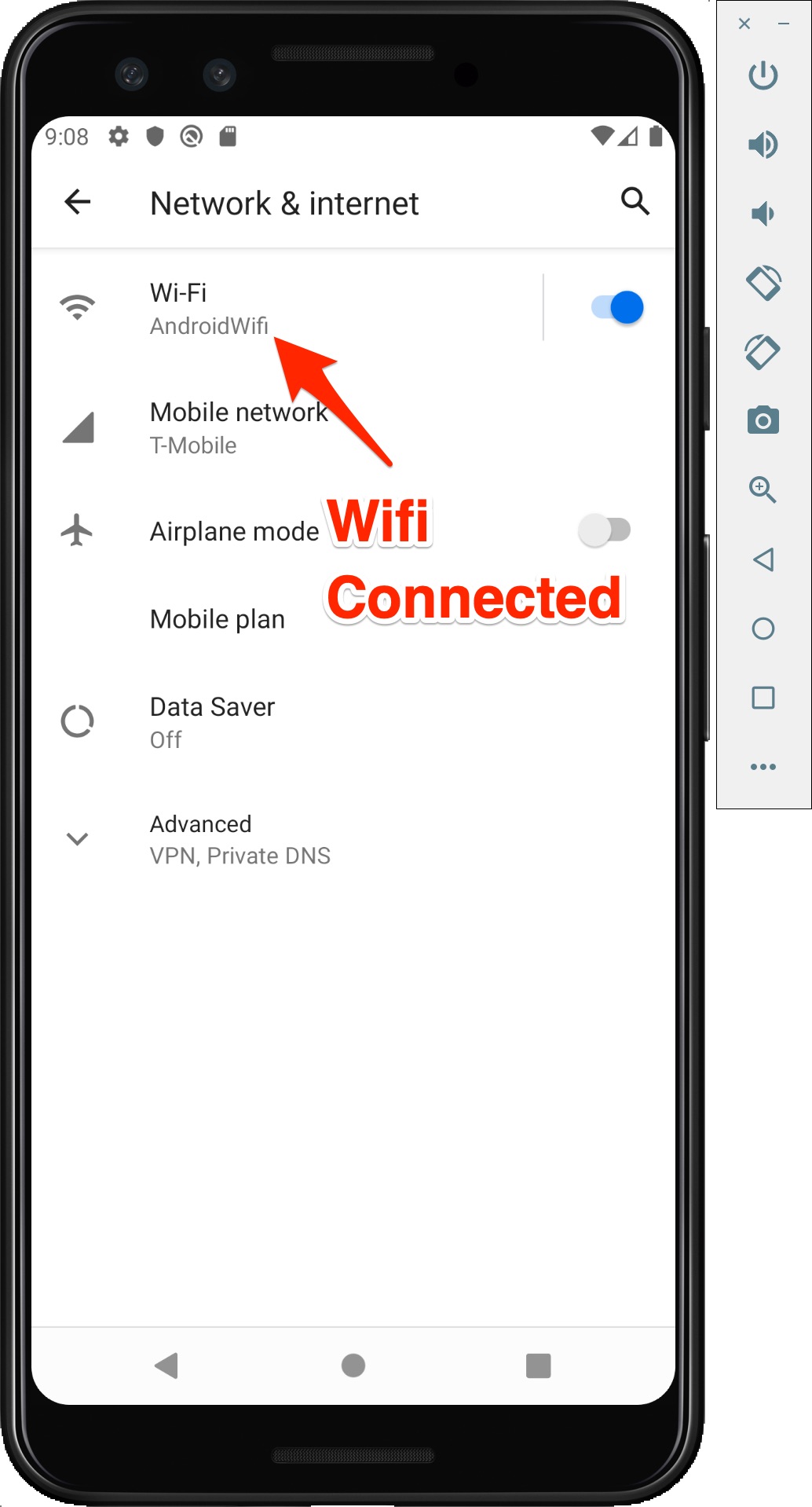
- Wifi를 누른 다음, 두 곳에 있는 Edit 버튼을 누릅니다.
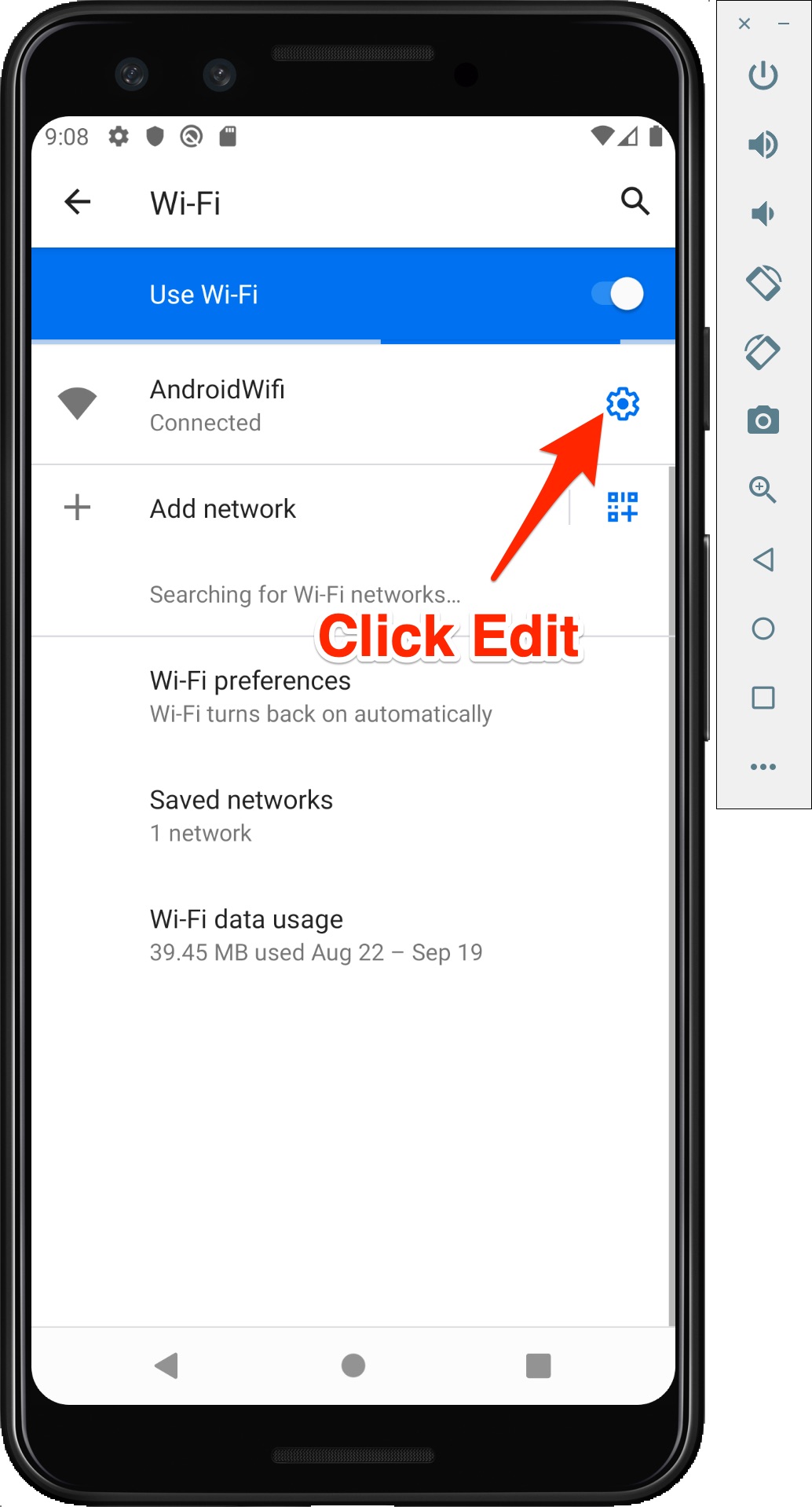
- HTTP 프록시를 설정합니다. Android 가이드(Proxyman 앱 → Certificate → Install Certificate on Android Devices)에 나온 것과 같은 IP와 포트 값을 입력하세요.
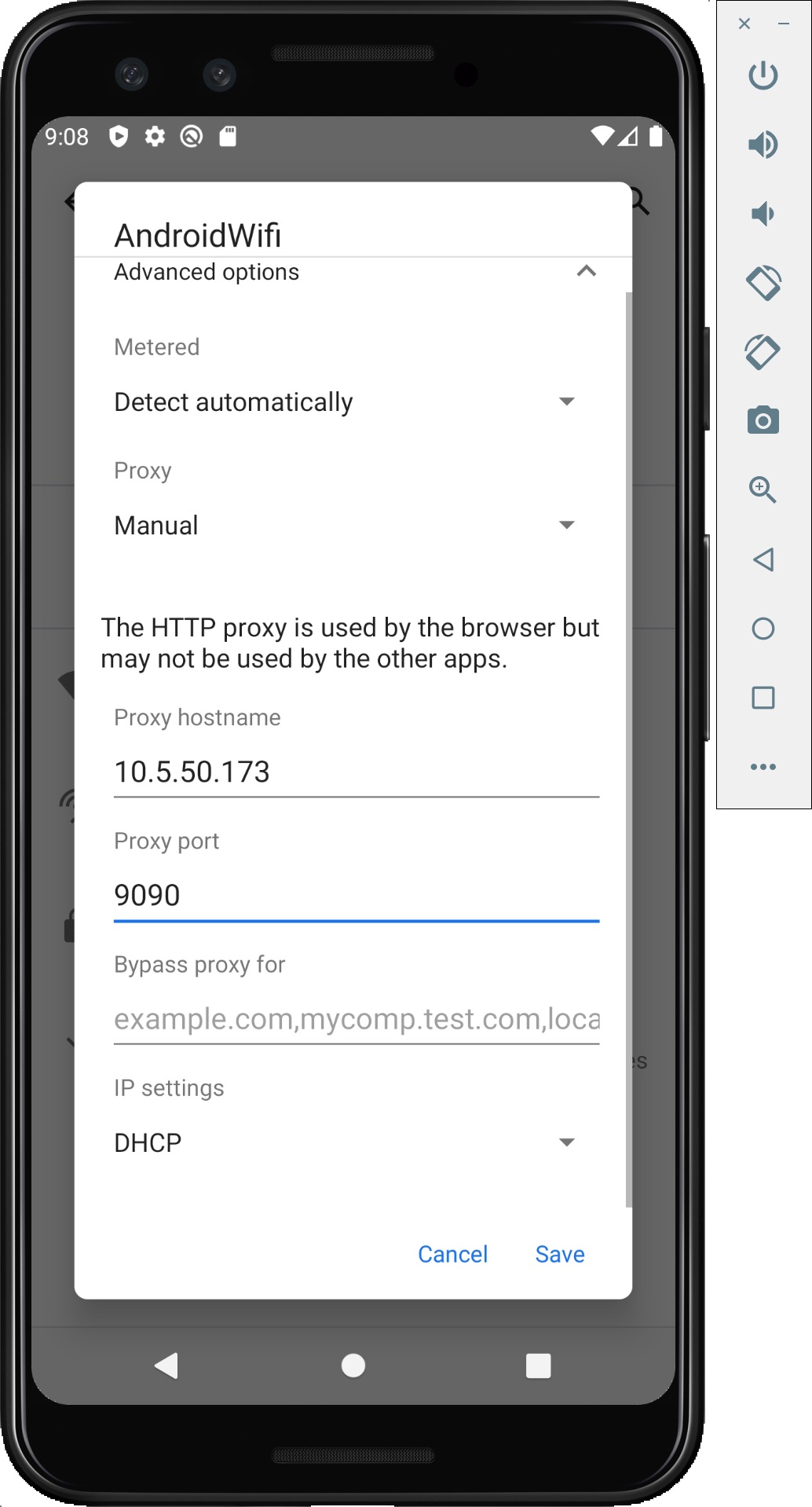
프록시 호스트 이름과 포트가 (Proxyman 앱 → Certificate → Install Certificate on Android Devices)의 값과 일치하는지 확인하세요.
2.3 Proxyman 인증서 다운로드 및 설치
- Android 에뮬레이터에서 Google Chrome을 엽니다.
- http://cert.proxyman.io 또는 http://proxy.man/ssl에 접속합니다.
- 인증서를 다운로드하고 VPN and App 카테고리를 선택합니다.
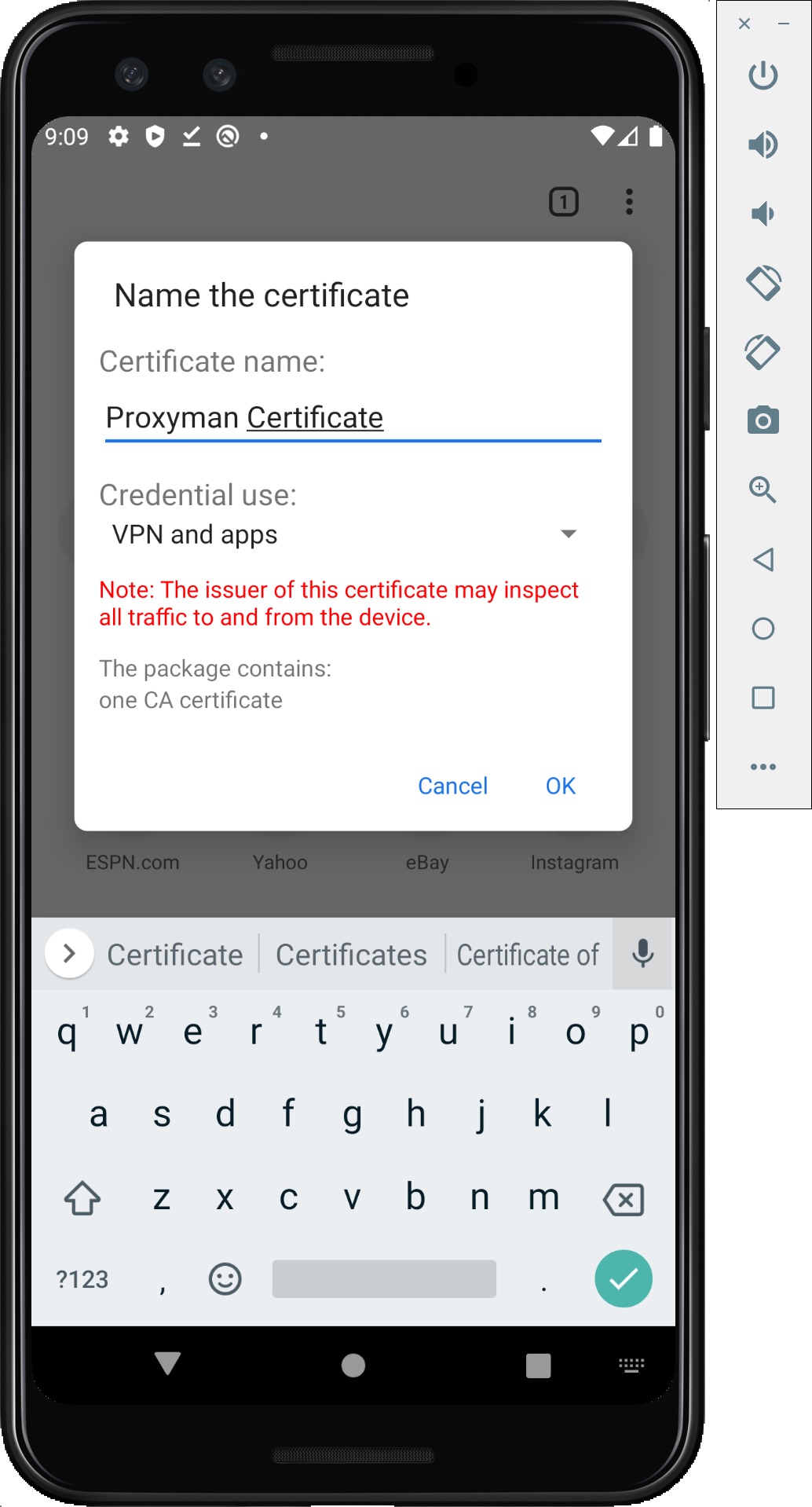
- 이제 인증서를 User Store에 설치할 차례입니다.
- Android에서 Setting 앱 → Security → Encryption & Credentials → Install a Certificate → CA Certificate를 열고, 방금 다운로드한 인증서를 선택한 다음 Install Certificate → Install을 누릅니다. (이 화면은 Android 버전이나 기기 모델에 따라 다를 수 있습니다.)
- Trusted Credentials 화면의 User 탭에서 Proxyman 인증서가 올바르게 설치되었는지 확인합니다.
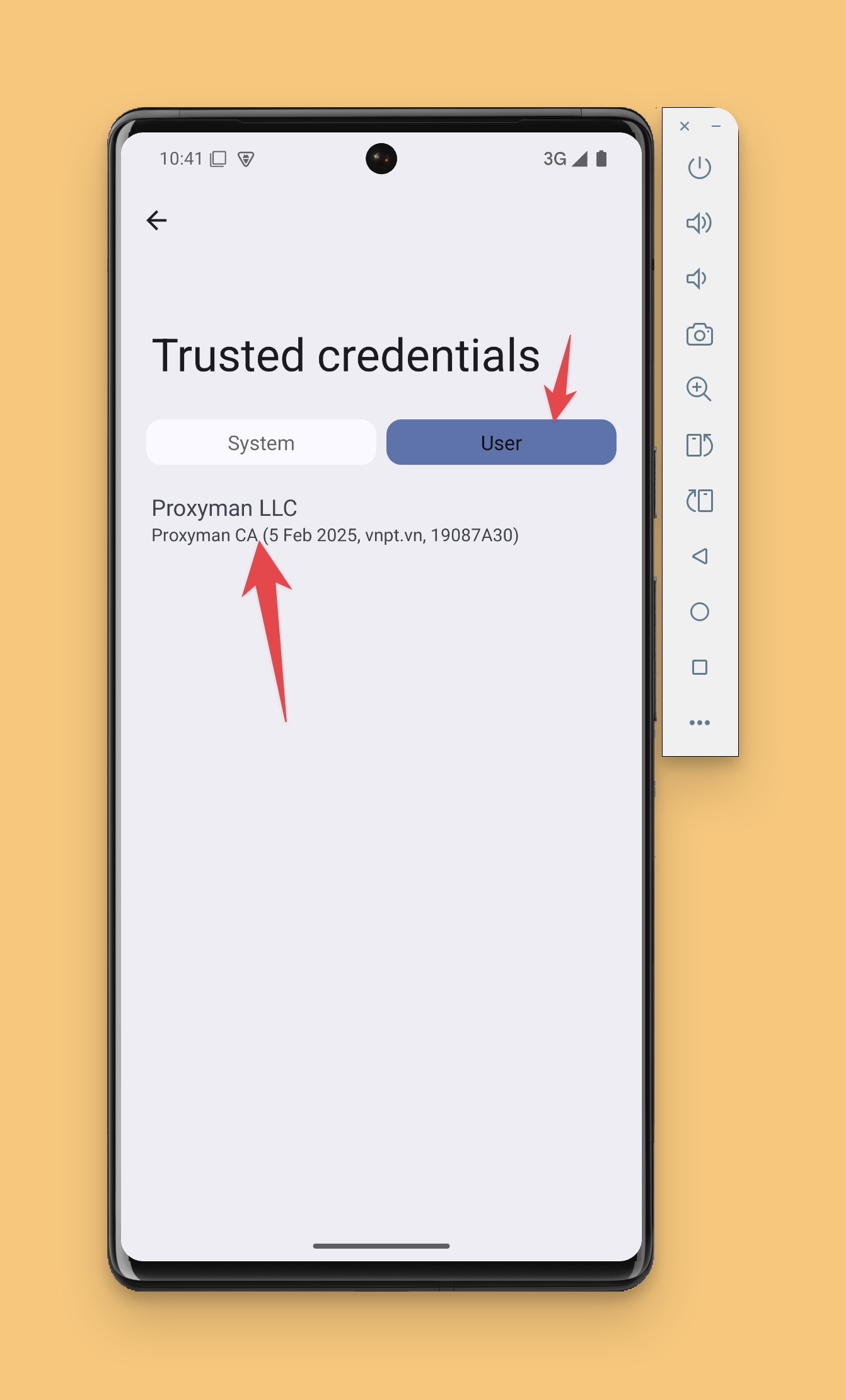
참고:
http://cert.proxyman.io 또는 http://proxy.man/ssl에 접속할 수 없다면:
- Wi-Fi 프록시가 작동하지 않는다는 뜻입니다. 에뮬레이터에서 Wi-Fi를 껐다 켜면 해결될 수 있습니다.
- Android 기기에서 VPN을 사용 중이라면 VPN을 끄세요.
- 다음 단계로 넘어가기 전에 이 단계에서 모든 것이 정상인지 확인하세요.
2.4 샘플 프로젝트 실행하기
- 샘플 Android 앱을 다운로드합니다.
- Android Studio로 엽니다.
- Proxyman 앱이 실행 중인지 확인합니다.
- Android Studio에서 샘플 프로젝트를 다시 실행하고 GET 또는 POST 버튼을 클릭합니다.
- 이제 Proxyman에서 HTTPS 트래픽을 볼 수 있습니다. google.com 도메인을 선택하고 SSL을 활성화하세요.
3. XML 설정
XML 설정에 도메인이 나열되어 있지 않으면 Proxyman 앱은 트래픽을 가로채지 않는다는 점에 유의하세요.
res/xml/network_security_config.xml
<?xml version="1.0" encoding="utf-8"?>
<manifest xmlns:android="http://schemas.android.com/apk/res/android"
    xmlns:tools="http://schemas.android.com/tools">

    <uses-permission android:name="android.permission.INTERNET" />

    <application
        android:allowBackup="true"
        android:dataExtractionRules="@xml/data_extraction_rules"
        android:fullBackupContent="@xml/backup_rules"
        android:icon="@mipmap/ic_launcher"
        android:label="@string/app_name"
        android:roundIcon="@mipmap/ic_launcher_round"
        android:supportsRtl="true"
        android:theme="@style/Theme.Proxyman_Sample_OKHTTP_App"
        tools:targetApi="31"
        android:networkSecurityConfig="@xml/network_security_config">
        <activity
            android:name=".MainActivity"
            android:exported="true"
            android:label="@string/app_name"
            android:theme="@style/Theme.Proxyman_Sample_OKHTTP_App">
            <intent-filter>
                <action android:name="android.intent.action.MAIN" />

                <category android:name="android.intent.category.LAUNCHER" />
            </intent-filter>
        </activity>
    </application>

</manifest>
- AndroidManifest.xml에 추가합니다.
<?xml version="1.0" encoding="utf-8"?>
<manifest xmlns:android="http://schemas.android.com/apk/res/android"
    xmlns:tools="http://schemas.android.com/tools">

    <uses-permission android:name="android.permission.INTERNET" />

    <application
        android:allowBackup="true"
        android:dataExtractionRules="@xml/data_extraction_rules"
        android:fullBackupContent="@xml/backup_rules"
        android:icon="@mipmap/ic_launcher"
        android:label="@string/app_name"
        android:roundIcon="@mipmap/ic_launcher_round"
        android:supportsRtl="true"
        android:theme="@style/Theme.Proxyman_Sample_OKHTTP_App"
        tools:targetApi="31"
        android:networkSecurityConfig="@xml/network_security_config">
        <activity
            android:name=".MainActivity"
            android:exported="true"
            android:label="@string/app_name"
            android:theme="@style/Theme.Proxyman_Sample_OKHTTP_App">
            <intent-filter>
                <action android:name="android.intent.action.MAIN" />

                <category android:name="android.intent.category.LAUNCHER" />
            </intent-filter>
        </activity>
    </application>

</manifest>
4. 문제 해결
Android 에뮬레이터와 API 버전에 따라 몇 가지 오류가 발생할 수 있습니다.
-
Android Studio에서 Wi-Fi 프록시를 설정한 후 http://proxy.man/ssl에 접속할 수 없습니다. => 에뮬레이터를 다시 시작하고, 에뮬레이터의 Wi-Fi 상태가 "Connected"인지 확인하세요. => Android 에뮬레이터를 삭제하고 새로 만드세요.
-
HTTPS 트래픽을 가로챌 때 SSL 오류가 발생합니다. => 때때로 Android 에뮬레이터가 Proxyman 인증서를 불러오지 못합니다. 프로젝트를 중지했다가 다시 시작하세요. => 도메인이 res/xml/network_security_config.xml에 나열되어 있는지 확인하세요.
5. 다음 단계
- Proxyman에는 Android 에뮬레이터용 자동 스크립트가 있습니다. 클릭 한 번으로 모든 설정을 할 수 있어 더 빠르고 쉽습니다.
현재 Android 참고 사항
실제 기기를 사용할 때는 Proxyman에 표시된 Mac IP를 사용하고, 두 기기를 같은 네트워크에 연결해 두세요. Android User 저장소에 설치한 인증서도 앱에서 거부될 수 있습니다. 따라서 직접 만든 디버그 빌드에서는 사용자 인증서를 신뢰하도록 네트워크 보안 설정(network security configuration)을 사용할 수 있습니다. 릴리스 빌드에 사용자 인증서에 대한 광범위한 신뢰를 추가하지 마세요. 또한 소유하지 않았거나 테스트할 권한이 없는 앱은 검사하지 마세요.
Proxyman은 iOS 기기, iOS 시뮬레이터, Android 기기에서 실행되는 앱과 도메인의 HTTP/HTTPS 요청을 캡처하고 검사할 수 있게 해 주는 고성능 macOS 앱입니다.
다운로드: https://proxyman.com