如何在 Android 设备上拦截并抓取 HTTPS 流量?
更新 #1:2025 年 2 月 11 日,附带新版 Android Studio 和示例项目
1. 从 Android 真机拦截并抓取 HTTP/HTTPS 请求与响应
在 Android 设备上拦截 HTTPS 流量比 iOS 更复杂。本文将指导你如何开始拦截 Android 设备的 HTTPS 流量。
本教程涵盖以下内容:
- 如何在 Android 设备上设置代理并安装证书
- 如何使用 Proxyman 拦截 HTTPS 流量
- 故障排查
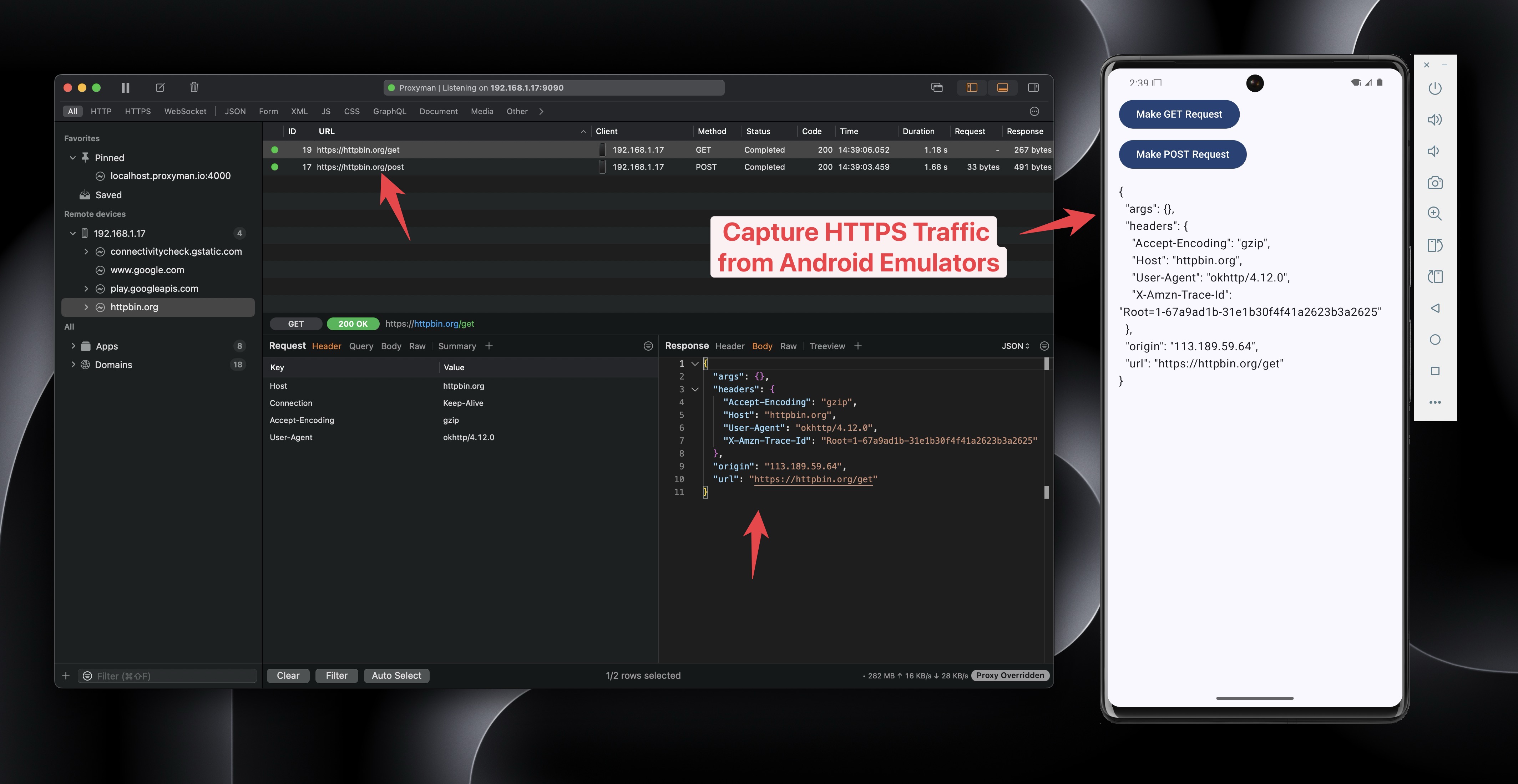
本教程适用于 Android 真机。如果你使用的是 Android 模拟器,请参阅 在 Android 模拟器上拦截 HTTPS 流量。
Proxyman 内置了 Android 模拟器的自动脚本,只需点击一次即可完成所有设置,更快也更简单。
2.0 Android 真机
2.1 准备工作
- Android Studio
- 你的 Android 真机。为演示之用,本教程将使用模拟器。
- 下载示例 Android 应用
2.1 Android 设置指南
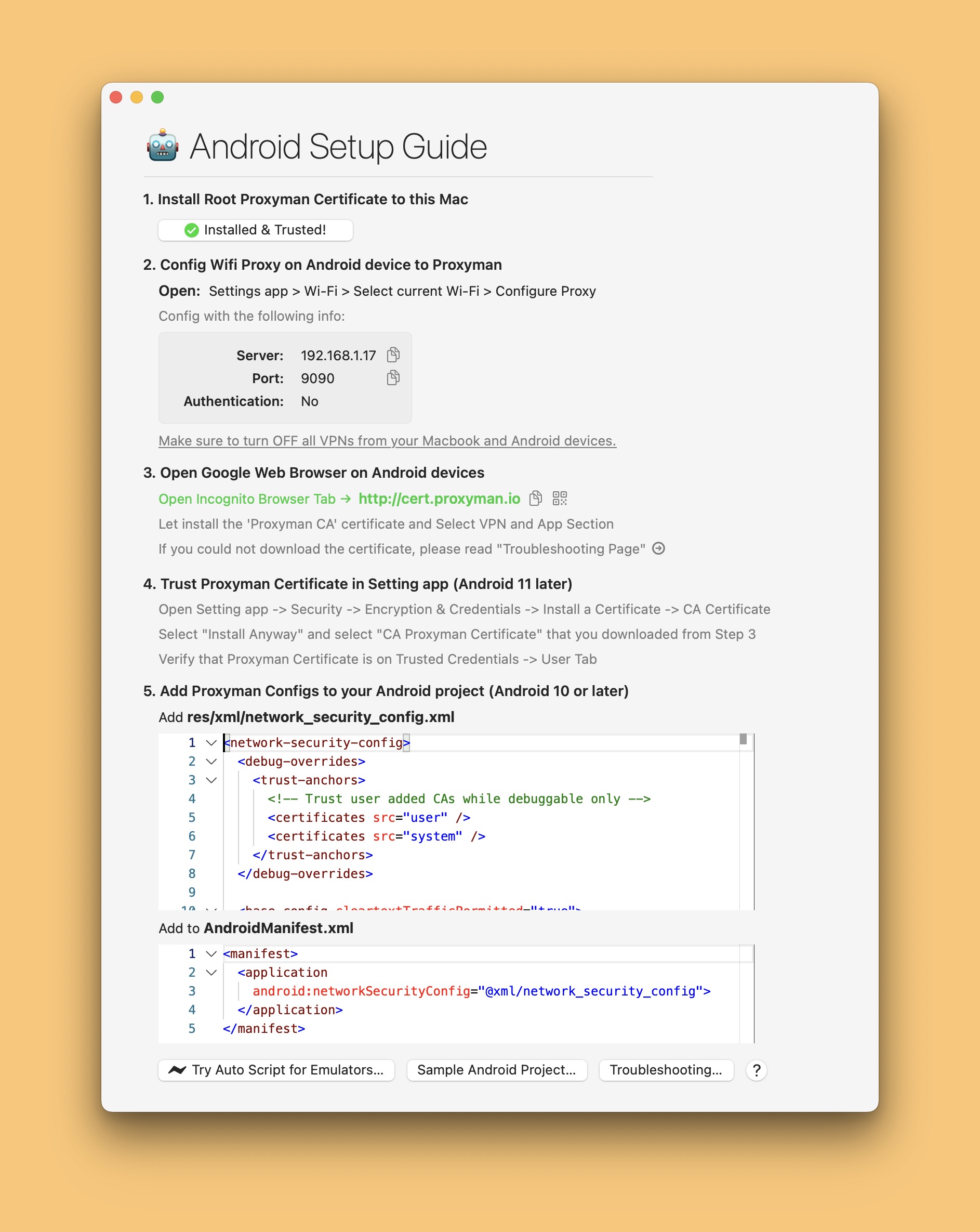
- 打开 Proxyman 应用 -> Certificate 菜单 -> Install Certificate on Android -> Physical Devices
- 此时,你应该会看到如下设置指南:
2.2 将 Wi-Fi 代理设置为 Proxyman
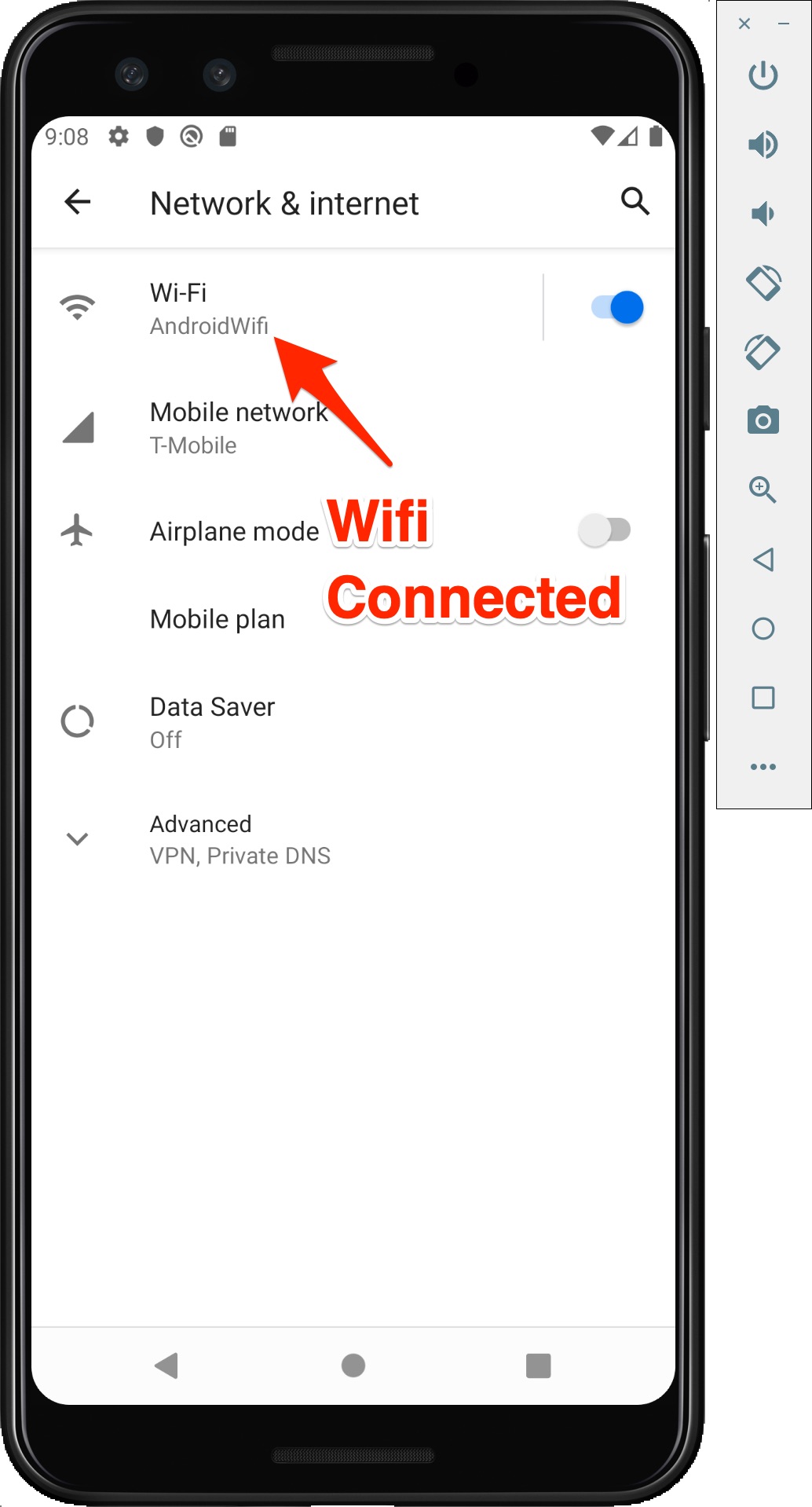
- 打开你的 Android 模拟器 -> 设置 App -> Wi-Fi:确保 Wi-Fi 连接正常。有时会显示“Limited Connection”,导致无法设置 Wi-Fi 代理。如果出现这种情况,请删除模拟器并重新创建。
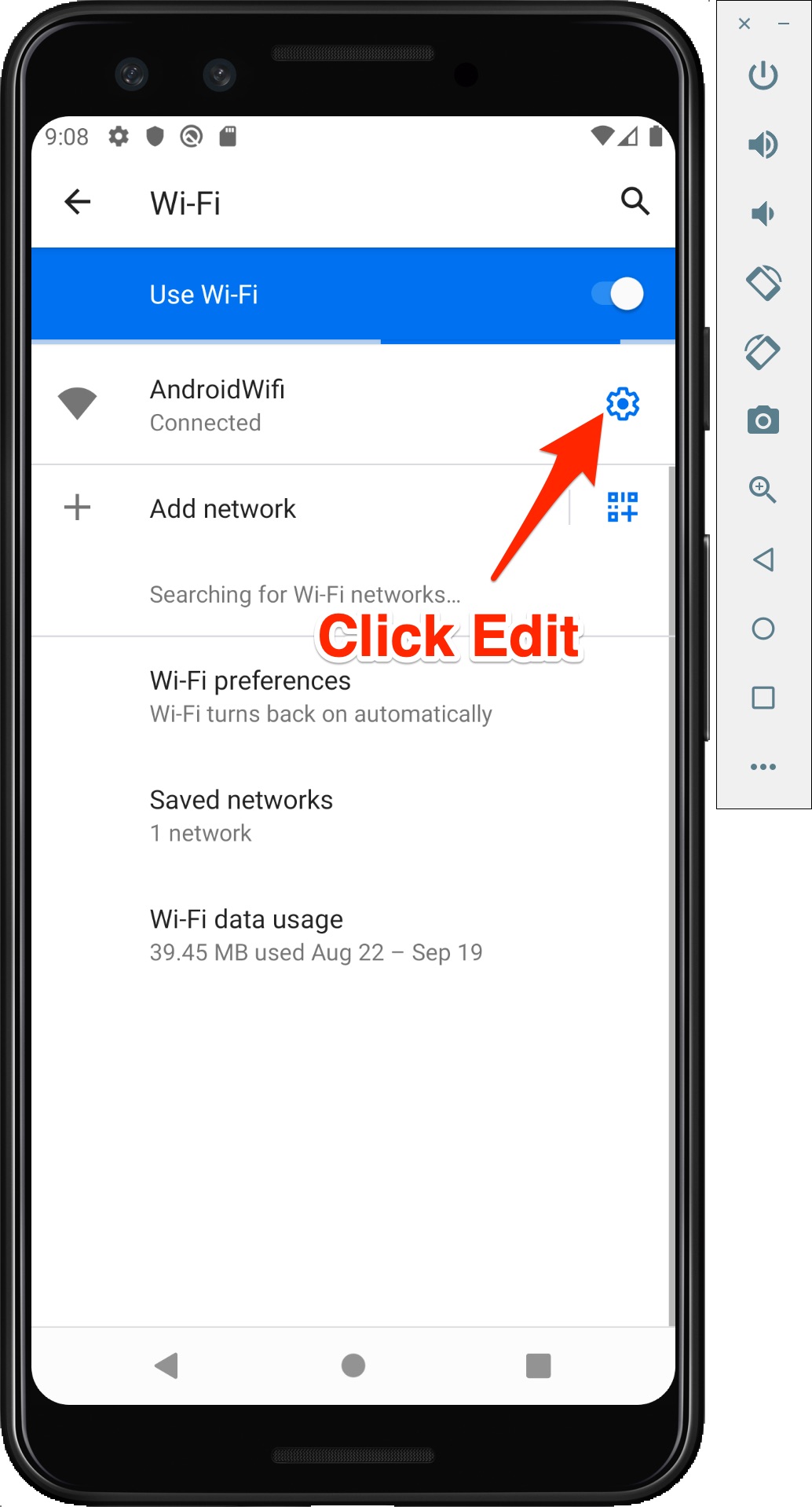
- 点击 Wi-Fi,然后在两个位置点击 Edit 按钮
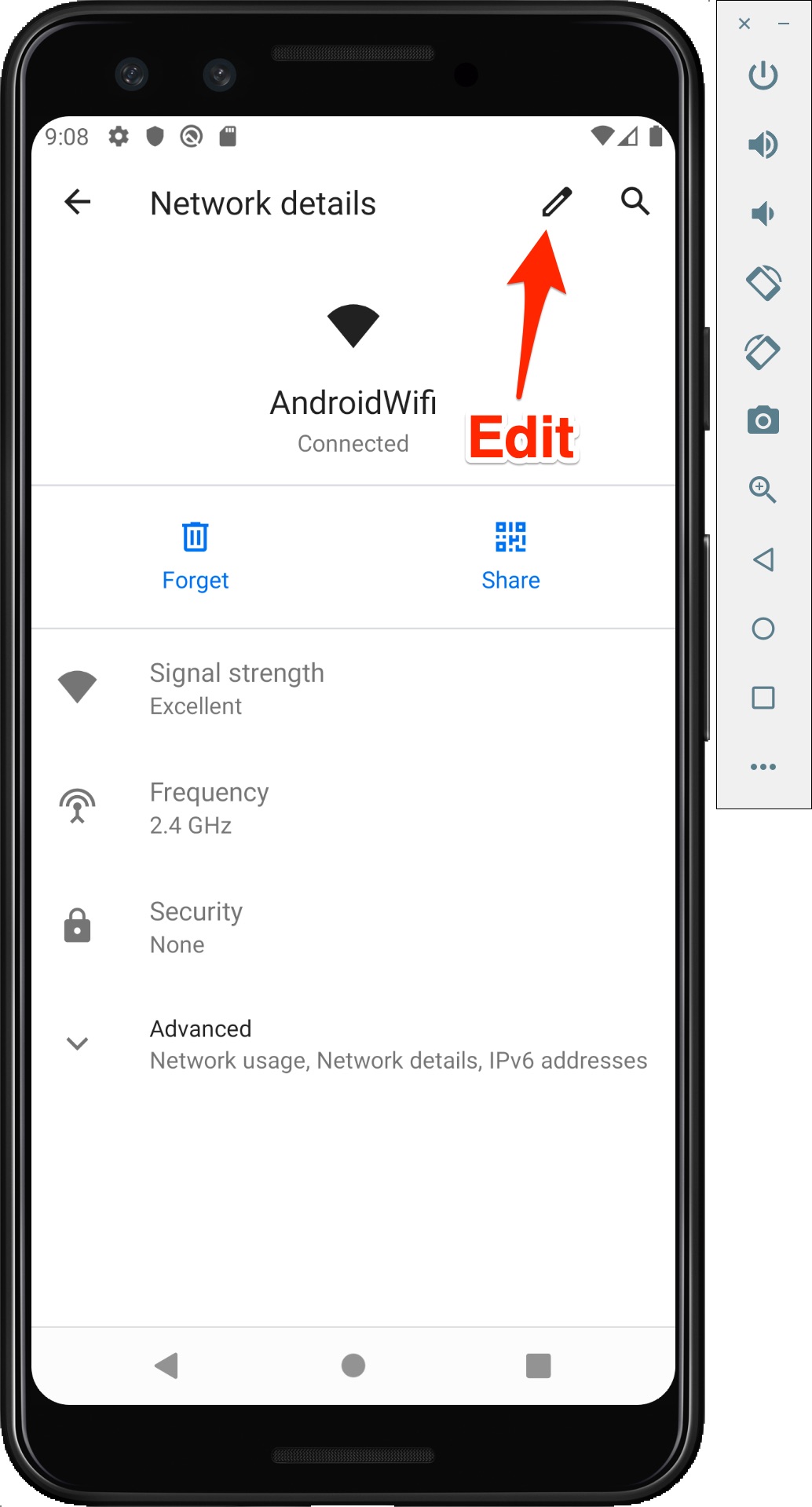
- 将 HTTP 代理设置为与 Android 指南中相同的 IP 和端口(Proxyman 应用 -> Certificate -> Install Certificate on Android Devices)
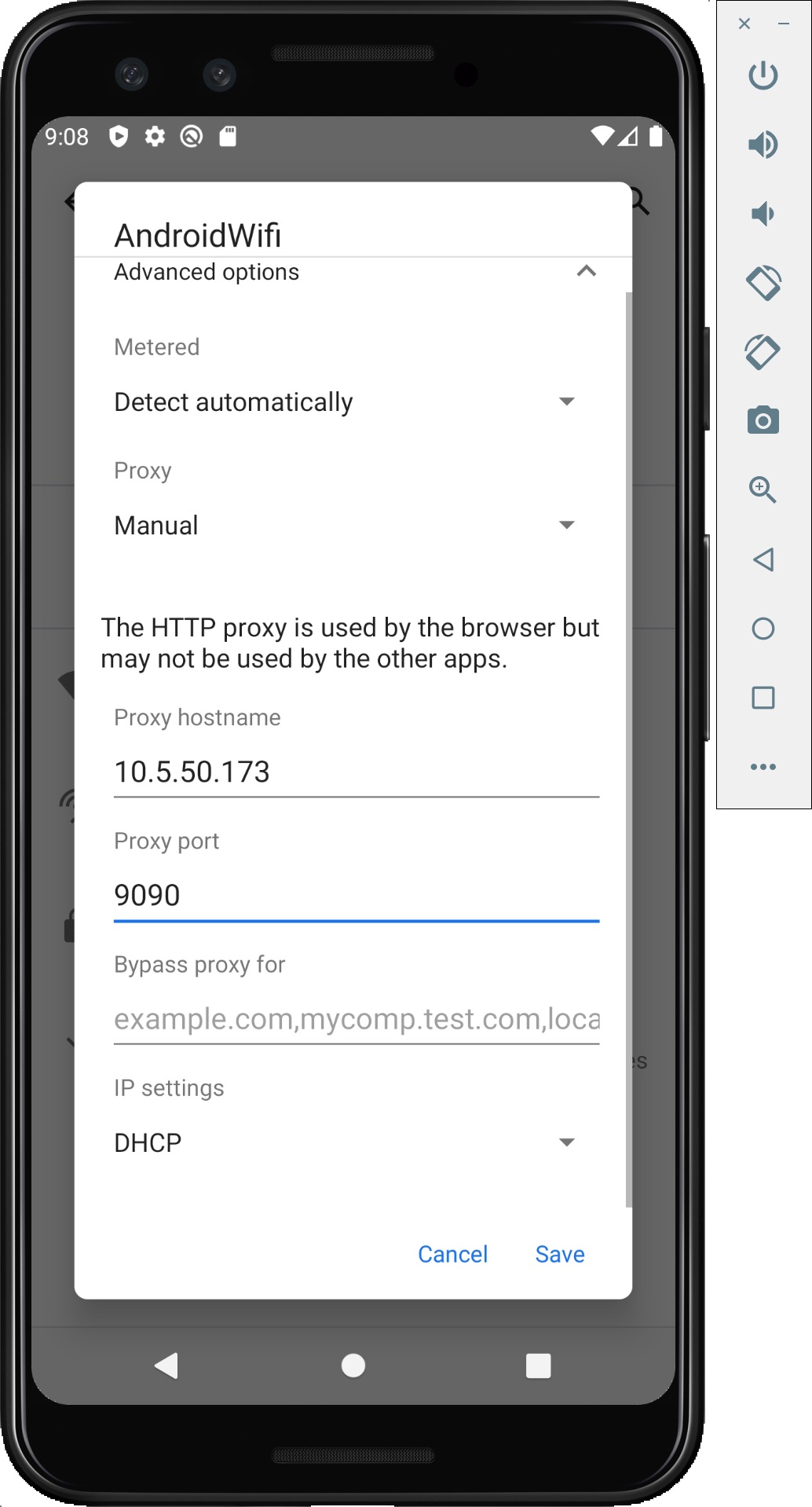
请确保代理主机名和端口与(Proxyman 应用 -> Certificate -> Install Certificate on Android Devices)中的值一致。
2.3 下载并安装 Proxyman 证书
- 在 Android 模拟器中打开 Google Chrome
- 访问 http://cert.proxyman.io 或 http://proxy.man/ssl
- 下载证书,并选择 “VPN and App” 类别
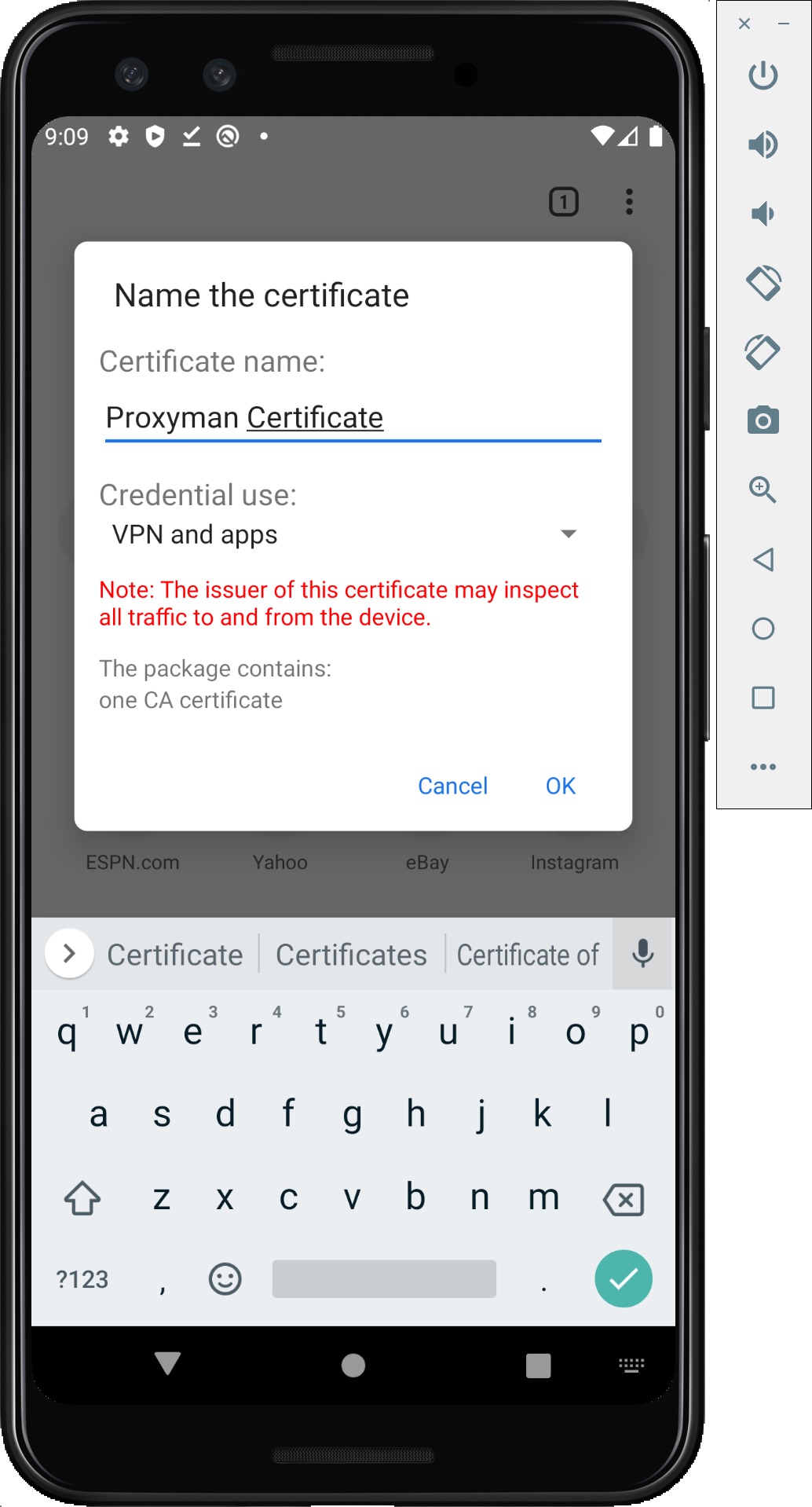
- 现在将证书安装到 User 存储中。
- 在 Android 设备上打开设置 App -> Security -> Encryption & Credentials -> Install a Certificate -> CA Certificate -> 选择刚下载的证书 -> Install Certificate -> Install(请注意,不同的 Android 版本或机型界面可能有所不同)
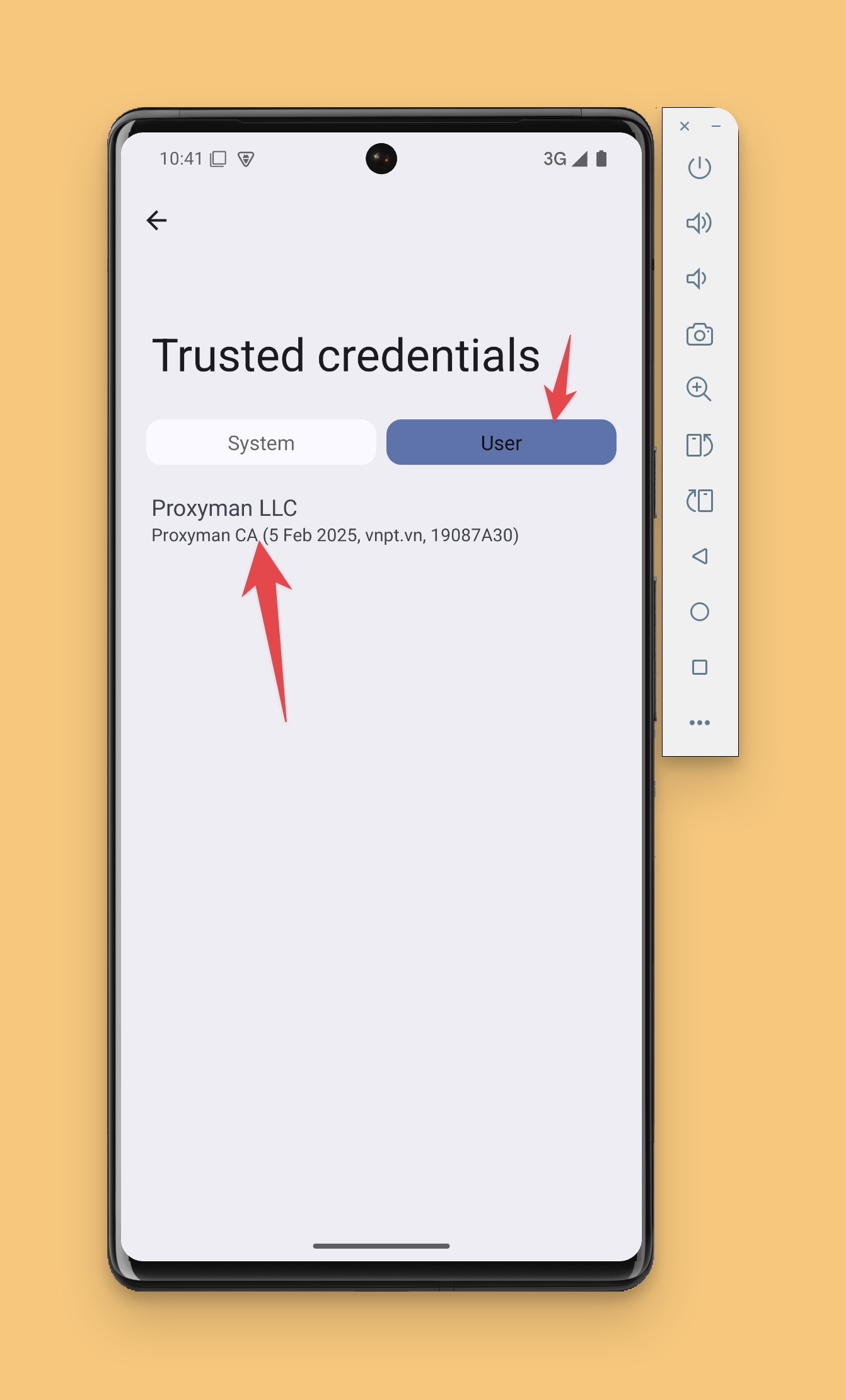
- 在 Trusted Credentials 页面的 User 标签页中,确认 Proxyman 证书已成功安装。
注意事项:
如果无法访问 http://cert.proxyman.io 或 http://proxy.man/ssl
- 这通常说明 Wi-Fi 代理未生效 -> 关闭再开启模拟器中的 Wi-Fi 可能会解决问题
- 你的 Android 设备正在使用 VPN -> 请将其关闭
- 在进入下一步之前,请先确认以上步骤均已正确完成。
2.4 启动示例项目
- 下载示例 Android 应用
- 使用 Android Studio 打开它
- 确保 Proxyman 应用已打开
- 在 Android Studio 中再次启动示例项目,然后点击 GET 或 POST 按钮
- 此时,你可以在 Proxyman 中看到 HTTPS 流量 -> 选择 google.com 域名并启用 SSL Proxying
3. XML 配置
请注意,如果域名未列在 XML 配置中,Proxyman 应用将不会拦截该流量。
res/xml/network_security_config.xml
<?xml version="1.0" encoding="utf-8"?>
<manifest xmlns:android="http://schemas.android.com/apk/res/android"
    xmlns:tools="http://schemas.android.com/tools">

    <uses-permission android:name="android.permission.INTERNET" />

    <application
        android:allowBackup="true"
        android:dataExtractionRules="@xml/data_extraction_rules"
        android:fullBackupContent="@xml/backup_rules"
        android:icon="@mipmap/ic_launcher"
        android:label="@string/app_name"
        android:roundIcon="@mipmap/ic_launcher_round"
        android:supportsRtl="true"
        android:theme="@style/Theme.Proxyman_Sample_OKHTTP_App"
        tools:targetApi="31"
        android:networkSecurityConfig="@xml/network_security_config">
        <activity
            android:name=".MainActivity"
            android:exported="true"
            android:label="@string/app_name"
            android:theme="@style/Theme.Proxyman_Sample_OKHTTP_App">
            <intent-filter>
                <action android:name="android.intent.action.MAIN" />

                <category android:name="android.intent.category.LAUNCHER" />
            </intent-filter>
        </activity>
    </application>

</manifest>
- 添加到 AndroidManifest.xml
<?xml version="1.0" encoding="utf-8"?>
<manifest xmlns:android="http://schemas.android.com/apk/res/android"
    xmlns:tools="http://schemas.android.com/tools">

    <uses-permission android:name="android.permission.INTERNET" />

    <application
        android:allowBackup="true"
        android:dataExtractionRules="@xml/data_extraction_rules"
        android:fullBackupContent="@xml/backup_rules"
        android:icon="@mipmap/ic_launcher"
        android:label="@string/app_name"
        android:roundIcon="@mipmap/ic_launcher_round"
        android:supportsRtl="true"
        android:theme="@style/Theme.Proxyman_Sample_OKHTTP_App"
        tools:targetApi="31"
        android:networkSecurityConfig="@xml/network_security_config">
        <activity
            android:name=".MainActivity"
            android:exported="true"
            android:label="@string/app_name"
            android:theme="@style/Theme.Proxyman_Sample_OKHTTP_App">
            <intent-filter>
                <action android:name="android.intent.action.MAIN" />

                <category android:name="android.intent.category.LAUNCHER" />
            </intent-filter>
        </activity>
    </application>

</manifest>
4. 故障排查
根据 Android 模拟器和 API 版本的不同,你可能会遇到一些错误。
- 在 Android Studio 中设置 Wi-Fi 代理后,我无法访问 http://proxy.man/ssl => 请尝试重启模拟器,并确保模拟器中的 Wi-Fi 状态为“Connected” => 删除你的 Android 模拟器并重新创建一个
- 拦截 HTTPS 流量时出现 SSL 错误 => 有时模拟器未能加载 Proxyman 证书 => 请停止项目后重新启动。 => 请确保你的域名已列在 res/xml/network_security_config.xml 中
5. 下一步
- Proxyman 提供了 Android 模拟器自动脚本,只需点击一次即可完成所有设置,更快也更简单。
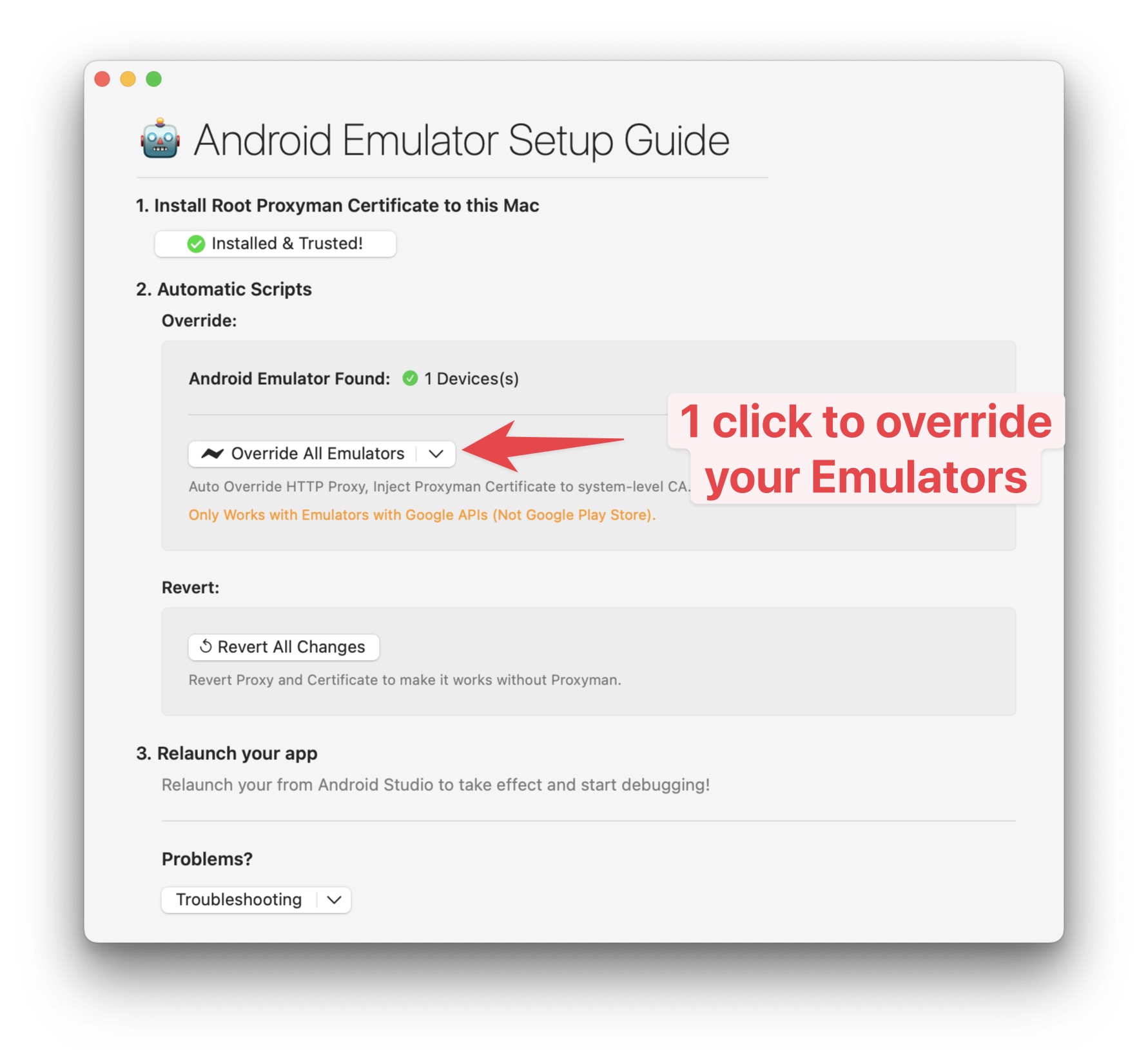
关于 Android 的当前说明
使用真机时,请使用 Proxyman 显示的 Mac IP 地址,并确保两台设备位于同一网络。安装在 Android User 存储中的证书,仍可能被应用拒绝,因此你自己的调试版本可以通过网络安全配置来信任用户证书。请勿在正式发布版本中添加宽泛的用户证书信任,也不要抓取你不拥有或没有测试权限的应用。
Proxyman 是一款高性能的 macOS 应用,可帮助开发者抓取并查看来自 iOS 设备、iOS 模拟器和 Android 设备上的应用与域名的 HTTP/HTTPS 请求。
下载地址:https://proxyman.com

Noah Tran