Android 에뮬레이터용 자동 스크립트
Proxyman 자동 스크립트로 Android 에뮬레이터의 HTTP 프록시를 설정하고 Proxyman 인증서를 설치하세요. 클릭 한 번으로 HTTPS 트래픽을 캡처할 수 있습니다.
1. 무엇인가요?
HTTP 프록시를 직접 변경한 뒤 Android 에뮬레이터에 Proxyman 인증서를 설치하고 신뢰하도록 설정하는 것은 복잡하고 실수하기 쉽습니다.
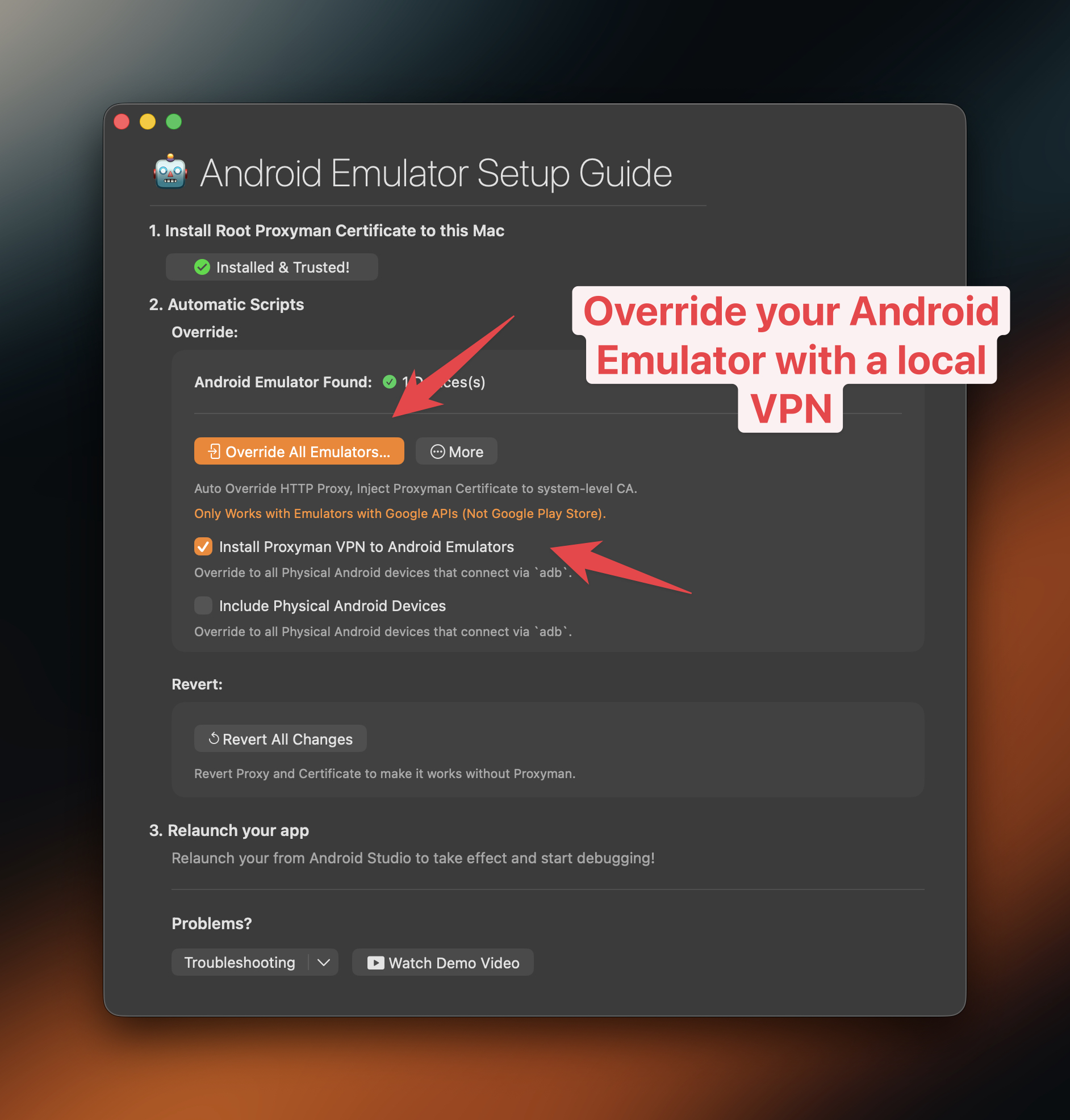
Proxyman에는 이 작업을 몇 초 만에 대신 해 주는 스크립트가 내장되어 있습니다. **Certificate Menu -> Install Certificate on Android -> Emulators…**에서 열 수 있습니다.
Proxyman 5.16.0 이상에서는 Proxyman 인증서를 시스템 수준 저장소에 설치할 수 있습니다. 이를 통해 Android 에뮬레이터의 모든 HTTPS 트래픽을 복호화할 수 있습니다.
Proxyman은 이제 Google Play 및 Google Play가 아닌 에뮬레이터를 모두 지원합니다. 클릭 한 번으로 프록시를 설정할 수 있습니다. google-play-android-emulator-with-magisk.md를 참고하세요.
동영상
2. 장점
클릭 한 번으로:
- ✅ 자동으로 HTTP 프록시 설정 / 되돌리기
- ✅ 자동으로 Proxyman 인증서를 다운로드하고, 설치하고, 시스템 수준 저장소에서 신뢰하도록 설정합니다. 에뮬레이터의 모든 HTTPS를 복호화합니다. (Proxyman 5.16.0 이상에서 사용 가능)
- network_security_config.xml이 필요하지 않습니다
- ✅ 실수할 가능성이 적고 몇 번의 클릭으로 끝납니다
adb를 통해 Android 에뮬레이터와 Android 실제 기기 모두에서 작동합니다 (Proxyman v5.19.0 이상에서만 지원)
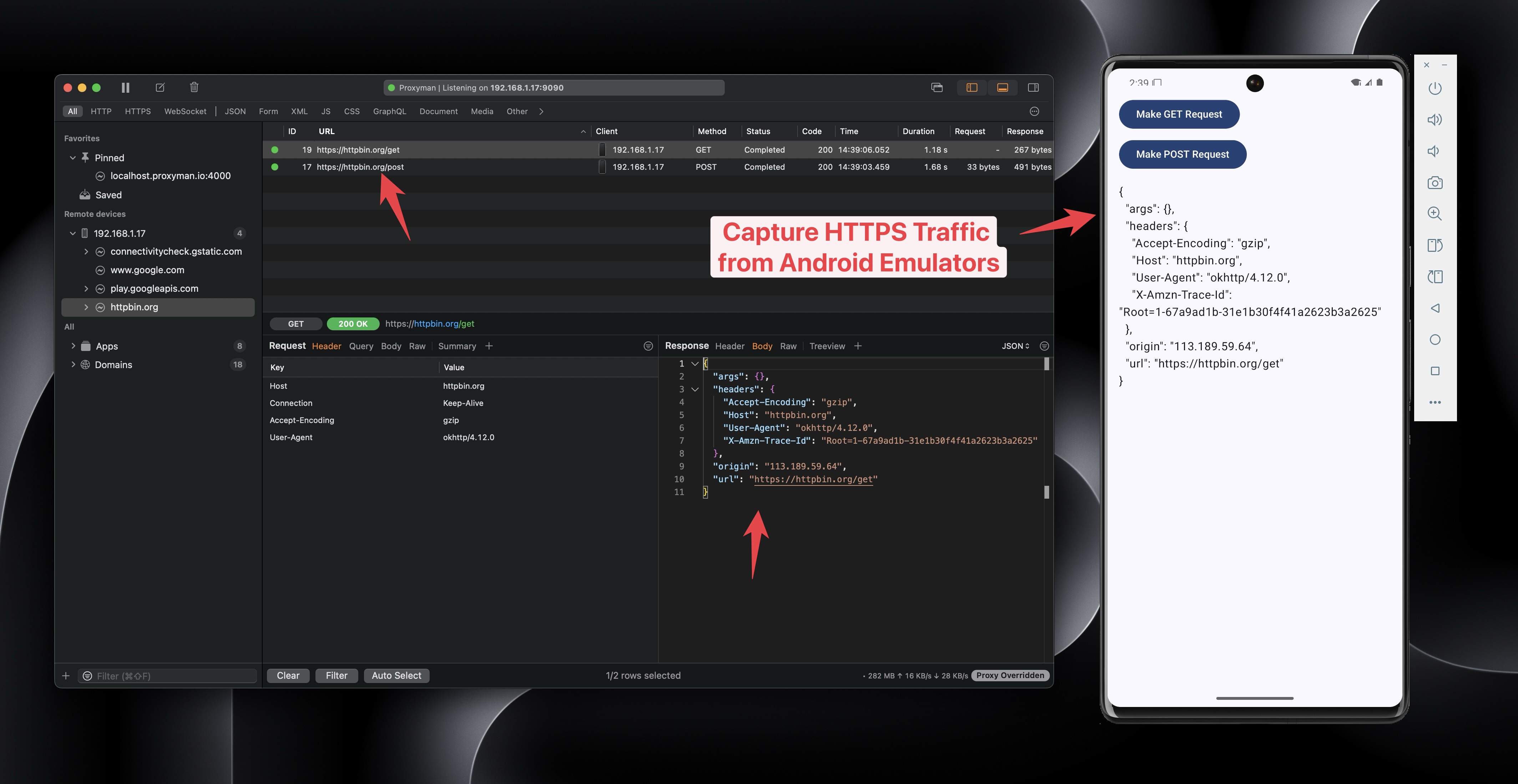
Proxyman으로 Android 에뮬레이터의 HTTPS를 캡처하고 복호화
- Proxyman 인증서를 시스템 수준 저장소에 설치합니다.
✅ Flutter / React Native 앱
Proxyman macOS 6.4.0 이상에서는 코드 변경 없이 Flutter 앱의 HTTPS 트래픽을 캡처할 수 있습니다.
자세한 내용은 flutter.md 문서를 참고하세요.
3. 사용 방법
adb명령이 설치되어 있는지 확인하세요. 설치되어 있지 않다면 설치하세요.
brew install android-platform-tools
- Android Studio로 Android 앱을 여세요
- Android Virtual Device Manager에서 새 에뮬레이터를 만드세요. Google Play 이미지가 아닌지 확인하세요. 반드시 Google APIs 이미지여야 합니다.
- ✅ NEW: Proxyman으로 이제 Google Play Store 에뮬레이터도 루팅할 수 있습니다. google-play-android-emulator-with-magisk.md를 참고하세요.
-
Proxyman -> Certificate Menu -> Install Certificate on Android -> Emulators… -> Override All Emulators 버튼을 클릭하세요
-
Terminal 스크립트가 완료될 때까지 기다리세요
-
Android Studio에서 Android 앱을 다시 실행하세요
-
Proxyman이 모든 HTTPS 데이터를 캡처합니다 ✅
Proxyman을 종료한다면 Revert All Changes 버튼을 반드시 클릭하세요. 그렇지 않으면 Android 에뮬레이터가 인터넷에 접속할 수 없습니다.
4. ⚠️ Proxyman 5.15.0 이하
- Proxyman 5.15.0 이하에서는 Proxyman 인증서를 사용자 수준에만 설치할 수 있습니다.
- 따라서 다음 단계를 직접 수행해야 합니다:
- 소스 코드에서:
- res/xml/network_security_config.xml 추가
<network-security-config>
    <debug-overrides>
        <trust-anchors>
            <!-- Trust user added CAs while debuggable only -->
            <certificates src="user" />
            <certificates src="system" />
        </trust-anchors>
    </debug-overrides>

    <base-config cleartextTrafficPermitted="true">
        <trust-anchors>
            <certificates src="system" />
            <certificates src="user" />
        </trust-anchors>
    </base-config>
</network-security-config>
- AndroidManifest.xml에 추가
<?xml version="1.0" encoding="utf-8"?>
<manifest xmlns:android="http://schemas.android.com/apk/res/android"
    xmlns:tools="http://schemas.android.com/tools">

    <uses-permission android:name="android.permission.INTERNET" />

    <application
        android:networkSecurityConfig="@xml/network_security_config">
        <activity
            ...
        </activity>
    </application>

</manifest>
5. 고급: 스크립트 수동 실행
Privacy & Security에서 Automation 권한을 허용하지 않고도 Terminal 앱에서 스크립트를 수동으로 실행할 수 있습니다.
스크립트 경로:
/Applications/Proxyman.app/Contents/Frameworks/ProxymanCore.framework/Resources/install_certificate_android_emulator.sh
- Proxyman 5.19.0 이상
Usage: /Applications/Proxyman.app/Contents/Frameworks/ProxymanCore.framework/Resources/install_certificate_android_emulator.sh -m <mode> [options]

Modes:
  all             Set proxy and install certificate
  proxy           Set proxy only
  revertProxy     Revert proxy settings only
  certificate     Install certificate only

Required Options based on Mode:
  -m, --mode <mode>              : Operation mode (all, proxy, revertProxy, certificate)
  -i, --ip <ip_address>          : IP address (required for all, proxy, certificate)
  -p, --port <port_number>       : Port number (required for all, proxy, certificate)
  -c, --cert <path_to_cert.pem>  : Path to Proxyman certificate (required for all, certificate)

Optional Options:
  --include-physical            : Include physical devices (default: only emulators)
  -h, --help                    : Show this help message
인증서 준비
- Proxyman 앱을 여세요
- 메인 툴바에서 현재 IP를 확인하세요
- Certificate 메뉴 -> Export -> Root Certificate as PEM -> 바탕화면 폴더에 저장
5.1 HTTP 프록시 설정 및 시스템 수준 저장소에 인증서 설치
- Proxyman v5.19.0 이상 (NEW)
bash /Applications/Proxyman.app/Contents/Frameworks/ProxymanCore.framework/Resources/install_certificate_android_emulator.sh --mode all --ip <current_ip> --port <port> --cert <certificate_path>
- Proxyman v5.18.0 이하
bash /Applications/Proxyman.app/Contents/Frameworks/ProxymanCore.framework/Resources/install_certificate_android_emulator.sh all <current_ip> <port> <certificate_path>
5.2 HTTP 프록시만 설정
- Proxyman v5.19.0 이상 (NEW)
bash /Applications/Proxyman.app/Contents/Frameworks/ProxymanCore.framework/Resources/install_certificate_android_emulator.sh --mode proxy --ip <current_ip> --port <port>
- Proxyman v5.18.0 이하
bash /Applications/Proxyman.app/Contents/Frameworks/ProxymanCore.framework/Resources/install_certificate_android_emulator.sh proxy <current_ip> <port>
5.3 HTTP 프록시 되돌리기
- Proxyman v5.19.0 이상 (NEW)
bash /Applications/Proxyman.app/Contents/Frameworks/ProxymanCore.framework/Resources/install_certificate_android_emulator.sh --mode revertProxy
- Proxyman v5.18.0 이하
bash /Applications/Proxyman.app/Contents/Frameworks/ProxymanCore.framework/Resources/install_certificate_android_emulator.sh revertProxy
6. 리프 인증서 만료 기간
6.1 문제: Android WebView에서 HTTPS를 가로챌 때 이 오류가 발생합니다
❗️ Android WebView가 ERR_CERT_VALIDITY_TOO_LONG 오류와 함께 연결을 거부합니다
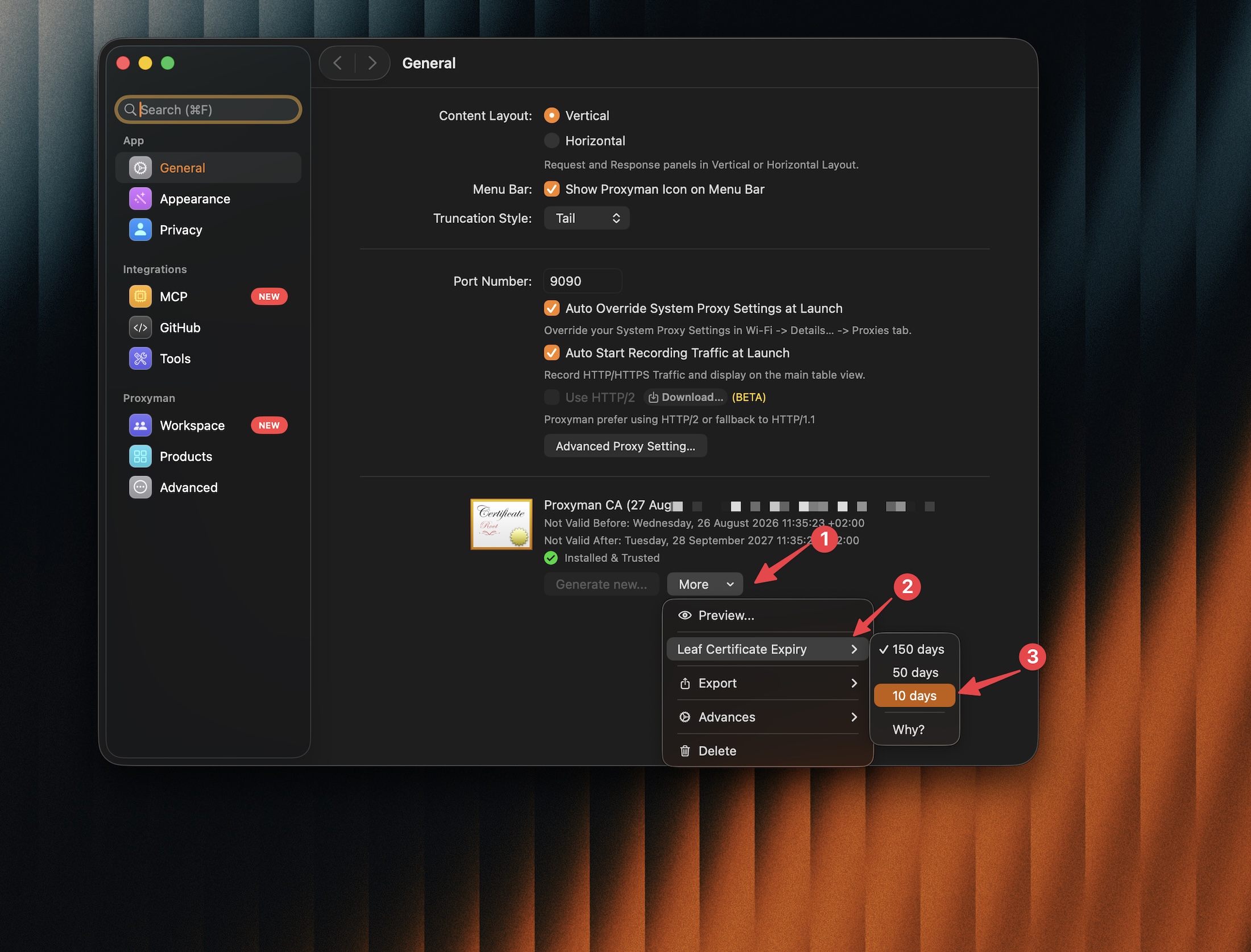
Proxyman Settings -> General -> 인증서 옆의 More -> Leaf Certificate Expiry에서 리프 인증서 만료 기간을 변경한 다음, 10일처럼 더 짧은 기간을 선택하세요.