Python requests·httpx HTTPS 트래픽 캡처 방법
이 튜토리얼에서는 디버깅 목적으로 Python requests 또는 httpx 라이브러리의 HTTPS 트래픽을 캡처하는 방법을 소개합니다.
이 튜토리얼에서 다룰 내용은 다음과 같습니다:
- Proxyman 설정하기
- ✅ 코드를 전혀 바꾸지 않고 Python 코드의 HTTP/HTTPS 요청과 응답 캡처하기
requests및httpx라이브러리에서 동작합니다
이 튜토리얼의 소스 코드는 여기에서 확인할 수 있습니다.
사전 준비 사항
- Python 3.12.0
- requests 또는 httpx 라이브러리
- Proxyman macOS (Proxyman.com에서 다운로드)
시작하기
- Proxyman.com에서 Proxyman을 다운로드하세요.
- Proxyman을 열고 macOS 기기에 인증서를 설치하세요. 인증서는
Proxyman > Certificate Menu -> Install for macOS -> Follow the instruction에서 찾을 수 있습니다. - Proxyman → Setup Menu → Automatic Setup에서 "Open new Terminal" 버튼을 클릭하세요.
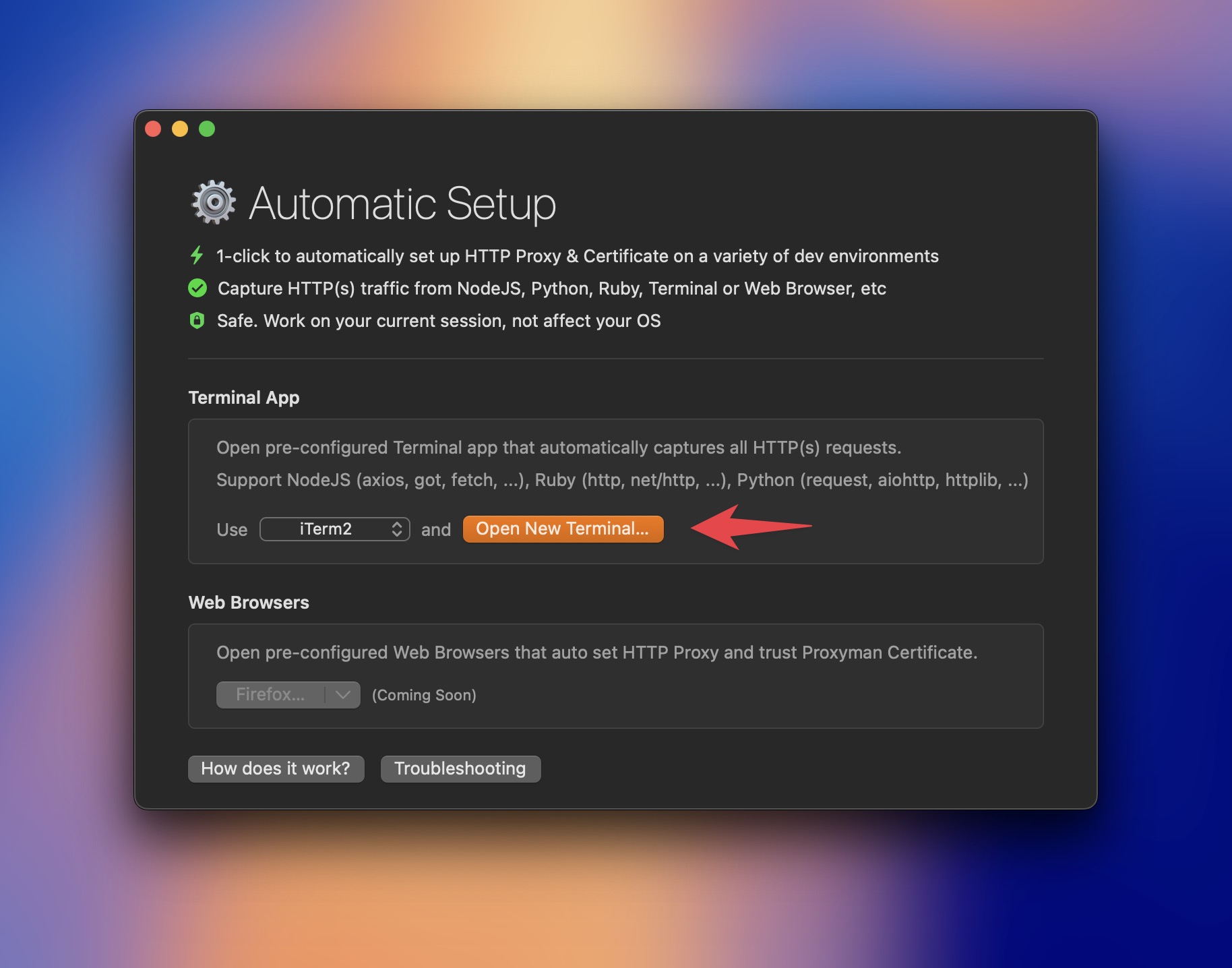
팁 #1: 열릴 터미널을 선택할 수 있습니다. iTerm, Terminal, Hyper 등을 지원합니다.
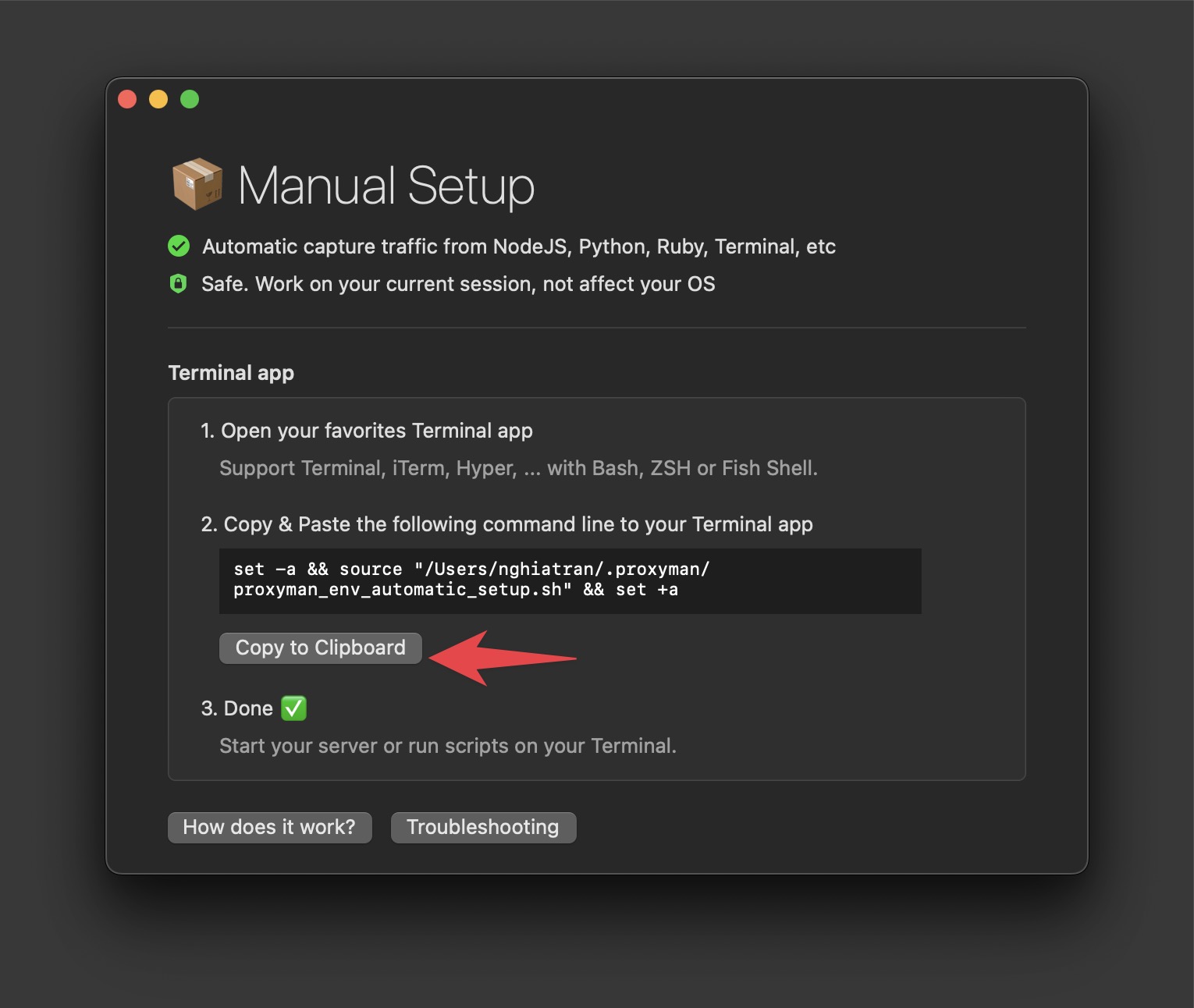
팁 #2: 직접 사용하는 터미널을 쓰고 싶다면 Setup Menu → Manual Setup을 열고 명령어를 복사한 다음, 터미널을 열어 명령어를 붙여 넣으세요.
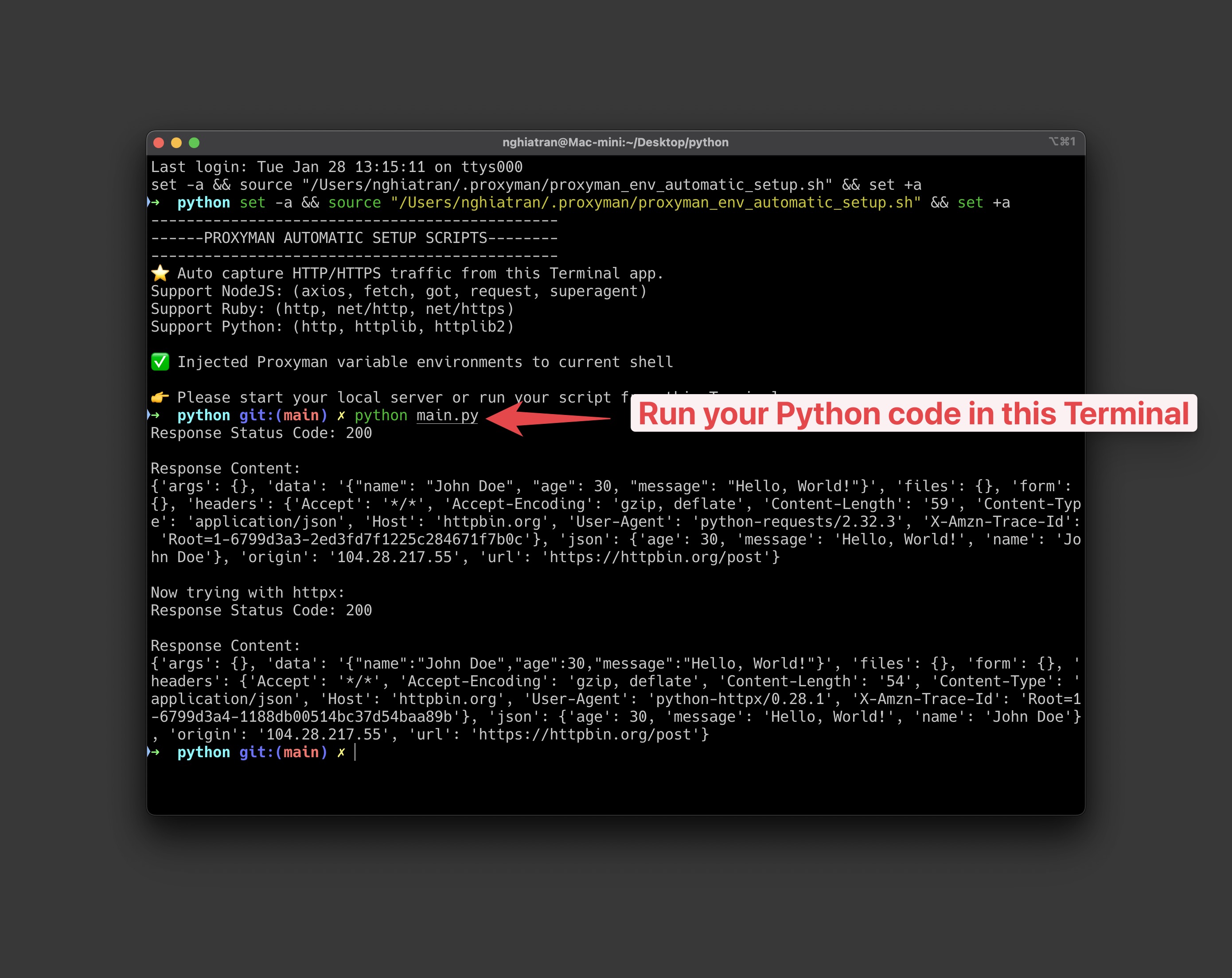
- 이 터미널에서 Python 코드를 실행하세요.
Python 코드가 없다면 소스 코드의 예제 코드를 사용할 수 있습니다.
pip install requests httpx
import requests
import httpx

def make_post_request(): # The URL we're sending the POST request to
url = 'https://httpbin.org/post'

    # Sample data to send in the POST request
    data = {
        'name': 'John Doe',
        'age': 30,
        'message': 'Hello, World!'
    }

    try:
        # Make the POST request
        response = requests.post(url, json=data)

        # Ensure the request was successful
        response.raise_for_status()

        # Print the response
        print("Response Status Code:", response.status_code)
        print("\nResponse Content:")
        print(response.json())

    except requests.exceptions.RequestException as e:
        print(f"An error occurred: {e}")

def make_post_request_httpx(): # The URL we're sending the POST request to
url = 'https://httpbin.org/post'

    # Sample data to send in the POST request
    data = {
        'name': 'John Doe',
        'age': 30,
        'message': 'Hello, World!'
    }

    try:
        # Create an httpx client
        with httpx.Client() as client:
            # Make the POST request
            response = client.post(url, json=data)

            # Ensure the request was successful
            response.raise_for_status()

            # Print the response
            print("Response Status Code:", response.status_code)
            print("\nResponse Content:")
            print(response.json())

    except httpx.RequestError as e:
        print(f"An error occurred while making the request: {e}")
    except httpx.HTTPStatusError as e:
        print(f"HTTP Error occurred: {e}")

if **name** == "**main**":
make_post_request()
print("\nNow trying with httpx:")
make_post_request_httpx()
실행합니다:
python main.py
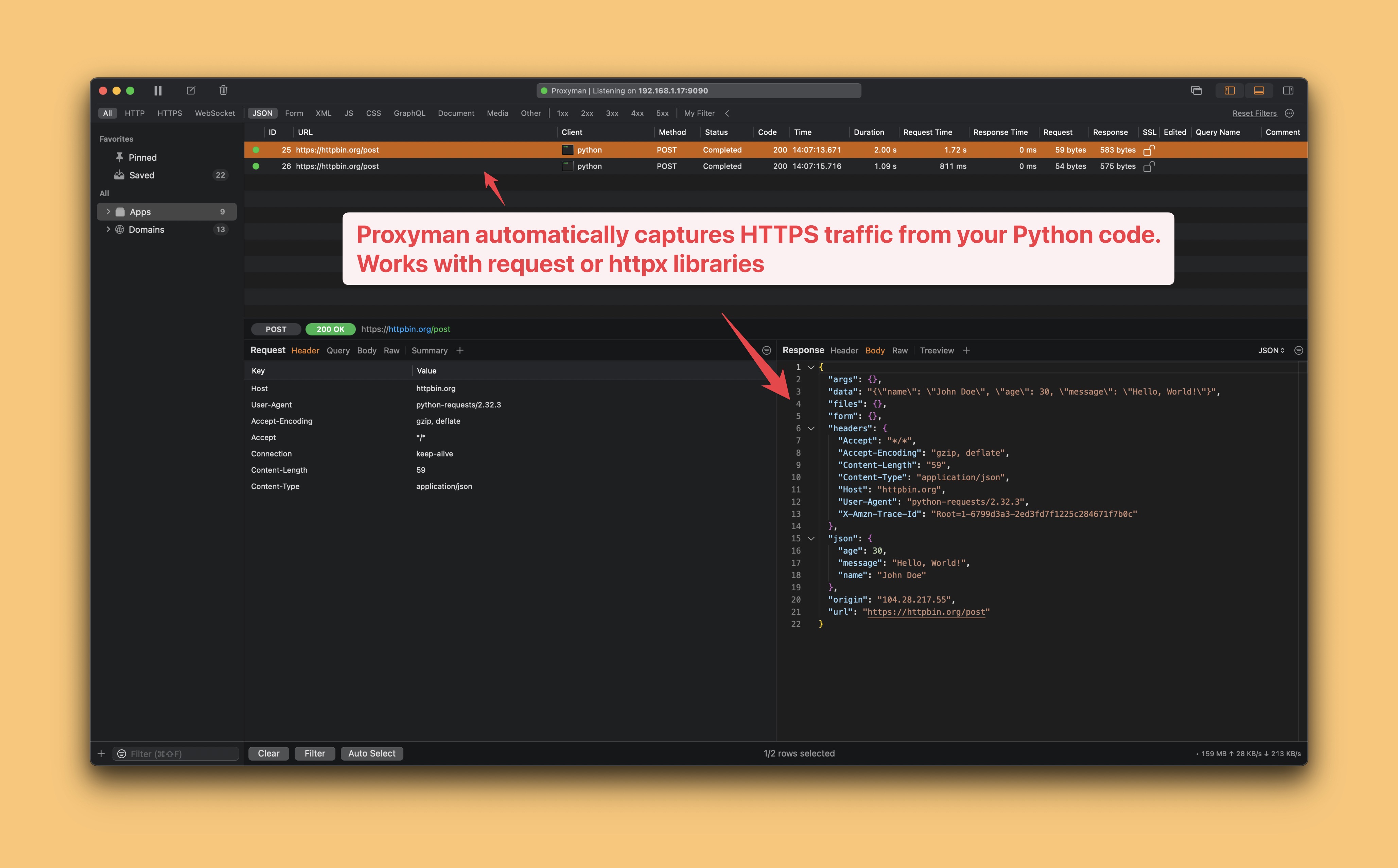
Proxyman에서 출력 결과를 확인할 수 있습니다.
- Proxyman이 Python 코드의 HTTP/HTTPS 트래픽을 자동으로 캡처합니다.
- 완료 ✅
요약
Proxyman을 사용하면 Python 코드의 HTTP/HTTPS 트래픽을 아주 쉽게 캡처할 수 있습니다. 코드를 수정할 필요가 없습니다.
그렇지 않으면 Proxyman 인증서를 신뢰하도록 소스 코드를 직접 수정하고 프록시 서버를 설정해야 하는데, 좋은 방법이 아닙니다.
다음 단계
Automatic Setup 또는 Manual Setup으로 Python, Ruby, NodeJS 코드의 HTTP/HTTPS 트래픽을 캡처할 수 있습니다. 코드를 수정할 필요가 없습니다.
프록시 설정은 Proxyman이 연 터미널에만 적용됩니다. 가상 환경을 활성화하고 같은 창에서 Python을 실행하세요. 호출이 보이지 않는다면, 클라이언트가 trust_env=False, 커스텀 트랜스포트, 또는 자체 프록시 설정으로 생성되었는지 확인하세요. 터미널을 닫으면 임시 설정이 끝나며, 셸 프로필은 변경되지 않습니다.