How to capture HTTPS traffic from Flutter apps on Android Emulators
Update: 12 Jan 2026
Proxyman 6.4.0 has introduced automatic setup for Android Emulators. You can now capture HTTPS traffic from Flutter apps on Android Emulators with just a few clicks.
Original Post
If you've tried capturing HTTPS traffic from a Flutter app on Android Emulators, you know the pain. Unlike iOS, Android makes this surprisingly difficult — and Flutter adds another layer of complexity on top.
This guide shows you how to do it properly with Proxyman 6.4.0.
The Problem
Debugging network calls from Flutter on Android Emulators is tricky for a few reasons:
- Flutter ignores system proxy settings — Dart's HttpClient doesn't use the system proxy by default, so setting up a proxy on your emulator won't help.
- Android's certificate trust — Since Android 7, user-installed certificates aren't trusted by default. You need to modify your app's network security config.
- Manual setup is tedious — Installing certificates via adb, configuring WiFi proxy, editing XML files... it's a lot of steps that can go wrong.
Proxyman 6.4.0 simplifies this with automatic setup for Android Emulators, but you still need to configure your Flutter code to route traffic through the proxy.
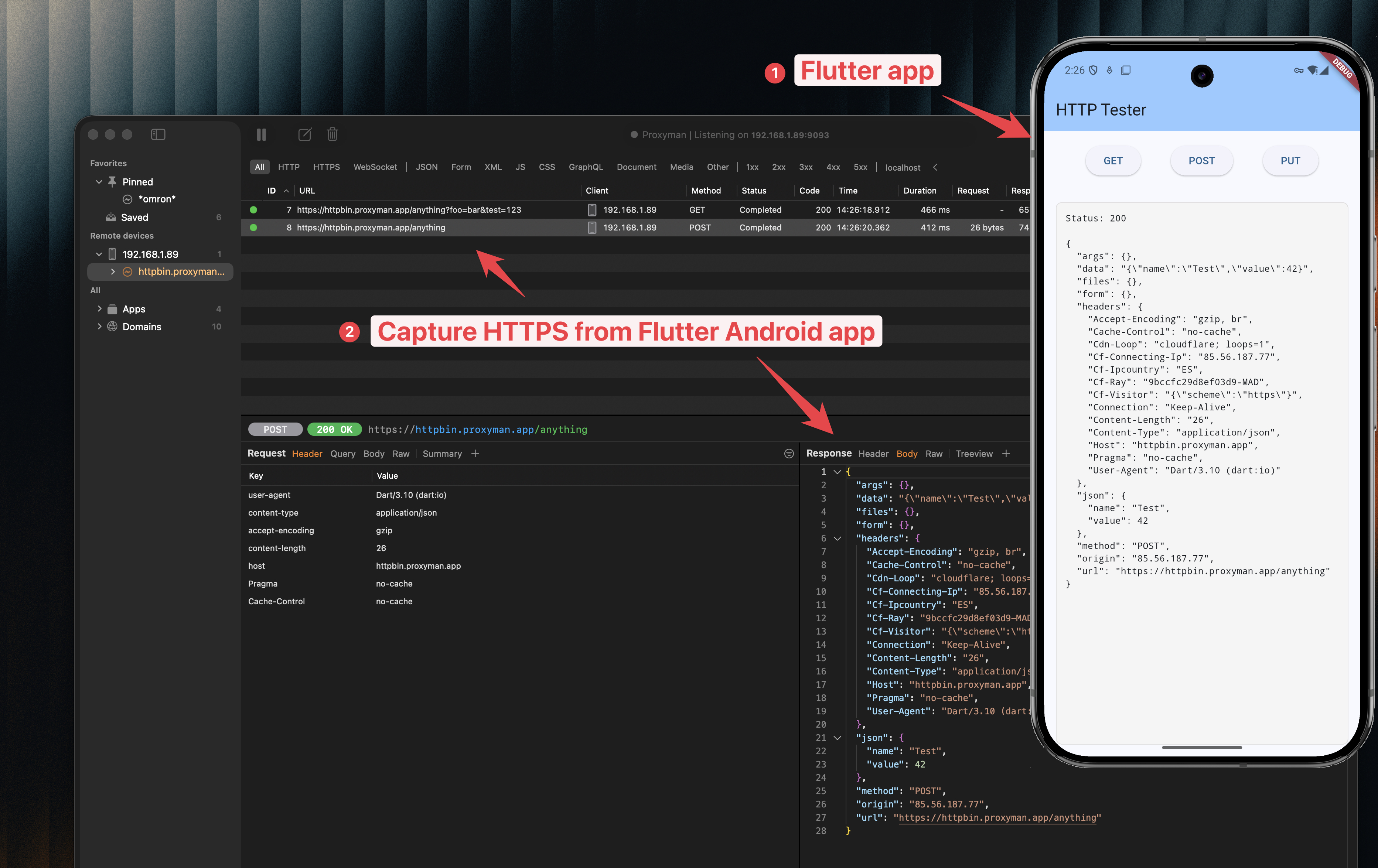
Prerequisites
- Proxyman macOS 6.4.0 or later
- Android Studio with an Android Emulator (API 24+)
- Your Flutter project
✅ New Solution
- Open your Android Emulator in Android Studio - make sure it's a Google APIs version, not a Play Store version.
- In Proxyman, go to Certificate Menu → Install Certificate on Android → Emulator
- Make sure the select "Install Proxyman VPN" checkbox is checked.
- Click on the "Override all Emulators" button.
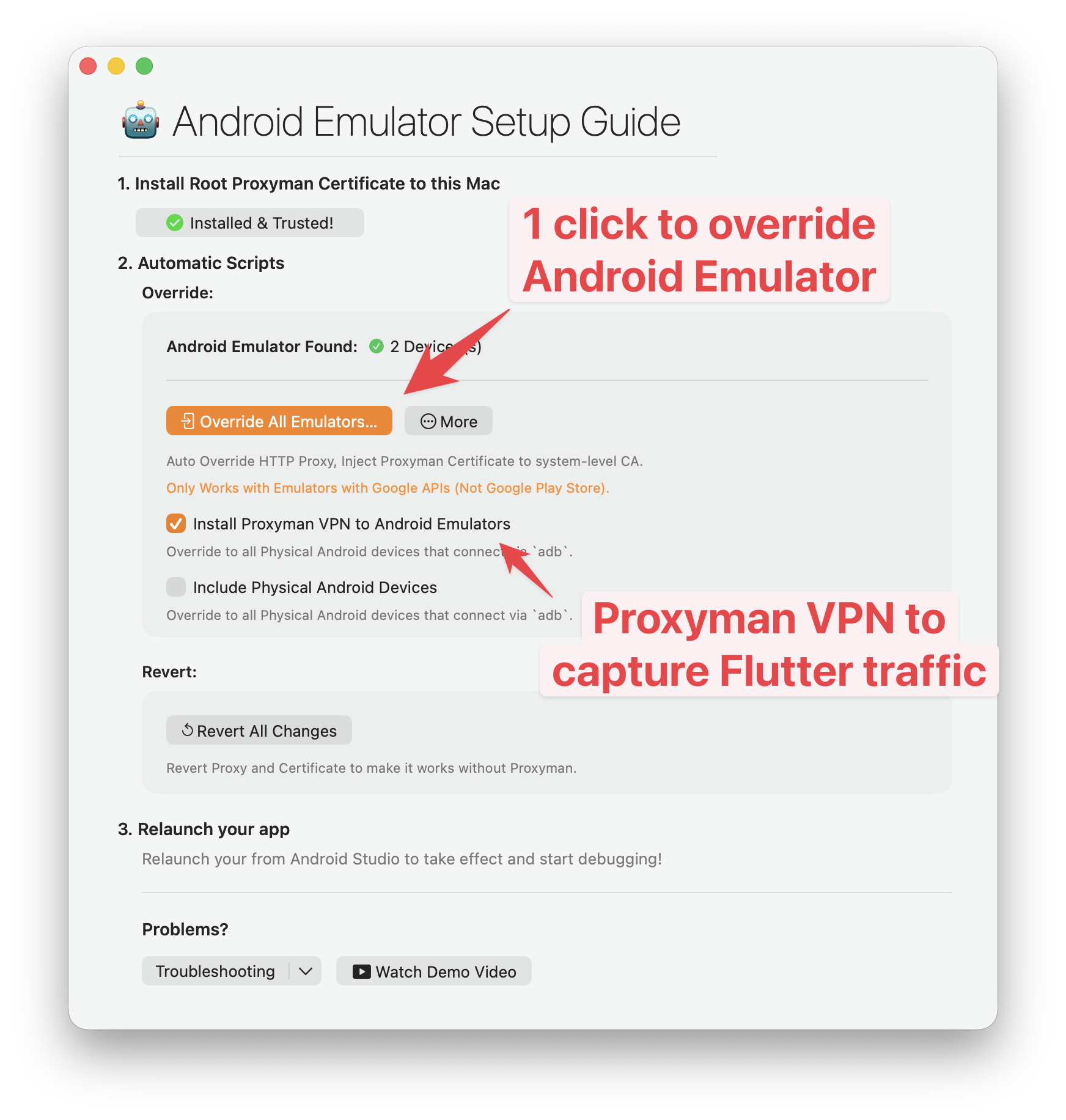
That's it. No manual adb commands, no navigating through Android Settings.
- At this point, a new local VPN will be installed on your Android Emulator. Let's click on the "Start" button to start the VPN.
- You should see the VPN is running and the status is "Connected".
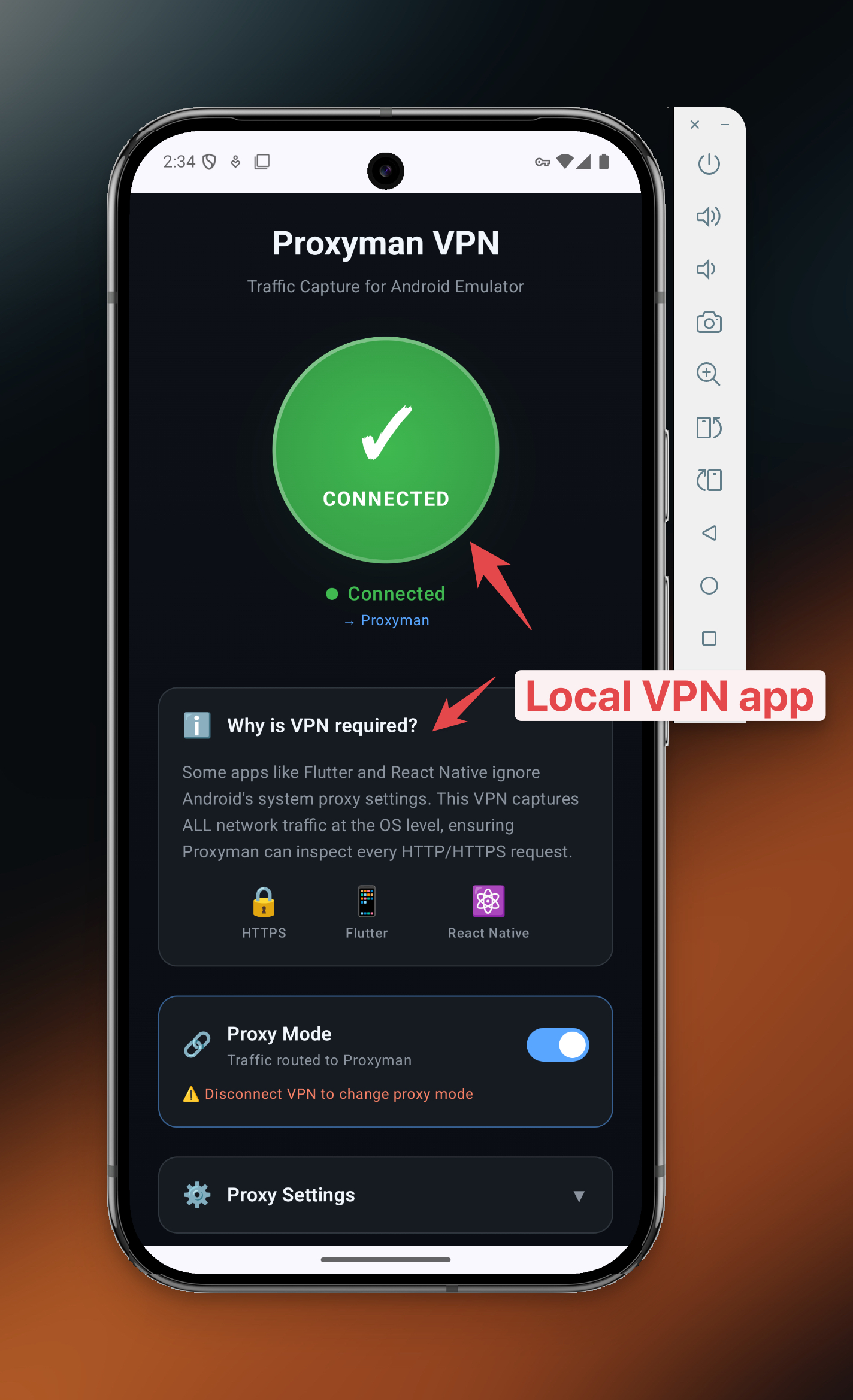
- Now, you can run your Flutter app on the Android Emulator.
- You should see the HTTPS traffic is captured by Proxyman.
⚠️ Old Solution
If you're using Proxyman 6.3.0 or earlier, you need to follow the old solution.
Step 1: Configure Proxy in Your Flutter Code
Flutter doesn't respect system proxy settings, so you need to manually configure the HTTP client in your code.
Here's how to do it depending on which HTTP library you're using:
Using http package
import 'dart:io';
import 'package:http/io_client.dart';

// Use your Mac's IP address (shown in Proxyman's Android setup guide)
// For emulator, you can use 10.0.2.2 which points to your host machine
String proxy = '10.0.2.2:9090';

HttpClient httpClient = HttpClient();

httpClient.findProxy = (uri) {
  return "PROXY $proxy;";
};

// Allow Proxyman's certificate
httpClient.badCertificateCallback =
  ((X509Certificate cert, String host, int port) => true);

IOClient myClient = IOClient(httpClient);

// Now use myClient for your requests
var response = await myClient.get(Uri.parse('https://api.example.com/data'));
Using Dio
import 'dart:io';
import 'package:dio/dio.dart';
import 'package:dio/io.dart';

String proxy = '10.0.2.2:9090';

Dio dio = Dio();

dio.httpClientAdapter = IOHttpClientAdapter(
  createHttpClient: () {
    final client = HttpClient();
    client.findProxy = (url) => 'PROXY $proxy';
    client.badCertificateCallback = (cert, host, port) => true;
    return client;
  },
);

// Now use dio for your requests
var response = await dio.get('https://api.example.com/data');
TIP: 10.0.2.2 is a special alias in Android Emulator that points to your host machine's localhost. This is the easiest way to connect to Proxyman running on your Mac.
Only enable badCertificateCallback during development. Remove it before shipping to production.
Step 2: Set Up Android Emulator with Proxyman
Now the easy part. Proxyman 6.4.0 can automatically configure your Android Emulator:
- Open your Android Emulator in Android Studio
- In Proxyman, go to Certificate Menu → Install Certificate on Android → Emulator
- Click on the "Override all Emulators" button.
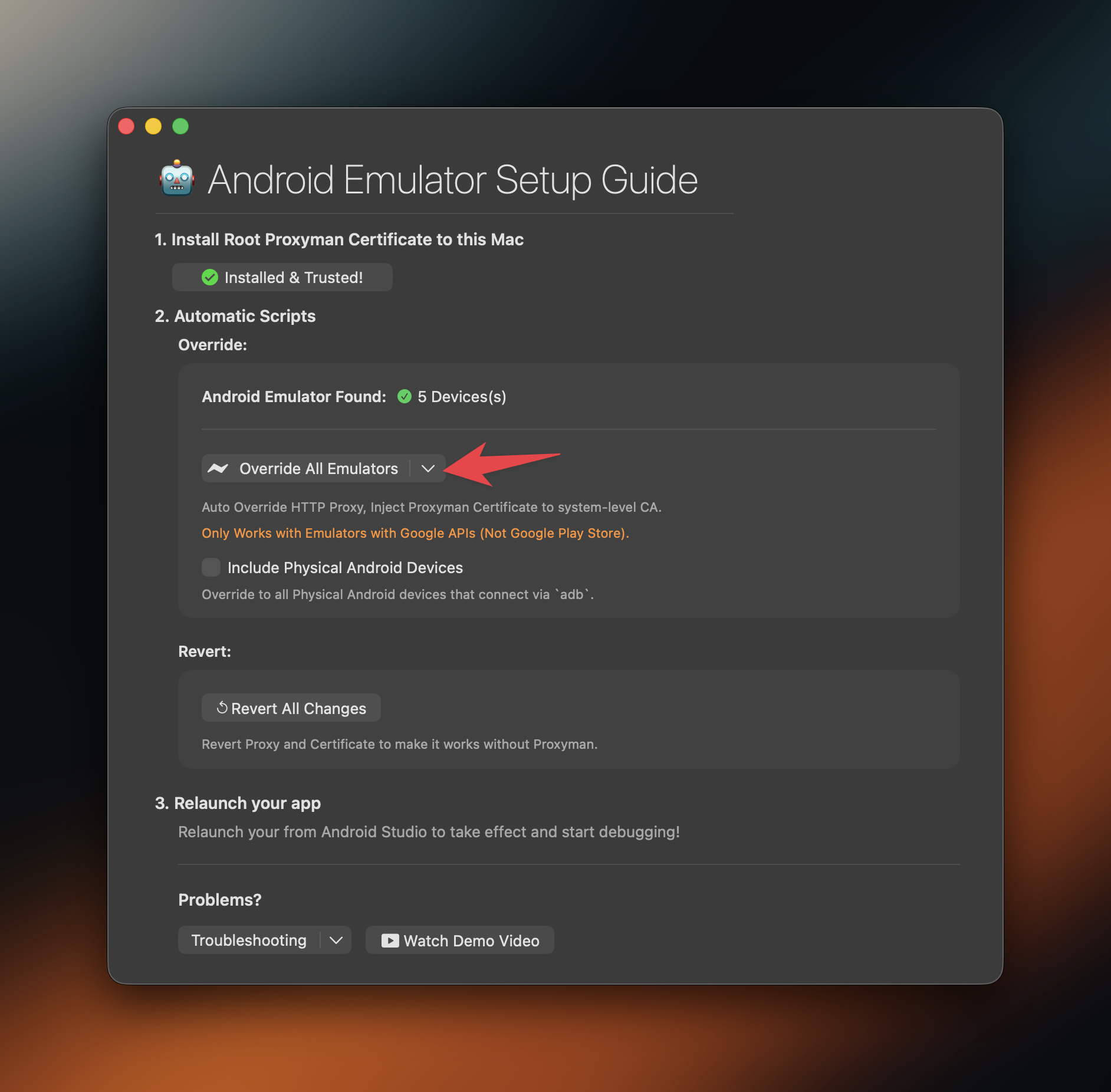
That's it. No manual adb commands, no navigating through Android Settings.
Step 3: Run Your Flutter App
- Make sure Proxyman is running
- Run your Flutter app on the Android Emulator:
flutter run
- Trigger some network requests in your app
- Check Proxyman — you should see the HTTPS traffic from your Flutter app
Don't forget to enable SSL Proxying for the domains you want to inspect. Right-click on a domain in Proxyman and select "Enable SSL Proxying".
Troubleshooting
I see traffic but it shows SSL errors
- If you use the old setup, confirm that your debug HTTP client accepts the Proxyman certificate
- Verify the certificate is installed: Android Settings → Security → Encryption & Credentials → Trusted Credentials → User tab
- Restart the emulator and try again
No traffic appears in Proxyman
- Double-check your proxy configuration in Flutter code
- Make sure you're using
10.0.2.2:9090(not localhost) - Verify Proxyman is running and listening on port 9090
App crashes or network requests fail
- Check that
badCertificateCallbackis set correctly - Make sure your emulator has internet access (try opening Chrome in the emulator)
Summary
Capturing HTTPS from Flutter on Android Emulators requires:
- Configure proxy in your Flutter HTTP client code
- Trust the Proxyman certificate only in your debug setup
- Use Proxyman's automatic setup for Android Emulator
- Run your app and inspect traffic
Once set up, you can use all of Proxyman's debugging tools — Breakpoint, Map Local, Scripting — to test and debug your Flutter app's network layer.
When you finish, use Revert All Changes in the Android Emulator setup window or remove the test VPN and proxy from the emulator. Never ship badCertificateCallback or a rule that accepts every certificate. Those shortcuts are useful for a local debug build, but they make a release build unsafe.
What's Next?
- Capture HTTPS from Flutter iOS apps — Similar guide for iOS Simulator and devices
- Android Emulator setup guide — Detailed walkthrough for native Android apps
- Capture HTTPS from React Native apps — If you're also working with React Native
- Proxyman Flutter Documentation — Full technical reference
Proxyman is a high-performance macOS/Windows/Linux app that helps developers capture and inspect HTTP/HTTPS traffic from iOS, Android, simulators, and emulators.
Get it at https://proxyman.com