How to capture HTTPS traffic from an Android API 36 Google Play Emulator with Proxyman and Magisk?
This tutorial will show you how to capture and decrypt HTTPS traffic from an Android 16 API 36 Google Play Emulator with Proxyman and Magisk.
The problem
Android Studio provides two common Emulator images:
- Google APIs image: Supports the normal
adb rootcommand, but does not include the Google Play Store. - Google Play image: Includes the Play Store, but does not allow the normal
adb rootcommand.
Proxyman needs to install its certificate in the Android system certificate store to decrypt HTTPS traffic from all apps. On a Google Play Emulator, the normal setup cannot get root access and cannot copy the certificate into the system store.
The result is:
- Proxyman may capture HTTP traffic, but HTTPS traffic remains encrypted.
- Some apps may show an SSL or certificate error.
- Apps installed from Google Play may not trust the Proxyman certificate.
You can root the Emulator with Magisk manually, but the setup is difficult. You need to download Magisk, patch the Emulator ramdisk, start the Emulator with the patched image, configure root access, install the certificate, and restore everything when you finish. It takes many manual steps and is easy to get wrong.
Proxyman 6.14.0 adds a new Magisk option for Google Play Emulators. You can now complete the setup from the Android Emulator Guide in a few clicks.
Here is what we achieve in this tutorial:
- ✅ Override the Google Play Store Emulator with 1 click
- ✅ Automatically use the latest supported Magisk version to root the Emulator
- ✅ Capture HTTP and HTTPS traffic from apps installed from Google Play
- ✅ Use an Android 16 API 36 Google Play Emulator
- ✅ Let Proxyman set the HTTP proxy and install its certificate in the system store
- ✅ No need to change your Android app code
Prerequisites
- Proxyman macOS 6.14.0 or later
- Android Studio
- Android Debug Bridge (
adb) - An Android 16 API 36 Emulator with a Google Play system image
1. Set up Proxyman
- Download the latest Proxyman macOS app from the Proxyman website.
- Open Proxyman.
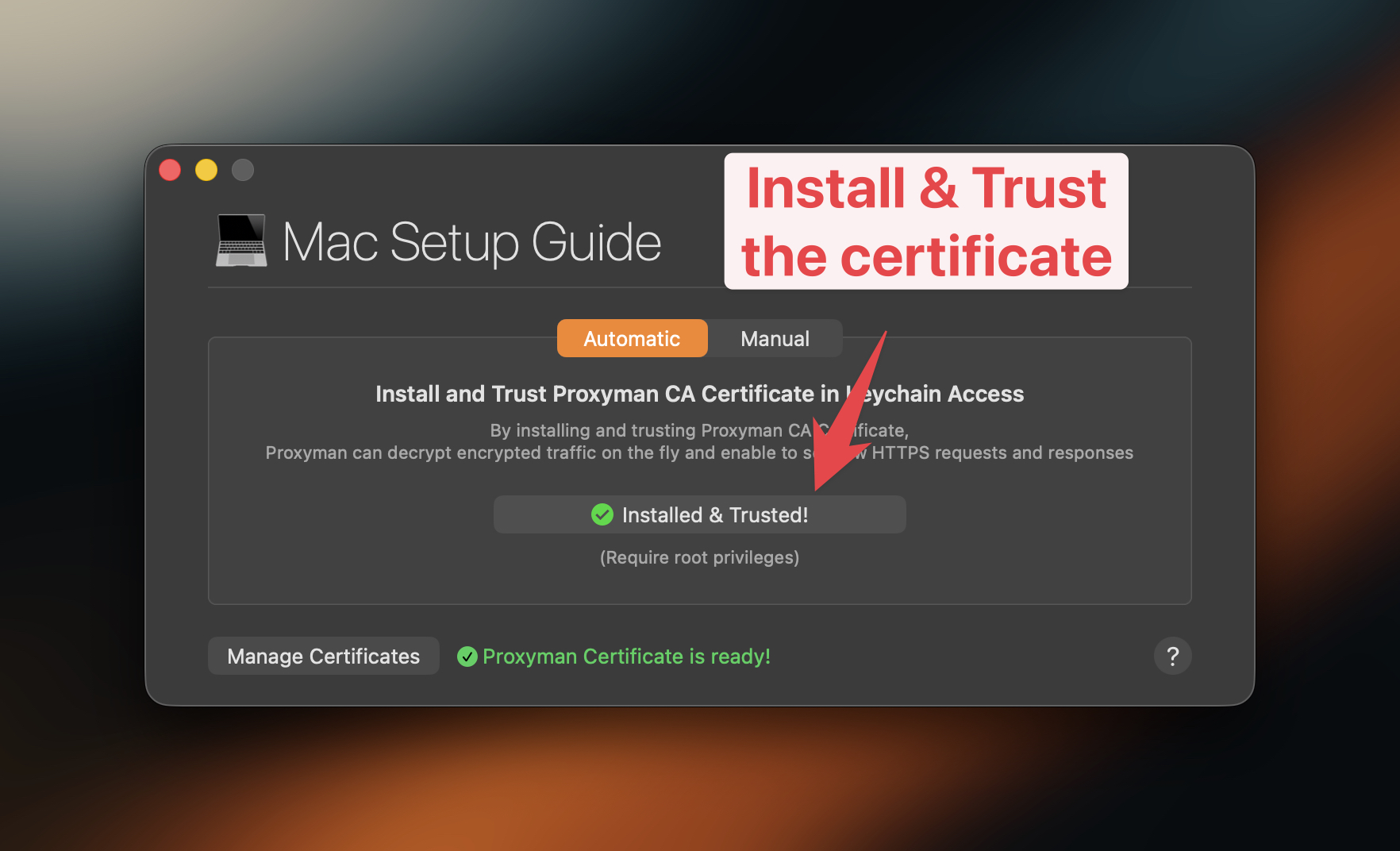
- Go to
Certificate->Install Certificate on this Mac. - Follow the guide to install and trust the Proxyman certificate.
- Make sure you can see the green Installed & Trusted status.
2. Create an Android API 36 Google Play Emulator
- Open Android Studio.
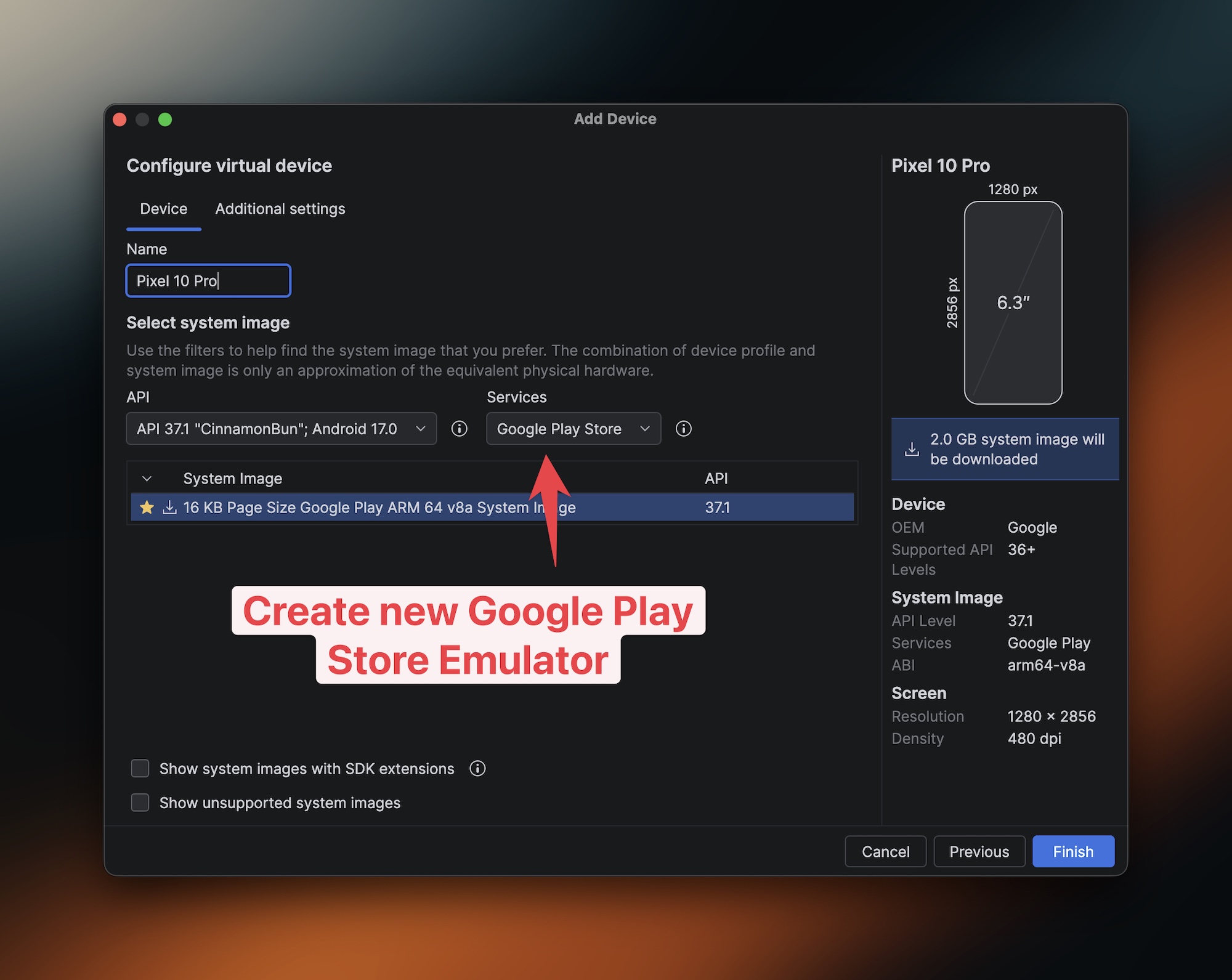
- Open Device Manager and create a new virtual device.
- Select a Pixel device.
- Select Android 16, API 36 with the Google Play system image.
- Finish the setup and start the emulator.
This time, you should select the Google Play image. The Play Store app will be available inside the emulator.
3. Enable the Magisk option in Proxyman
- Keep the Android Emulator open.
- In Proxyman, go to
Certificate->Install Certificate on Android->Emulators. - Make sure Proxyman can find your emulator.
- Check Root Google Play Emulators with Magisk.
- Click Override All Emulators.
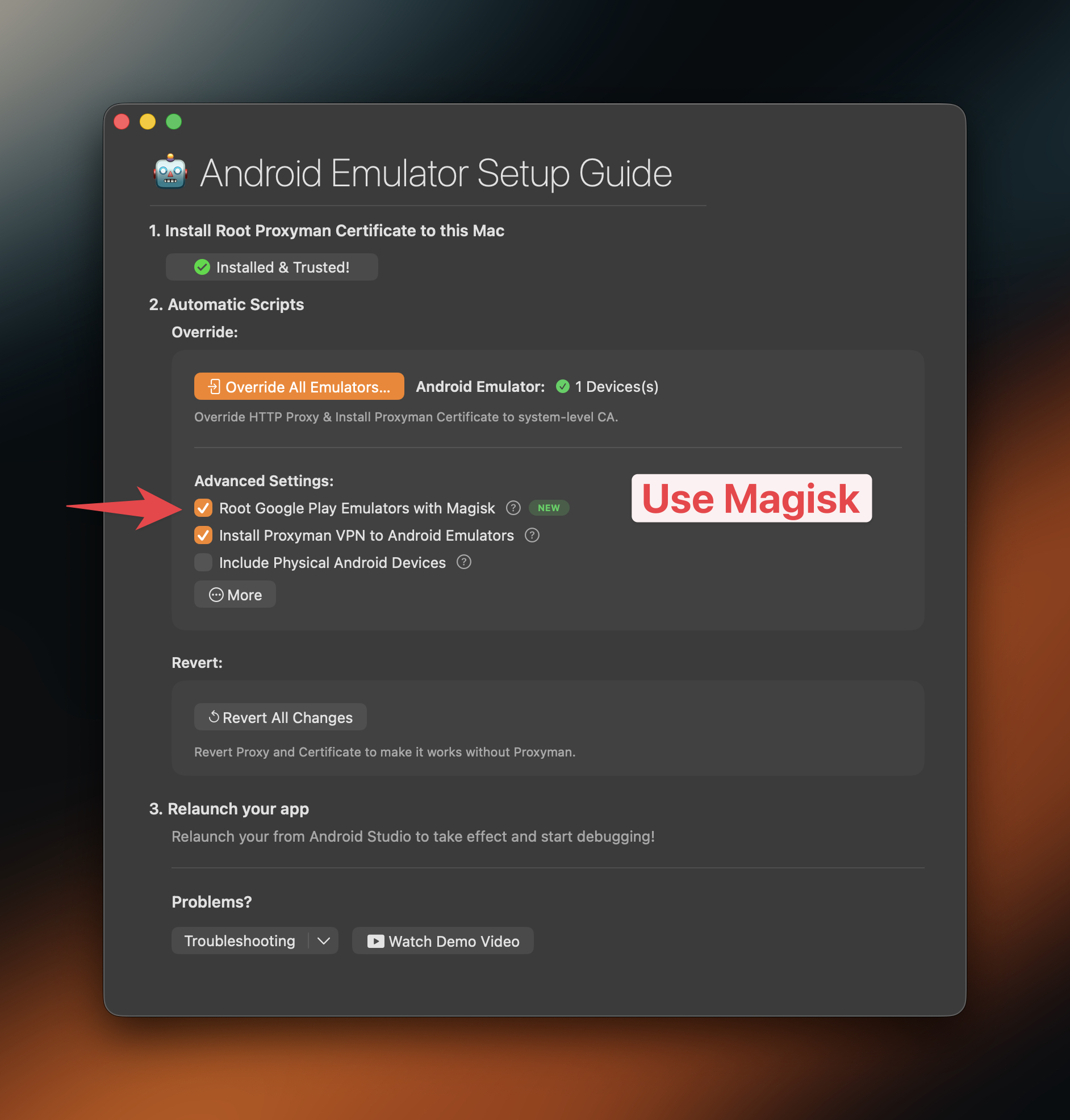
The Root Google Play Emulators with Magisk option is the important new step. Without it, a Google Play Emulator does not allow Proxyman to install the certificate in the Android system store.
A Terminal window will open. Proxyman will explain the changes and ask for your permission. Type y and press Return to continue.
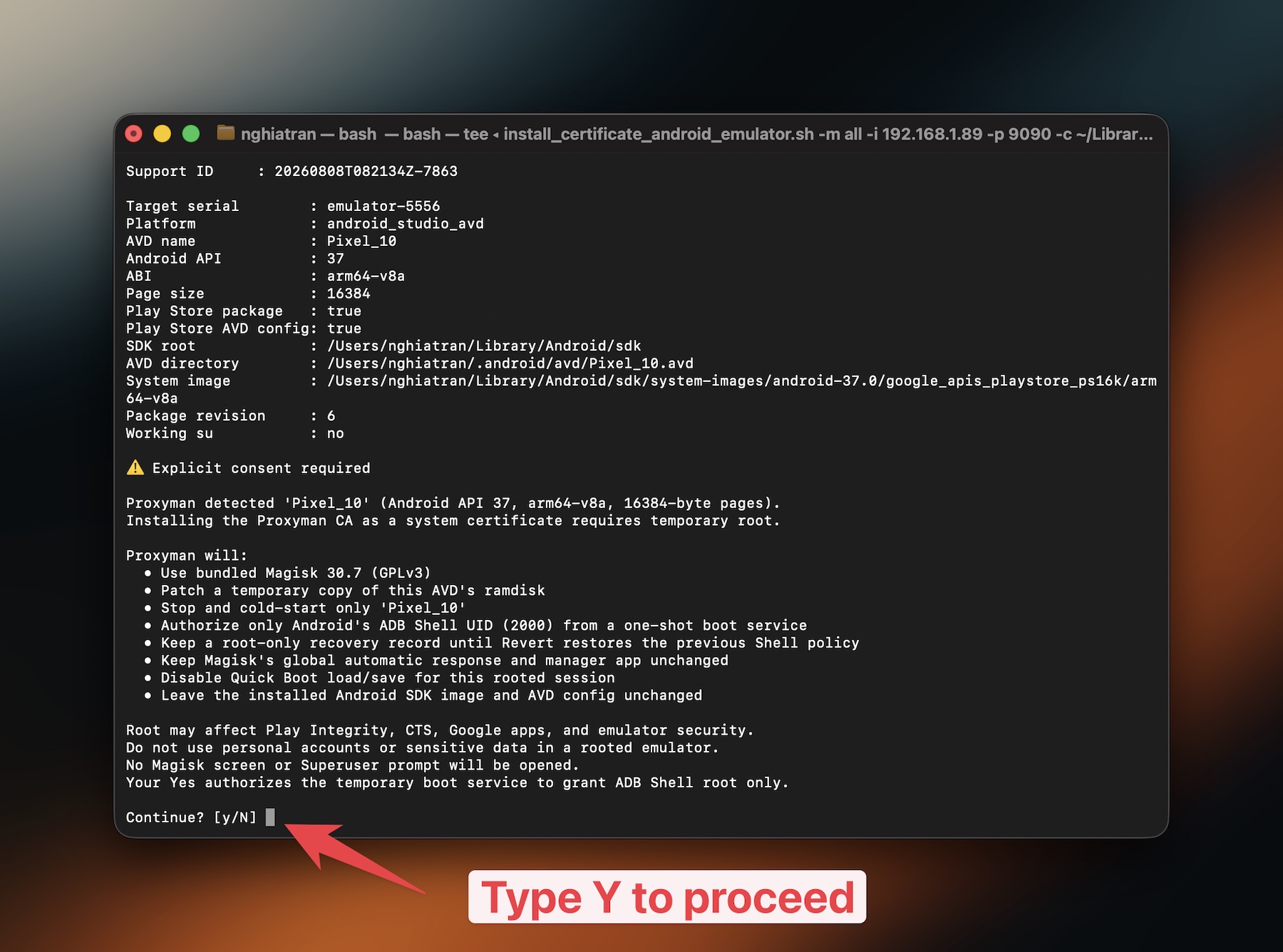
The script will:
- Temporarily root the Google Play Emulator with Magisk
- Restart the emulator
- Set its HTTP proxy to Proxyman
- Install the Proxyman certificate in the Android system store
Wait until the Terminal script is complete and the emulator has restarted.
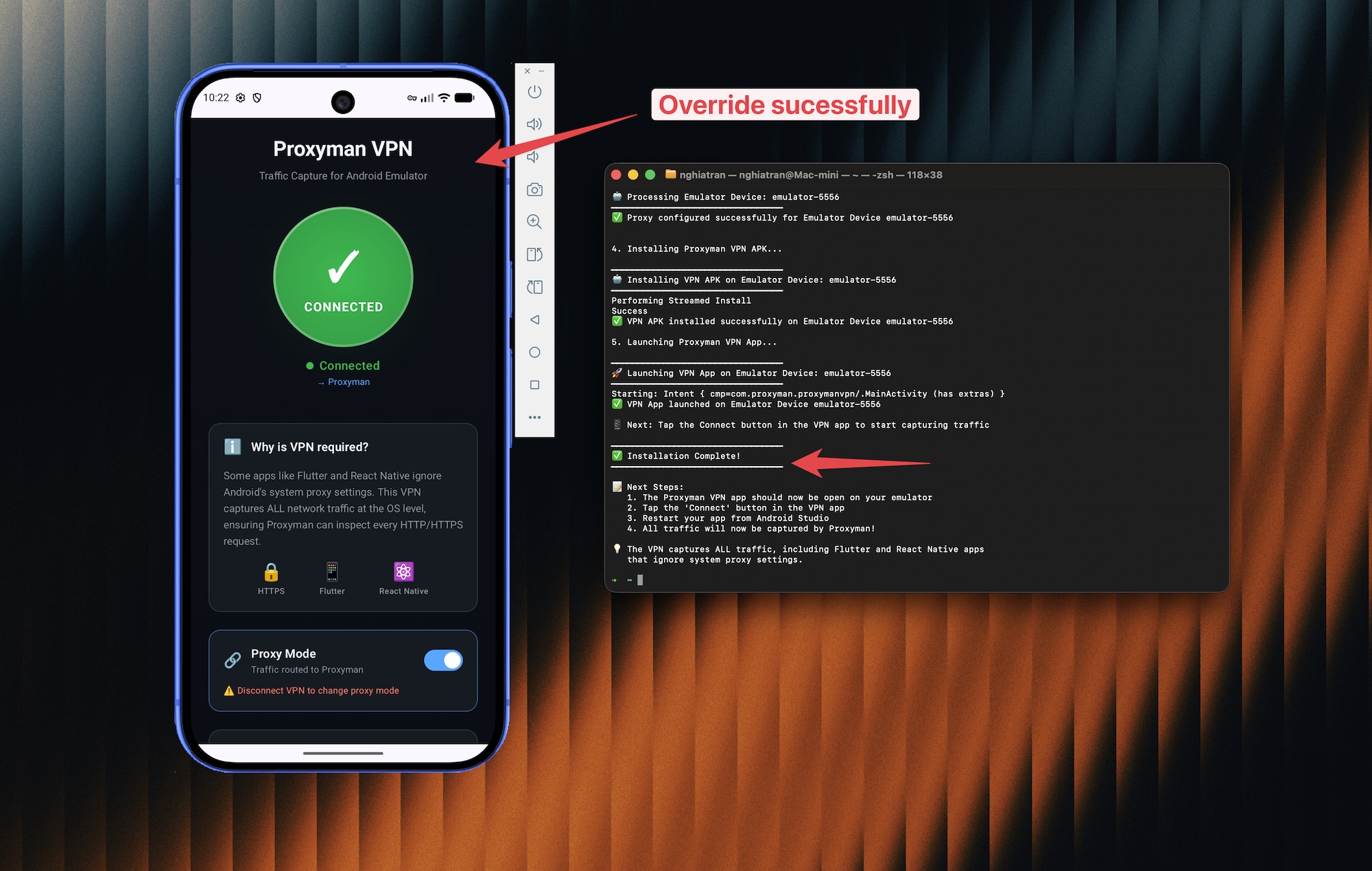
Magisk root is temporary, but it can affect Play Integrity, Google apps, and apps that check for root. Use a test emulator and do not add personal accounts or sensitive data.
4. Capture HTTPS traffic
- Open the Play Store in the emulator.
- Install or open the app you want to test.
- Use the app and return to Proxyman.
- You can now see its HTTP and HTTPS requests and responses.
If a request is still encrypted, select it in Proxyman and enable SSL Proxying. Then close and reopen the Android app.
You can capture traffic from your own Android app, Google Chrome, YouTube, and many other apps installed from Google Play.
Some apps use SSL pinning. Installing the Proxyman certificate does not bypass SSL pinning. Only inspect apps and traffic that you are allowed to test.
5. Revert the emulator
When you finish testing:
- Open the Android Emulator Guide in Proxyman again.
- Click Revert All Changes.
- Confirm the action in Terminal.
- Wait for the emulator to restart with its normal system image.
This removes the temporary Magisk root and clears the proxy setup. Always revert the changes before you close Proxyman. Otherwise, the emulator might not be able to access the Internet.
Troubleshooting
Proxyman cannot find the emulator
Run adb devices in Terminal. Make sure the emulator appears as an emulator-#### device. If it does not appear, restart Android Studio and the emulator.
The Magisk script does not finish
Open Android Studio Device Manager, use Cold Boot Now, wait for Android to start, and try again. Make sure you are using an official Android Studio Google Play image.
The app stops working after Magisk is enabled
The app may check for root or Play Integrity. Click Revert All Changes and test with an app that supports rooted emulators.
What's next?
- Read the Android Emulator Automatic Script documentation.
- Download the sample Android app to test a simple HTTPS request.
Proxyman is a high-performance macOS app that helps developers capture and inspect HTTP, HTTPS, and WebSocket traffic from Android devices, Android Emulators, iOS devices, iOS Simulators, and web browsers.
Get it at https://proxyman.com