TCP Viewer: Best alternative to Wireshark for Mac
Wireshark can inspect almost any kind of network traffic. It can also feel like too much app when you only need to capture traffic on a Mac, find one connection, and inspect it.
TCP Viewer takes a smaller, more focused approach. It is a native macOS packet viewer made by the Proxyman team. It keeps the familiar parts of packet analysis and removes much of the busy setup around them.
That is why we think TCP Viewer is the best alternative to Wireshark for many Mac developers. It does not try to replace every advanced Wireshark tool. It makes everyday packet work easier.
TCP Viewer is a good fit when you want to:
- Capture TCP, UDP, DNS, TLS, WebSocket, and other network packets.
- Find traffic from one Mac app or domain.
- Inspect decoded fields and raw bytes.
- Follow a TCP or UDP stream.
- Open and export PCAP or PCAPNG files.
1. A native macOS app, built on Wireshark libraries
This is the best part of TCP Viewer.
- TCP Viewer is a native macOS app.
- Its interface follows familiar Mac patterns.
- It is built on top of Wireshark libraries for packet analysis.
- The bundled Wireshark engine decodes protocols, fields, values, and byte ranges.
- Selecting a decoded field highlights its matching raw bytes.
You get Wireshark-grade packet details without spending the whole day inside a dense cross-platform interface. The packet list, sidebar, inspector, and Follow Stream window all feel at home on macOS.
2. Group packets by app and domain
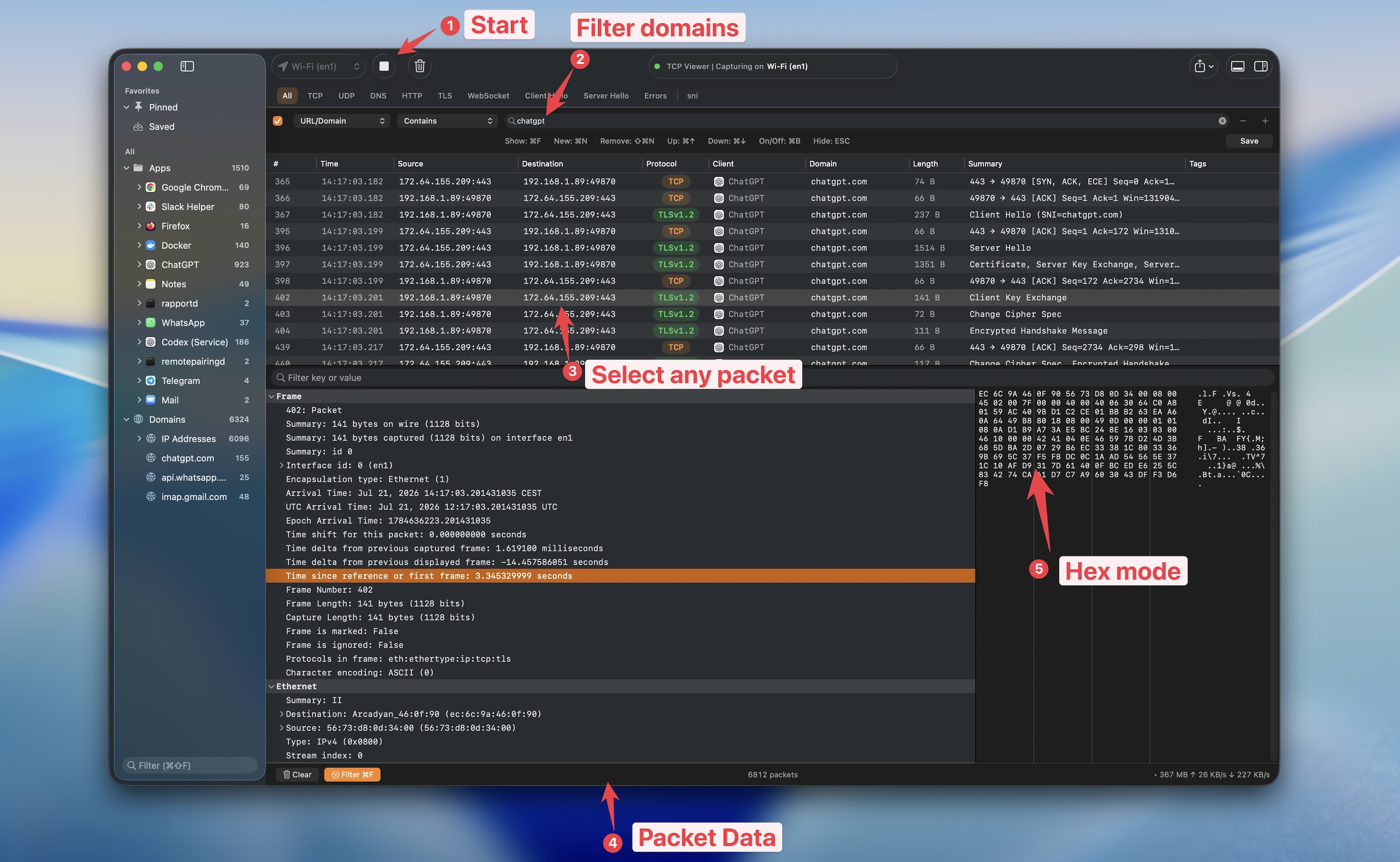
A long packet list becomes noisy fast. TCP Viewer gives you a sidebar that groups traffic by the things you already know.
- Open an app to see the domains and IP addresses it contacted.
- Select a domain to show its related packets.
- Search the sidebar instead of reading every packet row.
- Pin an important app or domain for quick access with TCP Viewer PRO.
- Export only the traffic inside a selected group.
This is useful when you know that Safari, Docker, or your own app made the request, but you do not know its source address or port yet.
See how app and domain grouping works.
3. Use Wireshark filters and inspect the result
TCP Viewer supports Wireshark display-filter syntax. You can paste a filter you already use, such as:
tcp.port == 443 and ip.addr == 192.168.1.10
The filter changes what you see. It does not remove packets from the capture.
You can also use simpler controls for common work:
- Filter by TCP, UDP, DNS, TLS, or another protocol.
- Match an app, domain, address, port, stream, or decoded field.
- Find packets with decode errors.
- Clear the filter to bring every hidden packet back.
After you find the right packet, open its protocol tree. You can search fields, copy values, inspect raw bytes, or add a useful field as a packet-table column.
4. Follow the whole TCP conversation
One application message may be split across many packets. Reading those rows one by one is painful.
TCP Viewer's Follow Stream window puts the conversation back together.
- View both directions together.
- Show only client-to-server or server-to-client data.
- Switch between readable text and exact hex bytes.
- Search the stream and move through each match.
- Jump from a stream record back to its source packet.
- Save the transcript or export the raw bytes.
The same window can inspect a UDP flow. Encrypted TLS, QUIC, and DTLS data stays encrypted, so the text view may still show ciphertext.
Learn how to follow TCP and UDP streams.
5. Open, review, and export capture files
TCP Viewer works with standard packet files, so it does not lock your capture into one app.
- Drag in a PCAP or PCAPNG file.
- Review it with the same sidebar, filters, and packet inspector.
- Export the full capture or a smaller group.
- Open that exported file in TCP Viewer, Wireshark, or another compatible tool.
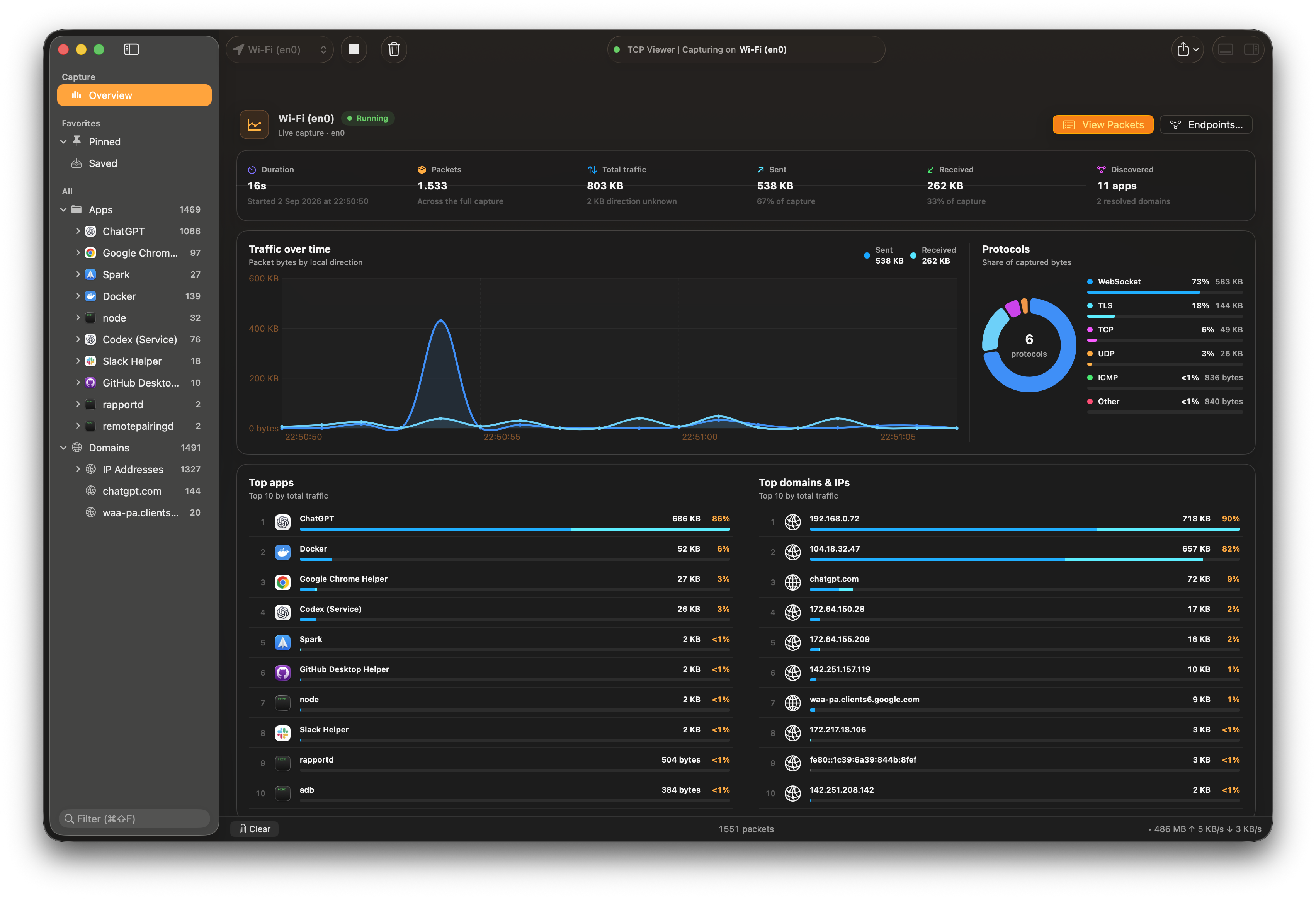
The Overview screen also gives you a quick read of the capture. It shows packet totals, traffic over time, protocol use, and the busiest apps and destinations.
When should you still use Wireshark?
Wireshark remains an excellent tool. Use it when you need:
- Deep specialist analysis across many protocols.
- A broad set of statistics and expert views.
- Cross-platform work on macOS, Windows, and Linux.
- A shared tool that a network or security team already knows well.
TCP Viewer is the better fit when your daily work looks like this:
- Capture packets on an Apple silicon Mac.
- Find traffic by app or domain.
- Use a clean Mac interface.
- Inspect Wireshark-grade packet details.
- Send a smaller PCAP file to Wireshark only when the case needs more depth.
That last point matters. You do not have to choose one tool forever. TCP Viewer can handle the quick capture and first review. Wireshark can take over for the rare, deeper investigation.
Try TCP Viewer
TCP Viewer runs on Apple silicon Macs with macOS 15 or later.
- Download TCP Viewer.
- Choose a network interface.
- Start a capture.
- Select an app, domain, or protocol.
- Open a packet and inspect its decoded fields.
For everyday packet debugging on a Mac, this is the Wireshark alternative we wanted to use ourselves.