How to use Proxyman MCP with Codex and Claude Code
Here is what we achieve in this tutorial:
- Download and setup Proxyman
- Connect Codex or Claude Code to Proxyman with MCP
- Keep sensitive traffic data private before it is sent to your AI agent
- ✅ Ask your agent to create a Proxyman Scripting Rule
When you debug an app, the answer is often inside its network traffic. Proxyman can capture that traffic, and its built-in MCP server lets an AI coding agent help you inspect it.
MCP means Model Context Protocol. It is a simple connection that lets tools such as Codex and Claude Code talk to Proxyman on your computer. Your agent can read flows, explain a request, and create debugging rules while you stay in the terminal.
This guide shows how to connect Proxyman MCP to Codex or Claude Code. The same idea also works with other MCP-compatible agents.
1. Download and Setup Proxyman
Before we start, download and setup Proxyman on your computer.
- Open Proxyman's website and download the latest version of Proxyman.
- Install and open Proxyman.
- If you want to inspect HTTPS traffic, install the Proxyman certificate from
Proxyman->Certificate->Install for macOS->Follow the instruction. - Make sure Proxyman stays open while you use MCP. The MCP server controls the Proxyman app running on your computer; it is not a cloud API.
MCP is most useful after Proxyman can already capture the traffic you want to debug. For HTTPS traffic, make sure SSL Proxying and the certificate are set up first.
2. Connect Proxyman MCP to Codex or Claude Code
Proxyman has a built-in setup screen that creates the correct command for your agent. Use that command instead of copying a command from another computer or an old tutorial.
- In Proxyman, open
Settings->MCP. - Turn on the MCP Server.
- Keep Redact Sensitive Data Before Sending to AI turned on. Proxyman will detect and hide sensitive values, such as authorization headers, cookies, passwords, and tokens, before an agent receives the flow.
- Choose Codex or Claude Code in the setup screen.
- Click Copy Command.
- Open a terminal in your project, paste the command, and run it.
- Restart Codex or Claude Code if it was already open.
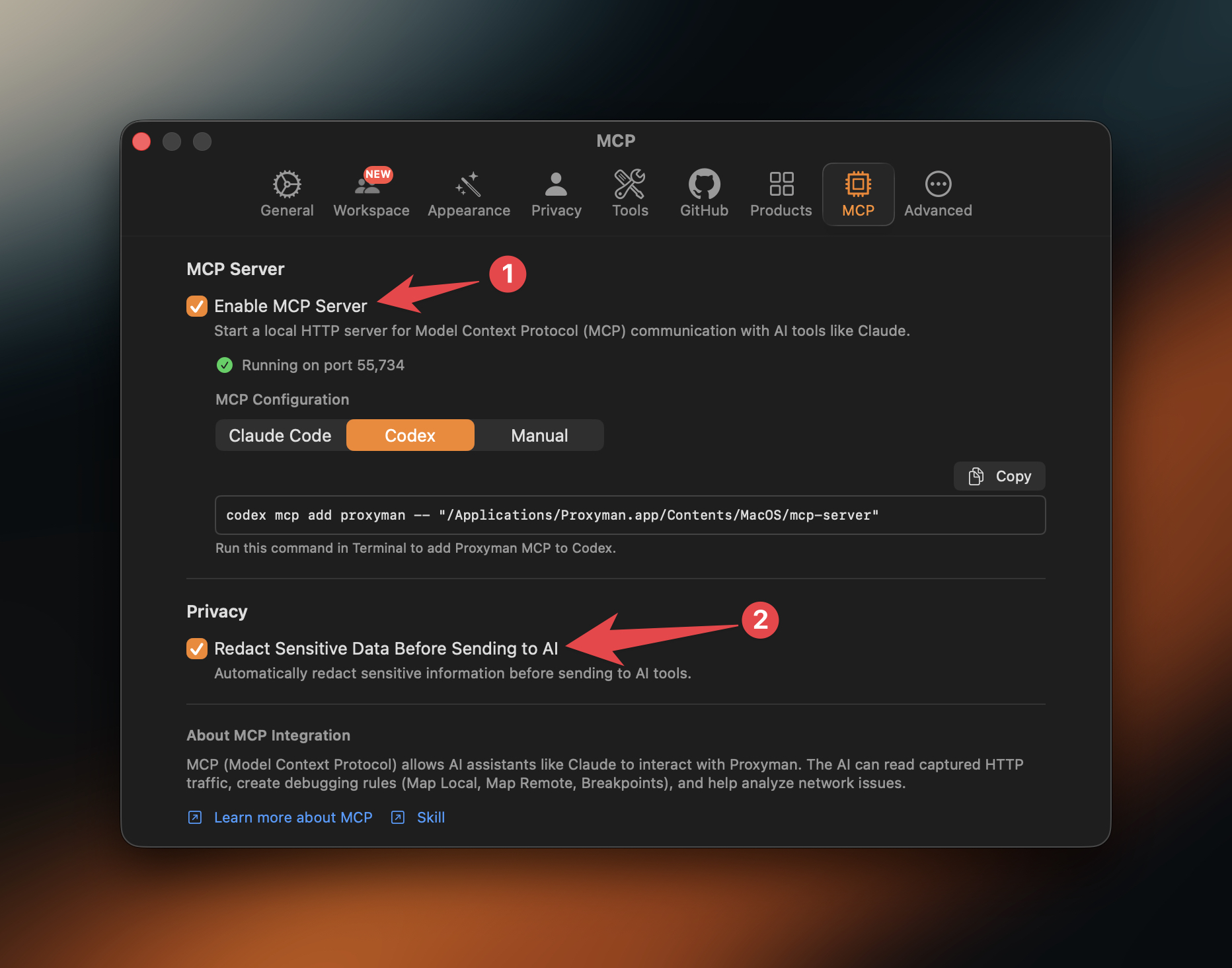
If your agent is not listed, choose Manual. Proxyman shows the MCP configuration that you can add to your agent's settings file. Keep Proxyman open after the connection is complete.
Do not turn off sensitive-data redaction unless you understand exactly what your agent will receive. A captured request can contain customer information, session cookies, API keys, or access tokens.
2.1 Check that the connection works
Start a new Codex or Claude Code session and ask a small question about the traffic that is already visible in Proxyman. For example:
Show me the latest requests to api.example.com and explain any failed response.
Your agent should use Proxyman MCP to read the flows and return a summary. If no traffic is visible, make a request from your app, browser, simulator, or device first.
3. Add the Proxyman Skill and create a Scripting Rule
Proxyman provides an official Proxyman agent skill. The skill teaches agents how to install Proxyman, connect MCP, and use the MCP tools correctly for traffic debugging.
Install all Proxyman skills with skills.sh:
npx skills add ProxymanApp/proxyman-SKILL.md/skills
You can also install only the MCP setup skill:
npx skills add ProxymanApp/proxyman-SKILL.md --skill proxyman-mcp-setup
Restart or reload your agent after installation. The skill is especially useful when an agent needs help setting up Proxyman, finding MCP tools, or working safely with captured traffic.
3.1 Ask Codex or Claude Code to create a rule
Once MCP is connected, you can ask your agent to create a Proxyman rule in plain words. For example, ask:
Create a Proxyman Scripting Rule for httpbin.proxyman.app. Add the X-data: 123 header to requests, return status 201 in responses, replace Set-Cookie with abcdef, and enable the rule.
The agent can create the rule through Proxyman MCP. Review the rule in Proxyman before you use it with real traffic. It is a good habit to make rules as narrow as possible, for example by matching only a test domain or one API path.
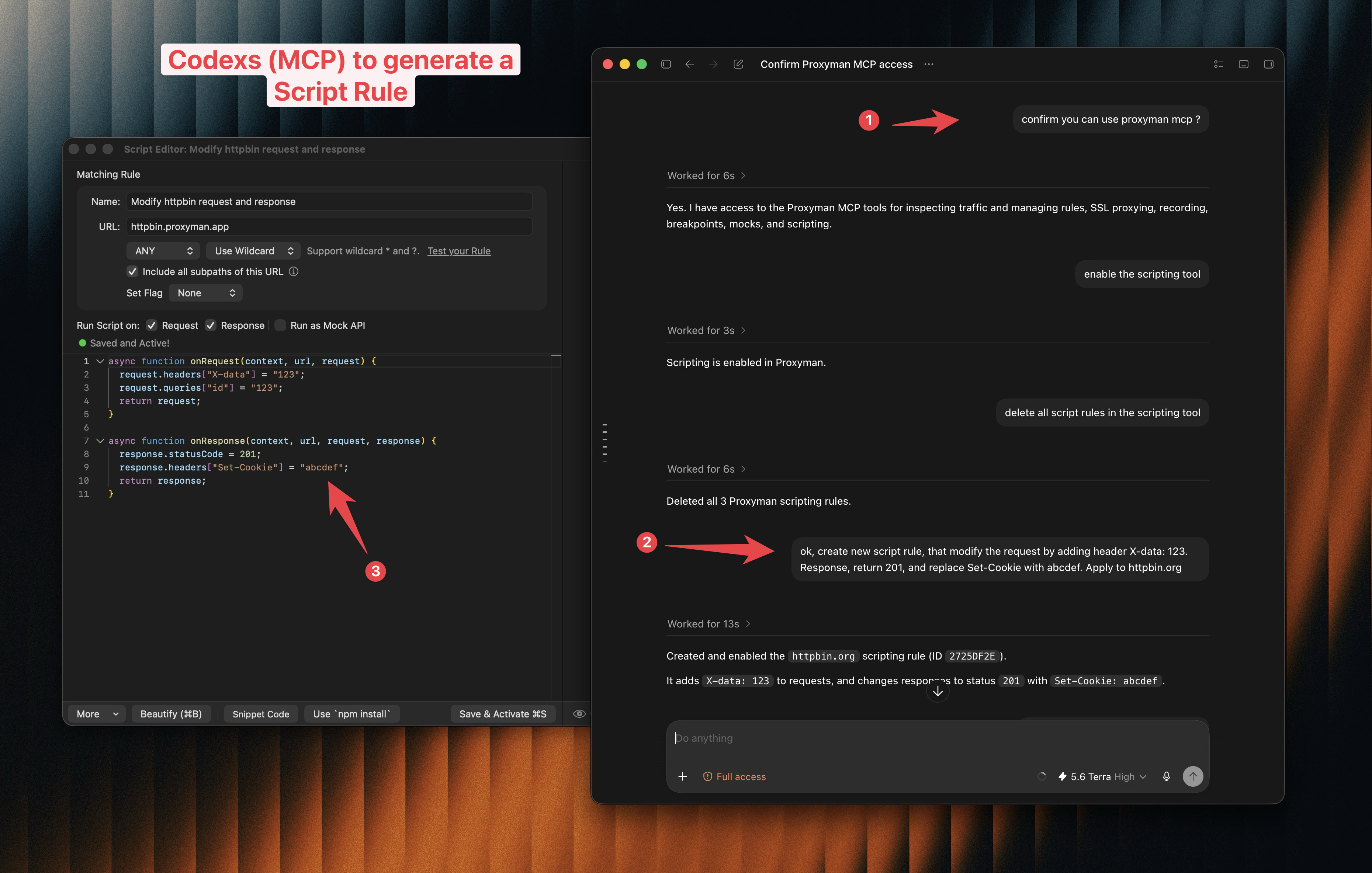
You can use the same approach for other tasks, such as creating a Map Local rule, replaying a request, explaining an error response, or exporting selected flows.
4. Problems and Solutions
4.1 My agent cannot find the Proxyman MCP tools
Solution: Make sure Proxyman is installed and running. Then open Settings -> MCP, turn on the MCP Server, copy the command for your agent again, and run it in the terminal. Restart the agent after the command finishes.
4.2 My agent cannot see any requests
Solution: MCP can only read traffic that Proxyman has captured. Open your app or browser and repeat the action you want to debug. For HTTPS traffic, make sure the certificate and SSL Proxying are configured for the domain.
4.3 Important values are hidden from the agent
Solution: This is expected when Redact Sensitive Data Before Sending to AI is enabled. Keep it on for normal debugging. If a test request needs one specific value, use a safe test account or inspect the value yourself in Proxyman instead of sharing production secrets with an agent.
4.4 The agent created a rule that is too broad
Solution: Ask the agent to update the rule with a narrower match. Include the exact host, path, HTTP method, or a test-only header. Always review and disable a rule when you no longer need it.
5. Conclusion
In this tutorial, we have learned how to:
- Connect Codex or Claude Code to Proxyman with MCP
- Protect sensitive request and response data before it reaches an AI agent
- Add the official Proxyman skill to help your agent use MCP correctly
- Ask an agent to create a Proxyman Scripting Rule
MCP gives your coding agent useful context from the traffic you are already debugging. Start with simple requests and narrow rules, keep sensitive-data redaction enabled, and let Proxyman stay in control of the local debugging session.
Related tutorials you might find helpful:
- How to capture HTTP/HTTPS traffic from iPhone iOS 26
- How to intercept and debug WebSocket from iOS simulators or devices
- How to modify an HTTP request or response with Scripting
Proxyman is a high-performance macOS/Windows/Linux app that helps developers capture HTTP/HTTPS and WebSocket traffic from browsers, iOS devices, iOS Simulators, and Android devices.
Get it at https://proxyman.com