Introducing Network Extension: capture Mac traffic without proxy setup
5 min read
Proxyman now supports Network Extension 🎉
Capture HTTP/HTTPS traffic from apps and scripts on your Mac, including apps that ignore the system proxy. No need to configure a proxy in each app.
This blog covers:
- The problem with regular proxy mode.
- How Network Extension helps capture missing traffic.
- How to enable it and use your existing debugging tools.
- How to fix SSL errors in Node.js, Ruby, and Python with Automatic Setup.
Network Extension is BETA and off by default. It requires Proxyman PRO and macOS 26 or later.
1. The problem with regular proxy mode
Regular proxy mode works by setting an HTTP/HTTPS proxy in macOS. Apps that follow this setting send their requests through Proxyman.
However, some apps and libraries don't use the system proxy:
- Missing requests: Traffic from your browser may appear, while requests from a script or backend server are missing.
- Separate proxy settings: Node.js, Ruby, Python, and command-line tools may need their own proxy configuration, depending on the library.
- Code changes: Some libraries require you to pass a proxy address directly in your code.
- Repeated setup: Switching to another project or HTTP library can mean configuring the proxy again.
The request still reaches the server, but it bypasses Proxyman. Setting up each library by hand takes time and can lead to mistakes.
2. Solution: Network Extension ✅
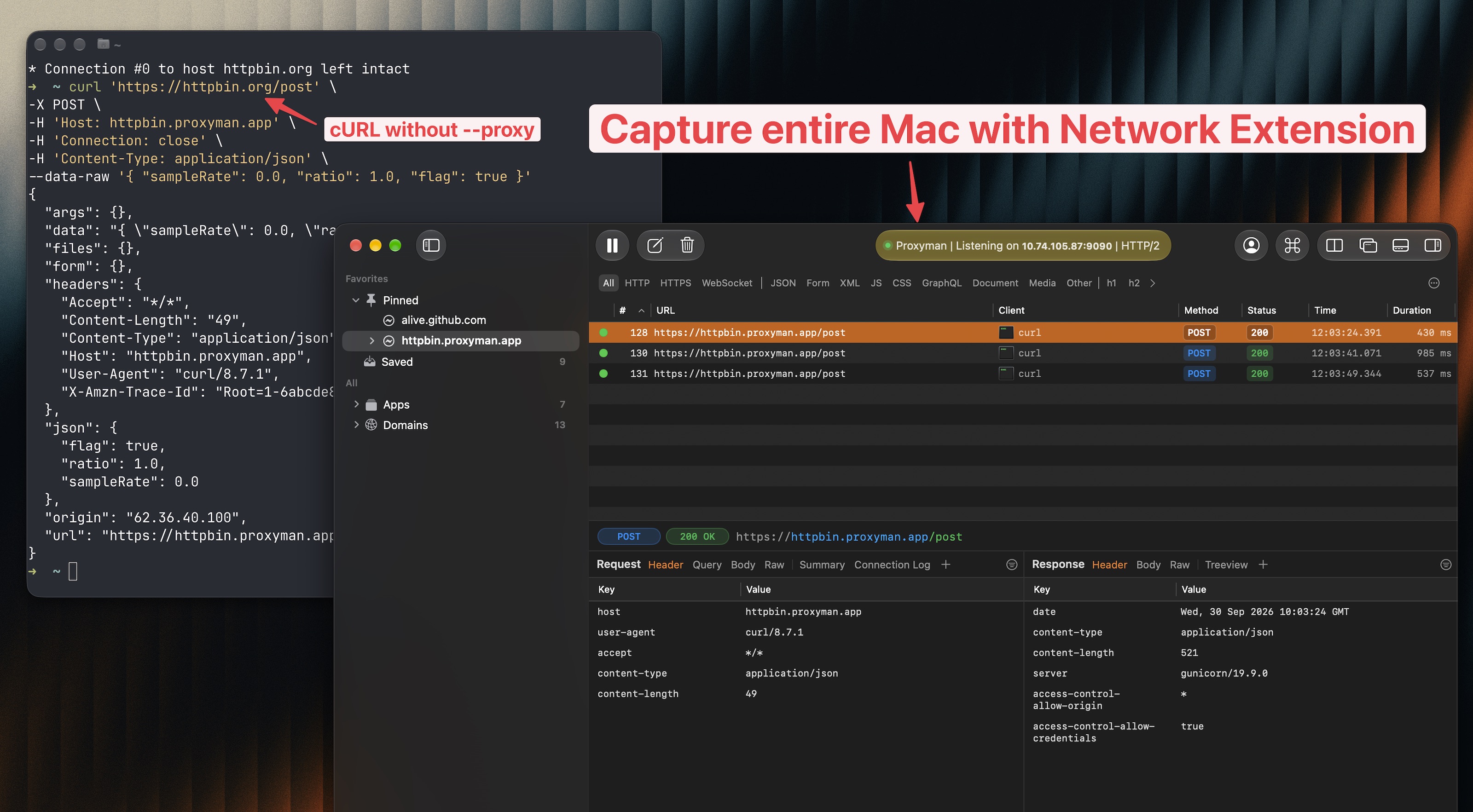
Network Extension captures HTTP/HTTPS connections at the system level and routes them through Proxyman. It can capture requests even when the app ignores macOS proxy settings.
- No need to enter a proxy address in each app.
- No need to change your app's code just to route requests through Proxyman.
- Run cURL without the
--proxyflag, as shown in the screenshot above. - Keep using your apps and scripts normally while Proxyman captures their requests.
This is called a transparent proxy: macOS handles routing the connections, so the app doesn't need to manage the proxy itself.
Built on Apple's official Network Extension API
- Uses Apple's official transparent proxy Network Extension API.
- Runs as a native macOS system extension, built and maintained by Proxyman.
- Signed with our TablePlus Inc Developer ID certificate and notarized by Apple.
- Installed and approved through the standard macOS extension settings.
Our goal is fast, efficient capture using Apple's native networking APIs, with less setup before you start debugging.
Network Extension handles traffic capture. To read HTTPS content, your app still needs to trust the Proxyman certificate, and SSL Proxying must be enabled for the app or domain.
3. What can you do with it?
Captured requests work with the same Proxyman tools you already use:
- 🔎 Inspect requests and responses: Read URLs, query parameters, headers, cookies, and bodies. Check the response status and data returned by the server.
- 🧹 Filter traffic: Focus on the app or domain you want to debug and hide unrelated requests from the list.
- 📁 Map Local: Return a saved response to test different data without changing your backend.
- ✍️ Breakpoint: Pause a request or response, edit it, and check how your app handles the change.
- ⚙️ Scripting: Apply your own rules to modify requests and responses during testing.
It's useful when you want to:
- Inspect API calls made by a local backend server.
- Check what a Ruby or Python script sends to a service.
- Capture traffic from a Mac app that has no proxy setting.
- Debug requests from several apps without setting up each one separately.
4. How to enable Network Extension
- Download and open the latest Proxyman for macOS.
- Open Settings → Network Extension.
- Turn on Enable Network Extension and click Install and Enable if shown.
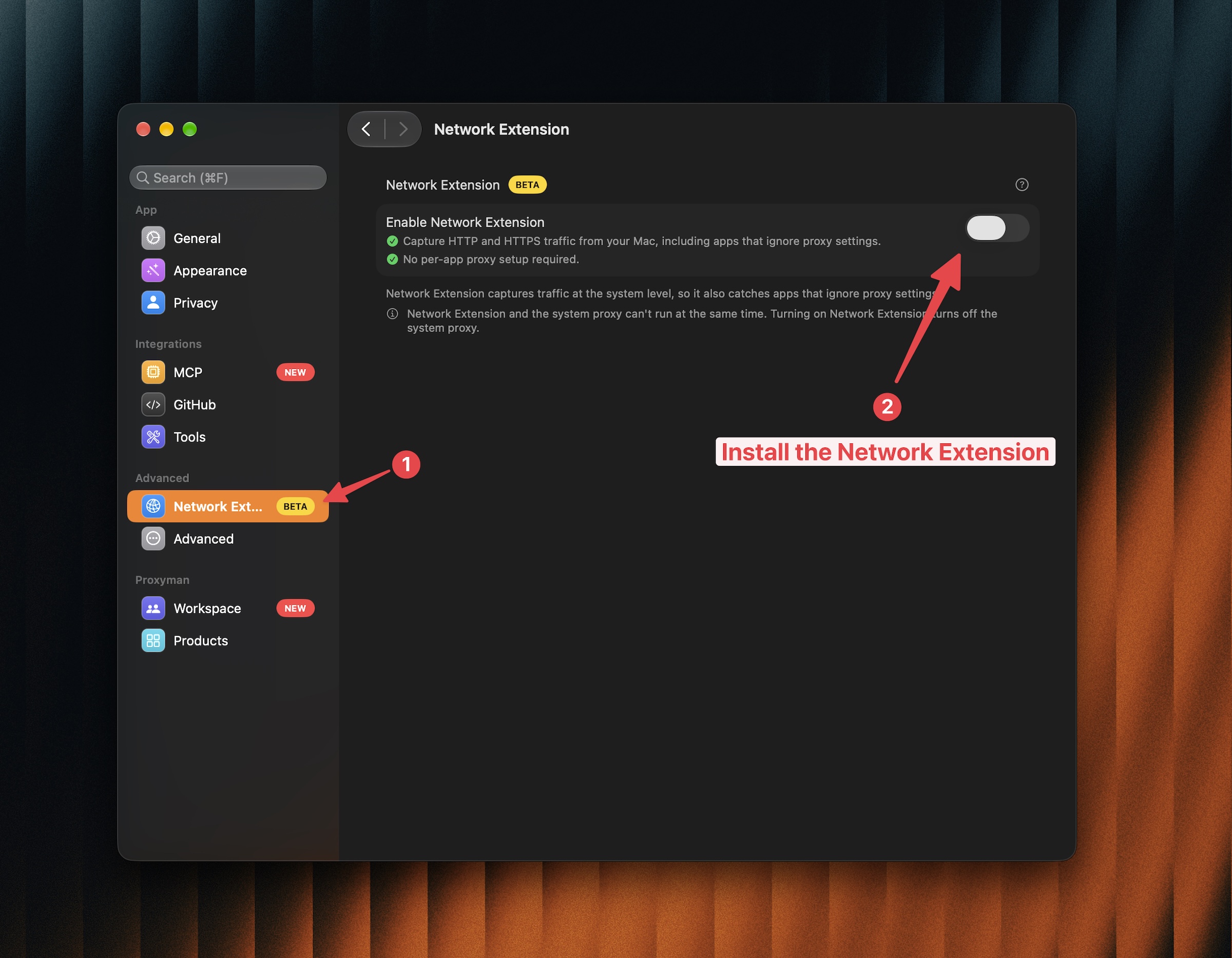
- Follow the macOS prompts to enable Proxyman under System Settings → General → Login Items & Extensions → Network Extensions.
- Click Allow when macOS asks to add the network configuration.
- Keep Proxyman open and make a new request from your app or script.
For HTTPS inspection:
- Install and trust the Proxyman certificate on your Mac.
- Enable SSL Proxying for the app or domain you want to inspect.
- Send a fresh request, then select it in Proxyman to read its content.
A few things to remember:
- Restart apps that were already running before enabling the extension, so they open new connections.
- Turn off Enable Network Extension in Settings when you want to stop capturing through it.
- This feature captures traffic from apps on your Mac. For an iPhone or Android device, follow the separate device setup guide.
For all installation screenshots, see the Network Extension documentation.
5. Troubleshooting: SSL errors in Node.js, Ruby, or Python
Problem
Your script reports an SSL or certificate error after you enable HTTPS inspection.
- These runtimes may use their own certificate settings.
- Trusting Proxyman's self-signed certificate in macOS may not be enough for the library you're using.
- Network Extension routes the traffic through Proxyman, but it doesn't automatically configure certificate trust in every runtime.
Solution: use the Automatic Setup script ✅
Proxyman's Automatic Setup prepares proxy and certificate settings for supported libraries.
- Open Proxyman → Setup → Automatic Setup.
- Click Open New Terminal.
- Accept the permission prompt if needed.
- Run your script or restart your backend server in that new terminal.
- Keep SSL Proxying enabled for the app or domain, then try the request again.
Notes:
- The setup applies to the terminal session opened by Proxyman.
- A script or server running in another terminal won't pick up those settings. Stop it and run it in the new terminal.
- Automatic Setup doesn't change your normal shell configuration files.
- If you're using Automatic Setup to capture traffic, you can turn Network Extension off and keep running your code in the configured terminal.
If the error continues, check the Automatic Setup troubleshooting guide.
Related blogs