HTTP/2 is finally here in Proxyman v26.0.0
5 min read
HTTP/2 is finally here. Proxyman v26.0.0 for macOS includes HTTP/2 support in the regular release. You no longer need a separate beta app.
If your app uses HTTP/2, you can now inspect that traffic with Proxyman. Read the requests and responses, check the protocol used, and work with the same filters and debugging tools you use every day.
This release also brings Split View and a new Safari-style Tab View for PRO users. Both make it easier to keep different parts of a busy capture in view.
Why HTTP/2 matters
An app often sends several requests when you open one screen. It might load your profile, fetch a list, and download images at the same time. The way those requests share a connection can affect what you see while debugging.
HTTP/2 changes how HTTP messages travel:
- Several requests can share one connection at the same time. Each exchange uses its own stream.
- Header compression reduces repeated header data sent across that connection.
- Reusing connections can reduce the need to open more TCP connections and repeat TLS setup.
- Methods, URLs, status codes, and bodies still have the meanings you already know.
The HTTP/2 standard explains these changes in detail. They can reduce overhead, but they do not make every request faster. Server work, network conditions, and your app still matter. HTTP/2 also uses TCP, so packet loss can affect requests sharing a connection.
For debugging, the benefit is practical. You can inspect traffic that uses HTTP/2 instead of relying only on a capture that uses HTTP/1.1. That helps when a problem depends on protocol negotiation or several requests running together.
Turn on HTTP/2 in Settings
HTTP/2 is off by default. To enable it:
- Install Proxyman v26.0.0 or later on your Mac.
- Open Proxyman → Settings → General.
- In the Proxy section, turn on Use HTTP/2.
- For HTTPS inspection, install and trust the Proxyman certificate on the client device.
- Enable SSL Proxying for the app or domain you want to inspect.
- Send a fresh request from your app or reload the page.
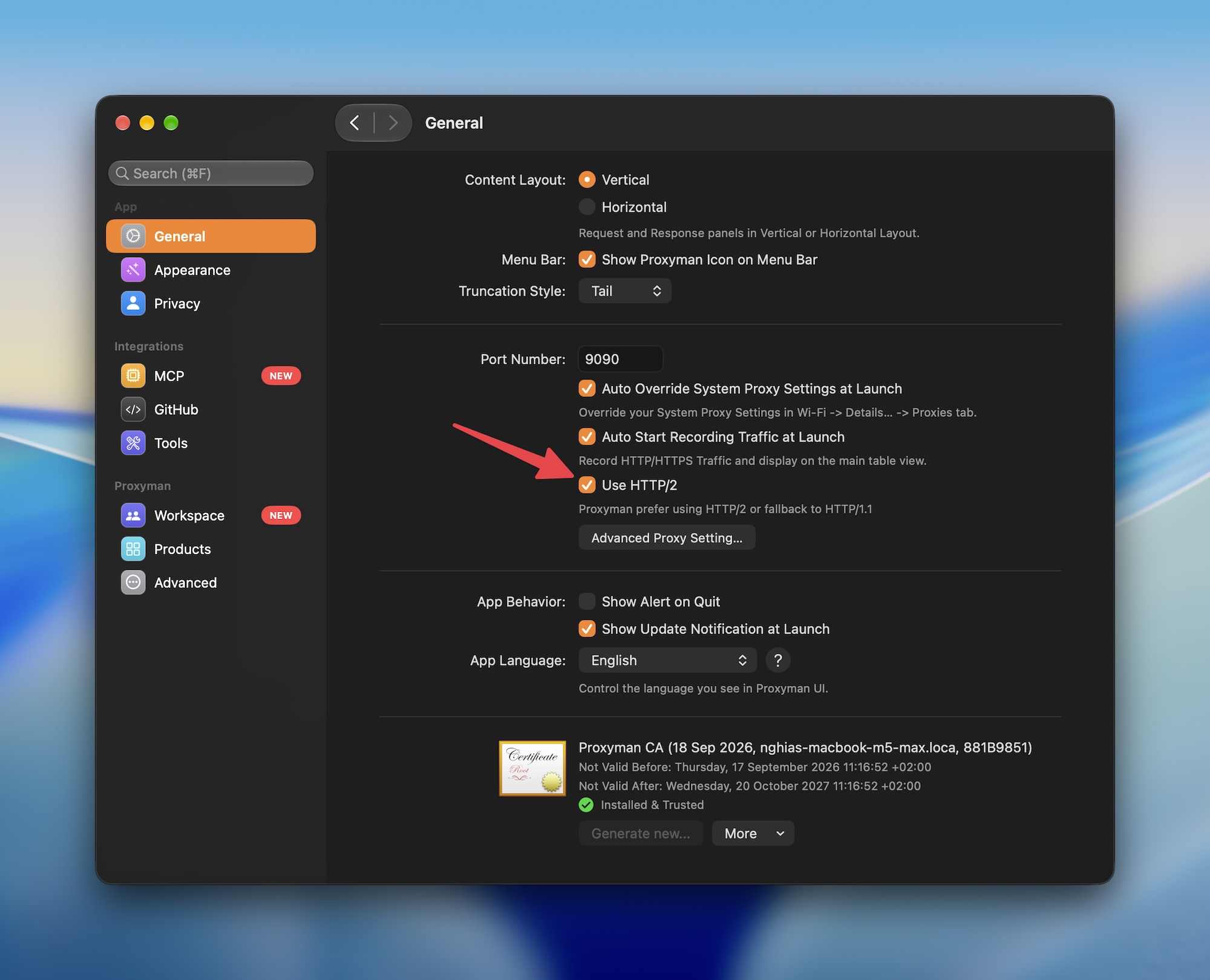
Start capturing HTTP/2
This demo shows how to enable HTTP/2 and start capturing fresh requests in Proxyman.
Changing the HTTP/2 setting closes existing connections so new connections can use the new setting. Active WebSocket and Server-Sent Events connections may need to reconnect too.
If you already capture HTTPS with Proxyman, your certificate and domain setup can stay in place. If this is your first capture, follow the SSL Proxying guide. Remote devices also need their traffic routed through Proxyman on your Mac.
What you can inspect
Select a captured request to read the details available for that exchange:
- The request method, URL, query parameters, and headers.
- Cookies and request bodies, such as JSON, form data, or binary content.
- The response status, headers, and body.
- Trailer headers, when the client or server sends them after the body.
- Request timing and the recorded HTTP protocol information.
- Connection details, such as the server's negotiated protocol, when available.
Requests sharing an HTTP/2 connection appear as separate exchanges in the request list. You can select each one and inspect its content without reading the underlying binary frames.
Trailers are useful for APIs that send final information after the response body. For example, a gRPC response can carry grpc-status and grpc-message in its trailers. An HTTP 200 response alone does not tell you whether that RPC succeeded. Capturing this information does not mean every binary body will automatically become readable text.
Check the protocol your request actually used
Turning on HTTP/2 allows Proxyman to use it. It does not force every connection to use HTTP/2.
There are two connections to consider:
- Your app or browser connects to Proxyman.
- Proxyman connects to the upstream server.
Those connections can use different HTTP versions. The client must support and negotiate HTTP/2. The upstream server must also support it for that connection to use it. Proxyman allows HTTP/1.1 fallback.
After sending a fresh request:
- Check its HTTP version in the request details.
- Open Connection Log in the Request panel to check the upstream protocol when it was recorded.
- Look for the protocol the server accepted.
h2means HTTP/2. - Remember that offering
h2during negotiation does not prove the server selected it.
In this example, Proxyman offers h2 and http/1.1, and the server accepts h2.
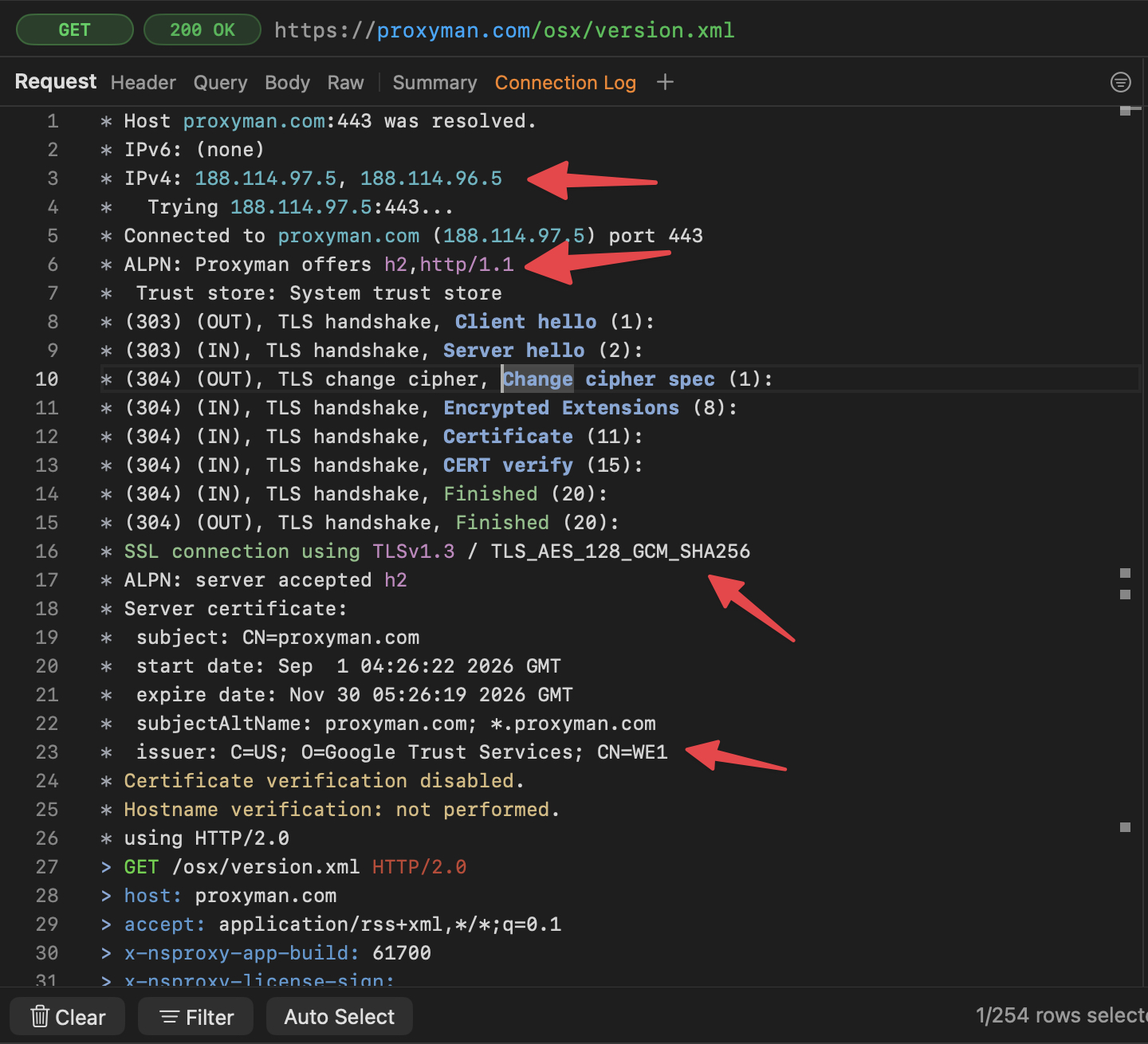
Older saved captures may not contain upstream protocol details. Missing information does not mean the connection used HTTP/1.1. The Connection Log guide explains how to read the recorded steps.
Compare traffic with Split View and tabs
Suppose your app loads a profile correctly but fails to load its activity list. Keep both endpoints visible while you reproduce the problem:
- Right-click the app or domain in the sidebar and choose Open as Split View.
- Filter the first pane to the profile endpoint.
- Filter the second pane to the activity endpoint.
- Select a request in each pane and compare their status, headers, and bodies.
Each pane keeps its own filters and selection. Both use the same capture, so new requests remain available in either view.
For another investigation, choose Open as New Tab or press ⌘T. Switch between tabs without rebuilding your filters, and drag tabs into the order you want. Split View and Tab View require Proxyman PRO.
If you still see HTTP/1.1
- Check that Use HTTP/2 is enabled, then send a new request.
- Confirm the client and server support HTTP/2. Fallback can be normal.
- Check certificate trust and SSL Proxying if HTTPS content stays encrypted.
- Check that your app or device sends traffic through Proxyman.
- If an app rejects the connection, check its certificate requirements, including SSL pinning.
Keep reading
- HTTP/2 setup and troubleshooting
- Split View
- Tab View and keyboard shortcuts
- Capture HTTPS from an iPhone or iPad
Download the release, turn on HTTP/2, and capture the request you want to understand.