如何从 Google Chrome 抓取 localhost HTTP 流量(localhost:3000)
本教程将实现以下目标:
- 了解为什么在 Google Chrome 中开发时,
localhost:3000不会出现在 Proxyman(或 Charles)中 - 了解旧的变通方法:通过
/etc/hosts将localhost映射到proxyman.debug - ✅ 使用新的一键方案:为 Google Chrome 使用 Proxyman Automatic Setup(Current Profile 或 New Profile)
如果你在开发 Web 应用(Next.js、React、Vite 等)并调试 API 调用,可能会遇到令人困惑的情况:浏览器中一切正常,但 Proxyman 中什么都没有。
本文介绍从 Google Chrome 抓取 http://localhost:3000 流量最可靠的方法。
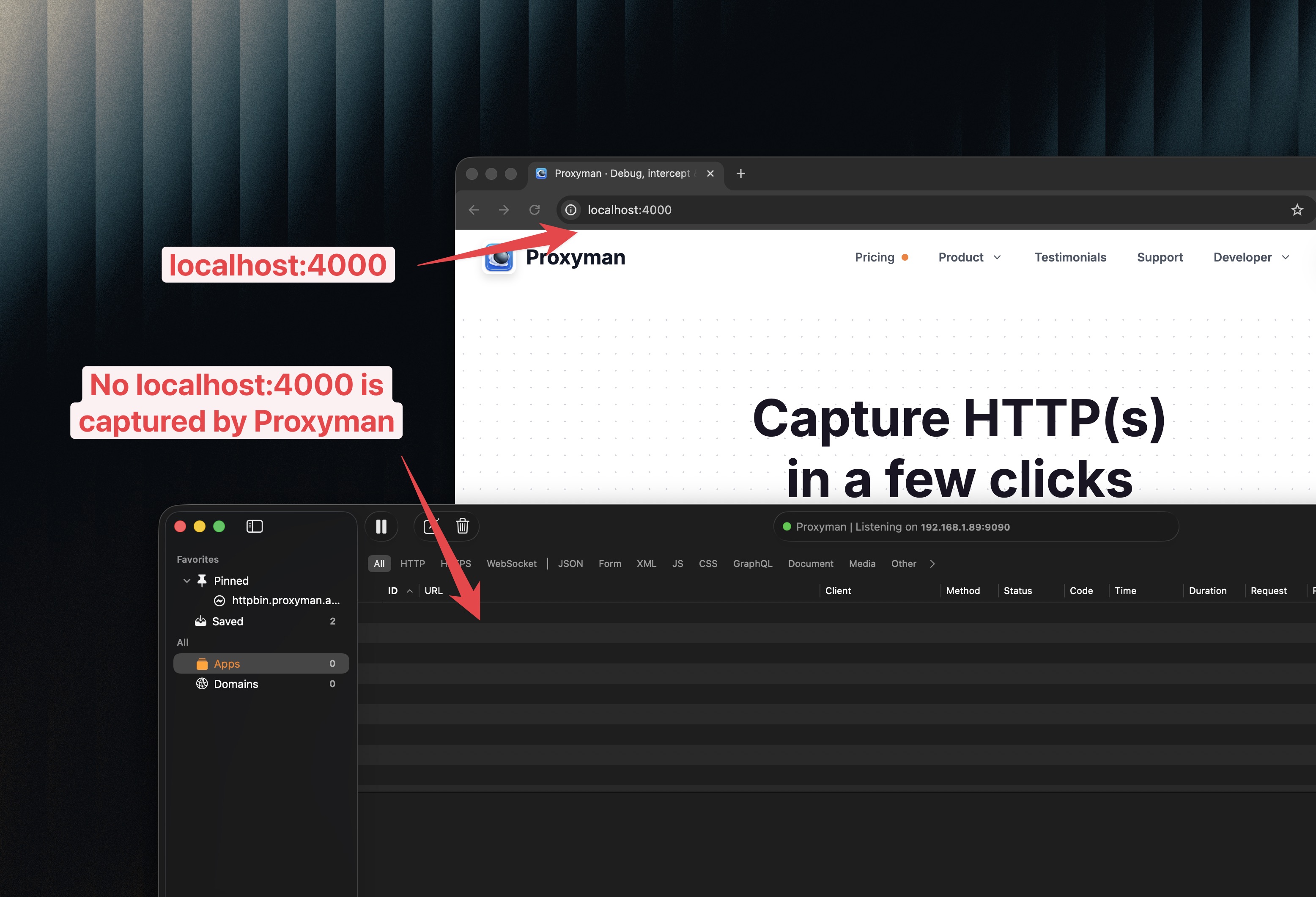
1. 问题:在 Google Chrome 中进行 Web 开发时无法抓取 localhost:3000
常见的情况如下:
- 应用运行在
http://localhost:3000(Next.js 开发服务器) - 打开 Chrome 访问本地站点
- 期望在 Proxyman(或 Charles)中看到流量
但 Proxyman 中什么都没有……
更糟的是,远程网站(如 https://google.com)可以正常显示,但 localhost 请求却完全缺失。
2. 原因:localhost 流量默认不使用系统代理
大多数代理工具依赖系统代理设置(或浏览器代理设置)将流量转发到代理。
不过,浏览器通常会对本地地址进行特殊处理:
localhost/127.0.0.1属于回环流量- 默认情况下,它通常会绕过代理
因此,请求永远不会到达 Proxyman 或 Charles,这就是你看不到任何流量的原因。
3. 旧方案:编辑 /etc/hosts 并使用 proxyman.debug
经典的变通方法是不再在浏览器地址栏中使用 localhost。
改为将 localhost 映射到 proxyman.debug,并通过该主机名打开本地服务器。
3.1 将 proxyman.debug 添加到 /etc/hosts
打开终端并编辑 hosts 文件:
- 运行:
sudo nano /etc/hosts
- 添加以下这一行:
127.0.0.1 proxyman.debug
- 保存并退出。
现在,不要再打开 http://localhost:3000,而是打开:
http://proxyman.debug:3000
这样 Chrome 就会将其视为普通主机名(而非特殊的 localhost),代理工具也就能够抓取这些流量。
3.2 旧方法的缺点
- 你必须记住使用不同的主机名
- 某些 OAuth 或重定向 URI,以及本地开发工具,可能被硬编码为
localhost - 向同事解释很麻烦(而且很容易忘记)
4. ✅ 一键新方案:为 Google Chrome 使用 Proxyman Automatic Setup
Proxyman 提供了更新的方法,无需编辑 /etc/hosts。
它会以正确的代理配置启动 Google Chrome,从而可以抓取 localhost 流量。
4.1 操作步骤
- 打开 Proxyman
- 打开 Command Palette(命令面板)
- macOS:
Shift + Command + P - Windows/Linux:
Ctrl + Shift + P
- macOS:
- 输入 Automatic Setup 并打开它
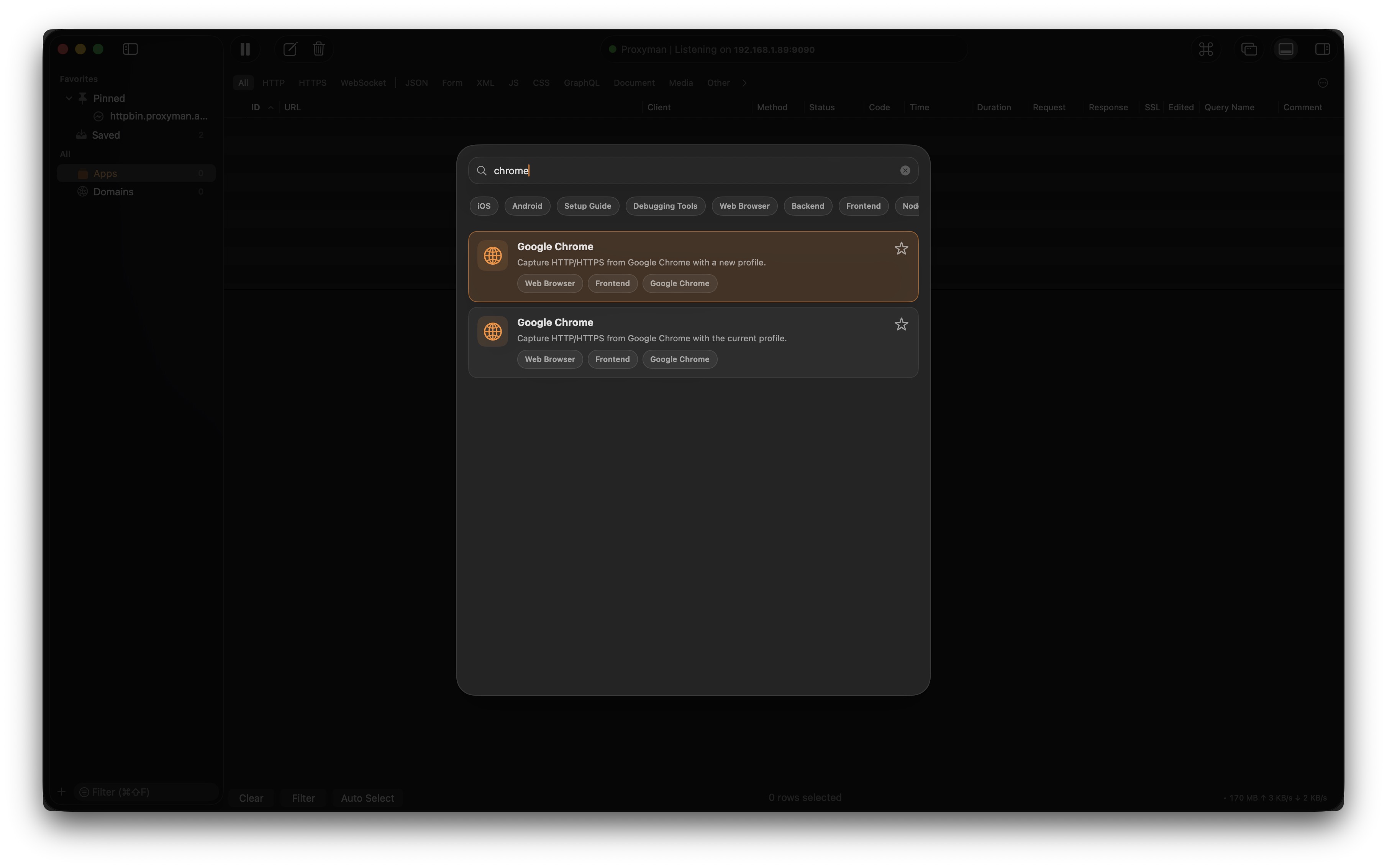
- 选择 Google Chrome
- 选择以下其中一项:
- New profile(推荐,如果你希望使用一个干净的、仅用于代理的浏览器)
- Current profile(如果你希望使用现有的 Chrome 配置文件)
- 点击 Start
随后会打开一个新的 Google Chrome 窗口。
4.2 完成:现在可以抓取 localhost:3000
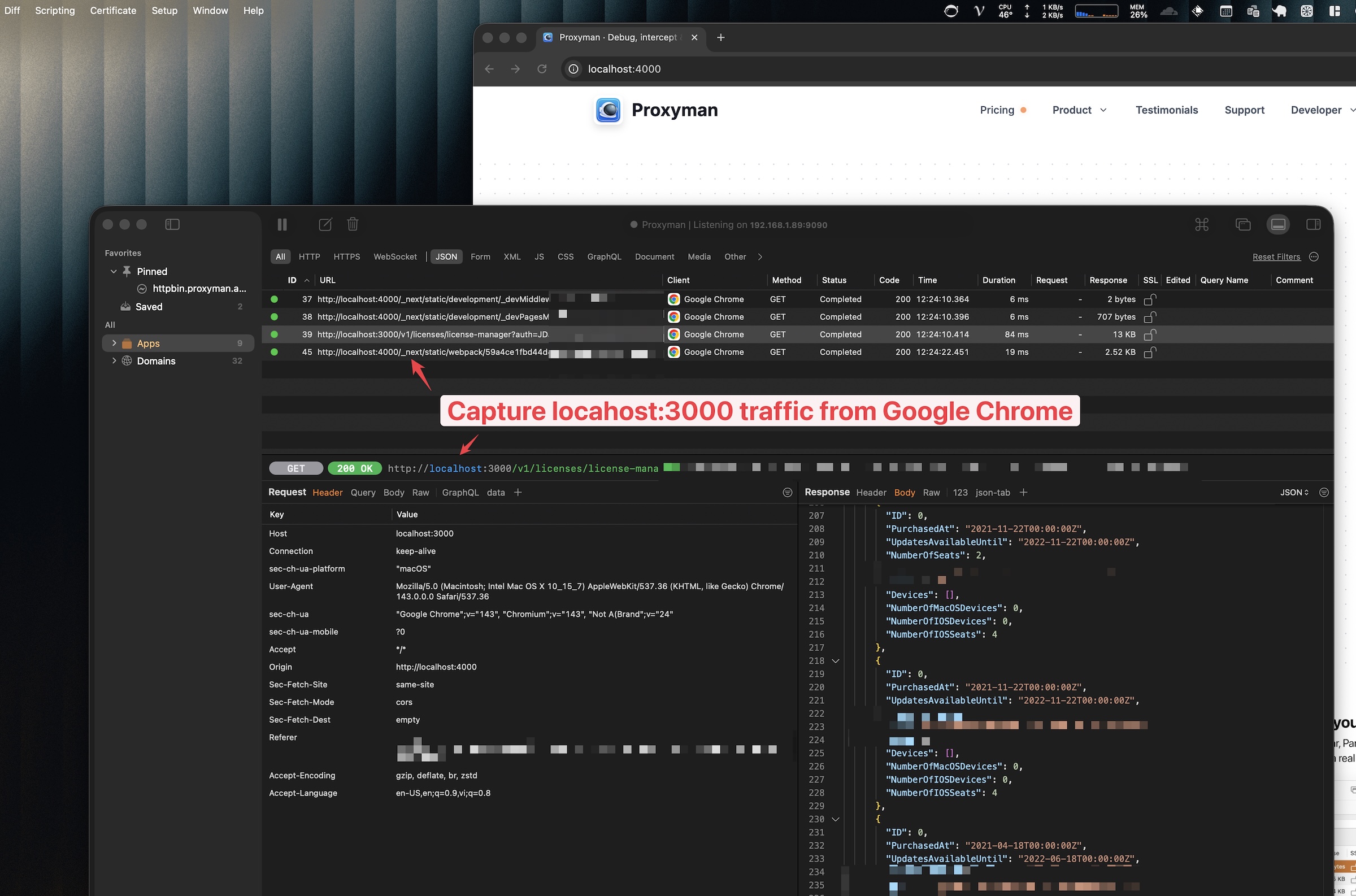
现在重新打开本地站点:
http://localhost:3000
回到 Proxyman,应该能看到已抓取的 localhost 请求 ✅
- 如果同时打开了多个 Chrome 窗口,建议使用 New profile 选项,这样你总能知道哪个 Chrome 实例通过 Proxyman 转发流量。
- ⚠️ 关闭 Proxyman 后,请务必关闭当前的 Google Chrome 窗口。否则,该窗口将不会通过 Proxyman 转发流量。
5. 总结
本教程介绍了为什么 localhost 请求常常会绕过代理工具,旧的 /etc/hosts 方法如何运作,以及如何使用 Proxyman 的 Automatic Setup,一键抓取 localhost:3000。
如果仍有某个请求看似缺失,请打开 Chrome DevTools,在 Network 标签页中开启 Disable cache,然后在 Proxyman 打开的 Chrome 窗口中刷新页面。浏览器缓存或 Service Worker 可能会直接返回旧数据,而不会发出新的网络请求。使用 New profile 选项也是快速检查扩展或已保存的浏览器设置是否产生影响的好办法。
6. 相关文章
- 如何从 Firefox 浏览器抓取 HTTPS 流量
- 使用 Firefox 进行 SSL 调试?
- 在 NextJS 服务端抓取 HTTP 请求
- 使用 Proxyman 调试 NodeJS 中的 OpenAI API
- 测试时将 API 端点从生产环境切换为 localhost 环境
Proxyman 是一款高性能的 macOS/Windows/Linux 应用,可帮助开发者抓取 iOS 设备、iOS 模拟器和 Android 设备上的 HTTPS 流量。
前往 https://proxyman.com 获取。