How to modify WebSocket messages with Scripting in Proxyman
6 min read
Proxyman can now change WebSocket messages on the fly 🎉
With a few lines of JavaScript, you can edit a message, drop it, or send a new one. It works with WS and WSS, in both directions: from the client to the server, and from the server to the client.
This blog covers:
- The problem with testing WebSocket apps.
- What the new Modify WebSocket Messages option does.
- A step-by-step demo with a local WebSocket server that you can run yourself.
- Ready-made WebSocket templates, and tips when nothing changes.
Modify WebSocket Messages is new in Proxyman for macOS. Update to the latest version from the download page to follow this guide.
Here is the result. The server sends a real BTC price, but the app receives $1. When the app sends a password, Proxyman drops the message and answers the app with a warning:
1. The problem
Apps for chat, trading, games, and live dashboards use WebSocket to get real-time data. Testing them is hard:
- You can't control the server. It sends real data. Making it send an edge case, like a price of 0 or an error message, means changing the server code.
- Some cases are hard to reproduce. A dropped message, a strange reply, or a lost connection rarely happens when you need it.
- Before, Proxyman could only read WebSocket messages. The
onWebsocket()function in Scripting could log a message, but not change it.
2. What is "Modify WebSocket Messages"?
It's a new checkbox on a Scripting rule. When it's on, Proxyman holds each WebSocket message until your onWebsocket() function returns. What you return decides what happens:
In onWebsocket() | Result |
|---|---|
return message | Send the message, with your changes |
return null | Drop the message. The other side never sees it |
| No return | Send the original message |
abort() | Close the WebSocket on both sides |
sendToClient(data) / sendToServer(data) | Send a new message. A String sends a text message, a Uint8Array a binary message |
The message object has:
| Field | Value |
|---|---|
message.from | "client" or "server" |
message.type | "text", "binary", "ping", "pong", or "close" |
message.data | The text of the message. Change it to edit a text message |
message.rawData | The bytes of a binary message, as a Uint8Array |
The option is off by default. When it's off, onWebsocket() works as before: it only reads the messages and never delays them.
3. Step by step: modify a live WebSocket
We'll build the demo from the video: a small server that sends BTC prices, and a client that chats with it through Proxyman.
3.1 Start a WebSocket server
Create a new folder and install the ws package:
mkdir websocket-demo && cd websocket-demo
npm init -y
npm install ws
Save this as server.js. It sends a price every second and echoes every chat message:
// server.js: a WebSocket server on ws://localhost:3456
const WebSocket = require('ws');
const server = new WebSocket.Server({ port: 3456 });

server.on('connection', (socket) => {
  // Send a BTC price every second
  const timer = setInterval(() => {
    const price = Number((67000 + Math.random() * 1000).toFixed(2));
    socket.send(JSON.stringify({ type: 'price', symbol: 'BTC', price: price }));
  }, 1000);

  // Print what the client sends, then echo it back
  socket.on('message', (data) => {
    console.log('SERVER gets:', data.toString());
    socket.send(JSON.stringify({ type: 'echo', text: JSON.parse(data).text }));
  });

  socket.on('close', () => clearInterval(timer));
});

console.log('WebSocket server on ws://localhost:3456');
Run it in a Terminal:
node server.js
3.2 Connect a client through Proxyman
Node.js doesn't use the macOS proxy settings, so the client sends its WebSocket handshake to Proxyman directly. Save this as client.js:
// client.js: connects to the server through Proxyman
const http = require('http');
const WebSocket = require('ws');

// Proxyman's port. You can see it in the Proxyman toolbar
const PROXYMAN_PORT = 9090;

// Sends the WebSocket handshake to Proxyman, like an app that uses an HTTP proxy
class ProxymanAgent extends http.Agent {
  addRequest(request, options) {
    request.path = 'http://' + options.host + ':' + options.port + request.path;
    super.addRequest(request, { ...options, host: '127.0.0.1', port: PROXYMAN_PORT });
  }
}

const socket = new WebSocket('ws://localhost:3456/prices', { agent: new ProxymanAgent() });

socket.on('open', () => {
  setTimeout(() => socket.send(JSON.stringify({ type: 'chat', text: 'Hello' })), 2000);
  setTimeout(() => socket.send(JSON.stringify({ type: 'chat', text: 'my password is hunter2' })), 4000);
});

socket.on('message', (data) => console.log('CLIENT gets:', data.toString()));
Open Proxyman, then run the client in a second Terminal:
node client.js
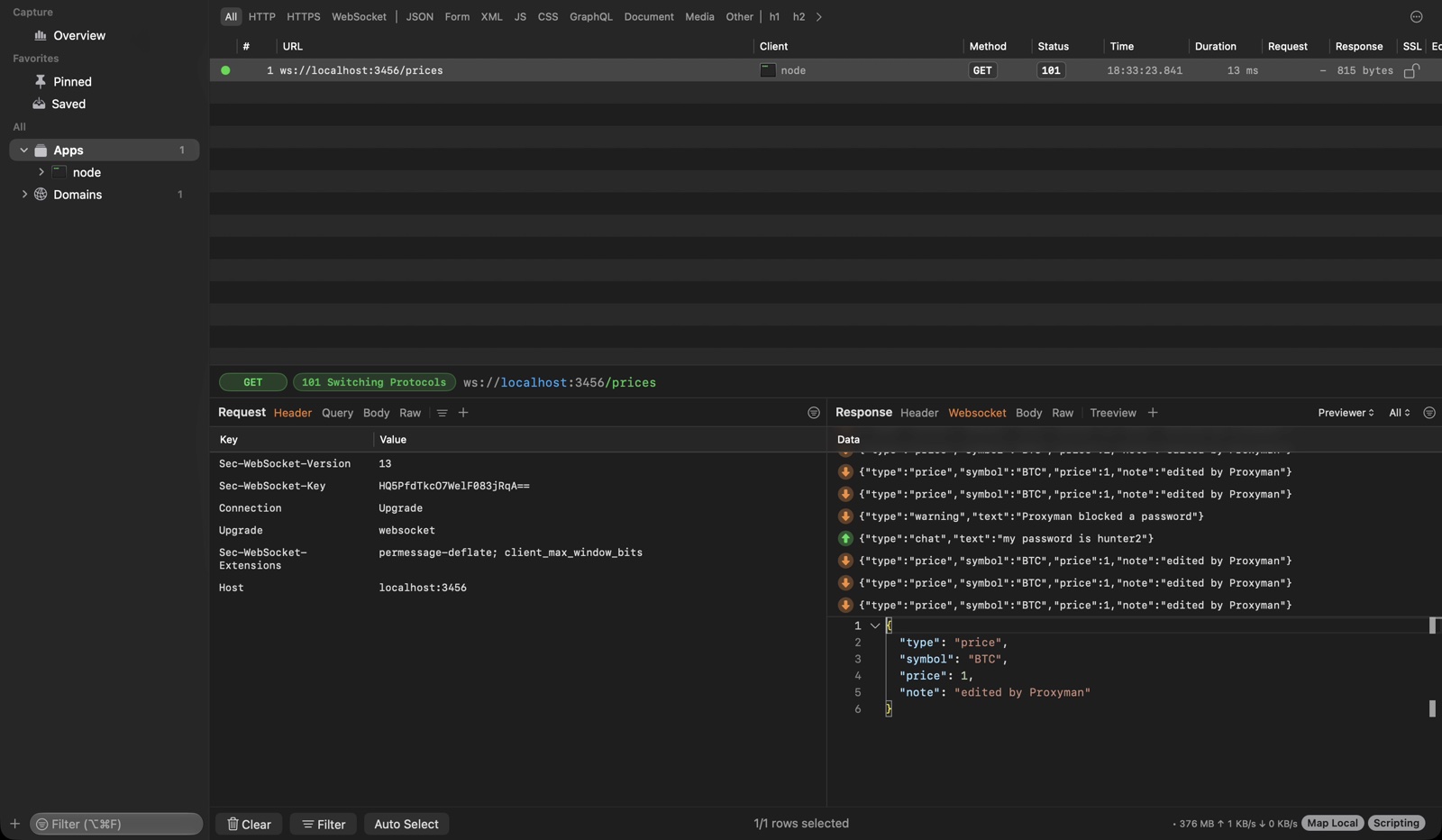
You'll see ws://localhost:3456/prices in Proxyman. Open its Websocket tab to see the messages. Nothing is changed yet. Stop the client with Ctrl+C.
3.3 Create a Scripting rule
- In Proxyman, right-click the
ws://localhost:3456/pricesflow → Tools → Scripting.... Proxyman creates a rule with the URL filled in. - Keep Request checked, and check Modify WebSocket Messages.
- Replace the script with the code below, then press Save & Activate (⌘S).
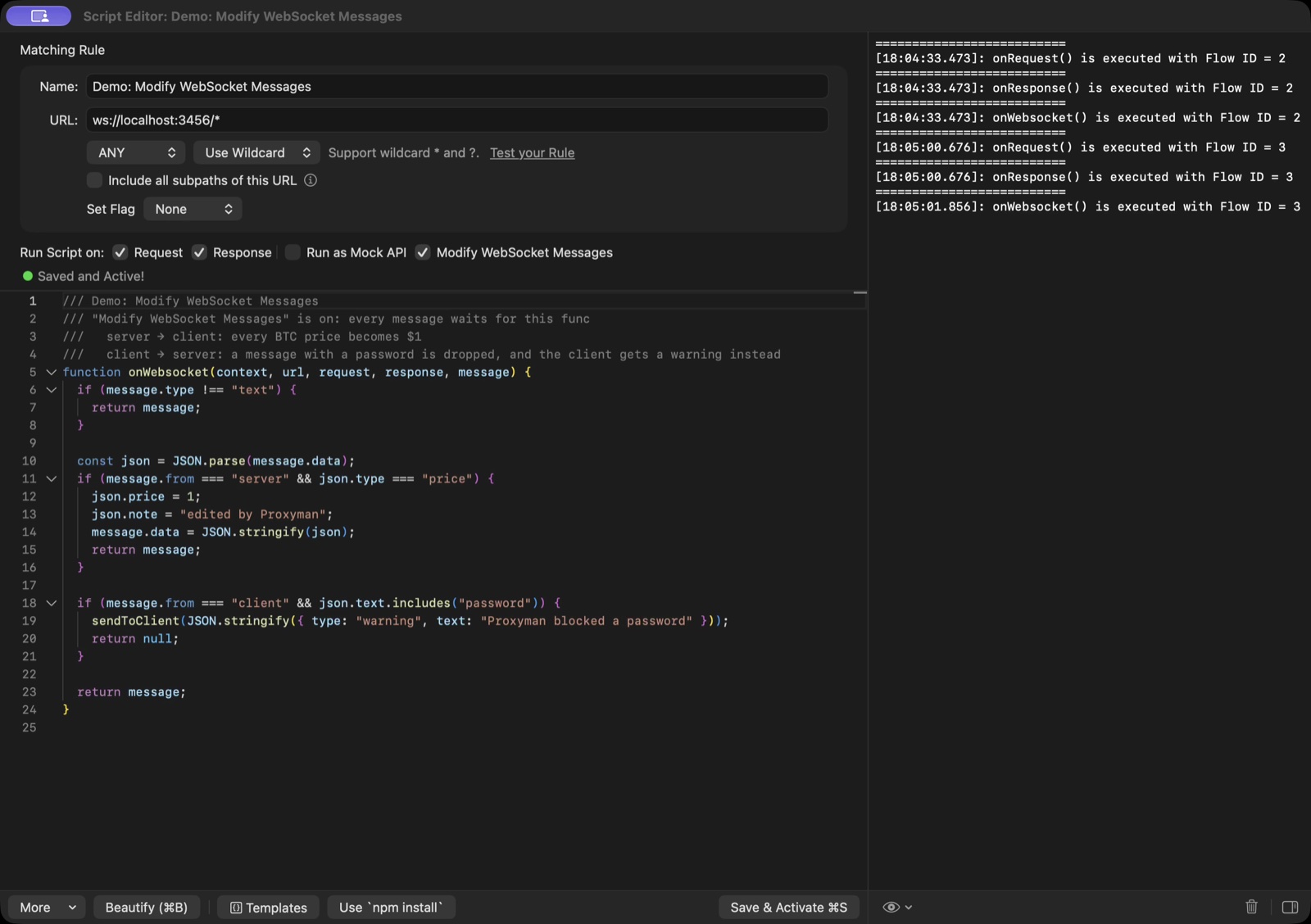
function onWebsocket(context, url, request, response, message) {
  // Only change text messages. Binary, ping, pong, and close messages pass through
  if (message.type !== "text") {
    return message;
  }

  const json = JSON.parse(message.data);

  // 1. Server → client: every BTC price becomes $1
  if (message.from === "server" && json.type === "price") {
    json.price = 1;
    json.note = "edited by Proxyman";
    message.data = JSON.stringify(json);
    return message;
  }

  // 2. Client → server: drop a message with a password, and warn the client
  if (message.from === "client" && json.text.includes("password")) {
    sendToClient(JSON.stringify({ type: "warning", text: "Proxyman blocked a password" }));
    return null;
  }

  // 3. Everything else: send it as it is
  return message;
}
3.4 Run it again and see the result
Run node client.js again. Proxyman decides about the option when the WebSocket connects, so always reconnect after you save a rule.
Now the client gets "price": 1 with the note "edited by Proxyman". The password message never reaches the server: the server Terminal only prints Hello, and the client gets the warning from the script instead.
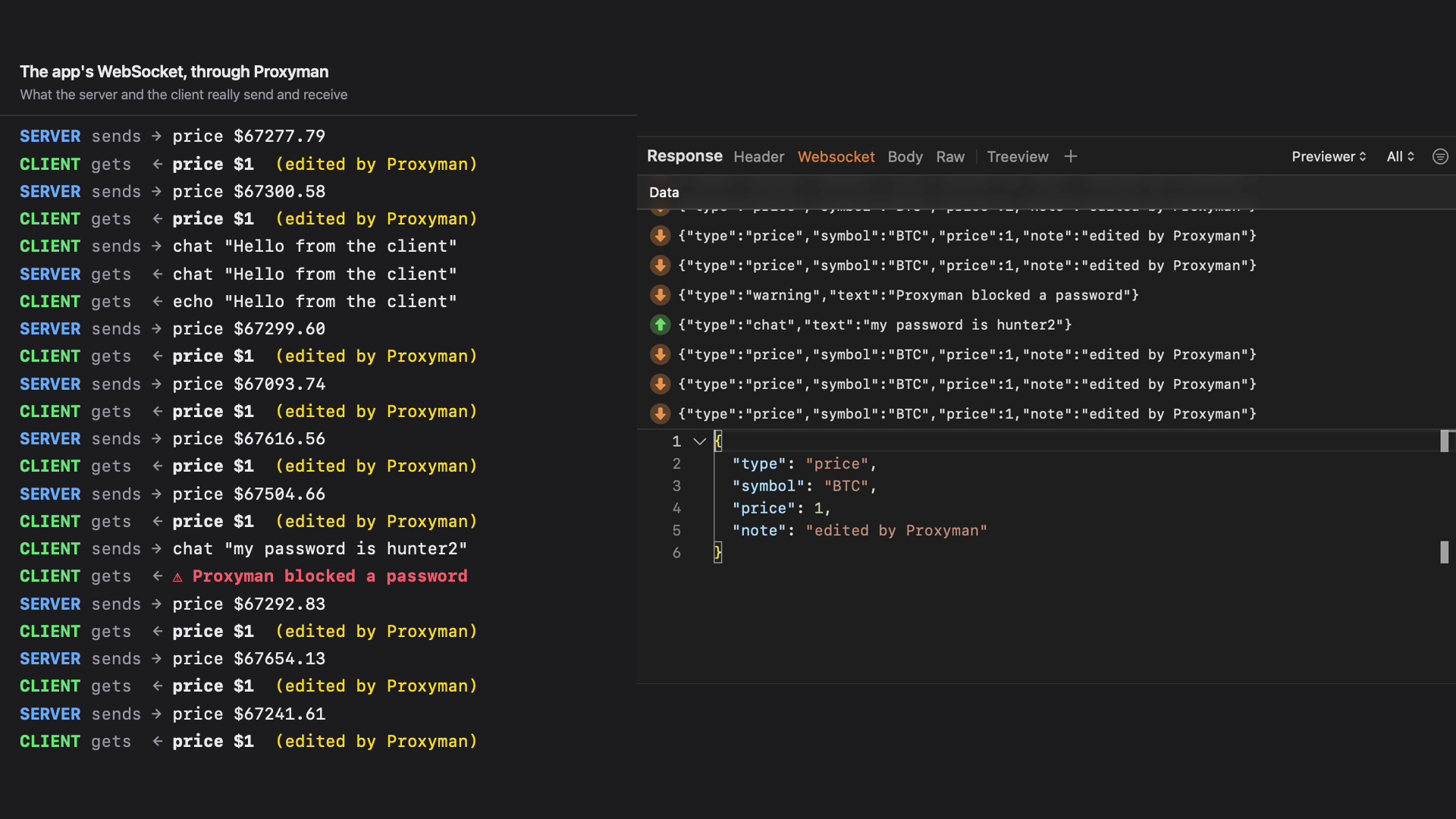
In Proxyman, the Websocket tab shows the edited prices, the warning sent by the script, and the password message that was dropped.
4. More examples
Replace text in both directions, e.g. switch a host name:
const FIND_REGEX = /staging\.example\.com/g;
const REPLACE_WITH = "api.example.com";

function onWebsocket(context, url, request, response, message) {
  if (message.type === "text") {
    message.data = message.data.replace(FIND_REGEX, REPLACE_WITH);
  }
  return message;
}
Simulate a lost connection after 10 messages, to test how your app reconnects. The code outside the function runs once per connection, so each connection counts its own messages:
const CLOSE_AFTER_MESSAGES = 10;
let messageCount = 0;

function onWebsocket(context, url, request, response, message) {
  messageCount += 1;
  if (messageCount === CLOSE_AFTER_MESSAGES) {
    console.log("Closing the WebSocket after " + messageCount + " messages");
    abort();
  }
  return message;
}
Change a binary message by setting new bytes:
function onWebsocket(context, url, request, response, message) {
  if (message.type === "binary" && message.from === "server") {
    message.rawData = new Uint8Array([1, 2, 3]);
  }
  return message;
}
5. Start faster with WebSocket templates
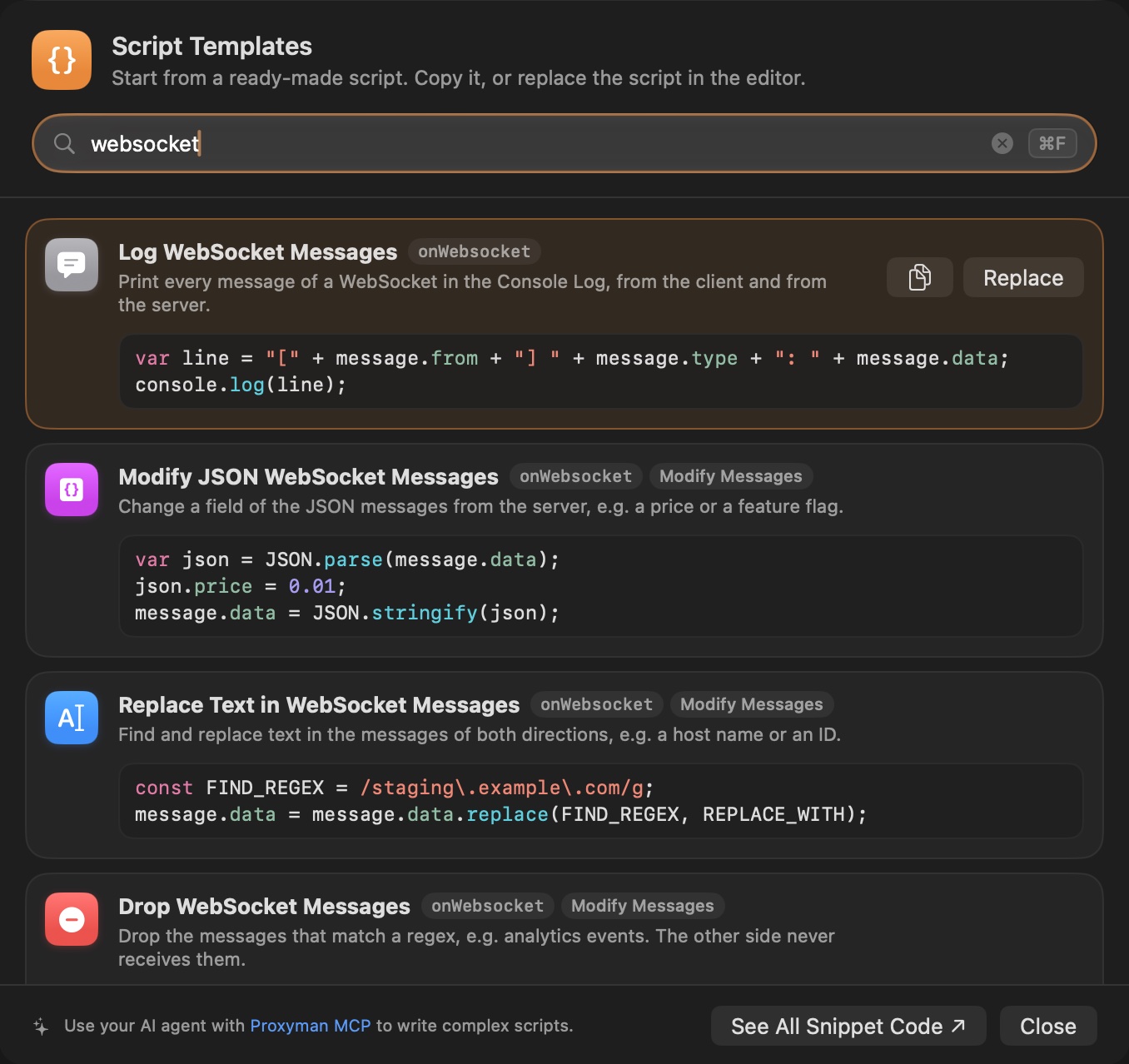
You don't need to write the script from scratch. In the Script Editor, click Templates and search for "websocket":
- Log WebSocket Messages: print every message in the Console Log. It only reads the messages.
- Modify JSON WebSocket Messages: change a field of the JSON messages from the server.
- Replace Text in WebSocket Messages: find and replace text in both directions.
- Drop WebSocket Messages: drop the messages that match a regex, e.g. analytics events.
- Reply to a WebSocket Message: answer a message of the client with
sendToClient(). The server never sees it. - Simulate a WebSocket Disconnect: close the WebSocket after a few messages.
Click Replace to use a template. Proxyman also sets the checkboxes it needs, including Modify WebSocket Messages.
6. Problems and solutions
The messages don't change
- Check Modify WebSocket Messages, then press Save & Activate (⌘S).
- Reconnect the WebSocket. The option is read when the WebSocket connects, not for every message.
- Keep Request or Response checked. A rule with both unchecked doesn't run at all, including
onWebsocket(). - Open the Console Log in the Script Editor. If your script throws an error, Proxyman sends the original message and prints the error there.
I can't see my WebSocket in Proxyman
- For
wss://, enable SSL Proxying for the domain, like for HTTPS. - Many apps and libraries skip the proxy for
localhost. Send the traffic to Proxyman likeclient.jsdoes, or follow the WebSocket docs for your platform.
Good to know
- Only the WebSocket that matches the rule waits for the script. Other traffic keeps flowing.
- A message bigger than 16 MB is sent as it is, without the script.
- If you use an AI agent, Proxyman MCP can create the same rule:
create_scripting_ruletakesmodify_websocket_messages: true.
Read more
- Scripting docs
- Snippet code for Scripting
- WebSocket docs
- How to capture WebSocket and decode Protobuf message
- How to intercept and debug WebSocket from iOS simulators or devices
- Proxyman vs mitmproxy: Decode Protobuf WebSocket Messages
- How to change HTTP Response Status Code, Header, Or the Body for Testing
- How to use Proxyman MCP with Codex and Claude Code