How to capture HTTP/3 traffic from Google Chrome and macOS apps
5 min read
1. The problem: HTTP/3 requests are missing
Your website loads in Google Chrome, or your macOS app gets a response, but the request is missing from Proxyman. One possible cause is HTTP/3, which uses QUIC over UDP instead of the TCP connections handled by a regular HTTP proxy.
- Some requests appear, while others bypass your capture.
- Installing the Proxyman certificate alone does not route QUIC traffic through the proxy.
- A Mac app may also ignore the system proxy settings.
The fix: Enable Network Extension and Use HTTP/2 in Proxyman. For supported connections, the extension makes HTTP/3 fall back to TCP, where Proxyman can capture the request using HTTP/2.
Expected output
- Fresh requests from Chrome or your Mac app appear in Proxyman.
- You can read HTTPS headers and bodies after setting up certificate trust and SSL Proxying.
- HTTP/2 appears as the captured protocol when negotiated. The example below shows the upstream server accepting
h2.
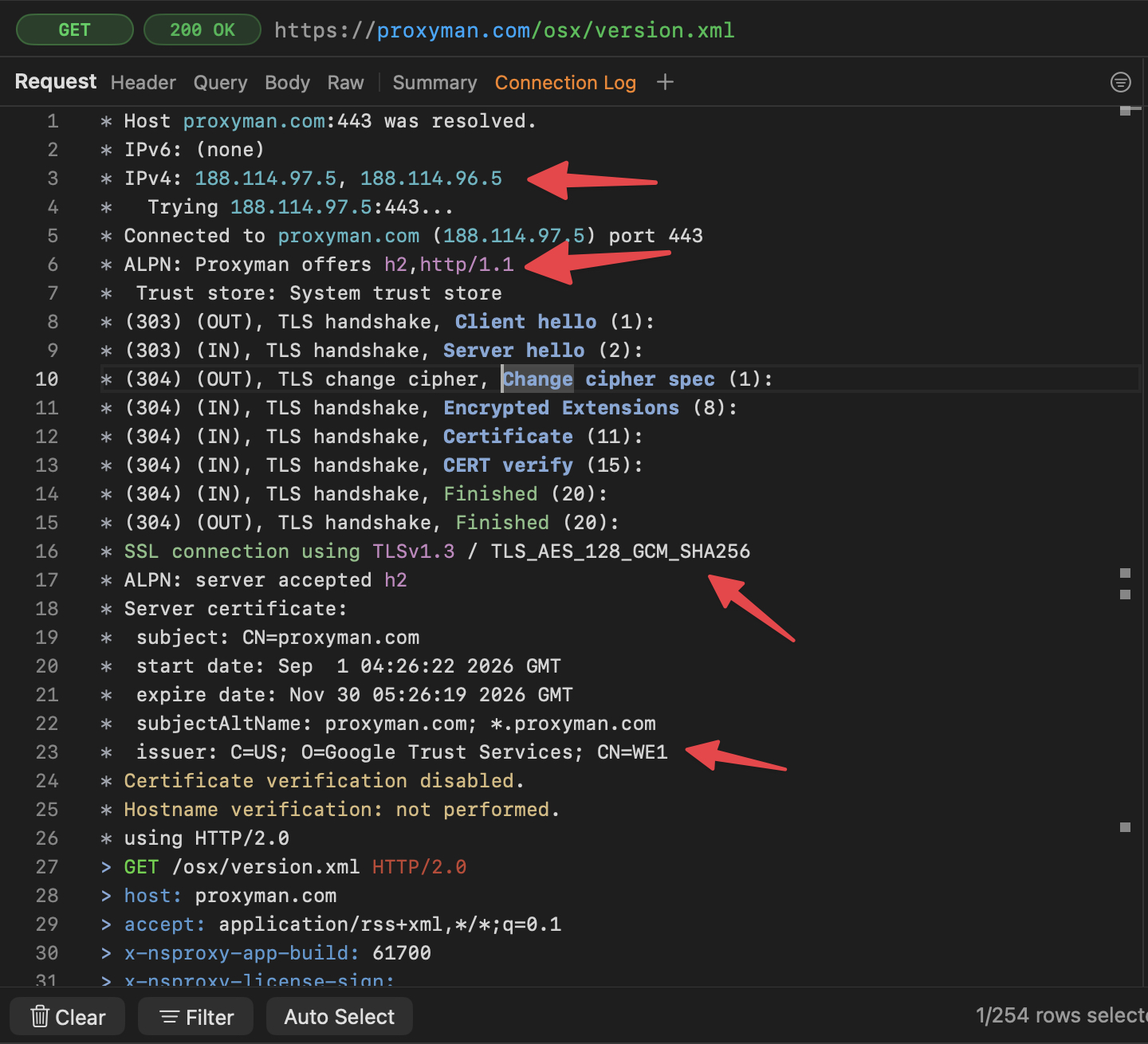
This workflow captures requests after HTTP/3 falls back to HTTP/2. It does not decode native QUIC traffic. HTTP/1.1 fallback is also possible when HTTP/2 is unavailable.
2. How HTTP/3 fallback works
HTTP/3 changes how requests travel across the network. It still carries familiar HTTP data, such as URLs, headers, and response bodies. The HTTP/3 standard describes falling back to TCP-based HTTP when QUIC connectivity fails.
Here is what happens during capture:
- Chrome or your app tries to connect using QUIC on UDP port 443.
- Proxyman Network Extension refuses that connection for traffic it handles.
- A client that supports fallback opens a TCP connection instead.
- With Use HTTP/2 enabled, Proxyman can negotiate HTTP/2 and show the exchange.
This lets you debug API data, login requests, and server errors. Because the transport changes, use a native QUIC capture tool when investigating HTTP/3 timing or QUIC-specific bugs.
3. Before you start
- Use macOS 26 or later.
- Install the latest direct edition of Proxyman for macOS.
- Have Proxyman PRO for Network Extension. The extension is currently BETA, off by default, and unavailable in Setapp.
- Use a website or app that supports TCP fallback. An HTTP/3-only client cannot use this method.
This guide covers apps running on your Mac. An iPhone or Android device needs its own capture setup.
4. Install and enable Network Extension
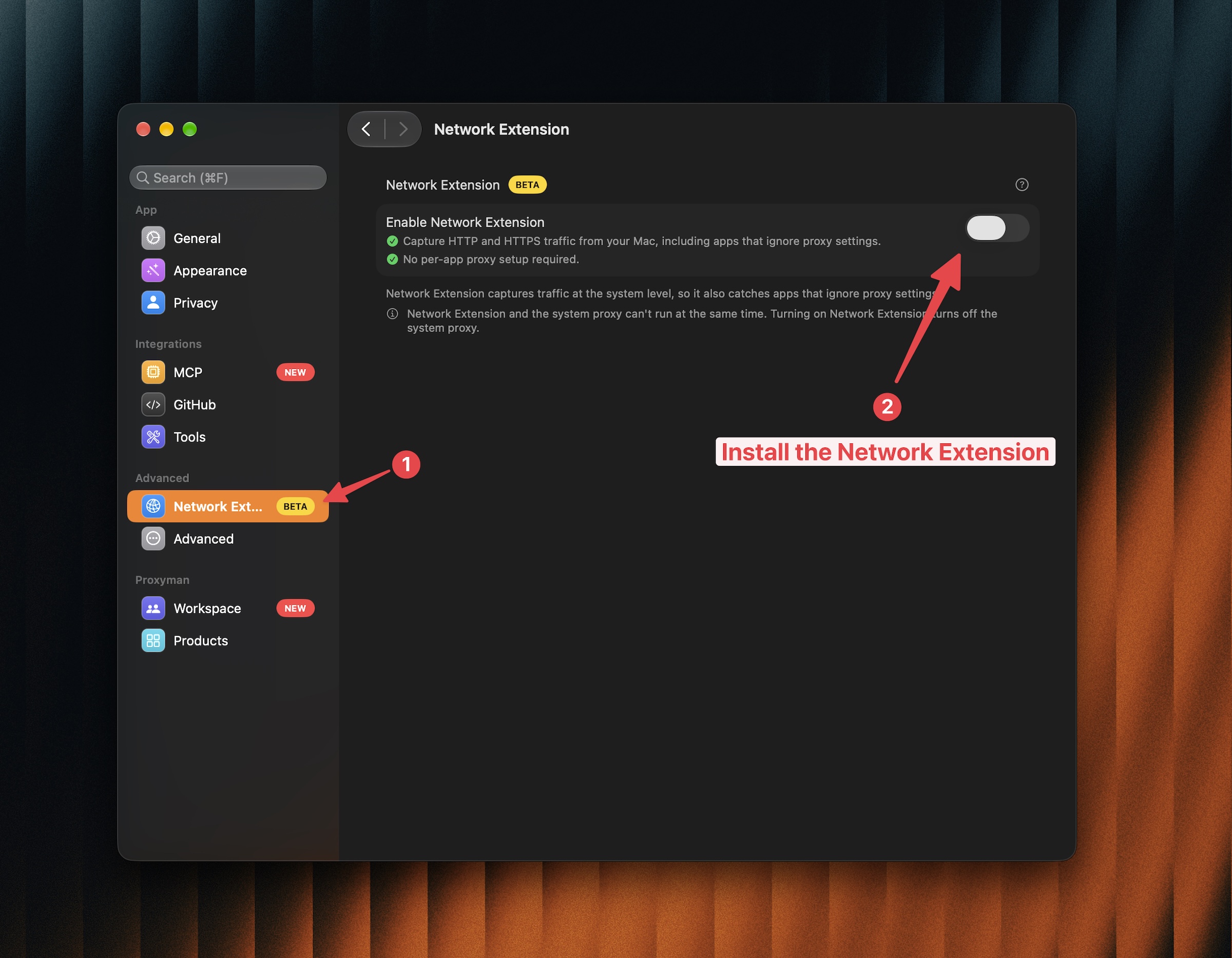
- Open Proxyman → Settings → Network Extension.
- Turn on Enable Network Extension.
- Click Install and Enable if it appears.
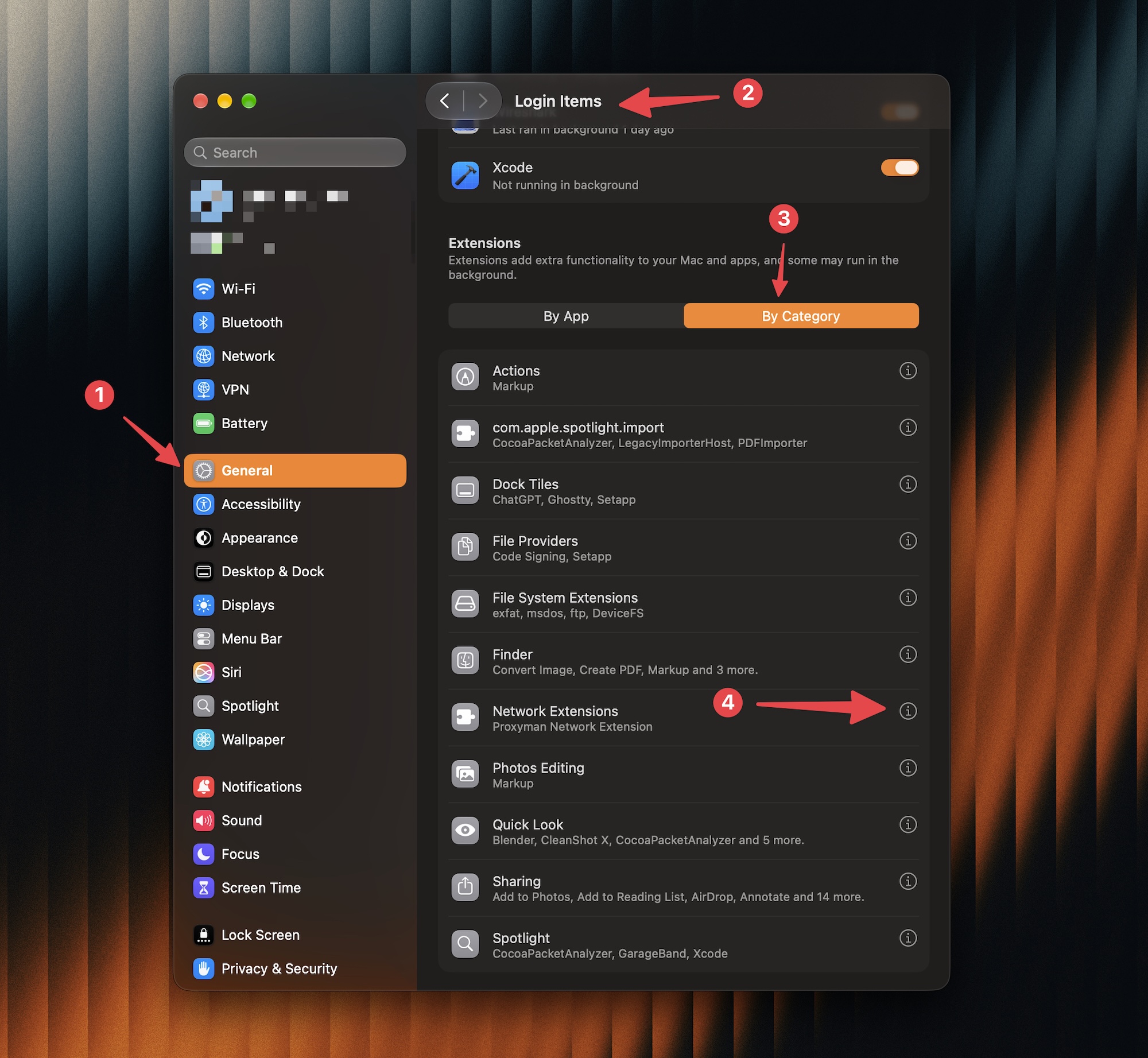
- Open System Settings → General → Login Items & Extensions.
- Under Extensions, choose By Category → Network Extensions.
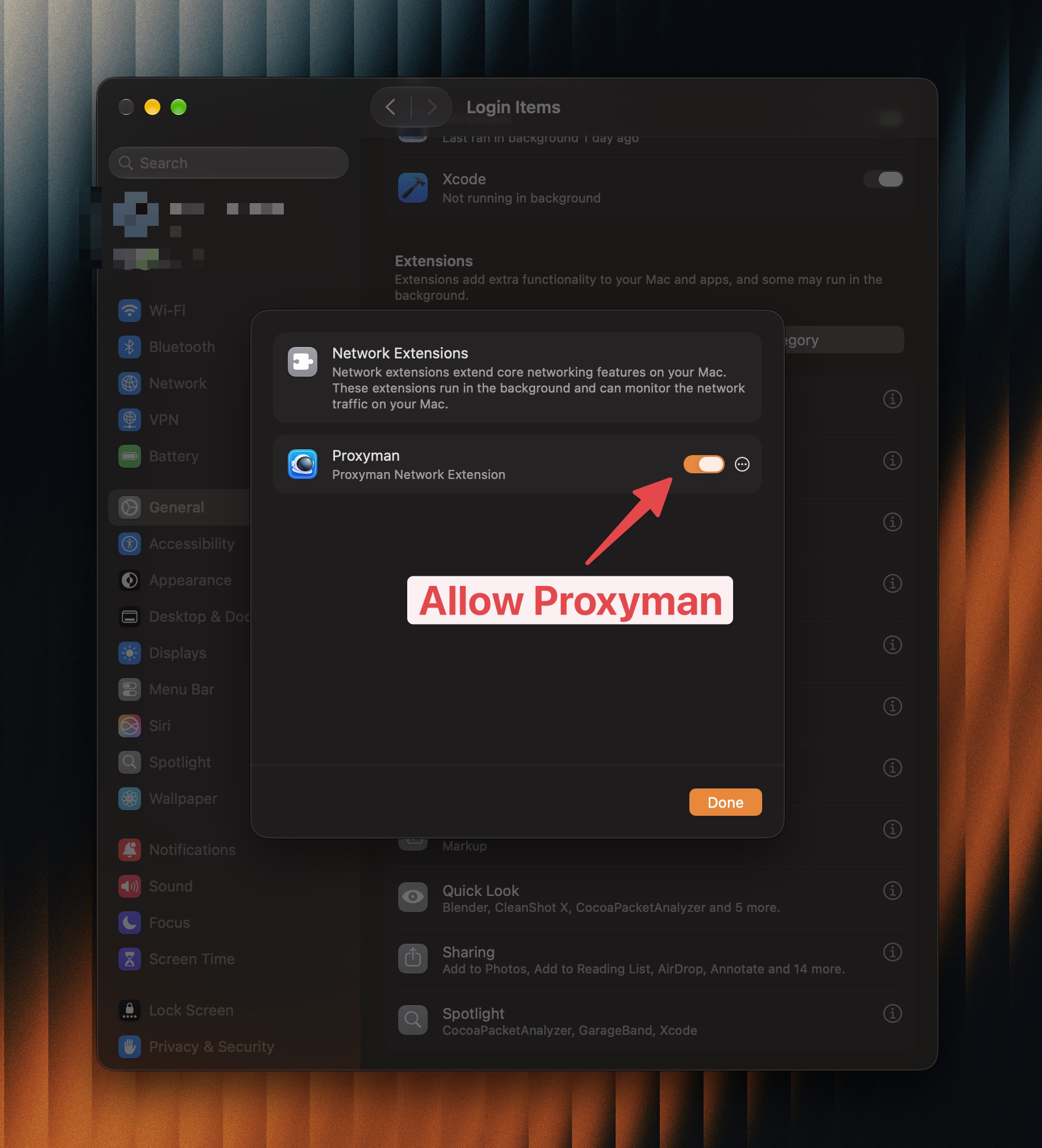
- Enable Proxyman, then click Allow when macOS asks to add the network configuration.
- Return to Proxyman and wait for the message that it is capturing HTTP and HTTPS from local applications.
The Network Extension guide has the full installation steps. Keep Proxyman open during capture.
5. Enable HTTP/2 in Proxyman
- Open Proxyman → Settings → General.
- In the Proxy section, turn on Use HTTP/2.
- Send new requests after changing the setting; existing connections are closed.
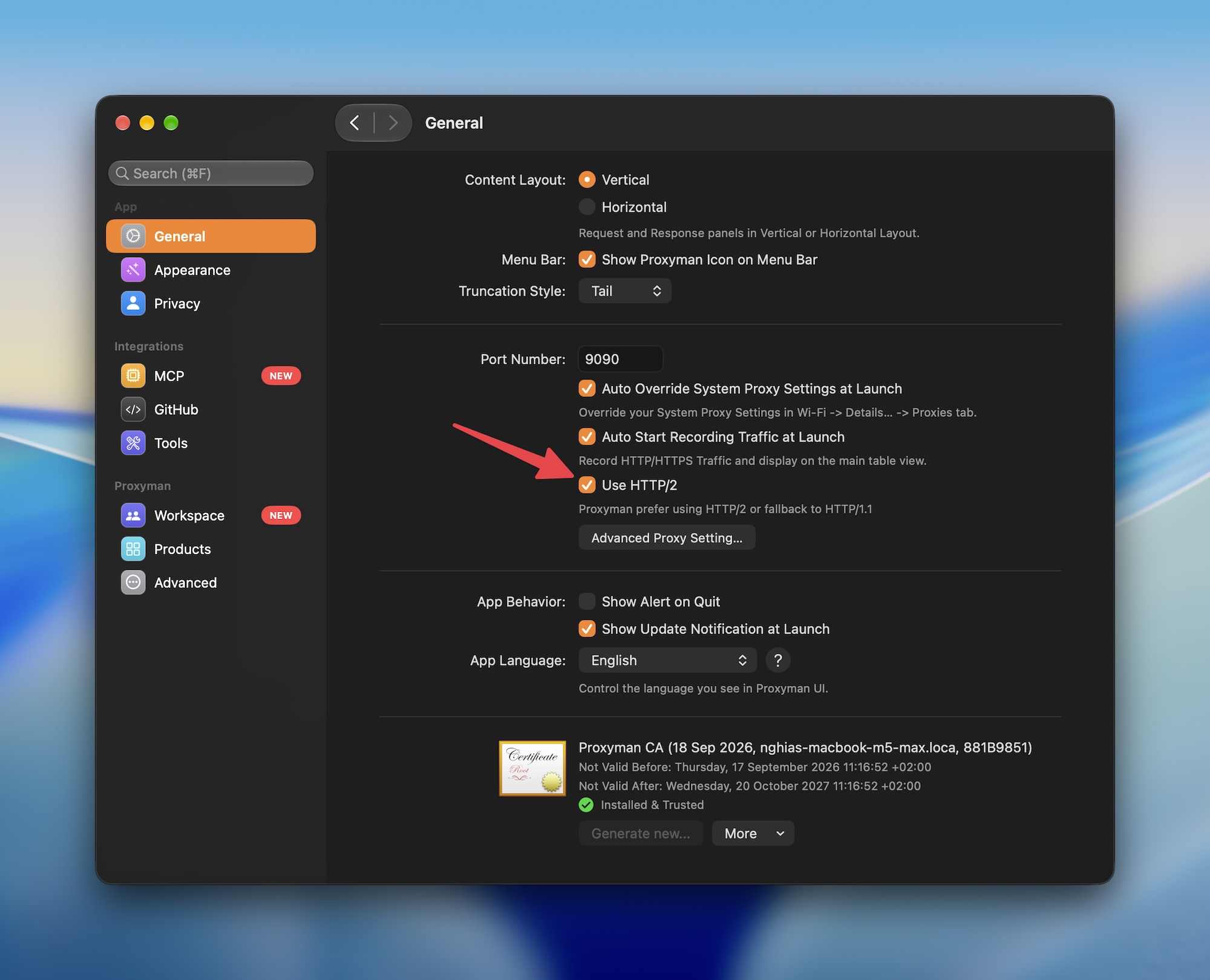
HTTP/2 support is available from Proxyman v26.0.0 and is off by default. The HTTP/2 guide explains protocol negotiation and fallback.
Set up HTTPS inspection
- Open Certificate → Install a Certificate on this Mac….
- Use Automatic Mode, approve the installation, and check for Installed & Trusted.
- Enable SSL Proxying for the app or domain you want to inspect. You can right-click it in the sidebar to enable it.
- Repeat the request so Proxyman can capture its decrypted content.
See the macOS certificate guide if trust is not set up yet. Network Extension routes connections; certificate trust lets Proxyman read HTTPS content.
6. Capture traffic from Google Chrome or a macOS app
Google Chrome
- Fully quit Chrome with ⌘Q, then reopen it to create fresh connections.
- Visit the website you want to debug and repeat the action that sends the request.
- In Proxyman, select Chrome or the target domain in the sidebar.
- Select a request to inspect its headers, query parameters, body, and response.
- If reloading makes no new request, open Chrome DevTools, select Network → Disable cache, and reload while DevTools stays open.
macOS apps
- Quit and reopen the app after enabling Network Extension.
- Trigger a network action, such as refreshing a list or loading a profile.
- Select the app or its API domain in Proxyman.
- Check the response status and body to see what the server returned.
Apps still need to trust the Proxyman certificate. Certificate pinning or a separate trust store can prevent HTTPS inspection even when fallback works.
7. Verify the captured HTTP version
- Check the request's HTTP version for the app-to-Proxyman connection.
- Open Connection Log in the Request panel for the Proxyman-to-server connection.
- Look for
ALPN: server accepted h2to confirm upstream HTTP/2. - Check the accepted protocol; an offer containing
h2alone is not confirmation.
The two connections can use different HTTP versions. See the Connection Log guide for help reading the result.
8. Troubleshooting missing requests
- Nothing appears: Check that Network Extension is active, recording is on, and filters are not hiding requests. Restart the target app.
- HTTPS content stays encrypted: Confirm certificate trust and enable SSL Proxying for the actual API domain, which may differ from the website domain.
- The capture uses HTTP/1.1: Check Use HTTP/2 and retry. The client and server must support HTTP/2 for their respective connections.
- The app fails to connect: Check certificate errors and whether it requires HTTP/3 without TCP fallback.
- A custom QUIC service is missing: This fallback handles UDP port 443. QUIC on another port is outside this workflow.
When finished, turn off Enable Network Extension in Proxyman Settings to stop capture through the extension.
Related blogs