Access Control
Proxyman Access Control을 사용해 모든 연결을 허용하거나, 모든 연결을 차단하거나, 특정 IP 주소만 프록시에 연결하도록 설정할 수 있으며, CLI에서도 모드를 지정할 수 있습니다.
1. 기능 소개
Access Control은 원격 기기(iPhone, Android, 다른 컴퓨터)가 Proxyman 앱에 연결하는 방식을 정의할 수 있는 고급 기능입니다. 더 높은 보안이 필요한 기업 사용자를 위해 설계되었습니다.
Tools 메뉴 -> Proxy Settings -> Access Control… 순서로 선택해 엽니다.
| 모드 | 설명 |
|---|---|
| Allow All | 모든 원격 연결이 Proxyman에 연결할 수 있습니다(기본값). |
| Disallow All | 어떤 원격 연결도 Proxyman에 연결할 수 없습니다. |
| Specify Remote Devices by IP | IP 주소로 Proxyman 앱에 연결할 수 있는 기기를 지정합니다. |
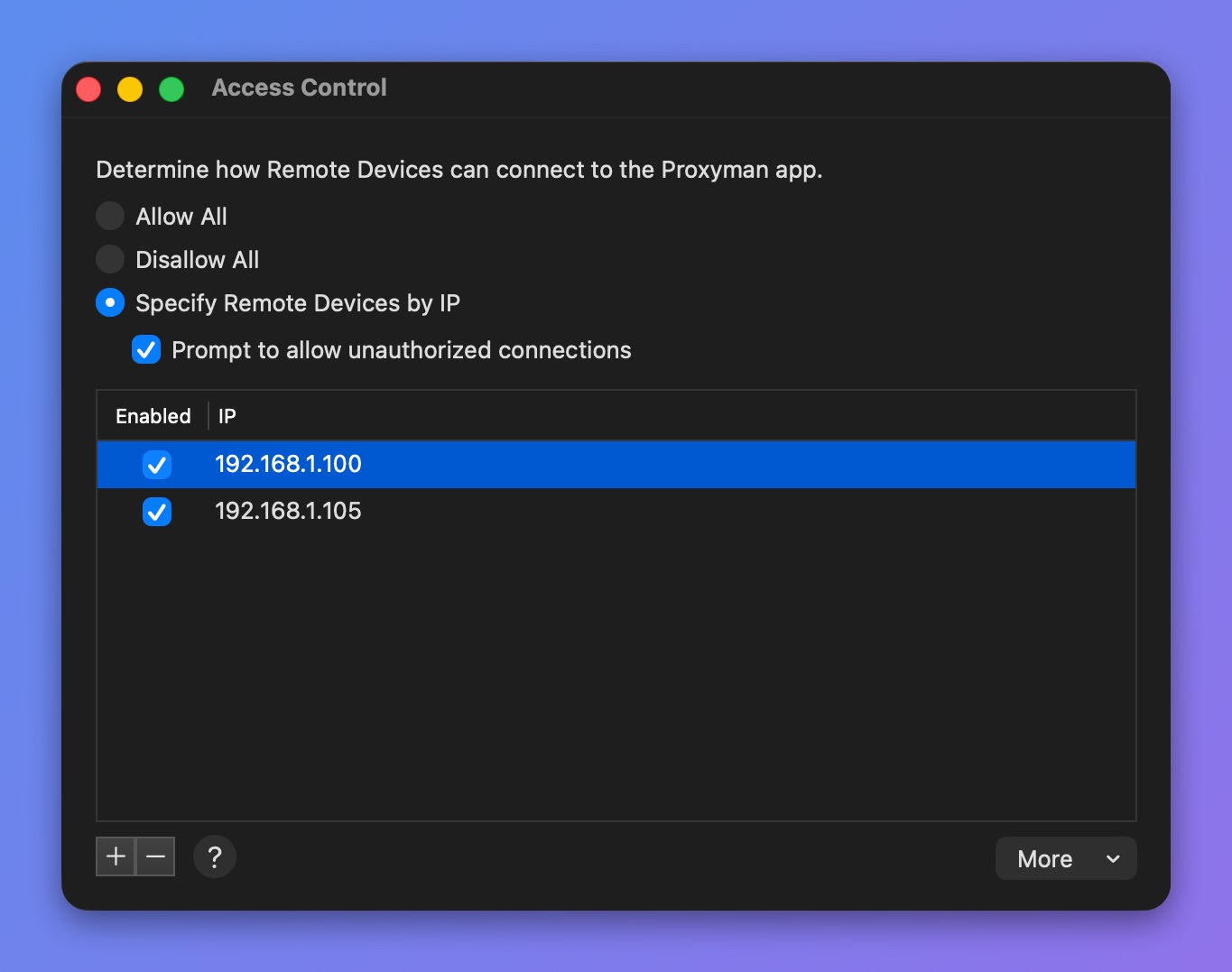
Access Control 창
Prompt to allow unauthorized connections를 선택하면, 목록에 없는 기기에 대해 Proxyman이 연결을 허용할지 거부할지 묻습니다.
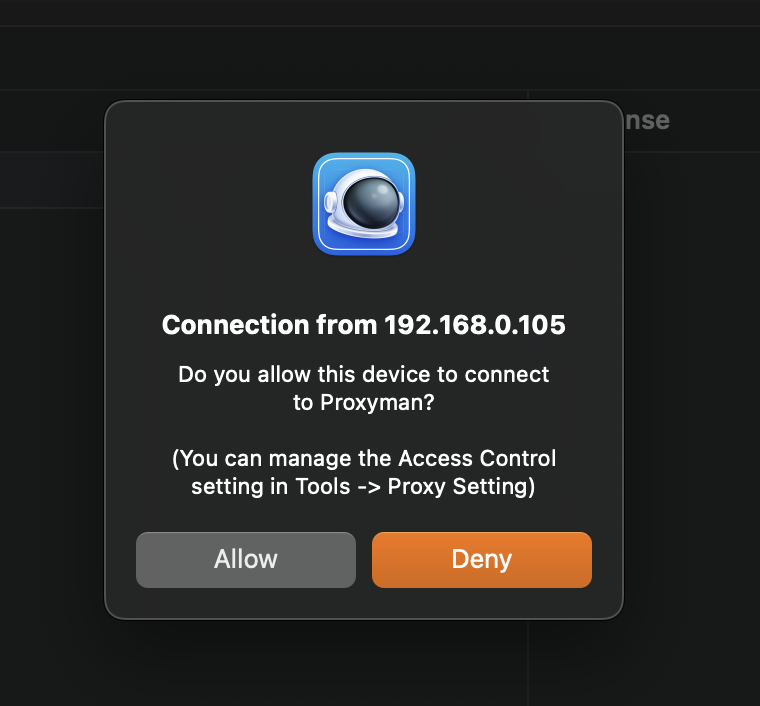
Prompt to allow unauthorized connections
2. 명령줄로 Access Control 모드 재정의
Proxyman 4.4.0부터 다음 명령어로 Access Control 모드를 재정의할 수 있습니다.
회사에서 앱 UI를 사용하지 않고 모드를 강제로 적용하고 싶을 때 유용합니다.
$ defaults write ~/Library/Preferences/com.proxyman.NSProxy.plist accessControlModeString "allowAll"
$ defaults write ~/Library/Preferences/com.proxyman.NSProxy.plist accessControlModeString "disallowAll"
$ defaults write ~/Library/Preferences/com.proxyman.NSProxy.plist accessControlModeString "specificIP"