Flutter
코드 변경 여부와 관계없이 Proxyman으로 Android 에뮬레이터, Android 기기, iOS 시뮬레이터, iPhone에서 실행되는 Flutter 앱의 HTTPS 트래픽을 캡처하세요.
✅ 1. 새로운 방법
Proxyman 6.4.0 이상 또는 Windows/Linux 3.7.0 이상에서 지원됩니다
Android 에뮬레이터
Proxyman은 Android 에뮬레이터에서 실행 중인 Flutter 앱의 HTTPS 트래픽을 클릭 한 번으로 캡처할 수 있습니다. 기존 방법과 달리 Flutter 코드를 변경할 필요가 없습니다.
- Proxyman을 실행한 다음 Certificate Menu -> Install Certificate on Android -> Emulators…를 선택합니다.
- 먼저 Android 에뮬레이터를 설정했는지 확인하세요. 반드시 Google APIs 이미지여야 합니다.
Android 에뮬레이터를 설정하는 방법은 automatic-script-for-android-emulator.md에서 확인하세요.
- "Install Proxyman VPN on Android emulators" 옵션을 체크합니다.
- "Override All Emulators" 버튼을 클릭합니다.
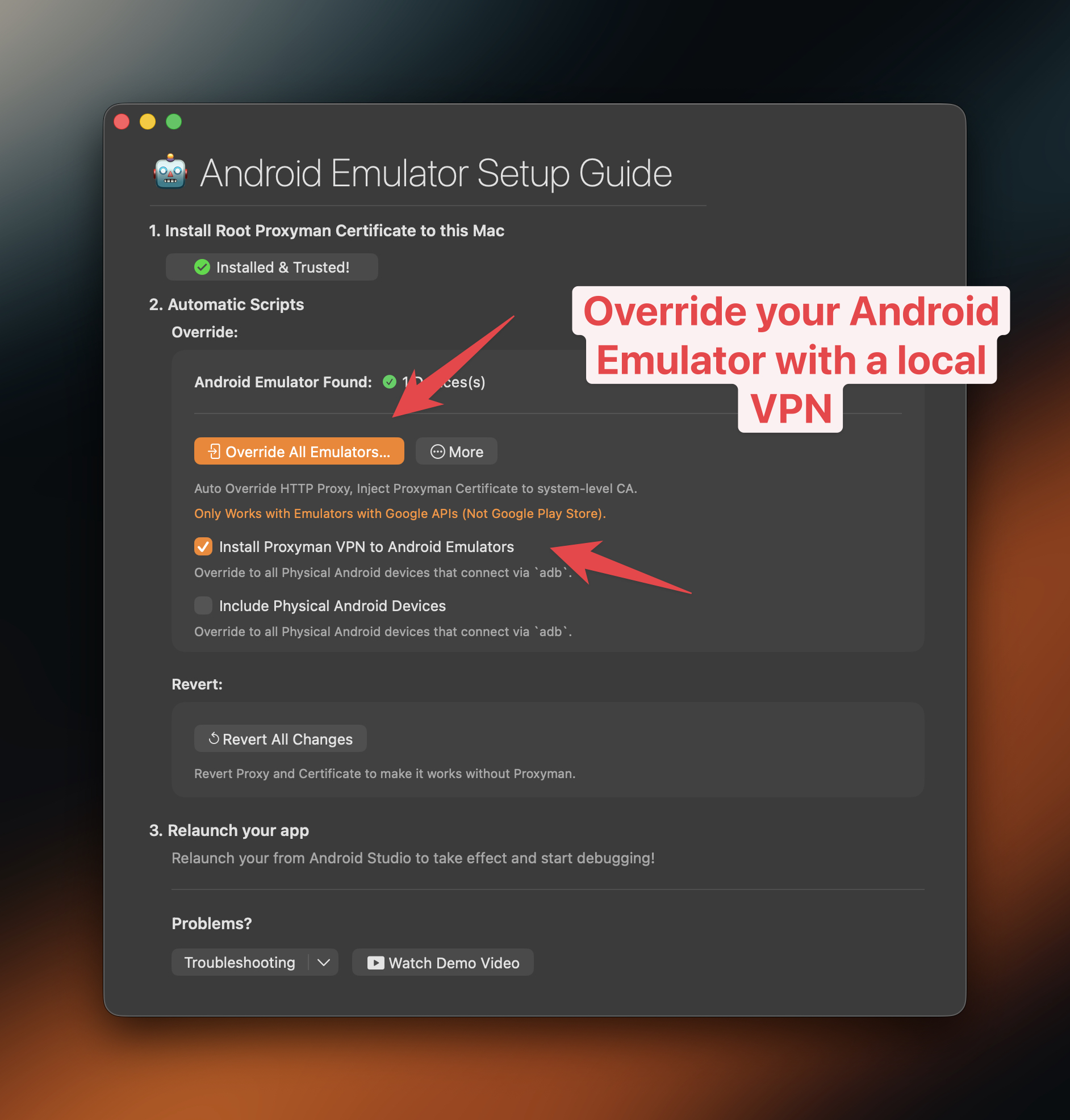
Proxyman으로 Android 에뮬레이터에서 Flutter 앱의 HTTPS 캡처
- 새 Terminal 창이 열리고, 에뮬레이터 설정을 덮어쓰는 bash 스크립트가 실행됩니다.
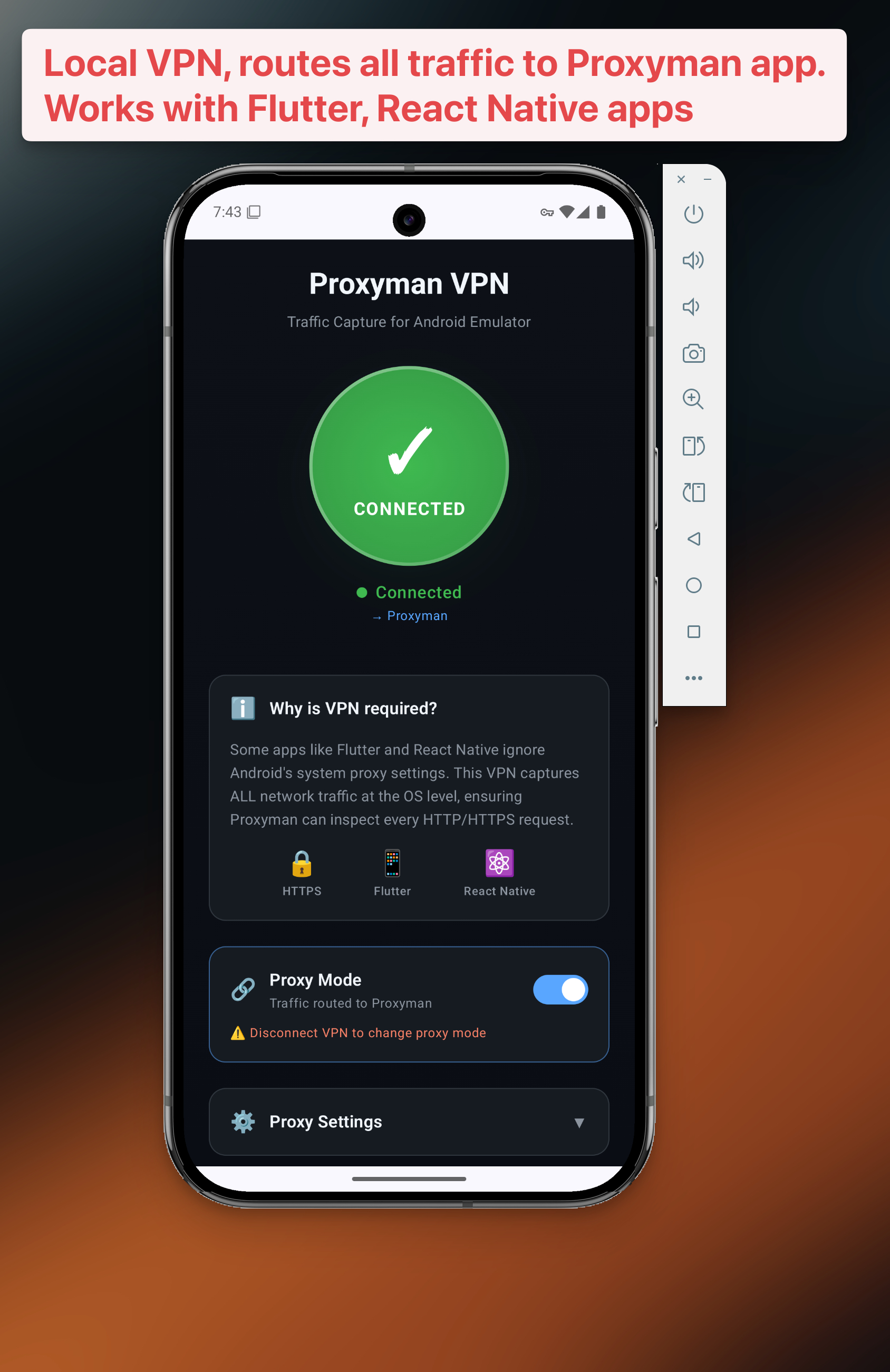
- 완료되면 에뮬레이터에 새 VPN 앱이 설치됩니다.
- VPN 버튼을 눌러 시작합니다 -> 완료 ✅
- Flutter 앱을 열고 HTTPS 요청을 보내세요. Proxyman이 이를 캡처합니다 ✅
⚠️ 2. 기존 방법
기존 방법은 Proxyman macOS 6.3.0 이하, Windows/Linux 3.6.0 이하에서 동작합니다
2.1 문제
Flutter는 시스템 수준 프록시를 사용하지 않습니다. 따라서 Proxyman을 사용해도 Flutter 프로젝트의 트래픽이 보이지 않을 수 있습니다.
다행히 Flutter의 HTTP 클라이언트가 Proxyman을 프록시로 사용하도록 설정하면 이 문제를 우회할 수 있습니다.
일반적으로 HTTP 클라이언트가 모든 트래픽을 Proxyman 프록시 서버(IP = localhost, 포트 = 9090)로 보내도록 설정해야 합니다.
1. Flutter 설정 (모든 플랫폼 필수 - iOS 및 Android)
단계는 HTTP 클라이언트마다 조금씩 다릅니다. 여기서는 널리 쓰이는 HTTP 클라이언트 몇 가지를 다룹니다:
- Dart의 HttpClient 클래스
- http 패키지
- Dio
Android 또는 iOS 시뮬레이터를 사용 중이라면 String proxy = 'localhost:9090'을 사용할 수 있습니다. Android 실제 기기에서는 String proxy = '<YOUR_LOCAL_IP>:9090'을 사용하세요.
<YOUR_LOCAL_IP>는 Proxyman -> Certificate menu -> Install Certificate on iOS -> Physical Devices…에서 확인할 수 있습니다.
Flutter 앱에서 사용하는 네트워크 라이브러리에 맞는 아래 설정을 사용하세요:
Dart HTTPClient 클래스
// Make sure to replace <YOUR_LOCAL_IP> with
// the external IP of your computer if you're using Android.
// You can get the IP in the Android Setup Guide window
String proxy = Platform.isAndroid ? '<YOUR_LOCAL_IP>:9090' : 'localhost:9090';

// Create a new HttpClient instance.
HttpClient httpClient = HttpClient();

// Hook into the findProxy callback to set
// the client's proxy.
httpClient.findProxy = (uri) {
  return "PROXY $proxy;";
};

// This is a workaround to allow Proxyman to receive
// SSL payloads when your app is running on Android
httpClient.badCertificateCallback = (cert, host, port) => true;
HTTP 패키지
// Make sure to replace <YOUR_LOCAL_IP> with
// the external IP of your computer if you're using Android.
// You can get the IP in the Android Setup Guide window
String proxy = Platform.isAndroid ? '<YOUR_LOCAL_IP>:9090' : 'localhost:9090';

// Create a new HttpClient instance.
HttpClient httpClient = HttpClient();

// Hook into the findProxy callback to set
// the client's proxy.
httpClient.findProxy = (uri) {
  return "PROXY $proxy;";
};

// This is a workaround to allow Proxyman to receive
// SSL payloads when your app is running on Android.
httpClient.badCertificateCallback = (cert, host, port) => true;

// Pass your newly instantiated HttpClient to http.IOClient.
IOClient myClient = IOClient(httpClient);

// Make your request as normal.
final response = myClient.get('/my-url');
Dio ≥ v5.0.0 (권장)
// Make sure to replace <YOUR_LOCAL_IP> with
// the external IP of your computer if you're using Android.
// You can get the IP in the Android Setup Guide window
String proxy = Platform.isAndroid ? '<YOUR_LOCAL_IP>:9090' : 'localhost:9090';

// Create a new Dio instance.
Dio dio = Dio();

dio.httpClientAdapter = IOHttpClientAdapter(
  createHttpClient: () {
    final client = HttpClient();
    client.findProxy = (uri) {
      return 'PROXY $proxy';
    };
    client.badCertificateCallback = (cert, host, port) => true;
    return client;
  },
  validateCertificate: (cert, host, port) {
    return true;
  },
);
Dio < v5.0.0 (지원 중단된 API)
// Make sure to replace <YOUR_LOCAL_IP> with
// the external IP of your computer if you're using Android.
// You can get the IP in the Android Setup Guide window
String proxy = Platform.isAndroid ? '<YOUR_LOCAL_IP>:9090' : 'localhost:9090';

// Create a new Dio instance.
Dio dio = Dio();

// Tap into the onHttpClientCreate callback
// to configure the proxy just as we did earlier.
(dio.httpClientAdapter as DefaultHttpClientAdapter).onHttpClientCreate = (client) {
  // Hook into the findProxy callback to set the client's proxy.
  client.findProxy = (url) {
    return 'PROXY $proxy';
  };

  // This is a workaround to allow Proxyman to receive
  // SSL payloads when your app is running on Android.
  client.badCertificateCallback = (X509Certificate cert, String host, int port) => true;
}
2.2 iOS 시뮬레이터에서 Flutter
- Flutter에서 iOS 시뮬레이터를 시작합니다.
- Proxyman -> Certificate menu -> Install Certificate on iOS -> Simulators…를 선택합니다.
- 아래 단계를 모두 따르세요.
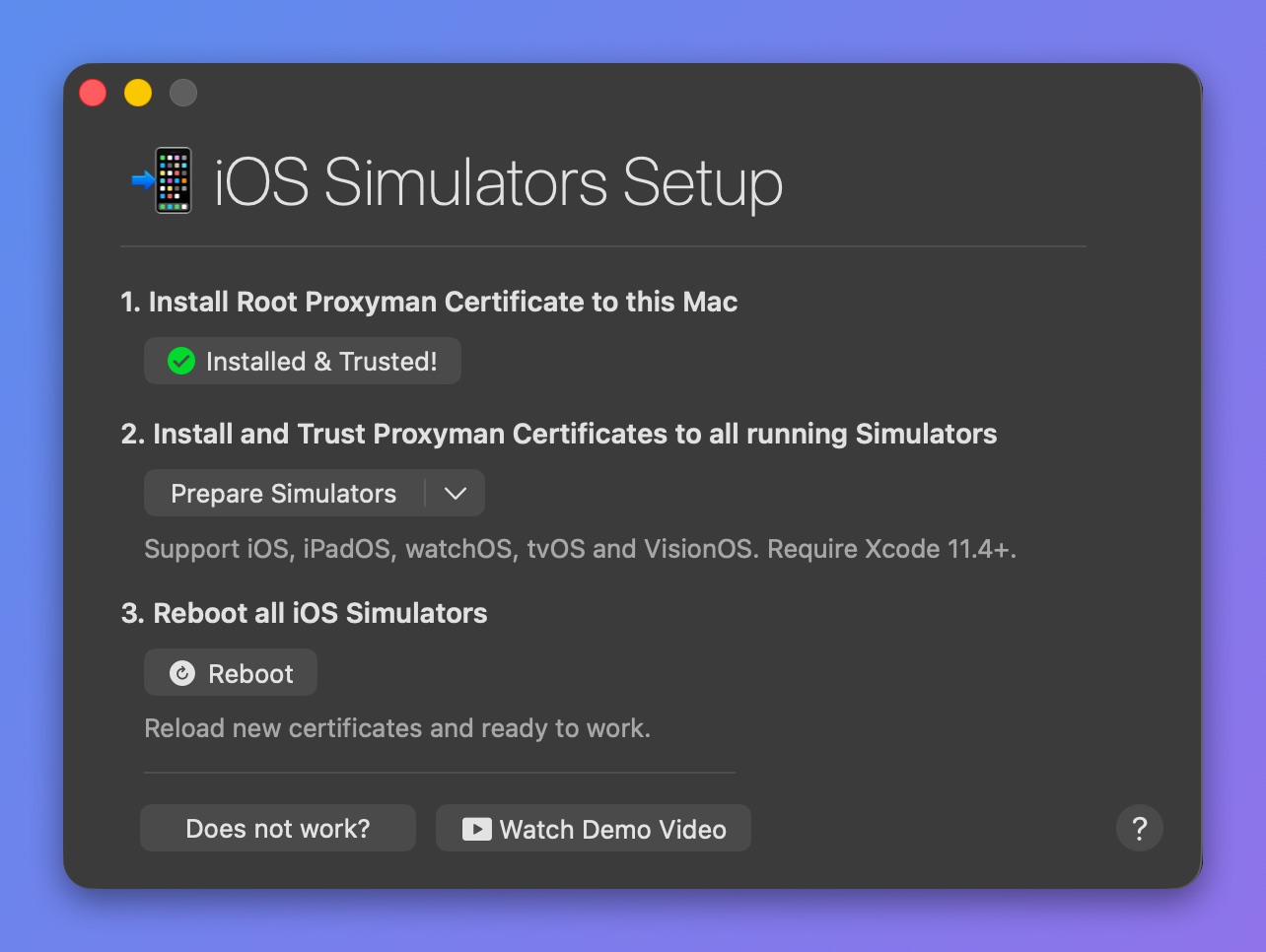
Proxyman 인증서를 iOS 시뮬레이터에 설치 & 신뢰
- ✅ 완료. Proxyman이 HTTPS 트래픽을 캡처할 수 있습니다.
2.3 iOS 기기에서 Flutter
- iOS 기기 설정 가이드를 따르세요.
2.4 Android 에뮬레이터에서 Flutter
- Android 에뮬레이터용 자동 스크립트 가이드를 따르세요.
2.5 Android 기기에서 Flutter
- Android 기기 설정 가이드를 따르세요.
크레딧 및 참고 자료
크레딧: https://flutterigniter.com/debugging-network-requests/의 James Dixon