스니펫 코드
Proxyman Scripting에서 바로 복사해 사용할 수 있는 JavaScript 스니펫 모음입니다. 헤더, 쿼리, JSON 본문, 상태 코드 수정부터 로컬 파일 매핑과 API 호출까지 자주 쓰는 코드를 담았습니다.
1. 무엇인가요?
Proxyman Scripting 도구에서 사용할 수 있는 JavaScript 스니펫 모음입니다.
찾고 있는 Snippet Code가 없다면 GitHub에 이슈를 남겨 주시면 도와드리겠습니다 ⭐️
Proxyman MCP를 Codex나 Claude Code 같은 에이전트와 함께 사용하면 스크립트를 쉽게 생성할 수 있습니다 🚀
2. Request 및 Response 공통
- Request 또는 Response 헤더 업데이트
- Request 쿼리 업데이트
- URLEncoded 폼 Request 본문 업데이트
- Request 또는 Response JSON 본문 업데이트
- Map Local 도구처럼 로컬 파일을 Response 본문으로 매핑
- Request 대상의 scheme, host, port, path 변경
- Upstream ALPN 및 HTTP/2 설정
- HTTP를 HTTPS로 변경
- HTTPS를 HTTP로 변경
- Request 메서드 변경
- Response 상태 코드 변경
- 로깅
- JSON 파일을 Request 또는 Response 본문으로 사용
- 여러 JSON 파일 사용
- GraphQL용 Local Map
- Request/Response 본문에서 ArrayBuffer 사용
- Host 유지하기
- 주석 달기 및 색상 강조
- Request/Response 연결 중단 (Block List 도구처럼)
Multipart/form-data
3. 애드온
- Base64 인코딩/디코딩 또는 atob/btoa
- 해싱 애드온 (MD5, SHA1, SHA256, SHA512)
- UUIDv4 생성기
- Deflate/Inflate 또는 GZip/UnGZip
- JWT 디코드
3.1 `npm install` 사용
4. 정규식
5. 파일 가져오기 / 내보내기
- JSON 파일 가져오기
- 바이너리 데이터(이미지) 가져오기
- 텍스트 기반 파일(css, html, js 등) 가져오기
- "Import Tool" 없이 파일 가져오기
- 로컬 파일로 쓰기 / 내보내기
- 파일 존재 여부 확인
- 로컬 파일 읽기
- Response를 Mock API로 사용
6. 기타
7. 암호화/복호화
8. Scripting으로 Map Remote 사용
9. async/await HTTP 요청 만들기 (macOS)
- 쿼리가 포함된 GET 요청
- JSON 본문이 포함된 POST 요청
- application/x-www-form-urlencoded 본문이 포함된 POST 요청
- PUT / PATCH / DELETE 요청
9.1. async/await HTTP 요청 만들기 (Windows/Linux)
10. URL과 URLSearchParams
11. 환경 변수 접근
12. WebSocket
- WebSocket URL과 헤더 변경
- onWebsocket으로 WebSocket 메시지 로깅
- 텍스트 및 JSON 메시지 읽기
- 바이너리 메시지 확인
- Ping 및 Pong 프레임 로깅
- Close 프레임 확인
- onWebsocket으로 WebSocket 메시지 수정
- JSON 메시지의 필드 변경
- 양방향 텍스트 치환
- 메시지 드롭
- 서버 없이 클라이언트 메시지에 응답
- 서버로 메시지 보내기
- 연결 끊김 시뮬레이션
- 바이너리 메시지 변경
HTTP 헤더
추가/업데이트: Request 또는 Response 헤더
function onRequest(context, url, request) {
    // Add or update Request Header
    request.headers["X-Proxyman-Key"] = "My-Value";
    request.headers.name = "Proxyman";
    return request;
}

function onResponse(context, url, request, response) {
    // Add or update Response Header
    response.headers["X-Proxyman-Key"] = "My-Value";
    response.headers.id = 100;
    return response;
}
삭제: Request 또는 Response 헤더
function onRequest(context, url, request) {
    delete request.headers["X-Proxyman-Key"];
    return request;
}

function onResponse(context, url, request, response) {
    delete response.headers["X-Proxyman-Key"];
    return response;
}
Request 쿼리
추가/업데이트
function onRequest(context, url, request) {
    request.queries["name"] = "Proxyman";
    request.queries["platform"] = "macOS";
    // => http://proxyman.io?name=Proxyman&platform=macOS
    return request;
}
삭제
function onRequest(context, url, request) {
    delete request.queries["name"];
    delete request.queries["platform"];
    return request;
}
URLEncoded 폼 본문
추가/업데이트
function onRequest(context, url, request) {
    // Make sure the Request Header is application/x-www-form-urlencoded
    // Content-Type: application/x-www-form-urlencoded
    var formBody = request.body;

    formBody["name"] = "Proxyman";
    formBody["platform"] = "macOS";

    request.body = formBody; // => name=Proxyman&platform=macOS
    return request;
}
삭제
function onRequest(context, url, request) {
    // Content-Type: application/x-www-form-urlencoded
    var formBody = request.body;

    delete formBody["name"];
    delete formBody["platform"];

    request.body = formBody;
    return request;
}
Request 대상 변경 (scheme, host, port, path)
function onRequest(context, url, request) {
    request.scheme = "http";
    request.host = "proxyman.dev";
    request.port = 9090;
    request.path = "v1/data/user";
    return request;
}
Upstream ALPN 및 HTTP/2 설정
macOS용 Proxyman v26.0.0 이상에서 사용할 수 있습니다. 설정 방법은 HTTP/2에서 확인합니다.
onRequest에서 request.upstream을 설정하면 Proxyman이 서버에 연결하는 방식을 바꿀 수 있습니다. HTTPS 도메인에 대해 Enable SSL Proxying을 켜야 합니다. H2 오버라이드를 사용하려면 설정에서 HTTP/2가 활성화되어 있어야 하며, 클라이언트가 Proxyman에 HTTP/2 연결을 사용해야 합니다.
async function onRequest(context, url, request) {
  request.upstream = {
    tls: { alpnProtocols: ["h2"] },
    http2: {
      headerTableSize: 65536,
      initialWindowSize: 6291456,
      maxHeaderListSize: 262144
    }
  };
  return request;
}
ALPN은 중복 없이 비어 있지 않은 목록을 받습니다:
["h2"]: HTTP/2를 필수로 요구합니다. 서버가 사용할 수 없으면 실패합니다.["h2", "http/1.1"]: HTTP/1.1로의 폴백을 허용합니다.["http/1.1"]: HTTP/1.1을 사용합니다.
HTTP/2 값은 0부터 아래 최댓값까지의 정수여야 합니다. 생략했거나 null인 필드는 기본값을 사용합니다.
| 설정 | 기본값 | 최댓값 |
|---|---|---|
headerTableSize | 65536 | 4294967295 |
initialWindowSize | 6291456 | 2147483647 |
maxHeaderListSize | 262144 | 4294967295 |
모든 오버라이드를 초기화하려면 request.upstream을 삭제하거나 null로 설정합니다. 잘못되었거나 호환되지 않는 설정은 로컬 502 Scripting 오류를 반환합니다.
HTTP를 HTTPS로 변경
function onRequest(context, url, request) {
    request.scheme = "https";
    request.port = 443; // Don't forget to override the port
    return request;
}
HTTPS를 HTTP로 변경
function onRequest(context, url, request) {
    request.scheme = "http";
    request.port = 80; // Don't forget to override the port
    return request;
}
HTTP Request 메서드 변경
function onRequest(context, url, request) {
    request.method = "POST";
    return request;
}
Response HTTP 상태 코드 변경
function onResponse(context, url, request, response) {
    response.statusCode = 404;
    return response;
}
JSON 본문
Request에서
function onRequest(context, url, request) {
    // Set JSON content
    request.headers["Content-Type"] = "application/json";

    // Get Request body
    var jsonBody = request.body;

    // Modify data
    jsonBody["name"] = "Proxyman";
    jsonBody["platform"] = "macOS";
    jsonBody["info"] = {
                        "website": "proxyman.io",
                        "region": "Earth"
                       };
    // Set it again
    request.body = jsonBody;
    return request;
}
Response에서
function onResponse(context, url, request, response)  {
    // Set JSON content
    response.headers["Content-Type"] = "application/json";

    // Get Request body
    var jsonBody = response.body;

    // Modify data
    jsonBody["name"] = "Proxyman";
    jsonBody["platform"] = "macOS";
    jsonBody["info"] = {
                        "website": "proxyman.io",
                        "region": "Earth"
                       };
    // Set it again
    response.body = jsonBody;
    return response;
}
Multipart/form-data
Proxyman macOS 6.6.0 이상에서는 multipart/form-data를 읽고, 추가하고, 삭제할 수 있습니다.
function onRequest(context, url, request) {
  // Only run for multipart requests
  if (!request.multipart) {
    return request;
  }

  var parts = request.multipart;

  // 1) List parts (debug)
  console.log("Multipart parts:", parts);

  // 2) Modify a text part by name
  for (var i = 0; i < parts.length; i++) {
    if (parts[i].name === "text_field") {
      var p = parts[i];
      p.body = "Updated text from script";
      parts[i] = p;
    }
  }

  // 3) Modify a file part by name (binary body as [UInt8])
  for (var i = 0; i < parts.length; i++) {
    if (parts[i].name === "file_field") {
      var p = parts[i];
      p.body = [72, 101, 108, 108, 111]; // "Hello"
      p.fileName = "hello.txt";
      p.contentType = "text/plain";
      parts[i] = p;
    }
  }

  // 4) Add a new text part
  parts.push({
    name: "new_field",
    body: "Added by script"
  });

  // 5) Remove a part by name
  var filtered = [];
  for (var i = 0; i < parts.length; i++) {
    if (parts[i].name !== "remove_me") {
      filtered.push(parts[i]);
    }
  }

  // Apply updates
  request.multipart = filtered;

  return request;
}
로컬 파일을 Response 본문으로 매핑 (Map Local 도구처럼, Proxyman 2.25.0+)
bodyFilePath 속성을 사용하면 로컬 파일을 본문으로 간편하게 설정할 수 있습니다.
// For request
request.bodyFilePath = "~/Desktop/image.png";

// For response
response.bodyFilePath = "~/Desktop/image.png";
function onResponse(context, url, request, response) {

  response.headers["Content-Type"] = "image/png";
  response.bodyFilePath = "~/Desktop/image.png";

  // Done
  return response;
}
function onResponse(context, url, request, response) {

  response.headers["Content-Type"] = "application/json";
  response.bodyFilePath = "~/Desktop/my_response.json";

  // Done
  return response;
}
JSON 파일을 Request 또는 Response 본문으로 사용
JSON 파일을 Request 또는 Response 본문으로 사용할 수 있습니다.
JSON 파일 가져오기 절차를 따릅니다.
여러 JSON 파일 사용
if 문을 사용하면 일치하는 엔드포인트마다 서로 다른 본문을 설정할 수 있습니다.
- JSON 파일 가져오기 절차에 따라 JSON 파일을 스크립트로 가져옵니다
- 여러 엔드포인트와 일치하도록 와일드카드 또는 정규식 패턴으로 Script Rule을 설정합니다. 예: https://my-domain.com/v\*
- `includes()`를 사용해 엔드포인트가 일치하는지 확인합니다
const file_1 = require("@users/myfile_1.json");
const file_2 = require("@users/myfile_2.json");
const file_3 = require("@users/myfile_3.json");

function onResponse(context, url, request, response) {

  // Set JSON content
  response.headers["Content-Type"] = "application/json";

  // Check
  if (url.includes("v1/data")) {
    response.body = file_1
  } else if (url.includes("v2/login")) {
      response.body = file_2
  } else if (url.includes("v3/user")) {
      response.body = file_3
  }

  // Done
  return response;
}
GraphQL용 Local Map
자세한 내용은 https://github.com/ProxymanApp/Proxyman/issues/412#issuecomment-697101594에서 확인합니다.
// Import your JSON file here
const file = require("@users/B02D96D5.default_message_32E64A5B.json");

function onRequest(context, url, request) {

  // 1. Extract the queryName from the request
  var queryName = request.body.query.match(/\S+/gi)[1].split('(').shift();

  // 2. Save to sharedState
  sharedState.queryName = queryName

  // Done
  return request;
}

function onResponse(context, url, request, response) {

  // 3. Check if it's the request we need to map
  if (sharedState.queryName == "user") {

    // 4. Import the local file by Action Button -> Import
    // Get the local JSON file and set it as a body (like Map Local)
    response.headers["Content-Type"] = "application/json";
    response.body = file;
  }

  // Done
  return response;
}
Request/Response 본문에서 ArrayBuffer 사용
JavaScript에는 Data 객체 타입이 없으므로, Data 본문은 JavaScript에서 Base64 인코딩 문자열로 변환됩니다. Uint8Array, blob, ArrayBuffer를 본문으로 전달하려면 먼저 Base64 인코딩 문자열로 변환하고, ContentType을 application/octet-stream으로 설정해야 합니다.
Proxyman이 Base64 인코딩을 ArrayBuffer로 변환하므로, 클라이언트는 데이터를 올바르게 받습니다.
// Import
const { btoa } = require('@addons/Base64.js');

function onResponse(context, url, request, response) {
  // Construct the ArrayBuffer
  const buffer = new ArrayBuffer(256)
  const view = new Uint8Array(buffer)
  for (let i = 0; i < view.length; i++) {
    view[i] = i
  }

  // Convert ArrayBuffer to Base64String
  var newBody = btoa(String.fromCharCode.apply(null, new Uint8Array(buffer)));

  // Set new body
  response.body = newBody;
  response.statusCode = 200
  response.headers['Content-Type'] = 'application/octet-stream'

  // Done
  return response;
}
Host 유지하기
function onRequest(context, url, request) {
    request.preserveHostHeader = true
    return request
}
주석 달기 및 색상 강조
comment 또는 color를 사용하면 메인 테이블 뷰에서 플로우를 강조할 수 있습니다.
function onRequest(context, url, request) {
    request.comment = "It's a Request"
    request.color = "red" // red, blue, yellow, purple, gray, green
    return request
}

function onResponse(context, url, request, response) {
    response.comment = "It's a Response"
    response.color = "yellow" // red, blue, yellow, purple, gray, green
    return response
}
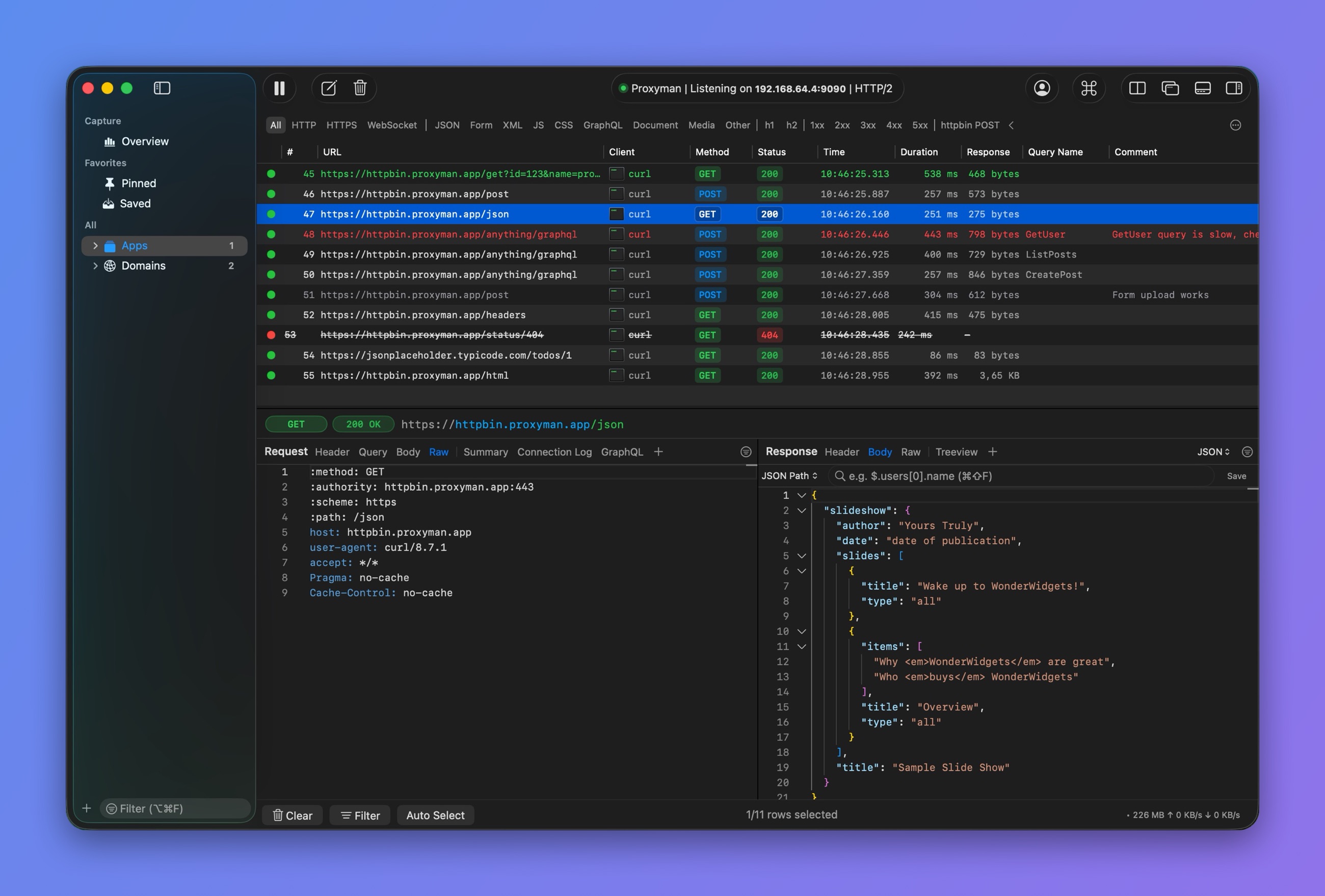
색상과 주석이 있는 행
require()로 파일 가져오기
JSON
- JSON 파일을 준비하고 바탕화면에 저장합니다
// myfile.json
{
  "name": "Proxyman",
  "platform": "macOS",
  "info": {
    "website": "proxyman.io",
    "region": "Earth"
  }
}
2. More -> **Import JSON or Other File...**을 클릭한 다음 파일을 선택합니다
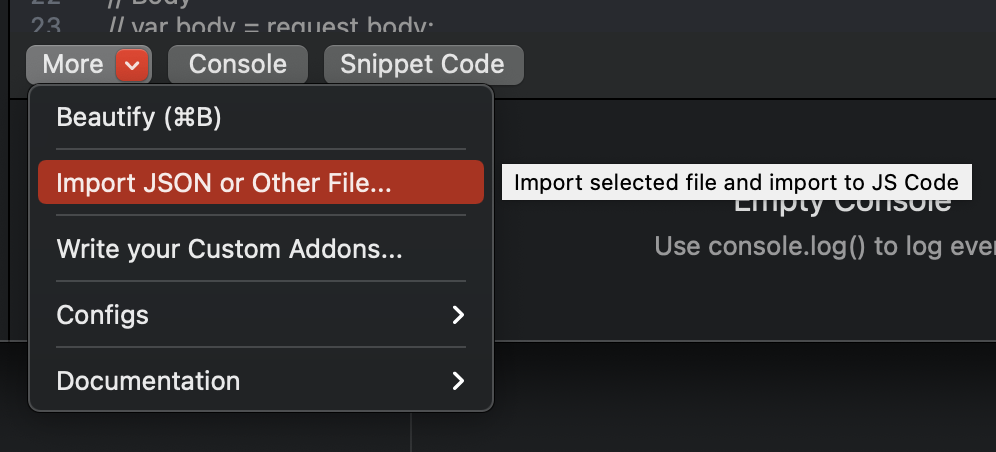
3. Proxyman이 스크립트 상단에 가져오기 코드를 추가합니다
// ~/Library/Application Support/com.proxyman.NSProxy/users/myfile.json
const file = require("@users/myfile.json");

function onResponse(context, url, request, response) {
  // 1. Set header to JSON if need
  response.headers["Content-Type"] = "application/json";

  // 2. Set Body as a imported file
  response.body = file;

  return response;
}
선택한 파일은 ~/Library/Application\ Support/com.proxyman.NSProxy/users 폴더에 복사됩니다.
이미지, 텍스트, PDF처럼 다른 파일 형식은 올바른 Content-Type 헤더를 설정해야 합니다.
바이너리 파일
- 위와 같은 방법으로 바이너리 파일을 선택합니다
- 본문으로 설정합니다
// ~/Library/Application Support/com.proxyman.NSProxy/users/myscreenshot.png
const file = require("@users/myscreenshot.png");

function onResponse(context, url, request, response) {
  // Set header
  response.headers["Content-Type"] = "image/png";

  // Set Body
  response.body = file;

  return response;
}
텍스트 기반 파일
- 위와 같은 방법으로 텍스트 파일을 선택합니다
- 본문으로 설정합니다
// ~/Library/Application Support/com.proxyman.NSProxy/users/main.css
const file = require("@users/main.css");

function onResponse(context, url, request, response) {
  // Set header
  response.headers["Content-Type"] = "text/css";

  // Set Body
  response.body = file;

  return response;
}
"Import Tool" 없이 파일 가져오기
Proxyman 2.24.0+부터는 "Import Tool"을 사용하지 않고도 모든 파일을 가져올 수 있습니다.
// Import your file from your Desktop folder
const file = require("~/Desktop/myfile.json");

function onResponse(context, url, request, response) {

  // 1. Set header to JSON if need
  response.headers["Content-Type"] = "application/json";

  // 2. Set Body as a imported file
  response.body = file;

  return response;
}
- 파일 확장자가 ".js"이면 => Proxyman이 JS 스크립트로 실행합니다
- 그 밖의 경우에는 일반 파일로 가져옵니다
"Import Tool"로 가져온 파일만 스크립트를 동료에게 내보낼 때 함께 포함됩니다.
Mock API로 사용
Scripting을 Mock API로 사용할 수 있습니다. Scripting을 Mock API로 사용하기를 참조합니다.
애드온 사용
Base64 애드온 사용
// Encode Base64
const { btoa } = require("@addons/Base64.js")

// Usage:
var text = "HelloWorld";
var encodedText = btoa(text);
// Decode Base64
const { atob } = require("@addons/Base64.js")

// Usage:
var text = atob("aGVsbG8=");
해싱 애드온 사용 (MD5, SHA1, SHA256, SHA512)
// Hash MD5
const { md5 } = require("@addons/MD5.js")

// Usage:
var hashedText = md5("Hello World");
// Hash SHA1
const { sha1 } = require("@addons/SHA1.js")

// Usage:
var hashedText = sha1("Hello World");
UUID-v4 애드온 사용
// Generate UUID v4
const { uuidv4 } = require("@addons/UUID.js")

// Usage:
var uuid = uuidv4();
Deflate/Inflate 및 GZip/UnGZip
Deflate/Inflate
const { inflate, deflate } = require("@addons/Pako.js")

// Compress
var input = "Hello World from Pako!!!"
var result = deflate(input);
console.log(result); // eJzzSM3JyVcIzy/KSVFIK8rPVQhIzM5XVFQEAGsMB/8=

// Decompress
var text = 'eJzzSM3JyVcIzy/KSVFIK8rPVQhIzM5XVFQEAGsMB/8=';
var rawText = inflate(text);
console.log(rawText); // Hello World from Pako!!!
GZip/UnGZip
const { ungzip, gzip } = require("@addons/Pako.js")

// Compress
var text =  'HelloWorld';
var result = gzip(text);
console.log(result); // H4sIAAAAAAAAA/NIzcnJD88vykkBAHkMd3cKAAAA

// Decompress
var text =  'H4sIAAAAAAAAA/NIzcnJD88vykkBAHkMd3cKAAAA';
var rawText = ungzip(text);
console.log(rawText); // HelloWorld
JWT 디코드
const { jwtDecode } = require('@addons/JWTDecode.js');

var text = 'eyJhbGciOiJIUzI1NiIsInR5cCI6IkpXVCJ9.eyJzdWIiOiIxMjM0NTY3ODkwIiwibmFtZSI6IkpvaG4gRG9lIiwiaWF0IjoxNTE2MjM5MDIyfQ.SflKxwRJSMeKKF2QT4fwpMeJf36POk6yJV_adQssw5c';
var jSONObject = jwtDecode(text)
로깅
// Print the obj
const myObj = {};
console.log(myObj);

// Print type of the obj
console.log(typeof(myObj));
정규식
숫자만 확인
//Init Regex
var reg = /^-?\d*\.?\d*$/;

if (reg.test("123123123")) {
    console.log("Matched");
}
URL의 Scheme, Host, Port, Path, Query 가져오기 (정규식)
function onRequest(context, url, request) {
  console.log(url);

  // Get each part
  const regex = /^(https?):\/\/([^:\/\n]+)(?::(\d+))?([^#\n?]+)(?:\?([^#\n]+))?/;
  const [, scheme, host, port, path, query] = url.match(regex);

  // Assign again
  request.scheme = scheme;
  request.host = host;
  if (port !== undefined) {
    request.port = parseInt(port);
  }
  request.path = path;

  // Log
  console.log("----------");
  console.log(scheme);
  console.log(host);
  console.log(port);
  console.log(path);

  // Done
  return request;
}
기타
CORS 우회
function onResponse(context, url, request, response) {

  // Allow all
  response.headers["Access-Control-Allow-Origin"] = "*";
  response.headers["Access-Control-Allow-Headers"] = "*";
  response.headers["Access-Control-Allow-Methods"] = "*";

  // Done
  return response;
}
Request / Response에 헤더 주입
function onRequest(context, url, request) {
  // add header
  request.headers["My-Injected-Header"] = "Proxyman";
  return request
}

function onResponse(context, url, request, response) {
  // add header
  response.headers["My-Injected-Header"] = "Proxyman";
  return response;
}
sleep() 함수로 응답 지연
특정 Request나 Response에 "느린 네트워크"를 시뮬레이션할 때 유용합니다. GUI 도구를 찾는다면 Network Conditions를 참조합니다.
- macOS
function onResponse(context, url, request, response) {
  console.log("Start sleep");

  // Sleep 5 seconds
  sleep(5000);

  // Done
  return response;
}
- Windows/Linux
async function onResponse(context, url, request, response) {
  console.log("Start sleep");

  // Sleep 5 seconds
  // Must use `await` keyword on Windows/Linux
  await sleep(5000);

  // Done
  return response;
}
AES 암호화/복호화
const { encryptAES, decryptAES } = require("@addons/CryptoJS.js")

function onRequest(context, url, request) {

  // Encrypt
  var message = 'my message from Proxyman';
  var password = 'secret key 123';
  var ciphertext = encryptAES(message, password);

  // Decrypt
  var originalText = decryptAES(ciphertext, password);

  // Done
  return request;
}
DES 암호화/복호화
const { encryptDES, decryptDES } = require("@addons/CryptoJS.js")

function onRequest(context, url, request) {

  // Encrypt
  var message = 'my message from Proxyman';
  var password = 'secret key 123';
  var ciphertext = encryptDES(message, password);

  // Decrypt
  var originalText = decryptDES(ciphertext, password);

  // Done
  return request;
}
로컬 파일로 쓰기 / 내보내기
- Override 모드
function onResponse(context, url, request, response) {

  // Write to single file
  writeToFile(response.body, "~/Desktop/body.json");

  // Write the Body to file with flow ID
  writeToFile(response.body, "~/Desktop/sample-" + context.flow.id);

  // Done
  return response;
}
- Append 모드 (Proxyman 3.6.2+ 전용)
async function onResponse(context, url, request, response) {

  // Append to the existed file
  // Or create a new file if it doesn't exist
  var opt = {appendFile: true}
  writeToFile(response.body, "~/Desktop/body.json", opt);

  // Done
  return response;
}
파일 존재 여부 확인
- 사용 가능: Proxyman macOS 5.4.0+
async function onRequest(context, url, request) {

  const filePath = "~/Desktop/myfile.json"

  // check if the file exists
  if (isFileExists(filePath)) {
    console.log("File exists");
  } else {
    console.log("File NOT exists");
  }

  // Done
  return request;
}
파일 읽기
- 텍스트 기반이면 String을 반환합니다
- 그 밖의 경우에는 Uint8Array를 반환합니다
- 사용 가능: Proxyman macOS 5.4.0+
async function onRequest(context, url, request) {  // console.log(request);

  const textFilePath = "~/Desktop/myfile.json";

  // check exist
  if (isFileExists(textFilePath)) {

    // read from file
    const text = readFromFile(textFilePath);

    // parse string to JSON Object
    const obj = JSON.parse(text);
  }

  // Read binary file
  const binaryFilePath = "~/Desktop/screenshot.png";
  const binaryFile = readFromFile(binaryFilePath); // Uint8Array

  // Done
  return request;
}
Map Remote
v1 엔드포인트를 v2로 매핑
function onRequest(context, url, request) {

  // Replace v1 to v2 in URL Path
  var newPath = request.path.replace("v1", "v2");
  request.path = newPath

  // Done
  return request;
}
Localhost를 프로덕션으로 매핑
function onRequest(context, url, request) {

  // Use production URL
  request.scheme = "https";
  request.host = "proxyman.io";
  request.port = 443;

  // Done
  return request;
}
프로덕션을 Localhost로 매핑
function onRequest(context, url, request) {

  // Use localhost URL
  request.scheme = "http";
  request.host = "localhost";
  request.port = 3000;

  // Done
  return request;
}
async/await HTTP 요청 만들기 (macOS)
`$http`는 macOS에서 사용할 수 있습니다. Windows/Linux는 다음 섹션을 참조합니다.
쿼리가 포함된 GET 요청
async function onResponse(context, url, request, response) {
  // GET Request with Query
  var url = "https://httpbin.proxyman.app/get?id=proxyman&country=united%20states";
  var output = await $http.get(url);

  // Get Status Code
  console.log(output.statusCode);

  // Get body
  console.log(output.body)

  // Get header
  console.log(output.headers)

  // Done
  return response;
}
JSON 본문이 포함된 POST 요청
async function onResponse(context, url, request, response) {
  // Define JSON Body and Header
  // Make sure "Content-Type" is "application/json"
  var param = {
    body: {
      "user": {
        "name": "Proxyman"
      }
    },
    headers: {
      "Content-Type": "application/json"
    }
  }

  // POST request with await
  var output = await $http.post("https://httpbin.proxyman.app/post", param);

  // Get Status Code
  console.log(output.statusCode);

  // Get body
  console.log(output.body)

  // Get header
  console.log(output.headers)

  // Done
  return response;
}
application/x-www-form-urlencoded 본문이 포함된 POST 요청
async function onResponse(context, url, request, response) {
  // Define form Body and Header
  // Make sure "Content-Type" is "application/x-www-form-urlencoded"
  var param = {
    body: {
      "key1": "value1",
      "key2": "value2"
    },
    headers: {
      "Content-Type": "application/x-www-form-urlencoded"
    }
  }

  // POST request with await
  var output = await $http.post("https://httpbin.proxyman.app/post", param);

  // Get Status Code
  console.log(output.statusCode);

  // Get body
  console.log(output.body)

  // Get header
  console.log(output.headers)

  // Done
  return response;
}
PUT / PATCH / DELETE 요청
async function onRequest(context, url, request) {

  var param = {
    body: {
      "user": {
        "name": "Proxyman"
      }
    },
    headers: {
      "Content-Type": "application/json"
    }
  }

  var output = await $http.post("https://httpbin.proxyman.app/post", param);
  var output = await $http.put("https://httpbin.proxyman.app/put", param);
  var output = await $http.delete("https://httpbin.proxyman.app/delete", param);

  // Done
  return request;
}
async/await HTTP 요청 만들기 (Windows/Linux)
Windows/Linux에는 기본으로 Axios 라이브러리가 포함되어 있습니다. `Axios` 문법으로 간편하게 HTTP(s) 요청을 보낼 수 있습니다.
async function getUser() {
  try {
    const response = await axios.get('https://httpbin.proxyman.app/user?ID=12345');
    console.log(response);
  } catch (error) {
    console.error(error);
  }
}
Block List 도구처럼 Request/Response 중단
- Proxyman 3.11.0 이상에서만 사용할 수 있습니다
Request 중단
function onRequest(context, url, request) {
  // drop the connection
  abort();
}
function onRequest(context, url, request) {

  // Use the if to abort on certain conditions
  if (true) {
    abort();
    return; // Must return a void to stop the func
  }

  // Done
  return request;
}
Response 중단
function onResponse(context, url, request, response) {
  // drop the connection
  abort();
}
URL과 URLSearchParams
Proxyman 4.13.0 이상부터 URL과 URLSearchParams를 기본으로 지원합니다.
function onRequest(context, url, request) {

  // URL
  const urlObj = new URL("https://proxyman.io/api/v1/user?id=123");
  console.log(urlObj.hostname);
  console.log(urlObj.search);
  console.log(urlObj.searchParams);

  // URLSearchParams
  const params1 = new URLSearchParams("foo=1&bar=2");

  // Done
  return request;
}
시스템 환경 변수 다시 읽기
Proxyman macOS 4.15.0 이상.
먼저 권한을 활성화합니다: More 버튼 -> Environment Variables -> Allow all scripts to access Environment Variables.
async function onRequest(context, url, request) {
  // manually reload to get the latest changes
  _reloadEnv();

  // get env
  console.log($PROXYMAN_ID)

  // Done
  return request;
}
WebSocket URL, Request/Response 헤더 변경
- Proxyman macOS 6.2.0 이상에서 지원됩니다.
onRequest와onResponse는 URL과 핸드셰이크 헤더를 수정합니다. 메시지를 읽으려면 onWebsocket을 사용합니다 (macOS, Windows, Linux용 Proxyman 26.1.0 이상). 메시지를 변경하려면 WebSocket 메시지 수정을 사용합니다 (macOS Proxyman 26.2.0 이상, Windows/Linux Proxyman 26.1.0 이상).
Localhost에서 프로덕션으로 매핑
- Rule ws://proxyman.debug:3000
async function onRequest(context, url, request) {
  // console.log(request);
  console.log(url);

  request.scheme = "wss";
  request.host = "wss.httpbin-proxyman.xyz"
  request.port = 443

  // Done
  return request;
}
프로덕션에서 Localhost로 매핑
- Rule wss://echo.websocket.org
async function onRequest(context, url, request) {
  // console.log(request);
  console.log(url);

  request.scheme = "ws";
  request.host = "proxyman.debug"
  request.port = 3000

  // Done
  return request;
}
onWebsocket으로 WebSocket 메시지 로깅
이 onWebsocket 스니펫은 macOS, Windows, Linux용 Proxyman 26.1.0 이상이 필요합니다. iOS에서는 사용할 수 없습니다.
캡처한 ws:// 또는 wss:// URL과 일치하도록 설정하고, 스크립트를 저장한 뒤 활성화하고, WebSocket을 다시 연결합니다. 설정과 전체 message 객체는 WebSocket 스크립팅을 참조합니다.
각 예제는 별도의 onWebsocket 함수를 정의합니다. 예제 하나만 사용하거나 여러 검사를 하나의 함수로 합칠 수 있습니다. Modify WebSocket Messages 옵션을 사용하지 않으면 이 훅은 읽기 전용입니다. message를 변경하거나 값을 반환해도 트래픽은 수정되지 않습니다. 메시지를 변경하려면 onWebsocket으로 WebSocket 메시지 수정을 참조합니다.
양쪽에서 캡처된 모든 메시지를 기록합니다:
function onWebsocket(context, url, request, response, message) {
  console.log(`[${message.from}] ${message.type}: ${message.data}`);
}
텍스트 및 JSON 메시지 읽기
서버가 보낸 텍스트를 확인합니다. 유효한 JSON 메시지는 파싱되고, 그 밖의 텍스트는 그대로 기록됩니다.
function onWebsocket(context, url, request, response, message) {
  if (message.type !== "text" || message.from !== "server") return;

  try {
    const payload = JSON.parse(message.data);
    console.log("Server JSON: " + JSON.stringify(payload, null, 2));
  } catch (error) {
    // A text message does not have to contain JSON.
    console.log("Server text: " + message.data);
  }
}
Proxyman은 훅을 호출하기 전에 분할된 텍스트 프레임을 다시 조합하므로, 여기서 완전한 JSON 메시지를 파싱할 수 있습니다. 바이너리 프래그먼트도 다시 조합되며, 연속 프레임용 별도 콜백은 없습니다.
바이너리 메시지 확인
원본 바이트는 message.rawData로 확인합니다. message.data는 텍스트 표현일 뿐이며 Binary (length=N)일 수 있습니다.
function onWebsocket(context, url, request, response, message) {
  if (message.type !== "binary") return;

  const bytes = message.rawData;
  // Limit the preview so large messages do not flood the console.
  const hex = Array.from(bytes.slice(0, 32))
    .map(byte => byte.toString(16).padStart(2, "0"))
    .join(" ");
  const suffix = bytes.length > 32 ? " ..." : "";
  console.log(`[${message.from}] binary (${bytes.length} bytes): ${hex}${suffix}`);
}
rawData는 복사된 Uint8Array이며 열거되지 않는(non-enumerable) 속성입니다. console.log(message)나 JSON.stringify(message)에 포함되기를 기대하지 말고 직접 접근해야 합니다.
Ping 및 Pong 프레임 로깅
이 이벤트를 사용하면 양방향의 하트비트 트래픽을 확인할 수 있습니다. Ping 및 Pong 페이로드는 노출되지 않습니다.
function onWebsocket(context, url, request, response, message) {
  if (message.type !== "ping" && message.type !== "pong") return;

  console.log(`[${message.from}] ${message.type} on ${url}`);
}
Close 프레임 확인
Close 코드와 프레임을 보낸 쪽을 기록합니다. Close 사유는 노출되지 않습니다.
function onWebsocket(context, url, request, response, message) {
  if (message.type !== "close") return;

  console.log(`[${message.from}] closed with code ${message.closeCode}`);
}
onWebsocket으로 WebSocket 메시지 수정
이 스니펫은 macOS Proxyman 26.2.0 이상 또는 Windows/Linux Proxyman 26.1.0 이상이 필요합니다. iOS에서는 사용할 수 없습니다.
규칙에서 Modify WebSocket Messages를 체크하고 Request는 체크된 상태로 둔 다음, 스크립트를 저장하고 활성화한 뒤 WebSocket을 다시 연결합니다. 설정과 각 반환값의 동작은 Modify WebSocket Messages를 참조합니다:
return message: 변경 사항을 적용한 메시지를 보냅니다.return null: 메시지를 드롭합니다.- 반환값 없음: 원본 메시지를 보냅니다.
sendToClient(data)/sendToServer(data): 새 메시지를 보냅니다. 문자열은 텍스트 메시지로,Uint8Array는 바이너리 메시지로 전송됩니다.abort(): 양쪽의 WebSocket을 모두 닫습니다.
JSON 메시지의 필드 변경
서버가 보내는 모든 JSON 메시지의 필드를 변경합니다. 다른 메시지는 그대로 전송됩니다.
function onWebsocket(context, url, request, response, message) {
  if (message.type !== "text" || message.from !== "server") {
    return message;
  }

  try {
    const json = JSON.parse(message.data);
    if (json.type === "price") {
      json.price = 0;
      message.data = JSON.stringify(json);
    }
  } catch (error) {
    // Not JSON: send it as it is
  }
  return message;
}
양방향 텍스트 치환
클라이언트와 서버에서 오는 모든 텍스트 메시지의 호스트 이름을 바꿉니다.
const FIND_REGEX = /staging\.example\.com/g;
const REPLACE_WITH = "api.example.com";

function onWebsocket(context, url, request, response, message) {
  if (message.type === "text") {
    message.data = message.data.replace(FIND_REGEX, REPLACE_WITH);
  }
  return message;
}
메시지 드롭
정규식과 일치하는 클라이언트 메시지(예: 분석 이벤트)를 드롭합니다. 서버는 이 메시지를 받지 않습니다.
const DROP_REGEX = /"type"\s*:\s*"analytics"/;

function onWebsocket(context, url, request, response, message) {
  if (message.from === "client" && message.type === "text" && DROP_REGEX.test(message.data)) {
    console.log("Dropped: " + message.data);
    return null;
  }
  return message;
}
서버 없이 클라이언트 메시지에 응답
클라이언트의 메시지에 sendToClient()로 응답하고 원본 메시지는 드롭하므로, 서버는 해당 메시지를 받지 않습니다. 서버 응답을 모킹할 때 유용합니다.
function onWebsocket(context, url, request, response, message) {
  if (message.from === "client" && message.type === "text" && message.data.includes('"subscribe"')) {
    sendToClient(JSON.stringify({ type: "error", code: 503, text: "Service unavailable" }));
    return null;
  }
  return message;
}
sendToClient()와 sendToServer()로 보낸 메시지는 onWebsocket()을 다시 실행하지 않으므로, 스크립트가 무한 루프에 빠지지 않습니다.
서버로 메시지 보내기
클라이언트가 첫 메시지를 보낼 때 서버에 추가 메시지를 보냅니다. 예를 들어 다른 채널을 구독할 때 사용합니다.
let isSubscribed = false;

function onWebsocket(context, url, request, response, message) {
  if (message.from === "client" && message.type === "text" && !isSubscribed) {
    isSubscribed = true;
    sendToServer(JSON.stringify({ type: "subscribe", channel: "ETH" }));
  }
  return message;
}
onWebsocket() 밖의 코드는 연결마다 한 번씩 실행되므로, isSubscribed는 새 연결마다 false에서 시작합니다.
연결 끊김 시뮬레이션
10개의 메시지를 보낸 뒤 양쪽의 WebSocket을 닫아, 앱이 어떻게 재연결하는지 테스트합니다.
const CLOSE_AFTER_MESSAGES = 10;
let messageCount = 0;

function onWebsocket(context, url, request, response, message) {
  messageCount += 1;
  if (messageCount === CLOSE_AFTER_MESSAGES) {
    console.log("Closing the WebSocket after " + messageCount + " messages");
    abort();
  }
  return message;
}
바이너리 메시지 변경
Uint8Array로 새 바이트를 설정합니다. 메시지는 타입을 유지하므로, 바이너리 메시지는 바이너리로 남습니다.
function onWebsocket(context, url, request, response, message) {
  if (message.type === "binary" && message.from === "server") {
    message.rawData = new Uint8Array([1, 2, 3]);
  }
  return message;
}
`npm install` 사용
자세한 내용은 use-npm-install.md에서 확인합니다.
패키지 설치
터미널을 열고 Proxyman의 Application Support 폴더에 패키지를 설치합니다:
dayjs설치
$ cd "$HOME/Library/Application Support/com.proxyman.NSProxy"
$ npm install --prefix . dayjs --ignore-scripts --no-audit --no-fund
설치가 끝나면 패키지는 다음 위치에 있어야 합니다:
~/Library/Application Support/com.proxyman.NSProxy/node_modules
스크립트에서 패키지 사용
require()에 패키지 이름을 사용합니다:
const dayjs = require("dayjs");

async function onRequest(context, url, request) {
  const formattedDate = dayjs("2026-05-05T13:00:00Z").format("YYYY-MM-DD");
  request.headers["X-Proxyman-Dayjs"] = formattedDate;
  return request;
}