Snippet Code
Copy ready-to-use JavaScript snippets for Proxyman Scripting: edit headers, queries, JSON bodies and status codes, map local files, call APIs, and more.
1. What's it?
A collection of JavaScript snippets for the Proxyman Scripting Tool.
Could not find the Snippet Code you are looking for?
Please open a ticket on GitHub and we will help you ⭐️
Use Proxyman MCP with your agent (Codex/Claude Code) to generate scripts easily 🚀
2. Common on Request and Response
- Update Headers of Request or Response
- Update Request Query
- Update URLEncoded Form Request Body
- Update JSON Request or Response Body
- Map a local file to Response's Body like Map Local Tool
- Change Request Scheme, Host, Port, Path
- Upstream ALPN and HTTP/2 settings
- HTTP to HTTPS
- HTTPS to HTTP
- Change Request Method
- Change Response Status Code
- Logging
- Use JSON File as a Body of Request or Response
- Use multiple JSON files
- Local Map for GraphQL
- Use ArrayBuffer in Request/Response Body
- Preserve the Host
- Comment & Highlight with color
- Abort (close) the request/response connection (Like Block List Tool)
Multipart/form-data
3. Addons
- Base64 Encoding/Decoding or atob/btoa
- Hashing Addon (MD5, SHA1, SHA256, SHA512)
- UUIDv4 Generator
- Deflate/Inflate or GZip/UnGZip
- JWT Decode
3.1 Use `npm install`
4. Regex
- Check if a given string contains only numbers
- Regex to get the Scheme, Host, Port, Path, and Query of the URL
5. Import / Export Files
- Import JSON File
- Import Binary Data (Image)
- Import Text-based file (css, html, js....)
- Import Files without using the "Import Tool"
- Write / Export to a local file
- Check if a file exists
- Read a Local File
- Use Response as Mock API
6. Miscellaneous
7. Encryption/Decryption
8. Map Remote with Scripting
9. Make Async/await HTTP Request (macOS)
- GET Request with Query
- POST Request with JSON Body
- POST Request with application/x-www-form-urlencoded
- PUT / PATCH / DELETE Request
9.1. Make Async/await HTTP Request (Windows/Linux)
10. URL and URLSearchParams
11. Access Environment Variables
12. Websocket
- Change the Websocket URL, Headers
- Log WebSocket messages with onWebsocket
- Read text and JSON messages
- Inspect binary messages
- Log ping and pong frames
- Inspect close frames
- Modify WebSocket messages with onWebsocket
- Change a field of JSON messages
- Replace text in both directions
- Drop messages
- Reply to a client message without the server
- Send a message to the server
- Simulate a lost connection
- Change a binary message
HTTP Header
Add/Update: Request or Response Header
function onRequest(context, url, request) {
    // Add or update Request Header
    request.headers["X-Proxyman-Key"] = "My-Value";
    request.headers.name = "Proxyman";
    return request;
}

function onResponse(context, url, request, response) {
    // Add or update Response Header
    response.headers["X-Proxyman-Key"] = "My-Value";
    response.headers.id = 100;
    return response;
}
Delete: Request or Response Header
function onRequest(context, url, request) {
    delete request.headers["X-Proxyman-Key"];
    return request;
}

function onResponse(context, url, request, response) {
    delete response.headers["X-Proxyman-Key"];
    return response;
}
Request Query
Add/Update
function onRequest(context, url, request) {
    request.queries["name"] = "Proxyman";
    request.queries["platform"] = "macOS";
    // => http://proxyman.io?name=Proxyman&platform=macOS
    return request;
}
Delete
function onRequest(context, url, request) {
    delete request.queries["name"];
    delete request.queries["platform"];
    return request;
}
URLEncoded Form Body
Add/Update
function onRequest(context, url, request) {
    // Make sure the Request Header is application/x-www-form-urlencoded
    // Content-Type: application/x-www-form-urlencoded
    var formBody = request.body;

    formBody["name"] = "Proxyman";
    formBody["platform"] = "macOS";

    request.body = formBody; // => name=Proxyman&platform=macOS
    return request;
}
Delete
function onRequest(context, url, request) {
    // Content-Type: application/x-www-form-urlencoded
    var formBody = request.body;

    delete formBody["name"];
    delete formBody["platform"];

    request.body = formBody;
    return request;
}
Change Request Destination (scheme, host, port, path)
function onRequest(context, url, request) {
    request.scheme = "http";
    request.host = "proxyman.dev";
    request.port = 9090;
    request.path = "v1/data/user";
    return request;
}
Upstream ALPN and HTTP/2 settings
Available in Proxyman v26.0.0 or later for macOS. See HTTP/2 for setup.
Set request.upstream in onRequest to change how Proxyman connects to the server. Enable SSL Proxying for the HTTPS domain. H2 overrides also require HTTP/2 enabled in Settings and an HTTP/2 client connection to Proxyman.
async function onRequest(context, url, request) {
  request.upstream = {
    tls: { alpnProtocols: ["h2"] },
    http2: {
      headerTableSize: 65536,
      initialWindowSize: 6291456,
      maxHeaderListSize: 262144
    }
  };
  return request;
}
ALPN accepts a nonempty list with no duplicates:
["h2"]: Require HTTP/2. Fail if the server cannot use it.["h2", "http/1.1"]: Allow HTTP/1.1 fallback.["http/1.1"]: Use HTTP/1.1.
HTTP/2 values must be integers from 0 to the maximum below. Omitted or null fields use defaults.
| Setting | Default | Maximum |
|---|---|---|
headerTableSize | 65536 | 4294967295 |
initialWindowSize | 6291456 | 2147483647 |
maxHeaderListSize | 262144 | 4294967295 |
To reset all overrides, delete request.upstream or set it to null. Invalid or incompatible settings return a local 502 Scripting error.
HTTP to HTTPS
function onRequest(context, url, request) {
    request.scheme = "https";
    request.port = 443; // Don't forget to override the port
    return request;
}
HTTPS to HTTP
function onRequest(context, url, request) {
    request.scheme = "http";
    request.port = 80; // Don't forget to override the port
    return request;
}
Change HTTP Request Method
function onRequest(context, url, request) {
    request.method = "POST";
    return request;
}
Change Response HTTP Status Code
function onResponse(context, url, request, response) {
    response.statusCode = 404;
    return response;
}
JSON Body
On Request
function onRequest(context, url, request) {
    // Set JSON content
    request.headers["Content-Type"] = "application/json";

    // Get Request body
    var jsonBody = request.body;

    // Modify data
    jsonBody["name"] = "Proxyman";
    jsonBody["platform"] = "macOS";
    jsonBody["info"] = {
                        "website": "proxyman.io",
                        "region": "Earth"
                       };
    // Set it again
    request.body = jsonBody;
    return request;
}
On Response
function onResponse(context, url, request, response)  {
    // Set JSON content
    response.headers["Content-Type"] = "application/json";

    // Get Request body
    var jsonBody = response.body;

    // Modify data
    jsonBody["name"] = "Proxyman";
    jsonBody["platform"] = "macOS";
    jsonBody["info"] = {
                        "website": "proxyman.io",
                        "region": "Earth"
                       };
    // Set it again
    response.body = jsonBody;
    return response;
}
Multipart/form-data
From Proxyman macOS 6.6.0 or later, you can read, add, delete a multipart/form-data
function onRequest(context, url, request) {
  // Only run for multipart requests
  if (!request.multipart) {
    return request;
  }

  var parts = request.multipart;

  // 1) List parts (debug)
  console.log("Multipart parts:", parts);

  // 2) Modify a text part by name
  for (var i = 0; i < parts.length; i++) {
    if (parts[i].name === "text_field") {
      var p = parts[i];
      p.body = "Updated text from script";
      parts[i] = p;
    }
  }

  // 3) Modify a file part by name (binary body as [UInt8])
  for (var i = 0; i < parts.length; i++) {
    if (parts[i].name === "file_field") {
      var p = parts[i];
      p.body = [72, 101, 108, 108, 111]; // "Hello"
      p.fileName = "hello.txt";
      p.contentType = "text/plain";
      parts[i] = p;
    }
  }

  // 4) Add a new text part
  parts.push({
    name: "new_field",
    body: "Added by script"
  });

  // 5) Remove a part by name
  var filtered = [];
  for (var i = 0; i < parts.length; i++) {
    if (parts[i].name !== "remove_me") {
      filtered.push(parts[i]);
    }
  }

  // Apply updates
  request.multipart = filtered;

  return request;
}
Map a local file to Response's Body like Map Local Tool (Proxyman 2.25.0+)
It's a convenient way to set a local file as the body with the bodyFilePath property.
// For request
request.bodyFilePath = "~/Desktop/image.png";

// For response
response.bodyFilePath = "~/Desktop/image.png";
function onResponse(context, url, request, response) {

  response.headers["Content-Type"] = "image/png";
  response.bodyFilePath = "~/Desktop/image.png";

  // Done
  return response;
}
function onResponse(context, url, request, response) {

  response.headers["Content-Type"] = "application/json";
  response.bodyFilePath = "~/Desktop/my_response.json";

  // Done
  return response;
}
Use JSON File as a Body of Request or Response
You can use a JSON file as the request or response body.
Follow the Import a JSON file steps.
Use multiple JSON files
You can set a different body for each matching endpoint with an if statement.
- Follow the Import a JSON file steps to import a JSON file into the script
- Set Script Rule with wildcard or Regex pattern that can match many endpoints. E.g https://my-domain.com/v\*
- Use `includes()` to check whether or not the endpoint is matched
const file_1 = require("@users/myfile_1.json");
const file_2 = require("@users/myfile_2.json");
const file_3 = require("@users/myfile_3.json");

function onResponse(context, url, request, response) {

  // Set JSON content
  response.headers["Content-Type"] = "application/json";

  // Check
  if (url.includes("v1/data")) {
    response.body = file_1
  } else if (url.includes("v2/login")) {
      response.body = file_2
  } else if (url.includes("v3/user")) {
      response.body = file_3
  }

  // Done
  return response;
}
Map Local with GraphQL
Read more at https://github.com/ProxymanApp/Proxyman/issues/412#issuecomment-697101594
// Import your JSON file here
const file = require("@users/B02D96D5.default_message_32E64A5B.json");

function onRequest(context, url, request) {

  // 1. Extract the queryName from the request
  var queryName = request.body.query.match(/\S+/gi)[1].split('(').shift();

  // 2. Save to sharedState
  sharedState.queryName = queryName

  // Done
  return request;
}

function onResponse(context, url, request, response) {

  // 3. Check if it's the request we need to map
  if (sharedState.queryName == "user") {

    // 4. Import the local file by Action Button -> Import
    // Get the local JSON file and set it as a body (like Map Local)
    response.headers["Content-Type"] = "application/json";
    response.body = file;
  }

  // Done
  return response;
}
Use ArrayBuffer in Request/Response Body
Since Javascript doesn't have the Data object type, the Data Body will convert to Base64 Encoded String in Javascript. To pass Uint8Array, blob, or ArrayBuffer to the body, make sure you convert to Base64 Encoded String and set the ContentType to application/octet-stream
Proxyman will convert Base64 Encoding to ArrayBuffer, so the client will receive the data properly.
// Import
const { btoa } = require('@addons/Base64.js');

function onResponse(context, url, request, response) {
  // Construct the ArrayBuffer
  const buffer = new ArrayBuffer(256)
  const view = new Uint8Array(buffer)
  for (let i = 0; i < view.length; i++) {
    view[i] = i
  }

  // Convert ArrayBuffer to Base64String
  var newBody = btoa(String.fromCharCode.apply(null, new Uint8Array(buffer)));

  // Set new body
  response.body = newBody;
  response.statusCode = 200
  response.headers['Content-Type'] = 'application/octet-stream'

  // Done
  return response;
}
Preserve the Host
function onRequest(context, url, request) {
    request.preserveHostHeader = true
    return request
}
Comment & Highlight with color
Use comment or color to highlight the flow in the main table view.
function onRequest(context, url, request) {
    request.comment = "It's a Request"
    request.color = "red" // red, blue, yellow, purple, gray, green
    return request
}

function onResponse(context, url, request, response) {
    response.comment = "It's a Response"
    response.color = "yellow" // red, blue, yellow, purple, gray, green
    return response
}
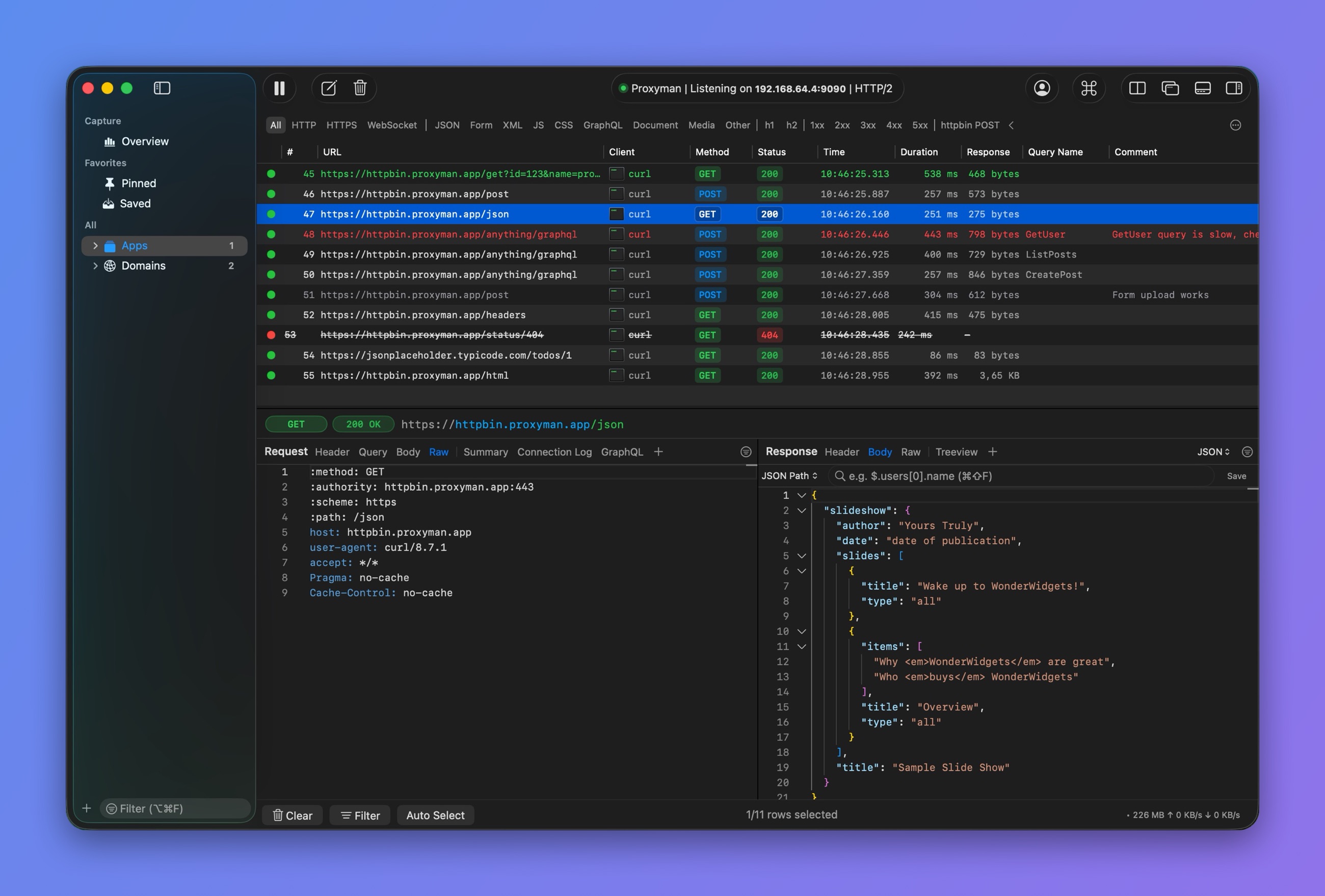
Rows with colors and comments
Import Files with require()
JSON
- Prepare a JSON file and save it to your Desktop
// myfile.json
{
  "name": "Proxyman",
  "platform": "macOS",
  "info": {
    "website": "proxyman.io",
    "region": "Earth"
  }
}
2. Click More -> Import JSON or Other File..., then select your file
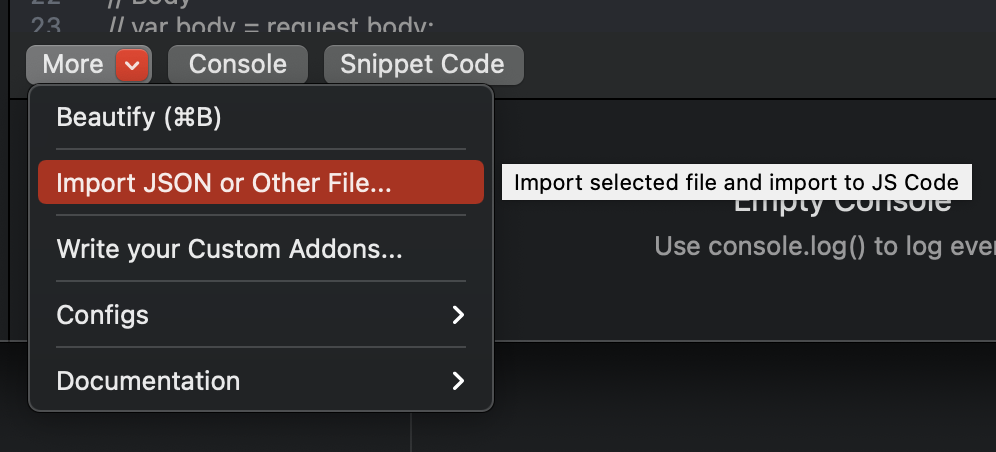
3. Proxyman will add the import code to the top of the script
// ~/Library/Application Support/com.proxyman.NSProxy/users/myfile.json
const file = require("@users/myfile.json");

function onResponse(context, url, request, response) {
  // 1. Set header to JSON if need
  response.headers["Content-Type"] = "application/json";

  // 2. Set Body as a imported file
  response.body = file;

  return response;
}
The selected file is copied to ~/Library/Application\ Support/com.proxyman.NSProxy/users folder.
For other file types, such as images, text, or PDF, make sure you set the correct Content-Type header.
Binary File
- Follow the same above instruction (Select your Binary File)
- Set it as a body
// ~/Library/Application Support/com.proxyman.NSProxy/users/myscreenshot.png
const file = require("@users/myscreenshot.png");

function onResponse(context, url, request, response) {
  // Set header
  response.headers["Content-Type"] = "image/png";

  // Set Body
  response.body = file;

  return response;
}
Text-Based File
- Follow the same above instruction (Select your text file)
- Set it as a body
// ~/Library/Application Support/com.proxyman.NSProxy/users/main.css
const file = require("@users/main.css");

function onResponse(context, url, request, response) {
  // Set header
  response.headers["Content-Type"] = "text/css";

  // Set Body
  response.body = file;

  return response;
}
Import File without using the "Import Tool"
From Proxyman 2.24.0+, you can import any file without using the "Import Tool".
// Import your file from your Desktop folder
const file = require("~/Desktop/myfile.json");

function onResponse(context, url, request, response) {

  // 1. Set header to JSON if need
  response.headers["Content-Type"] = "application/json";

  // 2. Set Body as a imported file
  response.body = file;

  return response;
}
- If the file has ".js" as an extension => Proxyman will execute it as a JS Script
- Otherwise, Proxyman will import it as normal
Only files imported with the "Import Tool" are included when you export the script to a colleague.
Use as Mock API
You can use Scripting as a Mock API. See Use Scripting as a Mock API.
Using Addons
Use Base64 Addon
// Encode Base64
const { btoa } = require("@addons/Base64.js")

// Usage:
var text = "HelloWorld";
var encodedText = btoa(text);
// Decode Base64
const { atob } = require("@addons/Base64.js")

// Usage:
var text = atob("aGVsbG8=");
Use Hashing Addon (MD5, SHA1, SHA256, SHA512)
// Hash MD5
const { md5 } = require("@addons/MD5.js")

// Usage:
var hashedText = md5("Hello World");
// Hash SHA1
const { sha1 } = require("@addons/SHA1.js")

// Usage:
var hashedText = sha1("Hello World");
Use UUID-v4 Addon
// Generate UUID v4
const { uuidv4 } = require("@addons/UUID.js")

// Usage:
var uuid = uuidv4();
Deflate/Inflate and GZip/UnGZip
Deflate/inflate
const { inflate, deflate } = require("@addons/Pako.js")

// Compress
var input = "Hello World from Pako!!!"
var result = deflate(input);
console.log(result); // eJzzSM3JyVcIzy/KSVFIK8rPVQhIzM5XVFQEAGsMB/8=

// Decompress
var text = 'eJzzSM3JyVcIzy/KSVFIK8rPVQhIzM5XVFQEAGsMB/8=';
var rawText = inflate(text);
console.log(rawText); // Hello World from Pako!!!
GZip/UnGZip
const { ungzip, gzip } = require("@addons/Pako.js")

// Compress
var text =  'HelloWorld';
var result = gzip(text);
console.log(result); // H4sIAAAAAAAAA/NIzcnJD88vykkBAHkMd3cKAAAA

// Decompress
var text =  'H4sIAAAAAAAAA/NIzcnJD88vykkBAHkMd3cKAAAA';
var rawText = ungzip(text);
console.log(rawText); // HelloWorld
JWT Decode
const { jwtDecode } = require('@addons/JWTDecode.js');

var text = 'eyJhbGciOiJIUzI1NiIsInR5cCI6IkpXVCJ9.eyJzdWIiOiIxMjM0NTY3ODkwIiwibmFtZSI6IkpvaG4gRG9lIiwiaWF0IjoxNTE2MjM5MDIyfQ.SflKxwRJSMeKKF2QT4fwpMeJf36POk6yJV_adQssw5c';
var jSONObject = jwtDecode(text)
Logging
// Print the obj
const myObj = {};
console.log(myObj);

// Print type of the obj
console.log(typeof(myObj));
Regex
Only number
//Init Regex
var reg = /^-?\d*\.?\d*$/;

if (reg.test("123123123")) {
    console.log("Matched");
}
Regex to get the Scheme, Host, Port, Path, and Query of the URL
function onRequest(context, url, request) {
  console.log(url);

  // Get each part
  const regex = /^(https?):\/\/([^:\/\n]+)(?::(\d+))?([^#\n?]+)(?:\?([^#\n]+))?/;
  const [, scheme, host, port, path, query] = url.match(regex);

  // Assign again
  request.scheme = scheme;
  request.host = host;
  if (port !== undefined) {
    request.port = parseInt(port);
  }
  request.path = path;

  // Log
  console.log("----------");
  console.log(scheme);
  console.log(host);
  console.log(port);
  console.log(path);

  // Done
  return request;
}
Miscellaneous
By-pass CORS
function onResponse(context, url, request, response) {

  // Allow all
  response.headers["Access-Control-Allow-Origin"] = "*";
  response.headers["Access-Control-Allow-Headers"] = "*";
  response.headers["Access-Control-Allow-Methods"] = "*";

  // Done
  return response;
}
Inject Header to Request / Response
function onRequest(context, url, request) {
  // add header
  request.headers["My-Injected-Header"] = "Proxyman";
  return request
}

function onResponse(context, url, request, response) {
  // add header
  response.headers["My-Injected-Header"] = "Proxyman";
  return response;
}
Response delay with sleep() function
It's useful for simulating a "Slow Network" on a particular request or response. For a GUI tool, check out Network Conditions.
- macOS
function onResponse(context, url, request, response) {
  console.log("Start sleep");

  // Sleep 5 seconds
  sleep(5000);

  // Done
  return response;
}
- Windows/Linux
async function onResponse(context, url, request, response) {
  console.log("Start sleep");

  // Sleep 5 seconds
  // Must use `await` keyword on Windows/Linux
  await sleep(5000);

  // Done
  return response;
}
AES Encryption/Decryption
const { encryptAES, decryptAES } = require("@addons/CryptoJS.js")

function onRequest(context, url, request) {

  // Encrypt
  var message = 'my message from Proxyman';
  var password = 'secret key 123';
  var ciphertext = encryptAES(message, password);

  // Decrypt
  var originalText = decryptAES(ciphertext, password);

  // Done
  return request;
}
DES Encryption/Decryption
const { encryptDES, decryptDES } = require("@addons/CryptoJS.js")

function onRequest(context, url, request) {

  // Encrypt
  var message = 'my message from Proxyman';
  var password = 'secret key 123';
  var ciphertext = encryptDES(message, password);

  // Decrypt
  var originalText = decryptDES(ciphertext, password);

  // Done
  return request;
}
Write / Export to a local file
- Override Mode
function onResponse(context, url, request, response) {

  // Write to single file
  writeToFile(response.body, "~/Desktop/body.json");

  // Write the Body to file with flow ID
  writeToFile(response.body, "~/Desktop/sample-" + context.flow.id);

  // Done
  return response;
}
- Append Mode (Only for Proxyman 3.6.2+)
async function onResponse(context, url, request, response) {

  // Append to the existed file
  // Or create a new file if it doesn't exist
  var opt = {appendFile: true}
  writeToFile(response.body, "~/Desktop/body.json", opt);

  // Done
  return response;
}
Check if the file exists
- Available: Proxyman macOS 5.4.0+
async function onRequest(context, url, request) {

  const filePath = "~/Desktop/myfile.json"

  // check if the file exists
  if (isFileExists(filePath)) {
    console.log("File exists");
  } else {
    console.log("File NOT exists");
  }

  // Done
  return request;
}
Read a file
- If it's text-based -> Return a String
- Otherwise -> Return Uint8Array
- Available: Proxyman macOS 5.4.0+
async function onRequest(context, url, request) {  // console.log(request);

  const textFilePath = "~/Desktop/myfile.json";

  // check exist
  if (isFileExists(textFilePath)) {

    // read from file
    const text = readFromFile(textFilePath);

    // parse string to JSON Object
    const obj = JSON.parse(text);
  }

  // Read binary file
  const binaryFilePath = "~/Desktop/screenshot.png";
  const binaryFile = readFromFile(binaryFilePath); // Uint8Array

  // Done
  return request;
}
Map Remotes
Map v1 to v2 endpoints
function onRequest(context, url, request) {

  // Replace v1 to v2 in URL Path
  var newPath = request.path.replace("v1", "v2");
  request.path = newPath

  // Done
  return request;
}
Map localhost to production
function onRequest(context, url, request) {

  // Use production URL
  request.scheme = "https";
  request.host = "proxyman.io";
  request.port = 443;

  // Done
  return request;
}
Map production to localhost
function onRequest(context, url, request) {

  // Use localhost URL
  request.scheme = "http";
  request.host = "localhost";
  request.port = 3000;

  // Done
  return request;
}
Make async/await HTTP Request (macOS)
`$http` is available on macOS. For Windows/Linux, see the next section.
GET Request with Query
async function onResponse(context, url, request, response) {
  // GET Request with Query
  var url = "https://httpbin.proxyman.app/get?id=proxyman&country=united%20states";
  var output = await $http.get(url);

  // Get Status Code
  console.log(output.statusCode);

  // Get body
  console.log(output.body)

  // Get header
  console.log(output.headers)

  // Done
  return response;
}
POST Request with JSON Body
async function onResponse(context, url, request, response) {
  // Define JSON Body and Header
  // Make sure "Content-Type" is "application/json"
  var param = {
    body: {
      "user": {
        "name": "Proxyman"
      }
    },
    headers: {
      "Content-Type": "application/json"
    }
  }

  // POST request with await
  var output = await $http.post("https://httpbin.proxyman.app/post", param);

  // Get Status Code
  console.log(output.statusCode);

  // Get body
  console.log(output.body)

  // Get header
  console.log(output.headers)

  // Done
  return response;
}
POST Request with application/x-www-form-urlencoded body
async function onResponse(context, url, request, response) {
  // Define form Body and Header
  // Make sure "Content-Type" is "application/x-www-form-urlencoded"
  var param = {
    body: {
      "key1": "value1",
      "key2": "value2"
    },
    headers: {
      "Content-Type": "application/x-www-form-urlencoded"
    }
  }

  // POST request with await
  var output = await $http.post("https://httpbin.proxyman.app/post", param);

  // Get Status Code
  console.log(output.statusCode);

  // Get body
  console.log(output.body)

  // Get header
  console.log(output.headers)

  // Done
  return response;
}
PUT / PATCH / DELETE Request
async function onRequest(context, url, request) {

  var param = {
    body: {
      "user": {
        "name": "Proxyman"
      }
    },
    headers: {
      "Content-Type": "application/json"
    }
  }

  var output = await $http.post("https://httpbin.proxyman.app/post", param);
  var output = await $http.put("https://httpbin.proxyman.app/put", param);
  var output = await $http.delete("https://httpbin.proxyman.app/delete", param);

  // Done
  return request;
}
Make async/await HTTP Request (Windows/Linux)
Windows/Linux ships with a built-in Axios library. You can easily make HTTP(s) requests with `Axios` syntax.
async function getUser() {
  try {
    const response = await axios.get('https://httpbin.proxyman.app/user?ID=12345');
    console.log(response);
  } catch (error) {
    console.error(error);
  }
}
Abort the request/response like Block List Tool
- Only available for Proxyman 3.11.0 and later
Abort the request
function onRequest(context, url, request) {
  // drop the connection
  abort();
}
function onRequest(context, url, request) {

  // Use the if to abort on certain conditions
  if (true) {
    abort();
    return; // Must return a void to stop the func
  }

  // Done
  return request;
}
Abort the response
function onResponse(context, url, request, response) {
  // drop the connection
  abort();
}
URL and URLSearchParams
From Proxyman 4.13.0 or later, URL and URLSearchParams are natively supported.
function onRequest(context, url, request) {

  // URL
  const urlObj = new URL("https://proxyman.io/api/v1/user?id=123");
  console.log(urlObj.hostname);
  console.log(urlObj.search);
  console.log(urlObj.searchParams);

  // URLSearchParams
  const params1 = new URLSearchParams("foo=1&bar=2");

  // Done
  return request;
}
Reload System Environment Variables
Proxyman macOS 4.15.0 or later.
Enable the permission first: More button -> Environment Variables -> Allow all scripts to access Environment Variables.
async function onRequest(context, url, request) {
  // manually reload to get the latest changes
  _reloadEnv();

  // get env
  console.log($PROXYMAN_ID)

  // Done
  return request;
}
Change Websocket URL, Requests/Response Header
- Supported from Proxyman 6.2.0 or later for macOS.
onRequestandonResponsemodify the URL and handshake headers. To read the messages, use onWebsocket (Proxyman 26.1.0 or later for macOS, Windows and Linux). To change them, use Modify WebSocket Messages (macOS Proxyman 26.2.0 or later, Windows/Linux Proxyman 26.1.0 or later).
Map from localhost to production
- Rule ws://proxyman.debug:3000
async function onRequest(context, url, request) {
  // console.log(request);
  console.log(url);

  request.scheme = "wss";
  request.host = "wss.httpbin-proxyman.xyz"
  request.port = 443

  // Done
  return request;
}
Production to localhost
- Rule wss://echo.websocket.org
async function onRequest(context, url, request) {
  // console.log(request);
  console.log(url);

  request.scheme = "ws";
  request.host = "proxyman.debug"
  request.port = 3000

  // Done
  return request;
}
Log WebSocket messages with onWebsocket
These onWebsocket snippets require Proxyman 26.1.0 or later for macOS, Windows and Linux. They are not available on iOS.
Match the captured ws:// or wss:// URL, save and activate the script, then reconnect the WebSocket. See Scripting with WebSocket for setup and the complete message object.
Each example defines a separate onWebsocket function. Use one example, or combine the checks into a single function. Without the Modify WebSocket Messages option, the hook is read-only: changing message or returning a value does not modify traffic. To change messages, see Modify WebSocket messages with onWebsocket.
Log every captured message from both sides:
function onWebsocket(context, url, request, response, message) {
  console.log(`[${message.from}] ${message.type}: ${message.data}`);
}
Read text and JSON messages
Inspect text sent by the server. JSON messages are parsed when valid; other text is logged unchanged.
function onWebsocket(context, url, request, response, message) {
  if (message.type !== "text" || message.from !== "server") return;

  try {
    const payload = JSON.parse(message.data);
    console.log("Server JSON: " + JSON.stringify(payload, null, 2));
  } catch (error) {
    // A text message does not have to contain JSON.
    console.log("Server text: " + message.data);
  }
}
Proxyman reassembles fragmented text frames before calling the hook, so you can parse the complete JSON message here. Binary fragments are also reassembled; there is no separate continuation-frame callback.
Inspect binary messages
Use message.rawData for the original bytes. message.data is only a text representation and may be Binary (length=N).
function onWebsocket(context, url, request, response, message) {
  if (message.type !== "binary") return;

  const bytes = message.rawData;
  // Limit the preview so large messages do not flood the console.
  const hex = Array.from(bytes.slice(0, 32))
    .map(byte => byte.toString(16).padStart(2, "0"))
    .join(" ");
  const suffix = bytes.length > 32 ? " ..." : "";
  console.log(`[${message.from}] binary (${bytes.length} bytes): ${hex}${suffix}`);
}
rawData is a copied Uint8Array and is non-enumerable. Access it directly rather than expecting console.log(message) or JSON.stringify(message) to include it.
Log ping and pong frames
Use these events to inspect heartbeat traffic in either direction. Ping and pong payloads are not exposed.
function onWebsocket(context, url, request, response, message) {
  if (message.type !== "ping" && message.type !== "pong") return;

  console.log(`[${message.from}] ${message.type} on ${url}`);
}
Inspect close frames
Log the close code and which side sent the frame. The close reason is not exposed.
function onWebsocket(context, url, request, response, message) {
  if (message.type !== "close") return;

  console.log(`[${message.from}] closed with code ${message.closeCode}`);
}
Modify WebSocket messages with onWebsocket
These snippets require macOS Proxyman 26.2.0 or later or Windows/Linux Proxyman 26.1.0 or later. They are not available on iOS.
Check Modify WebSocket Messages on the rule, keep Request checked, save and activate the script, then reconnect the WebSocket. See Modify WebSocket Messages for the setup and what each return value does:
return message: send the message, with your changes.return null: drop the message.- No return: send the original message.
sendToClient(data)/sendToServer(data): send a new message. A String sends a text message, aUint8Arraya binary message.abort(): close the WebSocket on both sides.
Change a field of JSON messages
Change a field of every JSON message from the server. Other messages are sent as they are.
function onWebsocket(context, url, request, response, message) {
  if (message.type !== "text" || message.from !== "server") {
    return message;
  }

  try {
    const json = JSON.parse(message.data);
    if (json.type === "price") {
      json.price = 0;
      message.data = JSON.stringify(json);
    }
  } catch (error) {
    // Not JSON: send it as it is
  }
  return message;
}
Replace text in both directions
Switch a host name in every text message, from the client and from the server.
const FIND_REGEX = /staging\.example\.com/g;
const REPLACE_WITH = "api.example.com";

function onWebsocket(context, url, request, response, message) {
  if (message.type === "text") {
    message.data = message.data.replace(FIND_REGEX, REPLACE_WITH);
  }
  return message;
}
Drop messages
Drop the client messages that match a regex, for example analytics events. The server never sees them.
const DROP_REGEX = /"type"\s*:\s*"analytics"/;

function onWebsocket(context, url, request, response, message) {
  if (message.from === "client" && message.type === "text" && DROP_REGEX.test(message.data)) {
    console.log("Dropped: " + message.data);
    return null;
  }
  return message;
}
Reply to a client message without the server
Answer a message of the client with sendToClient(), and drop the original so the server never sees it. Useful to mock a server reply.
function onWebsocket(context, url, request, response, message) {
  if (message.from === "client" && message.type === "text" && message.data.includes('"subscribe"')) {
    sendToClient(JSON.stringify({ type: "error", code: 503, text: "Service unavailable" }));
    return null;
  }
  return message;
}
Messages sent with sendToClient() and sendToServer() don't run onWebsocket() again, so the script can't loop forever.
Send a message to the server
Send an extra message to the server when the client sends its first message, for example to subscribe to another channel.
let isSubscribed = false;

function onWebsocket(context, url, request, response, message) {
  if (message.from === "client" && message.type === "text" && !isSubscribed) {
    isSubscribed = true;
    sendToServer(JSON.stringify({ type: "subscribe", channel: "ETH" }));
  }
  return message;
}
The code outside onWebsocket() runs once per connection, so isSubscribed starts at false for every new connection.
Simulate a lost connection
Close the WebSocket on both sides after 10 messages, to test how your app reconnects.
const CLOSE_AFTER_MESSAGES = 10;
let messageCount = 0;

function onWebsocket(context, url, request, response, message) {
  messageCount += 1;
  if (messageCount === CLOSE_AFTER_MESSAGES) {
    console.log("Closing the WebSocket after " + messageCount + " messages");
    abort();
  }
  return message;
}
Change a binary message
Set new bytes with a Uint8Array. A message keeps its type: a binary message stays binary.
function onWebsocket(context, url, request, response, message) {
  if (message.type === "binary" && message.from === "server") {
    message.rawData = new Uint8Array([1, 2, 3]);
  }
  return message;
}
Use `npm install`
Read more at use-npm-install.md
Install a package
Open Terminal and install packages into Proxyman's Application Support folder:
- Install
dayjs
$ cd "$HOME/Library/Application Support/com.proxyman.NSProxy"
$ npm install --prefix . dayjs --ignore-scripts --no-audit --no-fund
After installation, the package should exist in:
~/Library/Application Support/com.proxyman.NSProxy/node_modules
Use a package in a script
Use the package name with require():
const dayjs = require("dayjs");

async function onRequest(context, url, request) {
  const formattedDate = dayjs("2026-05-05T13:00:00Z").format("YYYY-MM-DD");
  request.headers["X-Proxyman-Dayjs"] = formattedDate;
  return request;
}