スニペットコード
Proxyman Scripting で使える JavaScript スニペットをコピーして利用できます。ヘッダー、クエリ、JSON ボディ、ステータスコードの編集、ローカルファイルのマップ、API の呼び出しなど、すぐに使えるコードを掲載しています。
1. 概要
Proxyman Scripting Tool 向けの JavaScript スニペットをまとめたページです。
お探しのスニペットが見つかりませんか?
GitHub でチケットを作成してください。サポートいたします ⭐️
Proxyman MCP を使うと、エージェント(Codex/Claude Code)でスクリプトを簡単に生成できます 🚀
2. リクエストとレスポンスの共通処理
- リクエストまたはレスポンスのヘッダーを更新
- リクエストのクエリを更新
- URLEncoded フォームのリクエストボディを更新
- JSON のリクエストまたはレスポンスボディを更新
- Map Local ツールのように、ローカルファイルをレスポンスボディにマップ
- リクエストの宛先(スキーム、ホスト、ポート、パス)を変更
- アップストリームの ALPN と HTTP/2 設定
- HTTP から HTTPS へ
- HTTPS から HTTP へ
- リクエストメソッドを変更
- レスポンスのステータスコードを変更
- ロギング
- JSON ファイルをリクエストまたはレスポンスのボディとして使用
- 複数の JSON ファイルを使用
- GraphQL のローカルマップ
- リクエストとレスポンスのボディで ArrayBuffer を使用
- Host ヘッダーを保持
- コメントと色でハイライト
- リクエストまたはレスポンスの接続を中断(Block List ツールのように)
Multipart/form-data
3. アドオン
- Base64 のエンコード/デコード、または atob/btoa
- ハッシュアドオン(MD5、SHA1、SHA256、SHA512)
- UUIDv4 ジェネレーター
- Deflate/Inflate または GZip/UnGZip
- JWT のデコード
3.1 `npm install` を使う
4. 正規表現
5. ファイルのインポート/エクスポート
- JSON ファイルをインポート
- バイナリデータ(画像)をインポート
- テキストベースのファイル(css、html、js など)をインポート
- 「Import Tool」を使わずにファイルをインポート
- ローカルファイルへ書き込み/エクスポート
- ファイルの存在を確認
- ローカルファイルを読み取る
- レスポンスをモック API として使用
6. その他
7. 暗号化/復号
8. Scripting を使った Map Remote
9. async/await による HTTP リクエスト(macOS)
- クエリ付きの GET リクエスト
- JSON ボディ付きの POST リクエスト
- application/x-www-form-urlencoded ボディ付きの POST リクエスト
- PUT / PATCH / DELETE リクエスト
9.1. async/await による HTTP リクエスト(Windows/Linux)
10. URL と URLSearchParams
11. 環境変数にアクセス
12. WebSocket
- WebSocket の URL とヘッダーを変更
- onWebsocket で WebSocket メッセージをログ出力
- テキストと JSON メッセージを読み取る
- バイナリメッセージを確認
- ping と pong フレームをログ出力
- close フレームを確認
- onWebsocket で WebSocket メッセージを変更
- JSON メッセージのフィールドを変更
- 両方向のテキストを置換
- メッセージをドロップ
- サーバーを介さずにクライアントのメッセージに返信
- サーバーへメッセージを送信
- 接続切断をシミュレート
- バイナリメッセージを変更
HTTP ヘッダー
追加/更新:リクエストまたはレスポンスのヘッダー
function onRequest(context, url, request) {
    // Add or update Request Header
    request.headers["X-Proxyman-Key"] = "My-Value";
    request.headers.name = "Proxyman";
    return request;
}

function onResponse(context, url, request, response) {
    // Add or update Response Header
    response.headers["X-Proxyman-Key"] = "My-Value";
    response.headers.id = 100;
    return response;
}
削除:リクエストまたはレスポンスのヘッダー
function onRequest(context, url, request) {
    delete request.headers["X-Proxyman-Key"];
    return request;
}

function onResponse(context, url, request, response) {
    delete response.headers["X-Proxyman-Key"];
    return response;
}
リクエストのクエリ
追加/更新
function onRequest(context, url, request) {
    request.queries["name"] = "Proxyman";
    request.queries["platform"] = "macOS";
    // => http://proxyman.io?name=Proxyman&platform=macOS
    return request;
}
削除
function onRequest(context, url, request) {
    delete request.queries["name"];
    delete request.queries["platform"];
    return request;
}
URLEncoded フォームボディ
追加/更新
function onRequest(context, url, request) {
    // Make sure the Request Header is application/x-www-form-urlencoded
    // Content-Type: application/x-www-form-urlencoded
    var formBody = request.body;

    formBody["name"] = "Proxyman";
    formBody["platform"] = "macOS";

    request.body = formBody; // => name=Proxyman&platform=macOS
    return request;
}
削除
function onRequest(context, url, request) {
    // Content-Type: application/x-www-form-urlencoded
    var formBody = request.body;

    delete formBody["name"];
    delete formBody["platform"];

    request.body = formBody;
    return request;
}
リクエストの宛先(スキーム、ホスト、ポート、パス)を変更
function onRequest(context, url, request) {
    request.scheme = "http";
    request.host = "proxyman.dev";
    request.port = 9090;
    request.path = "v1/data/user";
    return request;
}
アップストリームの ALPN と HTTP/2 設定
macOS 版 Proxyman v26.0.0 以降で利用できます。設定方法は HTTP/2 を参照してください。
onRequest 内で request.upstream を設定すると、Proxyman がサーバーに接続する方法を変更できます。HTTPS ドメインでは SSL Proxying を有効にしてください。H2 のオーバーライドには、Settings で HTTP/2 が有効になっていること、および HTTP/2 クライアントが Proxyman に接続していることも必要です。
async function onRequest(context, url, request) {
  request.upstream = {
    tls: { alpnProtocols: ["h2"] },
    http2: {
      headerTableSize: 65536,
      initialWindowSize: 6291456,
      maxHeaderListSize: 262144
    }
  };
  return request;
}
ALPN には、空ではなく重複のないリストを指定します:
["h2"]:HTTP/2 を必須にします。サーバーが使用できない場合は失敗します。["h2", "http/1.1"]:HTTP/1.1 へのフォールバックを許可します。["http/1.1"]:HTTP/1.1 を使用します。
HTTP/2 の値は、0 から下表の最大値までの整数である必要があります。省略された項目または null の項目には、デフォルト値が使われます。
| 設定 | デフォルト | 最大値 |
|---|---|---|
headerTableSize | 65536 | 4294967295 |
initialWindowSize | 6291456 | 2147483647 |
maxHeaderListSize | 262144 | 4294967295 |
すべてのオーバーライドをリセットするには、request.upstream を削除するか、null に設定します。無効な設定または互換性のない設定は、ローカルの 502 Scripting エラーとして返されます。
HTTP から HTTPS へ
function onRequest(context, url, request) {
    request.scheme = "https";
    request.port = 443; // Don't forget to override the port
    return request;
}
HTTPS から HTTP へ
function onRequest(context, url, request) {
    request.scheme = "http";
    request.port = 80; // Don't forget to override the port
    return request;
}
HTTP リクエストメソッドを変更
function onRequest(context, url, request) {
    request.method = "POST";
    return request;
}
レスポンスの HTTP ステータスコードを変更
function onResponse(context, url, request, response) {
    response.statusCode = 404;
    return response;
}
JSON ボディ
リクエスト時
function onRequest(context, url, request) {
    // Set JSON content
    request.headers["Content-Type"] = "application/json";

    // Get Request body
    var jsonBody = request.body;

    // Modify data
    jsonBody["name"] = "Proxyman";
    jsonBody["platform"] = "macOS";
    jsonBody["info"] = {
                        "website": "proxyman.io",
                        "region": "Earth"
                       };
    // Set it again
    request.body = jsonBody;
    return request;
}
レスポンス時
function onResponse(context, url, request, response)  {
    // Set JSON content
    response.headers["Content-Type"] = "application/json";

    // Get Request body
    var jsonBody = response.body;

    // Modify data
    jsonBody["name"] = "Proxyman";
    jsonBody["platform"] = "macOS";
    jsonBody["info"] = {
                        "website": "proxyman.io",
                        "region": "Earth"
                       };
    // Set it again
    response.body = jsonBody;
    return response;
}
multipart/form-data
macOS 版 Proxyman 6.6.0 以降では、multipart/form-data を読み取り、追加、削除できます。
function onRequest(context, url, request) {
  // Only run for multipart requests
  if (!request.multipart) {
    return request;
  }

  var parts = request.multipart;

  // 1) List parts (debug)
  console.log("Multipart parts:", parts);

  // 2) Modify a text part by name
  for (var i = 0; i < parts.length; i++) {
    if (parts[i].name === "text_field") {
      var p = parts[i];
      p.body = "Updated text from script";
      parts[i] = p;
    }
  }

  // 3) Modify a file part by name (binary body as [UInt8])
  for (var i = 0; i < parts.length; i++) {
    if (parts[i].name === "file_field") {
      var p = parts[i];
      p.body = [72, 101, 108, 108, 111]; // "Hello"
      p.fileName = "hello.txt";
      p.contentType = "text/plain";
      parts[i] = p;
    }
  }

  // 4) Add a new text part
  parts.push({
    name: "new_field",
    body: "Added by script"
  });

  // 5) Remove a part by name
  var filtered = [];
  for (var i = 0; i < parts.length; i++) {
    if (parts[i].name !== "remove_me") {
      filtered.push(parts[i]);
    }
  }

  // Apply updates
  request.multipart = filtered;

  return request;
}
Map Local ツールのように、ローカルファイルをレスポンスボディにマップ(Proxyman 2.25.0+)
bodyFilePath プロパティを使うと、ローカルファイルをボディとして簡単に設定できます。
// For request
request.bodyFilePath = "~/Desktop/image.png";

// For response
response.bodyFilePath = "~/Desktop/image.png";
function onResponse(context, url, request, response) {

  response.headers["Content-Type"] = "image/png";
  response.bodyFilePath = "~/Desktop/image.png";

  // Done
  return response;
}
function onResponse(context, url, request, response) {

  response.headers["Content-Type"] = "application/json";
  response.bodyFilePath = "~/Desktop/my_response.json";

  // Done
  return response;
}
JSON ファイルをリクエストまたはレスポンスのボディとして使用
JSON ファイルをリクエストまたはレスポンスのボディとして使用できます。
JSON ファイルをインポートの手順に従ってください。
複数の JSON ファイルを使用
if 文を使うと、一致したエンドポイントごとに異なるボディを設定できます。
- JSON ファイルをインポートの手順に従い、JSON ファイルをスクリプトにインポートします
- ワイルドカードまたは正規表現のパターンで Script Rule を設定し、複数のエンドポイントに一致させます。例:https://my-domain.com/v\*
- `includes()` を使って、エンドポイントが一致するかどうかを確認します
const file_1 = require("@users/myfile_1.json");
const file_2 = require("@users/myfile_2.json");
const file_3 = require("@users/myfile_3.json");

function onResponse(context, url, request, response) {

  // Set JSON content
  response.headers["Content-Type"] = "application/json";

  // Check
  if (url.includes("v1/data")) {
    response.body = file_1
  } else if (url.includes("v2/login")) {
      response.body = file_2
  } else if (url.includes("v3/user")) {
      response.body = file_3
  }

  // Done
  return response;
}
GraphQL での Map Local
詳しくは https://github.com/ProxymanApp/Proxyman/issues/412#issuecomment-697101594 をご覧ください。
// Import your JSON file here
const file = require("@users/B02D96D5.default_message_32E64A5B.json");

function onRequest(context, url, request) {

  // 1. Extract the queryName from the request
  var queryName = request.body.query.match(/\S+/gi)[1].split('(').shift();

  // 2. Save to sharedState
  sharedState.queryName = queryName

  // Done
  return request;
}

function onResponse(context, url, request, response) {

  // 3. Check if it's the request we need to map
  if (sharedState.queryName == "user") {

    // 4. Import the local file by Action Button -> Import
    // Get the local JSON file and set it as a body (like Map Local)
    response.headers["Content-Type"] = "application/json";
    response.body = file;
  }

  // Done
  return response;
}
リクエストとレスポンスのボディで ArrayBuffer を使用
JavaScript には Data オブジェクト型がないため、JavaScript では Data ボディが Base64 エンコードされた文字列 に変換されます。Uint8Array、blob、ArrayBuffer をボディに渡すには、Base64 エンコードされた文字列 に変換し、ContentType を application/octet-stream に設定してください。
Proxyman は Base64 エンコードを ArrayBuffer に変換するため、クライアントはデータを正しく受け取れます。
// Import
const { btoa } = require('@addons/Base64.js');

function onResponse(context, url, request, response) {
  // Construct the ArrayBuffer
  const buffer = new ArrayBuffer(256)
  const view = new Uint8Array(buffer)
  for (let i = 0; i < view.length; i++) {
    view[i] = i
  }

  // Convert ArrayBuffer to Base64String
  var newBody = btoa(String.fromCharCode.apply(null, new Uint8Array(buffer)));

  // Set new body
  response.body = newBody;
  response.statusCode = 200
  response.headers['Content-Type'] = 'application/octet-stream'

  // Done
  return response;
}
Host ヘッダーを保持
function onRequest(context, url, request) {
    request.preserveHostHeader = true
    return request
}
コメントと色でハイライト
comment または color を使うと、メインのテーブルビューでフローをハイライトできます。
function onRequest(context, url, request) {
    request.comment = "It's a Request"
    request.color = "red" // red, blue, yellow, purple, gray, green
    return request
}

function onResponse(context, url, request, response) {
    response.comment = "It's a Response"
    response.color = "yellow" // red, blue, yellow, purple, gray, green
    return response
}
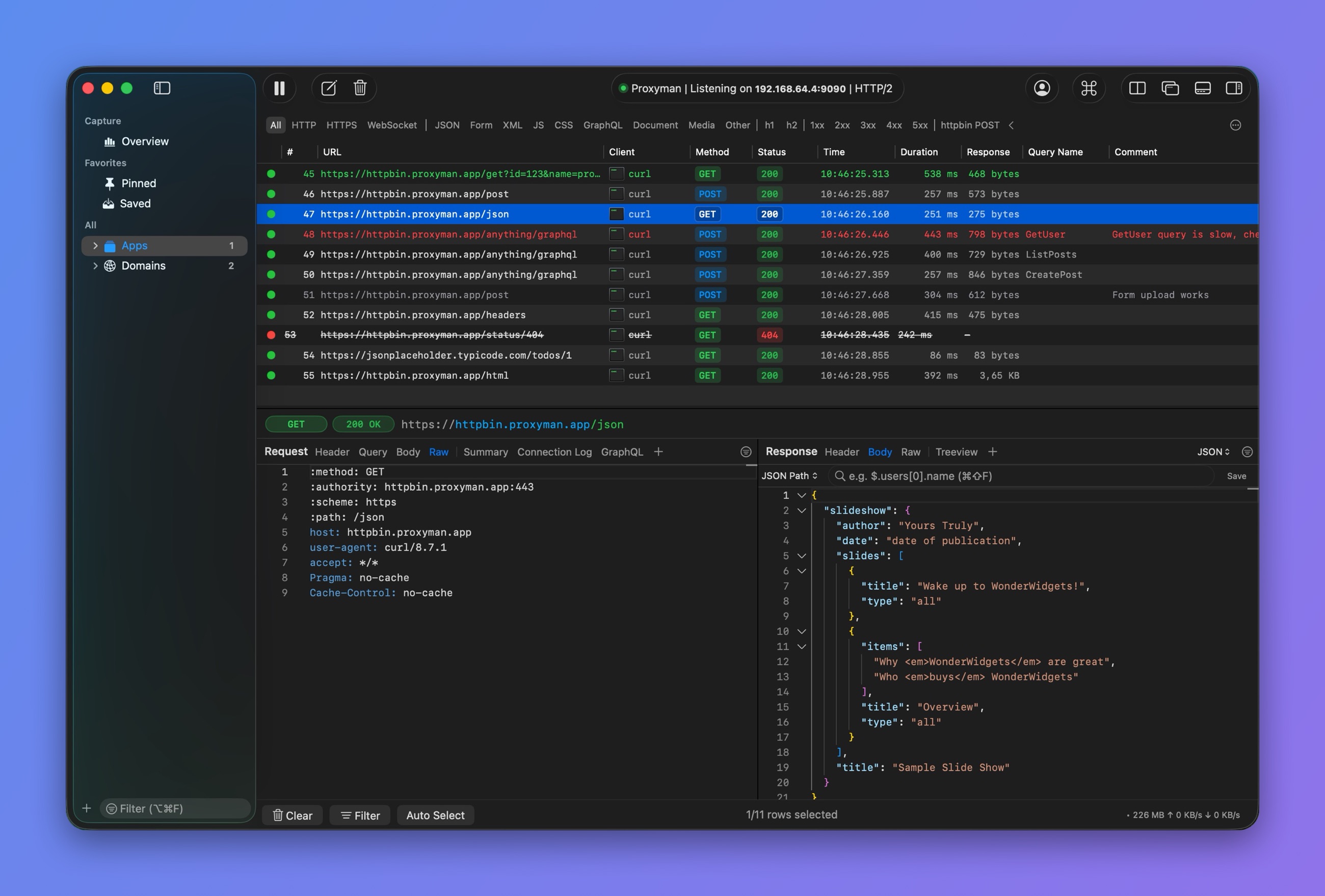
色とコメントが付いた行
require() でファイルをインポート
JSON
- JSON ファイルを用意して、デスクトップに保存します
// myfile.json
{
  "name": "Proxyman",
  "platform": "macOS",
  "info": {
    "website": "proxyman.io",
    "region": "Earth"
  }
}
2. More → Import JSON or Other File... をクリックし、ファイルを選択します
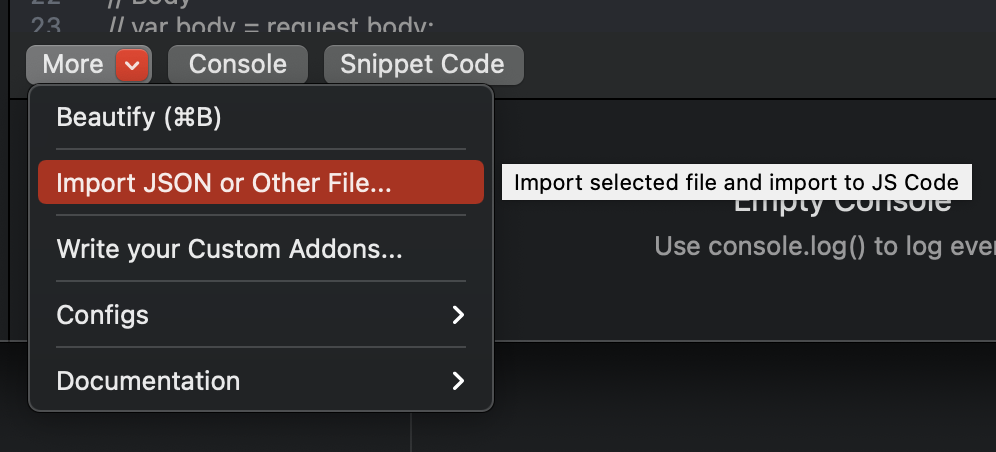
3. Proxyman はスクリプトの先頭にインポート用のコードを追加します
// ~/Library/Application Support/com.proxyman.NSProxy/users/myfile.json
const file = require("@users/myfile.json");

function onResponse(context, url, request, response) {
  // 1. Set header to JSON if need
  response.headers["Content-Type"] = "application/json";

  // 2. Set Body as a imported file
  response.body = file;

  return response;
}
選択したファイルは ~/Library/Application\ Support/com.proxyman.NSProxy/users フォルダにコピーされます。
画像、テキスト、PDF などのその他のファイル形式を使う場合は、正しい Content-Type ヘッダー を設定してください。
バイナリファイル
- 上記と同じ手順に従い、バイナリファイルを選択します
- ボディとして設定します
// ~/Library/Application Support/com.proxyman.NSProxy/users/myscreenshot.png
const file = require("@users/myscreenshot.png");

function onResponse(context, url, request, response) {
  // Set header
  response.headers["Content-Type"] = "image/png";

  // Set Body
  response.body = file;

  return response;
}
テキストベースのファイル
- 上記と同じ手順に従い、テキストファイルを選択します
- ボディとして設定します
// ~/Library/Application Support/com.proxyman.NSProxy/users/main.css
const file = require("@users/main.css");

function onResponse(context, url, request, response) {
  // Set header
  response.headers["Content-Type"] = "text/css";

  // Set Body
  response.body = file;

  return response;
}
「Import Tool」を使わずにファイルをインポート
Proxyman 2.24.0+ では、「Import Tool」を使わずに任意のファイルをインポートできます。
// Import your file from your Desktop folder
const file = require("~/Desktop/myfile.json");

function onResponse(context, url, request, response) {

  // 1. Set header to JSON if need
  response.headers["Content-Type"] = "application/json";

  // 2. Set Body as a imported file
  response.body = file;

  return response;
}
- 拡張子が ".js" のファイルは、Proxyman が JS スクリプトとして実行します
- それ以外の場合は、通常のファイルとしてインポートします
スクリプトを同僚にエクスポートする際に含まれるのは、「Import Tool」でインポートしたファイルのみです。
モック API として使用
Scripting をモック API として使用できます。Scripting をモック API として使用を参照してください。
アドオンの使用
Base64 アドオンを使う
// Encode Base64
const { btoa } = require("@addons/Base64.js")

// Usage:
var text = "HelloWorld";
var encodedText = btoa(text);
// Decode Base64
const { atob } = require("@addons/Base64.js")

// Usage:
var text = atob("aGVsbG8=");
ハッシュアドオン(MD5、SHA1、SHA256、SHA512)を使う
// Hash MD5
const { md5 } = require("@addons/MD5.js")

// Usage:
var hashedText = md5("Hello World");
// Hash SHA1
const { sha1 } = require("@addons/SHA1.js")

// Usage:
var hashedText = sha1("Hello World");
UUID-v4 アドオンを使う
// Generate UUID v4
const { uuidv4 } = require("@addons/UUID.js")

// Usage:
var uuid = uuidv4();
Deflate/Inflate と GZip/UnGZip
Deflate/Inflate
const { inflate, deflate } = require("@addons/Pako.js")

// Compress
var input = "Hello World from Pako!!!"
var result = deflate(input);
console.log(result); // eJzzSM3JyVcIzy/KSVFIK8rPVQhIzM5XVFQEAGsMB/8=

// Decompress
var text = 'eJzzSM3JyVcIzy/KSVFIK8rPVQhIzM5XVFQEAGsMB/8=';
var rawText = inflate(text);
console.log(rawText); // Hello World from Pako!!!
GZip/UnGZip
const { ungzip, gzip } = require("@addons/Pako.js")

// Compress
var text =  'HelloWorld';
var result = gzip(text);
console.log(result); // H4sIAAAAAAAAA/NIzcnJD88vykkBAHkMd3cKAAAA

// Decompress
var text =  'H4sIAAAAAAAAA/NIzcnJD88vykkBAHkMd3cKAAAA';
var rawText = ungzip(text);
console.log(rawText); // HelloWorld
JWT デコード
const { jwtDecode } = require('@addons/JWTDecode.js');

var text = 'eyJhbGciOiJIUzI1NiIsInR5cCI6IkpXVCJ9.eyJzdWIiOiIxMjM0NTY3ODkwIiwibmFtZSI6IkpvaG4gRG9lIiwiaWF0IjoxNTE2MjM5MDIyfQ.SflKxwRJSMeKKF2QT4fwpMeJf36POk6yJV_adQssw5c';
var jSONObject = jwtDecode(text)
ロギング
// Print the obj
const myObj = {};
console.log(myObj);

// Print type of the obj
console.log(typeof(myObj));
正規表現
数字のみ
//Init Regex
var reg = /^-?\d*\.?\d*$/;

if (reg.test("123123123")) {
    console.log("Matched");
}
URL のスキーム、ホスト、ポート、パス、クエリを取得する正規表現
function onRequest(context, url, request) {
  console.log(url);

  // Get each part
  const regex = /^(https?):\/\/([^:\/\n]+)(?::(\d+))?([^#\n?]+)(?:\?([^#\n]+))?/;
  const [, scheme, host, port, path, query] = url.match(regex);

  // Assign again
  request.scheme = scheme;
  request.host = host;
  if (port !== undefined) {
    request.port = parseInt(port);
  }
  request.path = path;

  // Log
  console.log("----------");
  console.log(scheme);
  console.log(host);
  console.log(port);
  console.log(path);

  // Done
  return request;
}
その他
CORS を回避
function onResponse(context, url, request, response) {

  // Allow all
  response.headers["Access-Control-Allow-Origin"] = "*";
  response.headers["Access-Control-Allow-Headers"] = "*";
  response.headers["Access-Control-Allow-Methods"] = "*";

  // Done
  return response;
}
リクエストまたはレスポンスにヘッダーを挿入
function onRequest(context, url, request) {
  // add header
  request.headers["My-Injected-Header"] = "Proxyman";
  return request
}

function onResponse(context, url, request, response) {
  // add header
  response.headers["My-Injected-Header"] = "Proxyman";
  return response;
}
sleep() 関数でレスポンスを遅延
特定のリクエストまたはレスポンスで「Slow Network」を再現したい場合に便利です。GUI ツールを使う場合は、Network Conditions をご覧ください。
- macOS
function onResponse(context, url, request, response) {
  console.log("Start sleep");

  // Sleep 5 seconds
  sleep(5000);

  // Done
  return response;
}
- Windows/Linux
async function onResponse(context, url, request, response) {
  console.log("Start sleep");

  // Sleep 5 seconds
  // Must use `await` keyword on Windows/Linux
  await sleep(5000);

  // Done
  return response;
}
AES 暗号化/復号
const { encryptAES, decryptAES } = require("@addons/CryptoJS.js")

function onRequest(context, url, request) {

  // Encrypt
  var message = 'my message from Proxyman';
  var password = 'secret key 123';
  var ciphertext = encryptAES(message, password);

  // Decrypt
  var originalText = decryptAES(ciphertext, password);

  // Done
  return request;
}
DES 暗号化/復号
const { encryptDES, decryptDES } = require("@addons/CryptoJS.js")

function onRequest(context, url, request) {

  // Encrypt
  var message = 'my message from Proxyman';
  var password = 'secret key 123';
  var ciphertext = encryptDES(message, password);

  // Decrypt
  var originalText = decryptDES(ciphertext, password);

  // Done
  return request;
}
ローカルファイルへの書き込み/エクスポート
- 上書きモード
function onResponse(context, url, request, response) {

  // Write to single file
  writeToFile(response.body, "~/Desktop/body.json");

  // Write the Body to file with flow ID
  writeToFile(response.body, "~/Desktop/sample-" + context.flow.id);

  // Done
  return response;
}
- 追記モード(Proxyman 3.6.2+ のみ)
async function onResponse(context, url, request, response) {

  // Append to the existed file
  // Or create a new file if it doesn't exist
  var opt = {appendFile: true}
  writeToFile(response.body, "~/Desktop/body.json", opt);

  // Done
  return response;
}
ファイルの存在を確認
- 利用可能なバージョン:Proxyman macOS 5.4.0+
async function onRequest(context, url, request) {

  const filePath = "~/Desktop/myfile.json"

  // check if the file exists
  if (isFileExists(filePath)) {
    console.log("File exists");
  } else {
    console.log("File NOT exists");
  }

  // Done
  return request;
}
ファイルを読み取る
- テキストベースの場合 → String を返します
- それ以外の場合 → Uint8Array を返します
- 利用可能なバージョン:Proxyman macOS 5.4.0+
async function onRequest(context, url, request) {  // console.log(request);

  const textFilePath = "~/Desktop/myfile.json";

  // check exist
  if (isFileExists(textFilePath)) {

    // read from file
    const text = readFromFile(textFilePath);

    // parse string to JSON Object
    const obj = JSON.parse(text);
  }

  // Read binary file
  const binaryFilePath = "~/Desktop/screenshot.png";
  const binaryFile = readFromFile(binaryFilePath); // Uint8Array

  // Done
  return request;
}
Map Remote
v1 から v2 のエンドポイントへマップ
function onRequest(context, url, request) {

  // Replace v1 to v2 in URL Path
  var newPath = request.path.replace("v1", "v2");
  request.path = newPath

  // Done
  return request;
}
localhost から本番環境へマップ
function onRequest(context, url, request) {

  // Use production URL
  request.scheme = "https";
  request.host = "proxyman.io";
  request.port = 443;

  // Done
  return request;
}
本番環境から localhost へマップ
function onRequest(context, url, request) {

  // Use localhost URL
  request.scheme = "http";
  request.host = "localhost";
  request.port = 3000;

  // Done
  return request;
}
async/await による HTTP リクエスト(macOS)
`$http` は macOS で利用できます。Windows/Linux の場合は、次のセクションをご覧ください。
クエリ付きの GET リクエスト
async function onResponse(context, url, request, response) {
  // GET Request with Query
  var url = "https://httpbin.proxyman.app/get?id=proxyman&country=united%20states";
  var output = await $http.get(url);

  // Get Status Code
  console.log(output.statusCode);

  // Get body
  console.log(output.body)

  // Get header
  console.log(output.headers)

  // Done
  return response;
}
JSON ボディ付きの POST リクエスト
async function onResponse(context, url, request, response) {
  // Define JSON Body and Header
  // Make sure "Content-Type" is "application/json"
  var param = {
    body: {
      "user": {
        "name": "Proxyman"
      }
    },
    headers: {
      "Content-Type": "application/json"
    }
  }

  // POST request with await
  var output = await $http.post("https://httpbin.proxyman.app/post", param);

  // Get Status Code
  console.log(output.statusCode);

  // Get body
  console.log(output.body)

  // Get header
  console.log(output.headers)

  // Done
  return response;
}
application/x-www-form-urlencoded ボディ付きの POST リクエスト
async function onResponse(context, url, request, response) {
  // Define form Body and Header
  // Make sure "Content-Type" is "application/x-www-form-urlencoded"
  var param = {
    body: {
      "key1": "value1",
      "key2": "value2"
    },
    headers: {
      "Content-Type": "application/x-www-form-urlencoded"
    }
  }

  // POST request with await
  var output = await $http.post("https://httpbin.proxyman.app/post", param);

  // Get Status Code
  console.log(output.statusCode);

  // Get body
  console.log(output.body)

  // Get header
  console.log(output.headers)

  // Done
  return response;
}
PUT / PATCH / DELETE リクエスト
async function onRequest(context, url, request) {

  var param = {
    body: {
      "user": {
        "name": "Proxyman"
      }
    },
    headers: {
      "Content-Type": "application/json"
    }
  }

  var output = await $http.post("https://httpbin.proxyman.app/post", param);
  var output = await $http.put("https://httpbin.proxyman.app/put", param);
  var output = await $http.delete("https://httpbin.proxyman.app/delete", param);

  // Done
  return request;
}
async/await による HTTP リクエスト(Windows/Linux)
Windows/Linux には、組み込みの Axios ライブラリが含まれています。`Axios` の構文で HTTP(S) リクエストを簡単に送信できます。
async function getUser() {
  try {
    const response = await axios.get('https://httpbin.proxyman.app/user?ID=12345');
    console.log(response);
  } catch (error) {
    console.error(error);
  }
}
Block List ツールのように、リクエストまたはレスポンスを中断
- Proxyman 3.11.0 以降でのみ利用できます
リクエストを中断
function onRequest(context, url, request) {
  // drop the connection
  abort();
}
function onRequest(context, url, request) {

  // Use the if to abort on certain conditions
  if (true) {
    abort();
    return; // Must return a void to stop the func
  }

  // Done
  return request;
}
レスポンスを中断
function onResponse(context, url, request, response) {
  // drop the connection
  abort();
}
URL と URLSearchParams
Proxyman 4.13.0 以降では、URL と URLSearchParams がネイティブでサポートされます。
function onRequest(context, url, request) {

  // URL
  const urlObj = new URL("https://proxyman.io/api/v1/user?id=123");
  console.log(urlObj.hostname);
  console.log(urlObj.search);
  console.log(urlObj.searchParams);

  // URLSearchParams
  const params1 = new URLSearchParams("foo=1&bar=2");

  // Done
  return request;
}
システムの環境変数を再読み込み
macOS 版 Proxyman 4.15.0 以降。
まず権限を有効にしてください:More ボタン → Environment Variables → Allow all scripts to access Environment Variables。
async function onRequest(context, url, request) {
  // manually reload to get the latest changes
  _reloadEnv();

  // get env
  console.log($PROXYMAN_ID)

  // Done
  return request;
}
WebSocket の URL、リクエストとレスポンスのヘッダーを変更
- macOS 版 Proxyman 6.2.0 以降でサポートされています。
onRequestとonResponseでは、URL とハンドシェイクのヘッダーを変更できます。メッセージを読み取るには onWebsocket を使用してください(macOS、Windows、Linux 版 Proxyman 26.1.0 以降)。メッセージを変更するには Modify WebSocket Messages を使用してください(macOS 版 Proxyman 26.2.0 以降、Windows/Linux 版 Proxyman 26.1.0 以降)。
localhost から本番環境へマップ
- ルール ws://proxyman.debug:3000
async function onRequest(context, url, request) {
  // console.log(request);
  console.log(url);

  request.scheme = "wss";
  request.host = "wss.httpbin-proxyman.xyz"
  request.port = 443

  // Done
  return request;
}
本番環境から localhost へ
- ルール wss://echo.websocket.org
async function onRequest(context, url, request) {
  // console.log(request);
  console.log(url);

  request.scheme = "ws";
  request.host = "proxyman.debug"
  request.port = 3000

  // Done
  return request;
}
onWebsocket で WebSocket メッセージをログ出力
これらの onWebsocket スニペットには、macOS、Windows、Linux 版 Proxyman 26.1.0 以降が必要です。iOS では利用できません。
キャプチャした ws:// または wss:// の URL にマッチさせ、スクリプトを保存して有効にしたうえで、WebSocket に再接続してください。設定方法と message オブジェクトの詳細は、WebSocket を使った Scripting をご覧ください。
各例では、個別の onWebsocket 関数を定義しています。いずれかの例を使うか、チェックを 1 つの関数にまとめてください。Modify WebSocket Messages オプションを有効にしていない場合、フックは読み取り専用です。message を変更しても、値を返しても、通信は変更されません。メッセージを変更する方法は、onWebsocket で WebSocket メッセージを変更 をご覧ください。
キャプチャしたすべてのメッセージを、両方向からログに出力します:
function onWebsocket(context, url, request, response, message) {
  console.log(`[${message.from}] ${message.type}: ${message.data}`);
}
テキストと JSON メッセージを読み取る
サーバーから送信されたテキストを確認します。有効な JSON メッセージは解析されます。それ以外のテキストは、そのままログに出力されます。
function onWebsocket(context, url, request, response, message) {
  if (message.type !== "text" || message.from !== "server") return;

  try {
    const payload = JSON.parse(message.data);
    console.log("Server JSON: " + JSON.stringify(payload, null, 2));
  } catch (error) {
    // A text message does not have to contain JSON.
    console.log("Server text: " + message.data);
  }
}
Proxyman は、フックを呼び出す前に分割されたテキストフレームを再構成するため、ここで完全な JSON メッセージを解析できます。バイナリのフラグメントも再構成されます。継続フレーム用の個別のコールバックはありません。
バイナリメッセージを確認
元のバイト列には message.rawData を使用してください。message.data はテキスト表現にすぎず、Binary (length=N) になる場合があります。
function onWebsocket(context, url, request, response, message) {
  if (message.type !== "binary") return;

  const bytes = message.rawData;
  // Limit the preview so large messages do not flood the console.
  const hex = Array.from(bytes.slice(0, 32))
    .map(byte => byte.toString(16).padStart(2, "0"))
    .join(" ");
  const suffix = bytes.length > 32 ? " ..." : "";
  console.log(`[${message.from}] binary (${bytes.length} bytes): ${hex}${suffix}`);
}
rawData はコピーされた Uint8Array で、列挙不可(non-enumerable)です。console.log(message) や JSON.stringify(message) に含まれることを期待するのではなく、直接アクセスしてください。
ping と pong フレームをログ出力
これらのイベントを使うと、どちらの方向のハートビート通信も確認できます。ping と pong のペイロードは公開されません。
function onWebsocket(context, url, request, response, message) {
  if (message.type !== "ping" && message.type !== "pong") return;

  console.log(`[${message.from}] ${message.type} on ${url}`);
}
close フレームを確認
close コードと、フレームを送信した側をログに出力します。close の理由は公開されません。
function onWebsocket(context, url, request, response, message) {
  if (message.type !== "close") return;

  console.log(`[${message.from}] closed with code ${message.closeCode}`);
}
onWebsocket で WebSocket メッセージを変更
これらのスニペットには、macOS 版 Proxyman 26.2.0 以降または Windows/Linux 版 Proxyman 26.1.0 以降が必要です。iOS では利用できません。
ルールで Modify WebSocket Messages にチェックを入れ、Request にチェックを入れたままにします。スクリプトを保存して有効にしてから、WebSocket に再接続してください。設定方法と各戻り値の動作は、Modify WebSocket Messages をご覧ください:
return message:変更を加えたメッセージを送信します。return null:メッセージを破棄します。- 戻り値なし:元のメッセージを送信します。
sendToClient(data)/sendToServer(data):新しいメッセージを送信します。String を渡すとテキストメッセージ、Uint8Arrayを渡すとバイナリメッセージを送信します。abort():WebSocket を両側で閉じます。
JSON メッセージのフィールドを変更
サーバーからのすべての JSON メッセージのフィールドを変更します。それ以外のメッセージは、そのまま送信されます。
function onWebsocket(context, url, request, response, message) {
  if (message.type !== "text" || message.from !== "server") {
    return message;
  }

  try {
    const json = JSON.parse(message.data);
    if (json.type === "price") {
      json.price = 0;
      message.data = JSON.stringify(json);
    }
  } catch (error) {
    // Not JSON: send it as it is
  }
  return message;
}
両方向のテキストを置換
クライアントからもサーバーからも、すべてのテキストメッセージ内のホスト名を置き換えます。
const FIND_REGEX = /staging\.example\.com/g;
const REPLACE_WITH = "api.example.com";

function onWebsocket(context, url, request, response, message) {
  if (message.type === "text") {
    message.data = message.data.replace(FIND_REGEX, REPLACE_WITH);
  }
  return message;
}
メッセージをドロップ
正規表現に一致するクライアントのメッセージ(たとえば分析イベント)を破棄します。サーバーには届きません。
const DROP_REGEX = /"type"\s*:\s*"analytics"/;

function onWebsocket(context, url, request, response, message) {
  if (message.from === "client" && message.type === "text" && DROP_REGEX.test(message.data)) {
    console.log("Dropped: " + message.data);
    return null;
  }
  return message;
}
サーバーを介さずにクライアントのメッセージに返信
クライアントのメッセージには sendToClient() で応答し、元のメッセージは破棄してサーバーに届かないようにします。サーバーの応答をモックする場合に便利です。
function onWebsocket(context, url, request, response, message) {
  if (message.from === "client" && message.type === "text" && message.data.includes('"subscribe"')) {
    sendToClient(JSON.stringify({ type: "error", code: 503, text: "Service unavailable" }));
    return null;
  }
  return message;
}
sendToClient() と sendToServer() で送信したメッセージでは onWebsocket() が再度実行されないため、スクリプトが無限ループになることはありません。
サーバーへメッセージを送信
クライアントが最初のメッセージを送信したときに、サーバーへ追加のメッセージを送信します(たとえば、別のチャンネルを購読する場合など)。
let isSubscribed = false;

function onWebsocket(context, url, request, response, message) {
  if (message.from === "client" && message.type === "text" && !isSubscribed) {
    isSubscribed = true;
    sendToServer(JSON.stringify({ type: "subscribe", channel: "ETH" }));
  }
  return message;
}
onWebsocket() の外側のコードは接続ごとに 1 回実行されるため、isSubscribed は新しい接続のたびに false から始まります。
接続切断をシミュレート
アプリの再接続の動作をテストするため、10 件のメッセージの後に WebSocket を両側で閉じます。
const CLOSE_AFTER_MESSAGES = 10;
let messageCount = 0;

function onWebsocket(context, url, request, response, message) {
  messageCount += 1;
  if (messageCount === CLOSE_AFTER_MESSAGES) {
    console.log("Closing the WebSocket after " + messageCount + " messages");
    abort();
  }
  return message;
}
バイナリメッセージを変更
Uint8Array を使って新しいバイト列を設定します。メッセージの種類は維持されます。バイナリメッセージはバイナリのままです。
function onWebsocket(context, url, request, response, message) {
  if (message.type === "binary" && message.from === "server") {
    message.rawData = new Uint8Array([1, 2, 3]);
  }
  return message;
}
`npm install` を使う
詳しくは use-npm-install.md をご覧ください。
パッケージをインストール
ターミナルを開き、Proxyman の Application Support フォルダにパッケージをインストールします:
dayjsをインストール
$ cd "$HOME/Library/Application Support/com.proxyman.NSProxy"
$ npm install --prefix . dayjs --ignore-scripts --no-audit --no-fund
インストールが完了すると、次のフォルダにパッケージが配置されます:
~/Library/Application Support/com.proxyman.NSProxy/node_modules
スクリプトでパッケージを使用
パッケージ名を require() と一緒に使用します:
const dayjs = require("dayjs");

async function onRequest(context, url, request) {
  const formattedDate = dayjs("2026-05-05T13:00:00Z").format("YYYY-MM-DD");
  request.headers["X-Proxyman-Dayjs"] = formattedDate;
  return request;
}