Flutter
无论是否修改代码,都能使用 Proxyman 抓取 Flutter 应用的 HTTPS 流量,支持 Android 模拟器、Android 设备、iOS 模拟器和 iPhone。
✅ 1. 新方案
需要 Proxyman 6.4.0 或更高版本,或 Windows/Linux 3.7.0 或更高版本
Android 模拟器
使用 Proxyman 只需一键即可抓取 Android 模拟器上 Flutter 应用的 HTTPS 流量。与旧方案不同,无需修改 Flutter 代码。
- 启动 Proxyman -> Certificate Menu -> Install Certificate on Android -> Emulators…
- 请先确保已设置好 Android 模拟器,并且它必须是 Google APIs 镜像。
请参阅 automatic-script-for-android-emulator.md,了解如何设置 Android 模拟器。
- 勾选 “Install Proxyman VPN on Android emulators”
- 点击 “Override All Emulators”
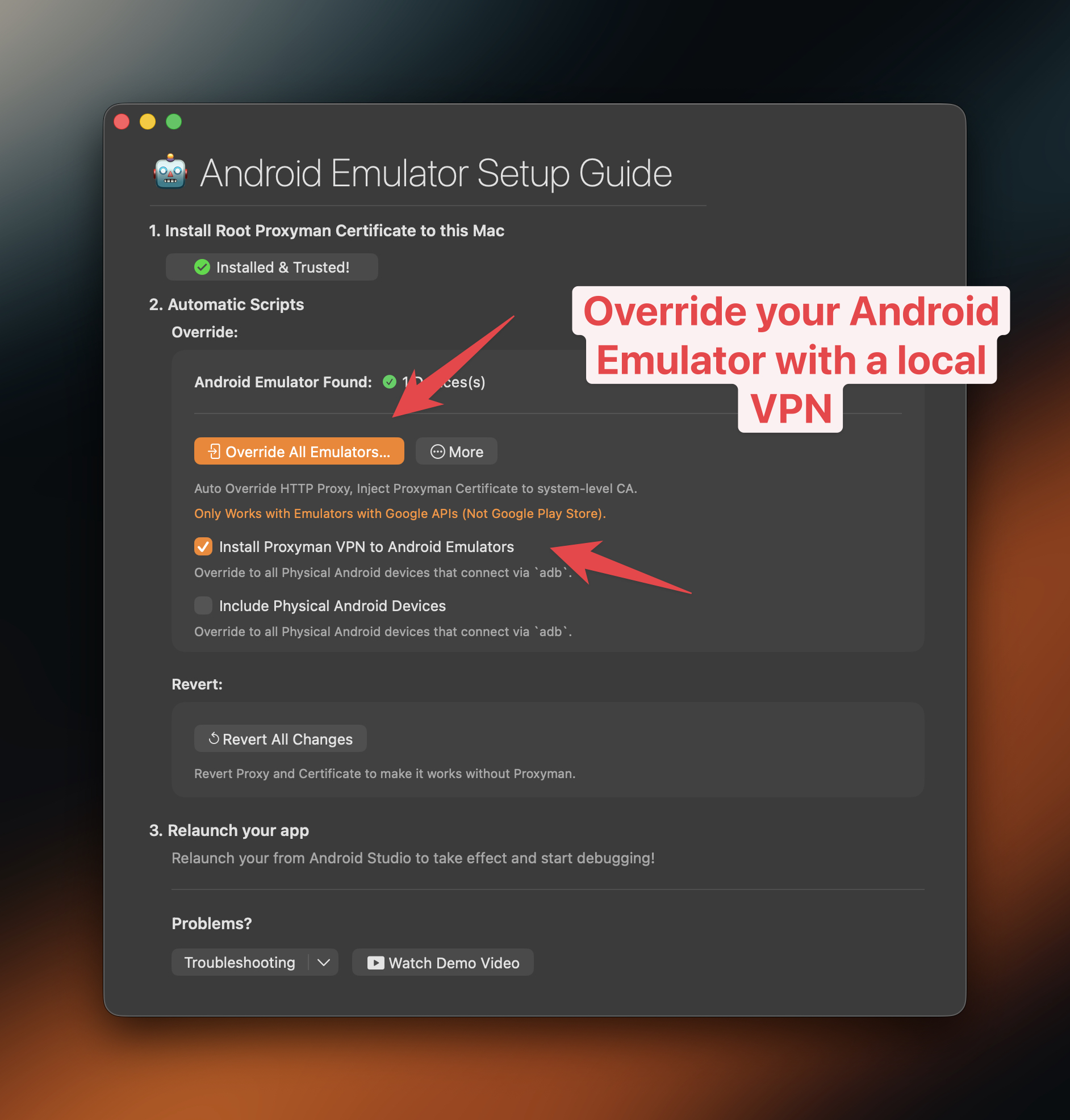
使用 Proxyman 抓取 Android 模拟器上 Flutter 应用的 HTTPS 流量
- 随后会打开一个新的终端窗口,并运行我们的 bash 脚本,以覆盖模拟器设置。
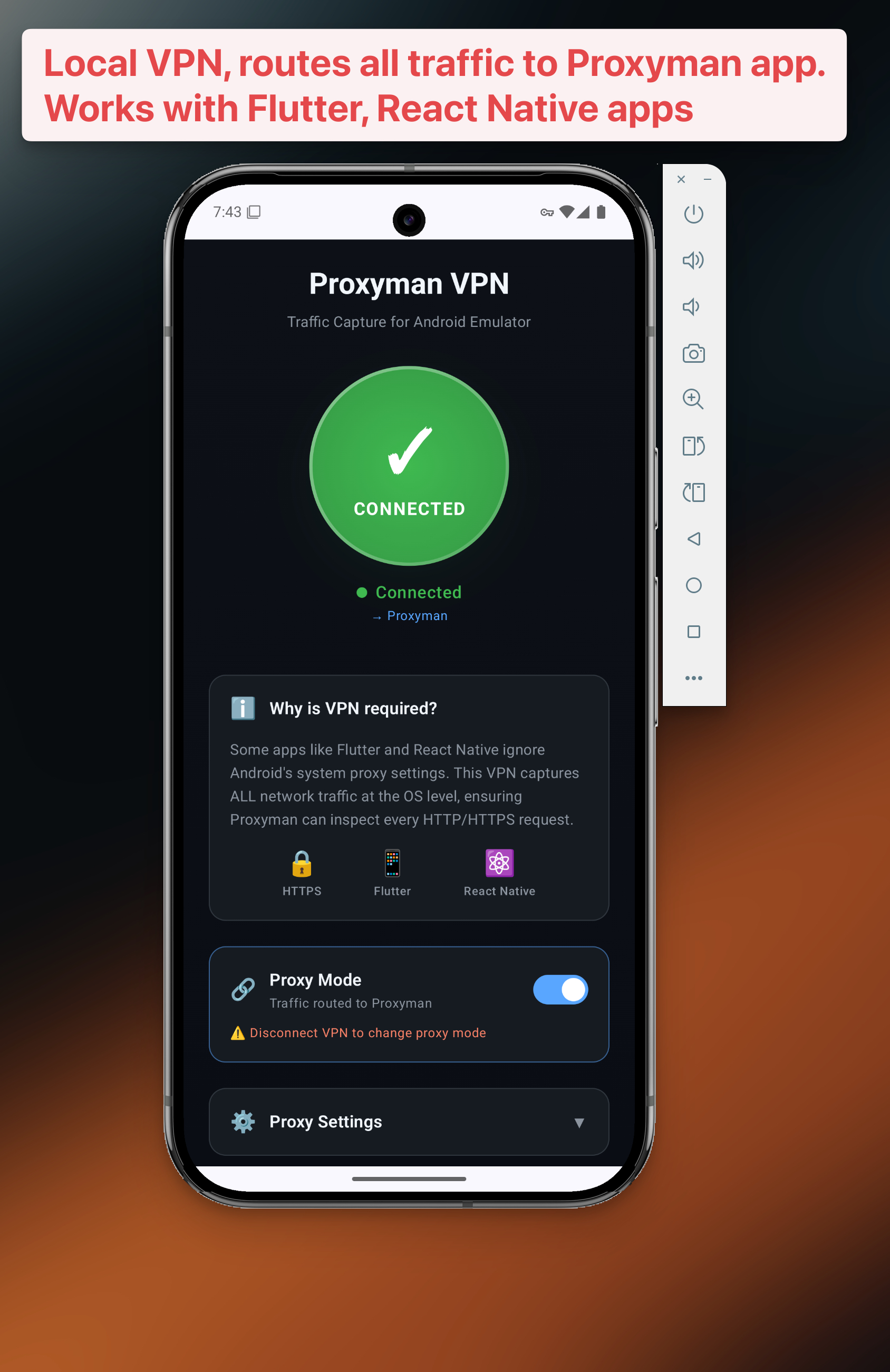
- 完成后,模拟器上会安装一个新的 VPN 应用
- 点击 VPN 按钮启动它 -> 完成 ✅
- 打开 Flutter 应用并发起 HTTPS 请求,Proxyman 会将其抓取 ✅
⚠️ 2. 旧方案
旧方案适用于 Proxyman macOS 6.3.0 及更早版本,以及 Windows/Linux 3.6.0 及更早版本
2.1 问题
Flutter 不使用系统级代理,因此如果你使用 Proxyman,可能看不到 Flutter 项目的任何流量。
好消息是,可以配置 Flutter 的 HTTP 客户端,将 Proxyman 设为其代理,从而绕过这个问题。
通常需要将 HTTP 客户端配置为把所有流量发送到 Proxyman 代理服务器,该服务器监听 localhost 的 9090 端口。
1. 设置 Flutter(所有平台必需,包括 iOS 和 Android)
每种 HTTP 客户端的步骤略有不同。以下介绍几种常用的客户端:
- Dart 的 HttpClient 类
- http 包
- Dio
在 Android 模拟器或 iOS 模拟器上,可以使用 String proxy = 'localhost:9090'。在 Android 真机上,请使用 String proxy = '<YOUR_LOCAL_IP>:9090'。
可以在 Proxyman -> Certificate menu -> Install Certificate on iOS -> Physical Devices… 中找到 <YOUR_LOCAL_IP>。
请根据 Flutter 应用所使用的网络库,选用以下对应设置:
Dart HTTPClient 类
// Make sure to replace <YOUR_LOCAL_IP> with
// the external IP of your computer if you're using Android.
// You can get the IP in the Android Setup Guide window
String proxy = Platform.isAndroid ? '<YOUR_LOCAL_IP>:9090' : 'localhost:9090';

// Create a new HttpClient instance.
HttpClient httpClient = HttpClient();

// Hook into the findProxy callback to set
// the client's proxy.
httpClient.findProxy = (uri) {
  return "PROXY $proxy;";
};

// This is a workaround to allow Proxyman to receive
// SSL payloads when your app is running on Android
httpClient.badCertificateCallback = (cert, host, port) => true;
HTTP 包
// Make sure to replace <YOUR_LOCAL_IP> with
// the external IP of your computer if you're using Android.
// You can get the IP in the Android Setup Guide window
String proxy = Platform.isAndroid ? '<YOUR_LOCAL_IP>:9090' : 'localhost:9090';

// Create a new HttpClient instance.
HttpClient httpClient = HttpClient();

// Hook into the findProxy callback to set
// the client's proxy.
httpClient.findProxy = (uri) {
  return "PROXY $proxy;";
};

// This is a workaround to allow Proxyman to receive
// SSL payloads when your app is running on Android.
httpClient.badCertificateCallback = (cert, host, port) => true;

// Pass your newly instantiated HttpClient to http.IOClient.
IOClient myClient = IOClient(httpClient);

// Make your request as normal.
final response = myClient.get('/my-url');
Dio ≥ v5.0.0(推荐)
// Make sure to replace <YOUR_LOCAL_IP> with
// the external IP of your computer if you're using Android.
// You can get the IP in the Android Setup Guide window
String proxy = Platform.isAndroid ? '<YOUR_LOCAL_IP>:9090' : 'localhost:9090';

// Create a new Dio instance.
Dio dio = Dio();

dio.httpClientAdapter = IOHttpClientAdapter(
  createHttpClient: () {
    final client = HttpClient();
    client.findProxy = (uri) {
      return 'PROXY $proxy';
    };
    client.badCertificateCallback = (cert, host, port) => true;
    return client;
  },
  validateCertificate: (cert, host, port) {
    return true;
  },
);
Dio < v5.0.0(已弃用的 API)
// Make sure to replace <YOUR_LOCAL_IP> with
// the external IP of your computer if you're using Android.
// You can get the IP in the Android Setup Guide window
String proxy = Platform.isAndroid ? '<YOUR_LOCAL_IP>:9090' : 'localhost:9090';

// Create a new Dio instance.
Dio dio = Dio();

// Tap into the onHttpClientCreate callback
// to configure the proxy just as we did earlier.
(dio.httpClientAdapter as DefaultHttpClientAdapter).onHttpClientCreate = (client) {
  // Hook into the findProxy callback to set the client's proxy.
  client.findProxy = (url) {
    return 'PROXY $proxy';
  };

  // This is a workaround to allow Proxyman to receive
  // SSL payloads when your app is running on Android.
  client.badCertificateCallback = (X509Certificate cert, String host, int port) => true;
}
2.2 Flutter 与 iOS 模拟器
- 从 Flutter 启动 iOS 模拟器
- 在 Proxyman 中依次点击 Certificate menu -> Install Certificate on iOS -> Simulators…
- 按照以下所有步骤操作
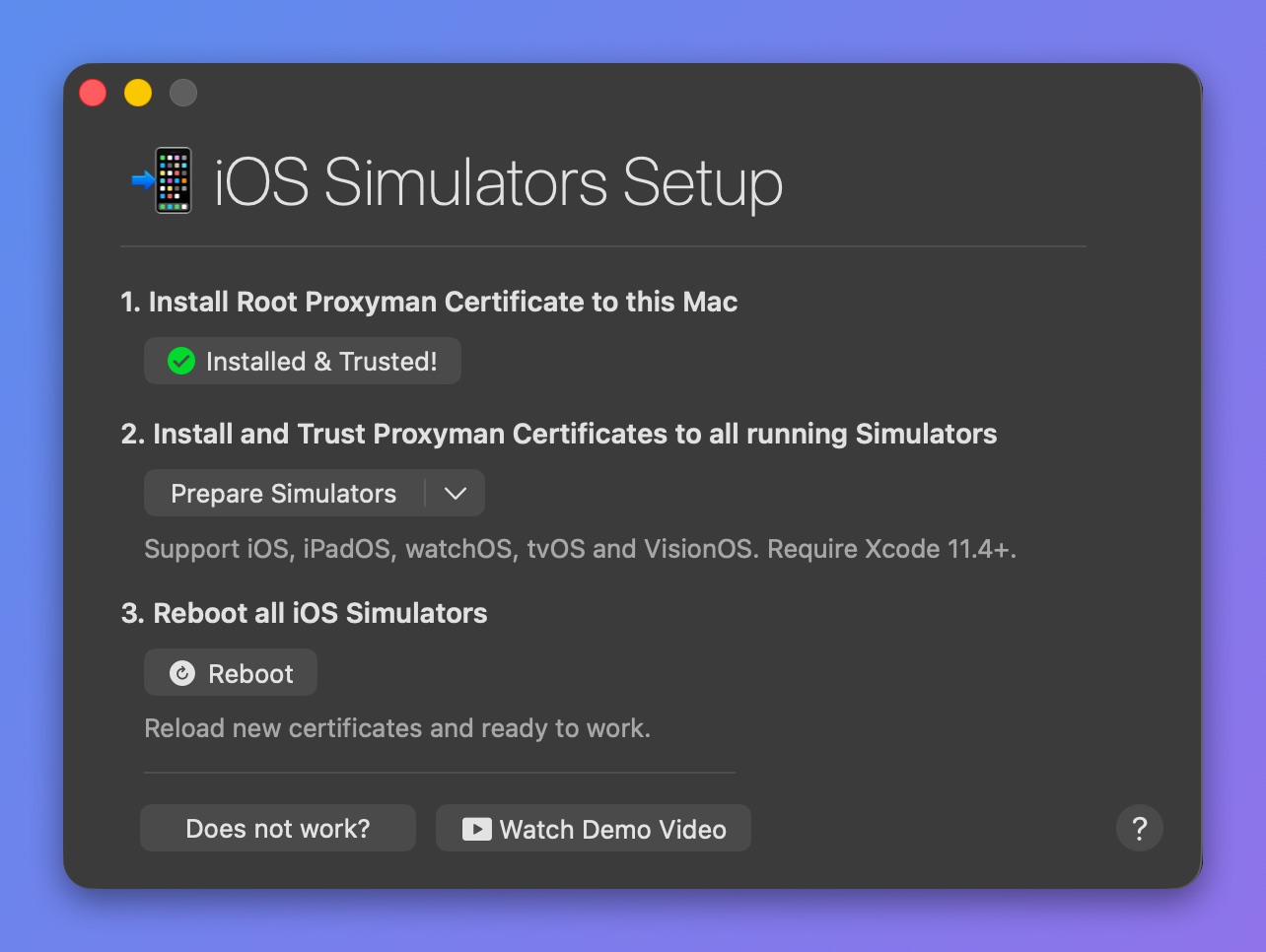
在 iOS 模拟器中安装并信任 Proxyman 证书
- ✅ 完成。Proxyman 即可抓取 HTTPS 流量。
2.3 Flutter 与 iOS 设备
- 请参阅 iOS 设备设置指南
2.4 Flutter 与 Android 模拟器
2.5 Flutter 与 Android 设备
- 请参阅 Android 设备设置指南
致谢与参考
感谢 James Dixon,参考来源:https://flutterigniter.com/debugging-network-requests/