Flutter
Capture HTTPS traffic from Flutter apps with Proxyman on Android Emulators, Android devices, iOS Simulators and iPhones, with or without code changes.
✅ 1. New Solution
From Proxyman 6.4.0 or later, or Windows/Linux 3.7.0 or later
Android Emulators
Proxyman can capture HTTPS from your Flutter app on the Android Emulator in 1 click. Unlike the old solution, you don't need to change your Flutter code.
- Start Proxyman -> Certificate Menu -> Install Certificate on Android -> Emulators…
- Make sure you set up your Android Emulator first, and it must be a Google APIs image.
See automatic-script-for-android-emulator.md to learn how to set up your Android Emulators
- Check "Install Proxyman VPN on Android emulators"
- Click "Override All Emulators"
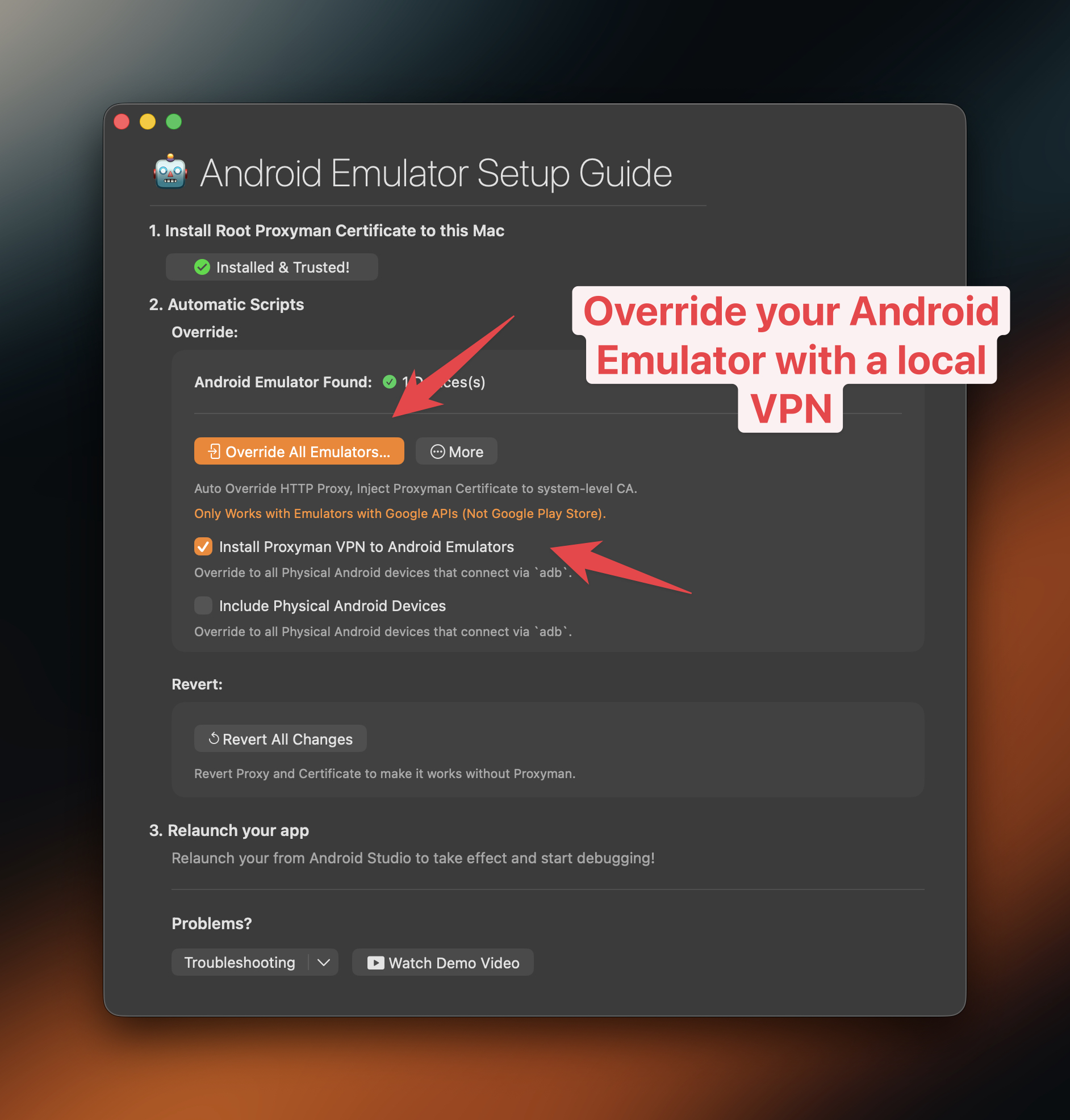
Capture HTTPS from a Flutter app on the Android Emulator with Proxyman
- A new Terminal window opens and runs our bash script to override your Emulators.
- When it's done, a new VPN app is installed on your Emulators
- Tap the VPN button to start it -> Done ✅
- Open your Flutter app and make HTTPS requests. Proxyman will capture them ✅
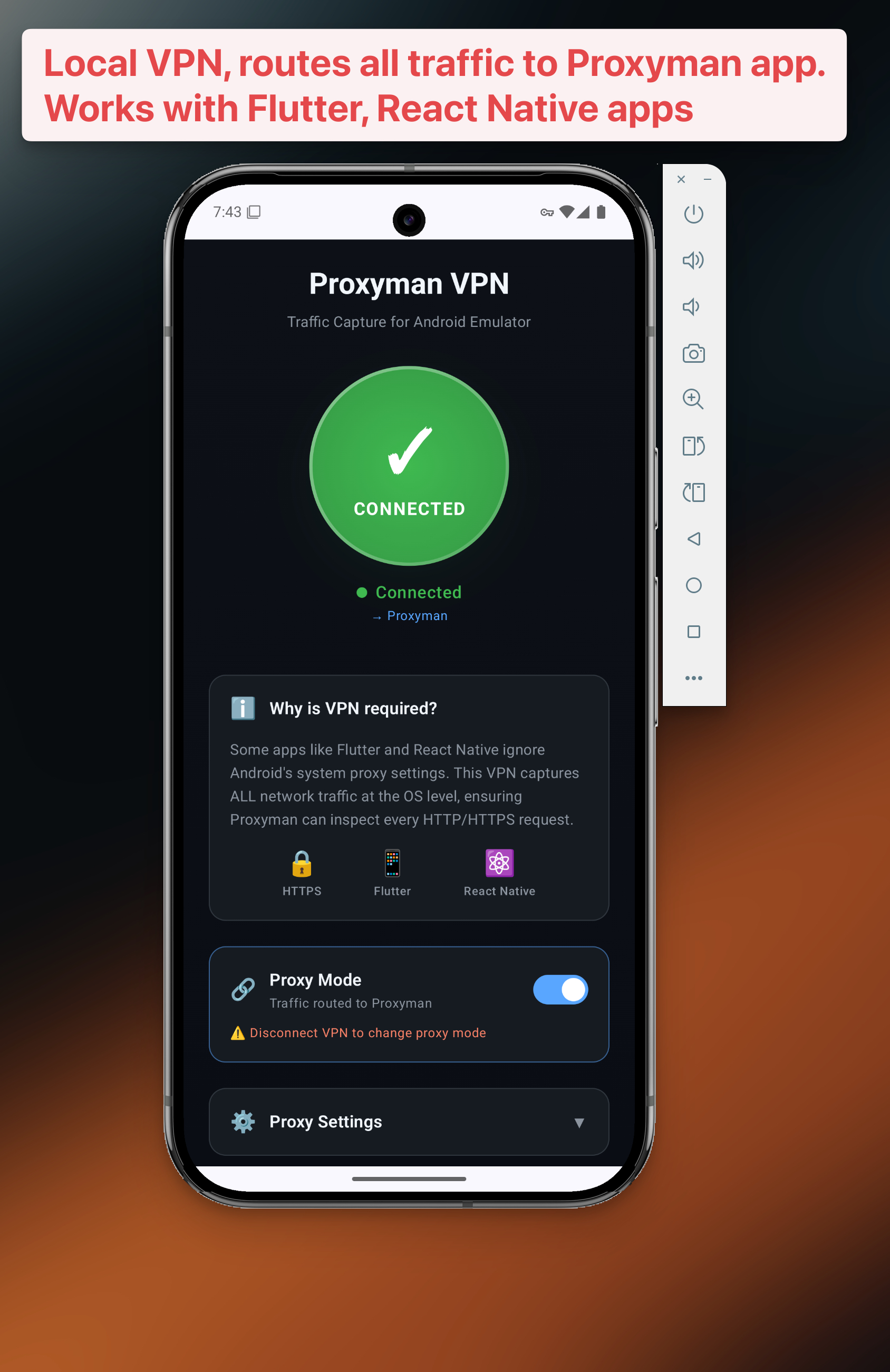
⚠️ 2. Old Solution
The old solution works with Proxyman macOS 6.3.0 and earlier, Windows/Linux 3.6.0 and earlier
2.1 Problem
Flutter does not use the system-level proxy, so if you use Proxyman, you might not see any traffic from your Flutter project.
The good news is that you can work around this issue by configuring Flutter’s HTTP client to use Proxyman as its proxy.
In general, you have to configure the HTTP client to send all traffic to the Proxyman proxy server, which listens at IP = localhost, port = 9090.
1. Set up Flutter (Required for all platforms - iOS & Android)
The steps are slightly different for each HTTP client. We cover some popular HTTP clients:
- Dart’s HttpClient class
- The http package
- Dio
If you're using an Android Emulator or an iOS Simulator, you can use String proxy = 'localhost:9090'. On Android physical devices, please use String proxy = '<YOUR_LOCAL_IP>:9090'.
You can find <YOUR_LOCAL_IP> in Proxyman -> Certificate menu -> Install Certificate on iOS -> Physical Devices…
Use the settings below for the network library that your Flutter app uses:
Dart HTTPClient Class
// Make sure to replace <YOUR_LOCAL_IP> with
// the external IP of your computer if you're using Android.
// You can get the IP in the Android Setup Guide window
String proxy = Platform.isAndroid ? '<YOUR_LOCAL_IP>:9090' : 'localhost:9090';

// Create a new HttpClient instance.
HttpClient httpClient = HttpClient();

// Hook into the findProxy callback to set
// the client's proxy.
httpClient.findProxy = (uri) {
  return "PROXY $proxy;";
};

// This is a workaround to allow Proxyman to receive
// SSL payloads when your app is running on Android
httpClient.badCertificateCallback = (cert, host, port) => true;
HTTP Package
// Make sure to replace <YOUR_LOCAL_IP> with
// the external IP of your computer if you're using Android.
// You can get the IP in the Android Setup Guide window
String proxy = Platform.isAndroid ? '<YOUR_LOCAL_IP>:9090' : 'localhost:9090';

// Create a new HttpClient instance.
HttpClient httpClient = HttpClient();

// Hook into the findProxy callback to set
// the client's proxy.
httpClient.findProxy = (uri) {
  return "PROXY $proxy;";
};

// This is a workaround to allow Proxyman to receive
// SSL payloads when your app is running on Android.
httpClient.badCertificateCallback = (cert, host, port) => true;

// Pass your newly instantiated HttpClient to http.IOClient.
IOClient myClient = IOClient(httpClient);

// Make your request as normal.
final response = myClient.get('/my-url');
Dio ≥ v5.0.0 (Recommended)
// Make sure to replace <YOUR_LOCAL_IP> with
// the external IP of your computer if you're using Android.
// You can get the IP in the Android Setup Guide window
String proxy = Platform.isAndroid ? '<YOUR_LOCAL_IP>:9090' : 'localhost:9090';

// Create a new Dio instance.
Dio dio = Dio();

dio.httpClientAdapter = IOHttpClientAdapter(
  createHttpClient: () {
    final client = HttpClient();
    client.findProxy = (uri) {
      return 'PROXY $proxy';
    };
    client.badCertificateCallback = (cert, host, port) => true;
    return client;
  },
  validateCertificate: (cert, host, port) {
    return true;
  },
);
Dio < v5.0.0 (Deprecated APIs)
// Make sure to replace <YOUR_LOCAL_IP> with
// the external IP of your computer if you're using Android.
// You can get the IP in the Android Setup Guide window
String proxy = Platform.isAndroid ? '<YOUR_LOCAL_IP>:9090' : 'localhost:9090';

// Create a new Dio instance.
Dio dio = Dio();

// Tap into the onHttpClientCreate callback
// to configure the proxy just as we did earlier.
(dio.httpClientAdapter as DefaultHttpClientAdapter).onHttpClientCreate = (client) {
  // Hook into the findProxy callback to set the client's proxy.
  client.findProxy = (url) {
    return 'PROXY $proxy';
  };

  // This is a workaround to allow Proxyman to receive
  // SSL payloads when your app is running on Android.
  client.badCertificateCallback = (X509Certificate cert, String host, int port) => true;
}
2.2 Flutter with iOS Simulators
- Start your iOS Simulator from Flutter
- In Proxyman -> Certificate menu -> Install Certificate on iOS -> Simulators…
- Follow all steps below
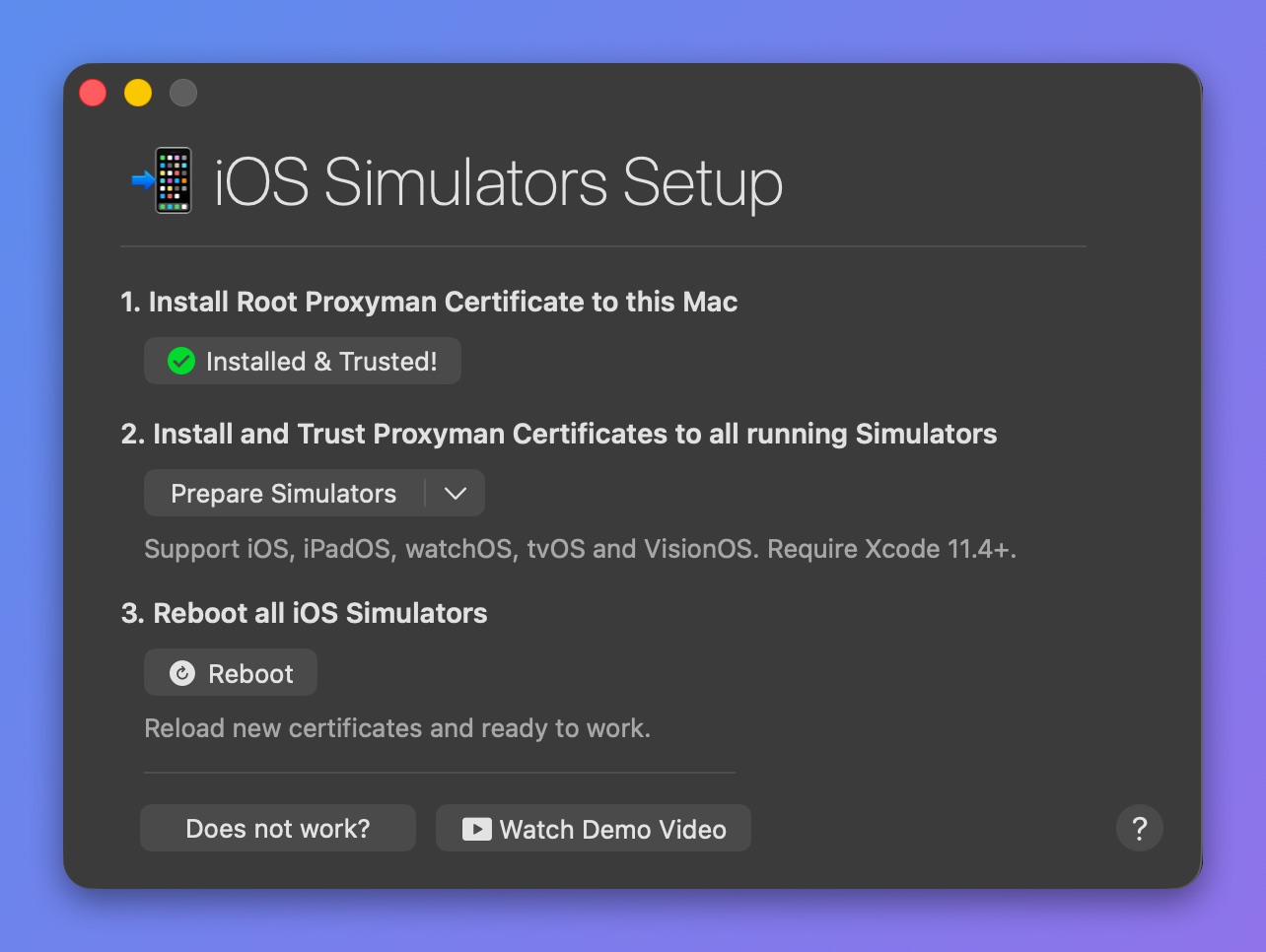
Install & trust Proxyman certificate to your iOS Simulators
- ✅ Done. Proxyman can capture your HTTPS traffic.
2.3 Flutter with iOS Devices
- Follow the iOS Device setup guide
2.4 Flutter with Android Emulator
- Follow the Automatic Script for Android Emulator guide
2.5 Flutter with Android Devices
- Follow the Android Device setup guide
Credit & Reference
Credit to James Dixon from https://flutterigniter.com/debugging-network-requests/