Flutter
Proxyman で、Android エミュレータ、Android 実機、iOS シミュレータ、iPhone 上の Flutter アプリの HTTPS 通信をキャプチャします。コードの変更の有無は問いません。
✅ 1. 新しい方法
Proxyman 6.4.0 以降、または Windows/Linux 3.7.0 以降で対応しています
Android エミュレータ
Proxyman を使うと、Android エミュレータ上の Flutter アプリの HTTPS 通信をワンクリックでキャプチャできます。従来の方法と違い、Flutter のコードを変更する必要はありません。
- Proxyman を起動し、Certificate メニュー -> Install Certificate on Android -> Emulators… を開きます。
- 先に Android エミュレータをセットアップしてください。イメージは Google APIs のものである必要があります。
Android エミュレータの設定方法は automatic-script-for-android-emulator.md をご覧ください。
- 「Install Proxyman VPN on Android emulators」にチェックを入れます。
- 「Override All Emulators」をクリックします。
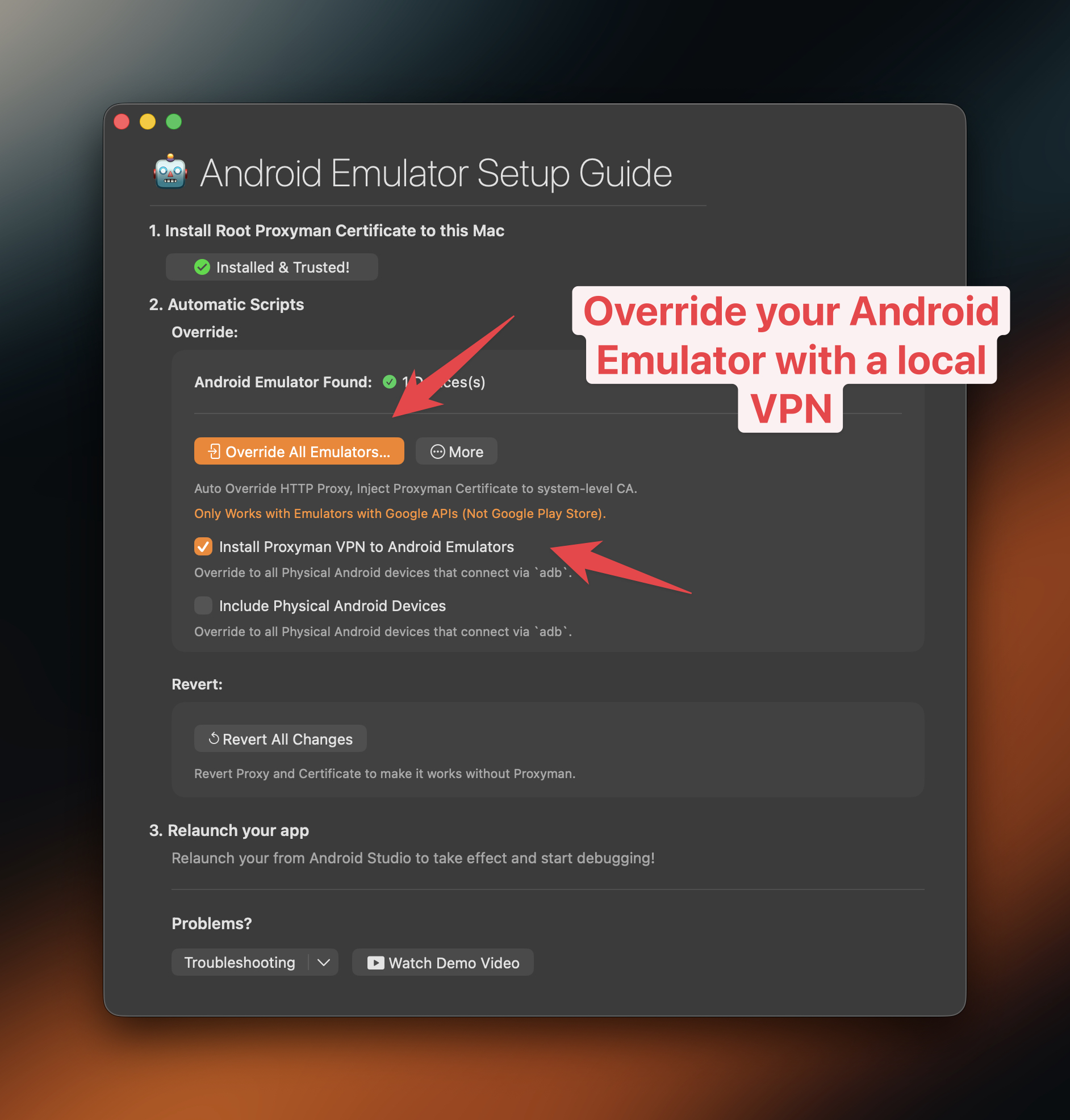
Proxyman で Android エミュレータ上の Flutter アプリの HTTPS 通信をキャプチャ
- 新しいターミナルウィンドウが開き、エミュレータの設定を上書きする bash スクリプトが実行されます。
- 完了すると、エミュレータに新しい VPN アプリがインストールされます。
- VPN ボタンをタップして起動すれば完了です ✅
- Flutter アプリを開いて HTTPS リクエストを送信してください。Proxyman がキャプチャします ✅
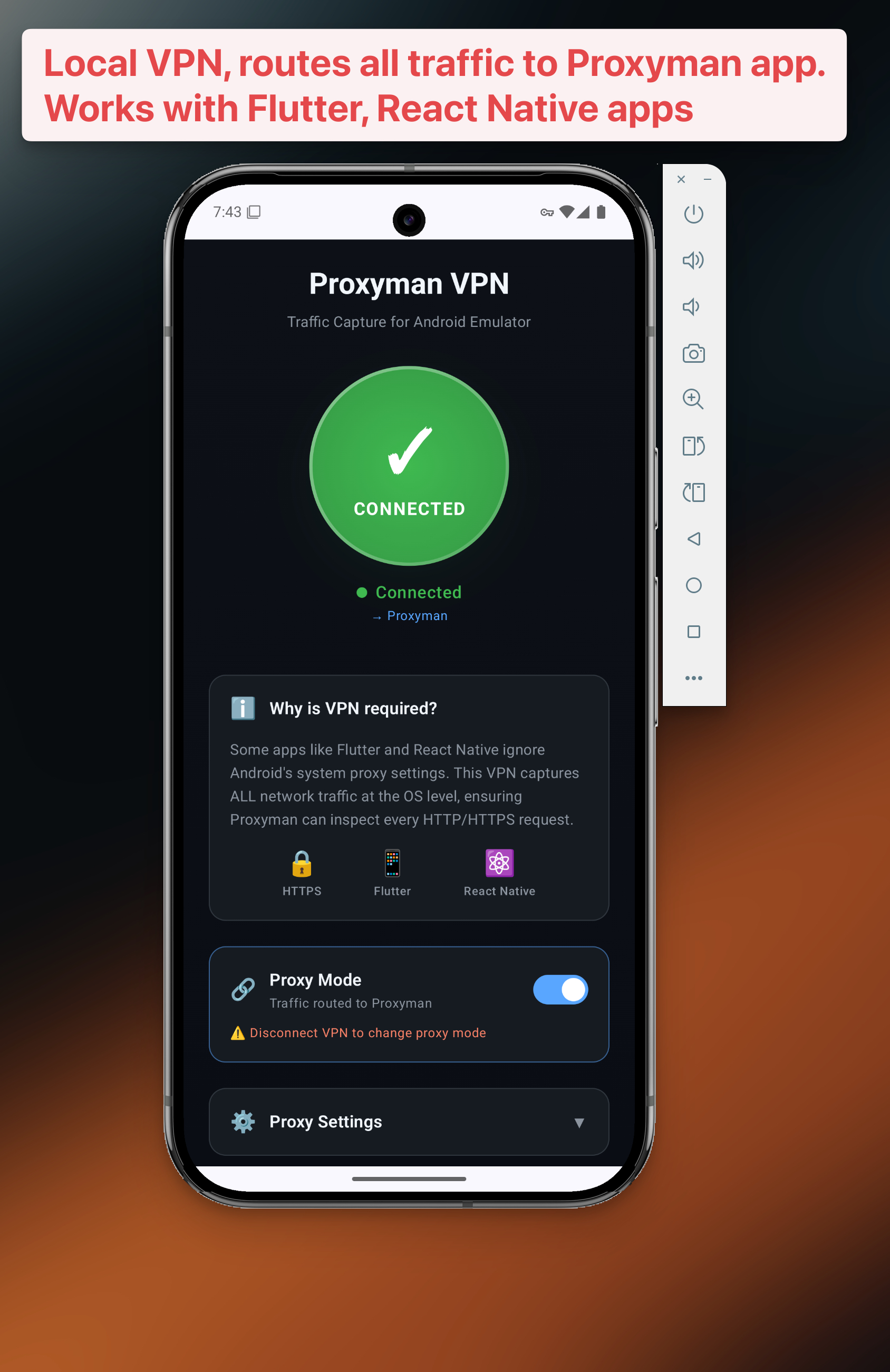
⚠️ 2. 従来の方法
従来の方法は、Proxyman macOS 6.3.0 以前、Windows/Linux 3.6.0 以前で動作します
2.1 問題
Flutter はシステムレベルのプロキシを使用しない ため、Proxyman を使用しても Flutter プロジェクトの通信が表示されない場合があります。
幸いなことに、Flutter の HTTP クライアントを設定して Proxyman をプロキシとして使用すれば、この問題を回避できます。
一般に、HTTP クライアントのすべての通信を Proxyman のプロキシサーバーに送信するように設定する必要があります。プロキシサーバーは IP = localhost、ポート = 9090 で待ち受けています。
1. Flutter を設定(iOS と Android の両方で必須)
手順は HTTP クライアントによって少し異なります。ここでは代表的な HTTP クライアントを取り上げます:
- Dart の HttpClient クラス
- http パッケージ
- Dio
Android エミュレータまたは iOS シミュレータを使用する場合は、String proxy = 'localhost:9090' を使用できます。Android 実機では、String proxy = '<YOUR_LOCAL_IP>:9090' を使用してください。
<YOUR_LOCAL_IP> は、Proxyman の Certificate メニュー -> Install Certificate on iOS -> Physical Devices… で確認できます。
使用しているネットワークライブラリに応じて、以下の設定を使用してください:
Dart の HTTPClient クラス
// Make sure to replace <YOUR_LOCAL_IP> with
// the external IP of your computer if you're using Android.
// You can get the IP in the Android Setup Guide window
String proxy = Platform.isAndroid ? '<YOUR_LOCAL_IP>:9090' : 'localhost:9090';

// Create a new HttpClient instance.
HttpClient httpClient = HttpClient();

// Hook into the findProxy callback to set
// the client's proxy.
httpClient.findProxy = (uri) {
  return "PROXY $proxy;";
};

// This is a workaround to allow Proxyman to receive
// SSL payloads when your app is running on Android
httpClient.badCertificateCallback = (cert, host, port) => true;
HTTP パッケージ
// Make sure to replace <YOUR_LOCAL_IP> with
// the external IP of your computer if you're using Android.
// You can get the IP in the Android Setup Guide window
String proxy = Platform.isAndroid ? '<YOUR_LOCAL_IP>:9090' : 'localhost:9090';

// Create a new HttpClient instance.
HttpClient httpClient = HttpClient();

// Hook into the findProxy callback to set
// the client's proxy.
httpClient.findProxy = (uri) {
  return "PROXY $proxy;";
};

// This is a workaround to allow Proxyman to receive
// SSL payloads when your app is running on Android.
httpClient.badCertificateCallback = (cert, host, port) => true;

// Pass your newly instantiated HttpClient to http.IOClient.
IOClient myClient = IOClient(httpClient);

// Make your request as normal.
final response = myClient.get('/my-url');
Dio ≥ v5.0.0(推奨)
// Make sure to replace <YOUR_LOCAL_IP> with
// the external IP of your computer if you're using Android.
// You can get the IP in the Android Setup Guide window
String proxy = Platform.isAndroid ? '<YOUR_LOCAL_IP>:9090' : 'localhost:9090';

// Create a new Dio instance.
Dio dio = Dio();

dio.httpClientAdapter = IOHttpClientAdapter(
  createHttpClient: () {
    final client = HttpClient();
    client.findProxy = (uri) {
      return 'PROXY $proxy';
    };
    client.badCertificateCallback = (cert, host, port) => true;
    return client;
  },
  validateCertificate: (cert, host, port) {
    return true;
  },
);
Dio < v5.0.0(非推奨 API)
// Make sure to replace <YOUR_LOCAL_IP> with
// the external IP of your computer if you're using Android.
// You can get the IP in the Android Setup Guide window
String proxy = Platform.isAndroid ? '<YOUR_LOCAL_IP>:9090' : 'localhost:9090';

// Create a new Dio instance.
Dio dio = Dio();

// Tap into the onHttpClientCreate callback
// to configure the proxy just as we did earlier.
(dio.httpClientAdapter as DefaultHttpClientAdapter).onHttpClientCreate = (client) {
  // Hook into the findProxy callback to set the client's proxy.
  client.findProxy = (url) {
    return 'PROXY $proxy';
  };

  // This is a workaround to allow Proxyman to receive
  // SSL payloads when your app is running on Android.
  client.badCertificateCallback = (X509Certificate cert, String host, int port) => true;
}
2.2 iOS シミュレータで Flutter を使用
- Flutter から iOS シミュレータを起動します
- Proxyman の Certificate メニュー -> Install Certificate on iOS -> Simulators… を開きます
- 以下の手順をすべて実行します
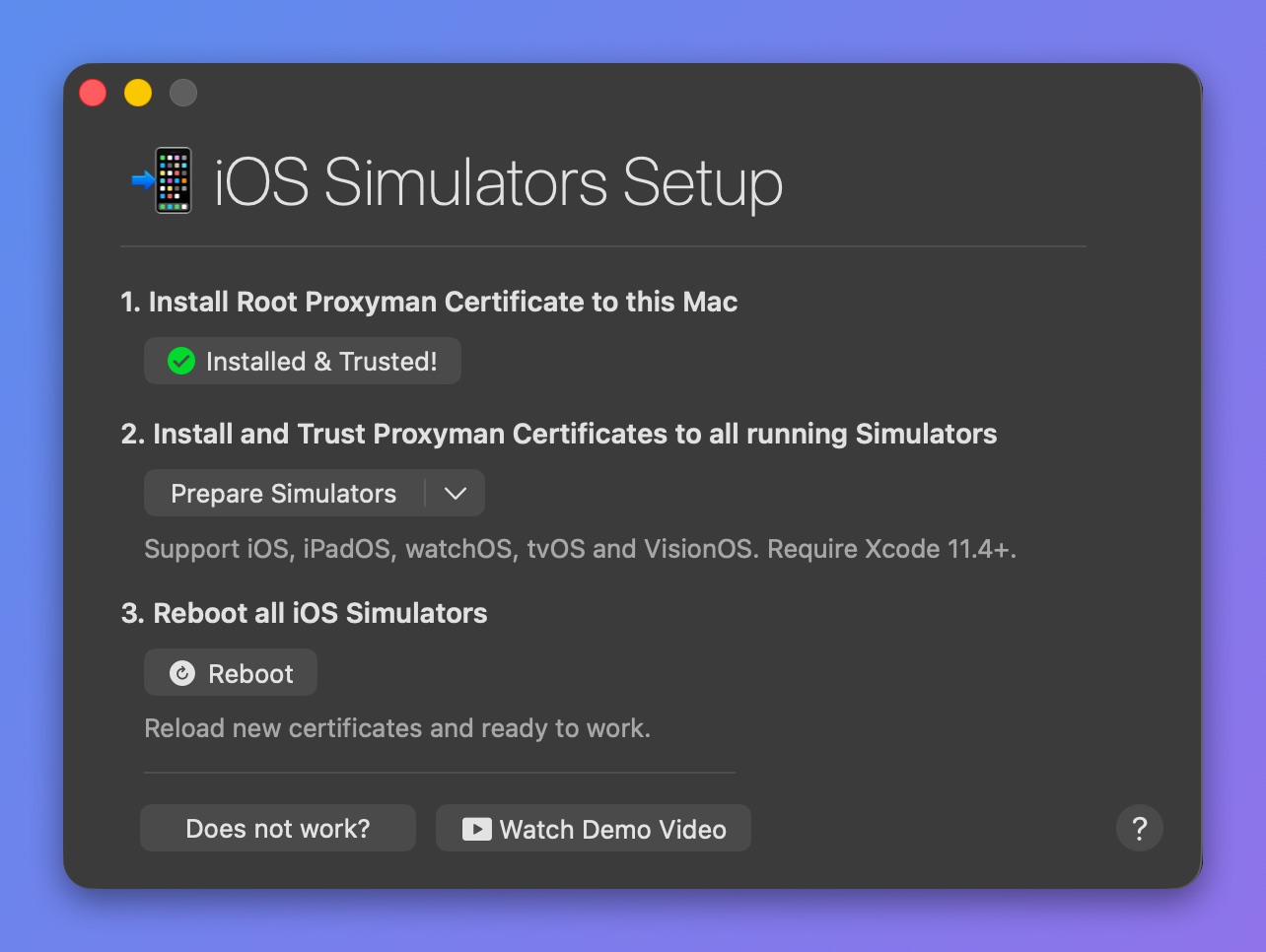
Proxyman 証明書を iOS シミュレータにインストールして信頼する
- ✅ 完了です。Proxyman で HTTPS 通信をキャプチャできます。
2.3 iOS 実機で Flutter を使用
- iOS 実機のセットアップガイド に従ってください
2.4 Android エミュレータで Flutter を使用
- Android エミュレータ用の自動スクリプトガイド に従ってください
2.5 Android 実機で Flutter を使用
- Android 実機のセットアップガイド に従ってください
クレジットと参考資料
クレジット:James Dixon 氏(https://flutterigniter.com/debugging-network-requests/)