Automatic Script for Android Emulator
Use the Proxyman automatic script to set the HTTP proxy and install the Proxyman certificate on Android Emulators, so you can capture HTTPS in one click.
1. What's it?
Manually overriding the HTTP Proxy, then installing and trusting the Proxyman Certificate on your Android Emulator, is complicated and error-prone.
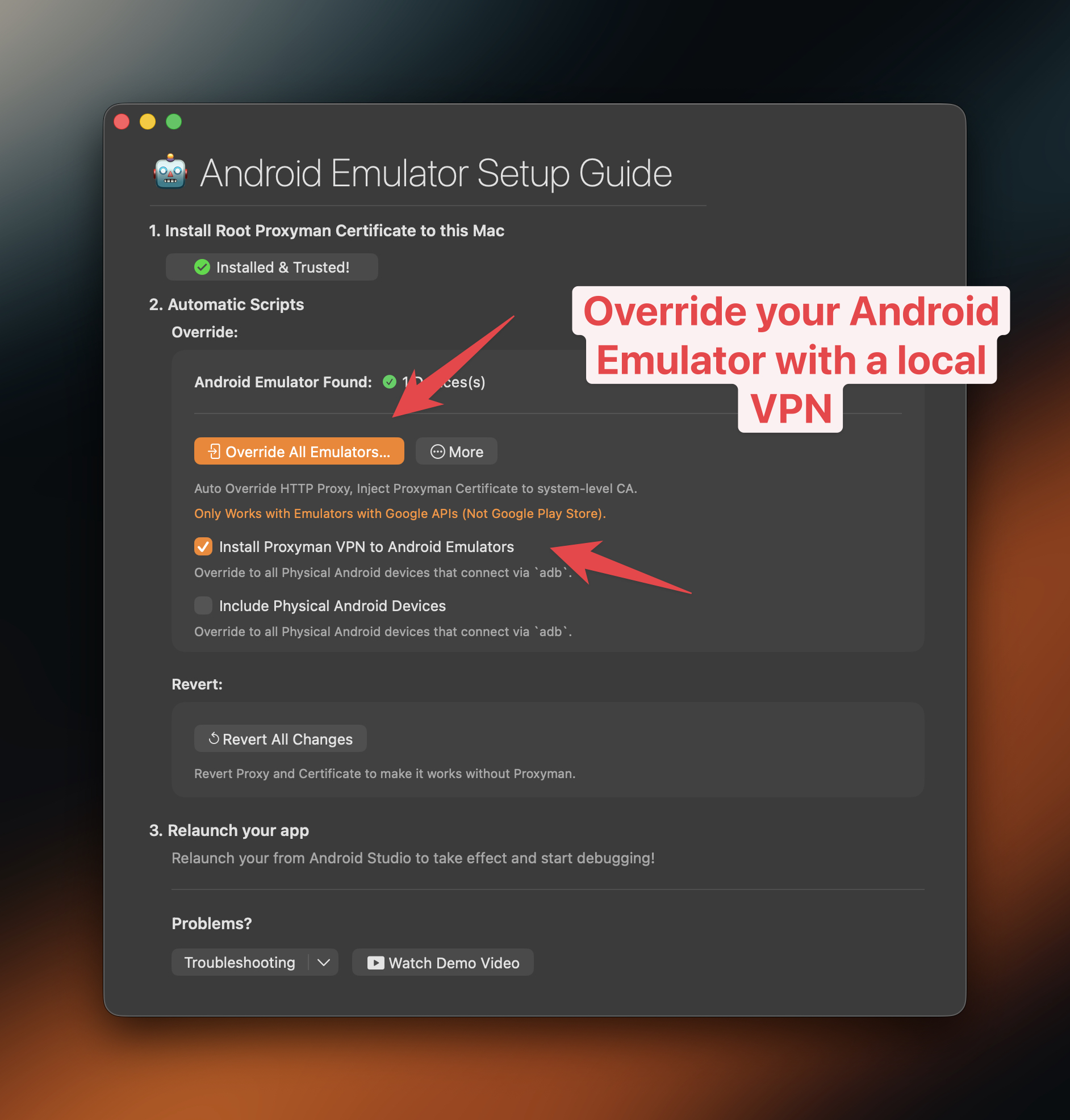
Proxyman provides a built-in script that does it for you in seconds. You can open it from Certificate Menu -> Install Certificate on Android -> Emulators…
From Proxyman 5.16.0 or later, Proxyman can install the Proxyman certificate into the system-level store. This makes it possible to decrypt all HTTPS traffic from Android Emulators.
Proxyman now works with Google Play and non-Google Play Emulators. Override them in 1 click. See google-play-android-emulator-with-magisk.md
Video
2. Benefit?
1 Click to:
- ✅ Auto Override / Revert HTTP Proxy
- ✅ Automatically download, install, and trust the Proxyman Certificate in the system-level store. Decrypt all HTTPS from your Emulators. (Available on Proxyman 5.16.0 or later)
- No need for network_security_config.xml
- ✅ Less error-prone and done in a few clicks
Works with Android Emulators and Android Physical Devices via adb (Only for Proxyman v5.19.0+)
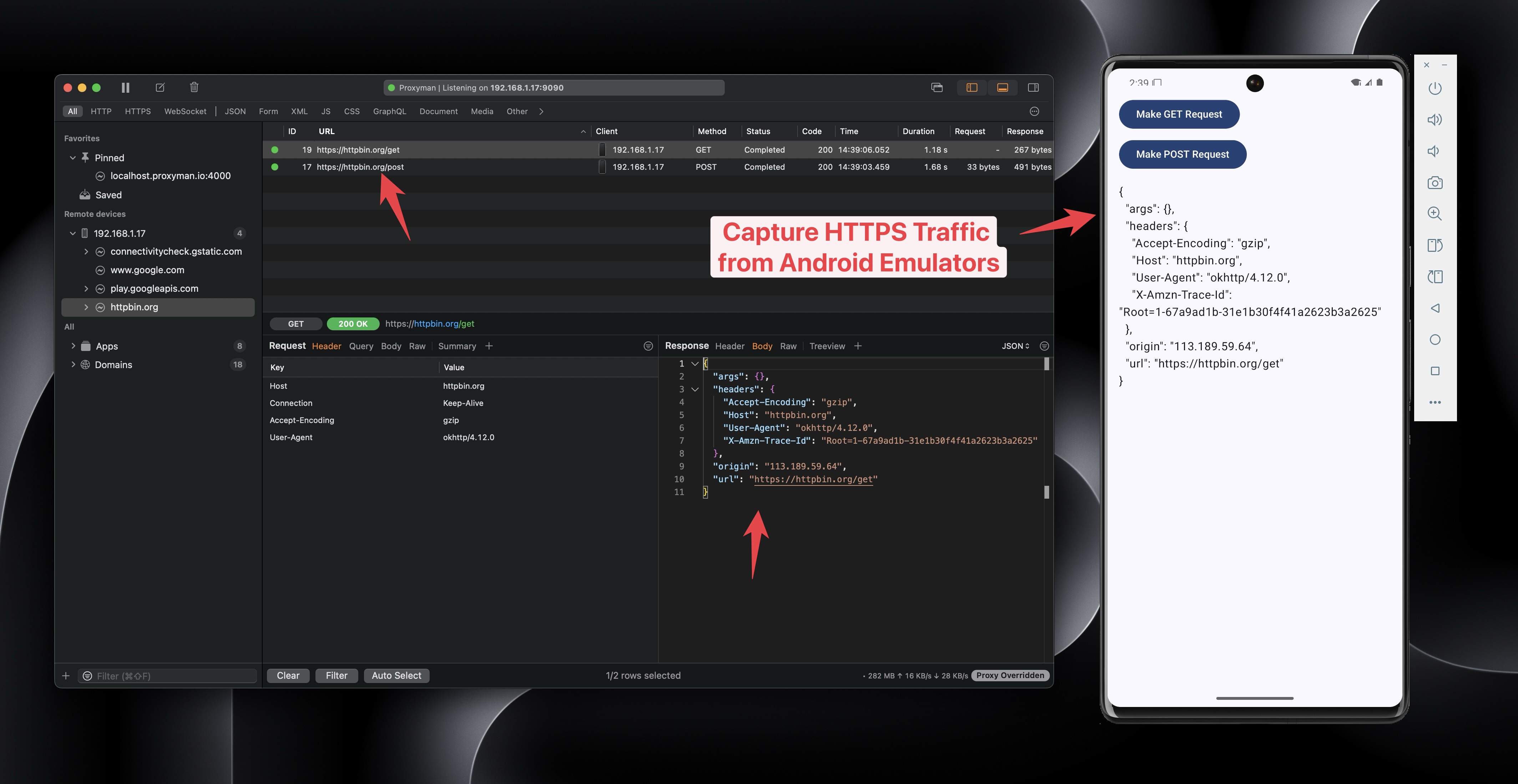
Capture and decrypt HTTPS from Android Emulators with Proxyman
- Install Proxyman Certificate to the system-level Store.
✅ Flutter / React Native app
From Proxyman macOS 6.4.0 or later, Proxyman can capture HTTPS traffic from Flutter apps without any code change.
See the flutter.md documentation to learn more.
3. How to use it?
- Make sure the
adbcommand is installed. If not, please install it
brew install android-platform-tools
- Open your Android app with Android Studio
- Create a new Emulator in the Android Virtual Device Manager. Make sure it's not a Google Play image. It must be a Google APIs image.
- ✅ NEW: Proxyman can now root Google Play Store Emulators. Please read google-play-android-emulator-with-magisk.md
-
Open Proxyman -> Certificate Menu -> Install Certificate on Android -> Emulators… -> Click the Override All Emulators button
-
Wait until the Terminal script completes
-
Relaunch your Android app from Android Studio
-
Proxyman will capture all HTTPS data ✅
If you close Proxyman, make sure to click the Revert All Changes button. Otherwise, your Android Emulator cannot access the Internet.
4. ⚠️ Proxyman 5.15.0 or earlier
- Proxyman 5.15.0 or earlier can only install the Proxyman Certificate at the user level.
- It means you have to complete the next step:
- In your source code:
- Add res/xml/network_security_config.xml
<network-security-config>
    <debug-overrides>
        <trust-anchors>
            <!-- Trust user added CAs while debuggable only -->
            <certificates src="user" />
            <certificates src="system" />
        </trust-anchors>
    </debug-overrides>

    <base-config cleartextTrafficPermitted="true">
        <trust-anchors>
            <certificates src="system" />
            <certificates src="user" />
        </trust-anchors>
    </base-config>
</network-security-config>
- Add to AndroidManifest.xml
<?xml version="1.0" encoding="utf-8"?>
<manifest xmlns:android="http://schemas.android.com/apk/res/android"
    xmlns:tools="http://schemas.android.com/tools">

    <uses-permission android:name="android.permission.INTERNET" />

    <application
        android:networkSecurityConfig="@xml/network_security_config">
        <activity
            ...
        </activity>
    </application>

</manifest>
5. Advanced: Run the script manually
You can run the script manually in your Terminal app without granting the Automation permission in Privacy & Security.
Script path:
/Applications/Proxyman.app/Contents/Frameworks/ProxymanCore.framework/Resources/install_certificate_android_emulator.sh
- For Proxyman 5.19.0 or later
Usage: /Applications/Proxyman.app/Contents/Frameworks/ProxymanCore.framework/Resources/install_certificate_android_emulator.sh -m <mode> [options]

Modes:
  all             Set proxy and install certificate
  proxy           Set proxy only
  revertProxy     Revert proxy settings only
  certificate     Install certificate only

Required Options based on Mode:
  -m, --mode <mode>              : Operation mode (all, proxy, revertProxy, certificate)
  -i, --ip <ip_address>          : IP address (required for all, proxy, certificate)
  -p, --port <port_number>       : Port number (required for all, proxy, certificate)
  -c, --cert <path_to_cert.pem>  : Path to Proxyman certificate (required for all, certificate)

Optional Options:
  --include-physical            : Include physical devices (default: only emulators)
  -h, --help                    : Show this help message
Prepare the certificate
- Open the Proxyman app
- Find the current IP in the main toolbar
- Certificate menu -> Export -> Root Certificate as PEM -> Save to the Desktop folder
5.1 Override HTTP Proxy and Install the Certificate to system-level Store
- Proxyman v5.19.0 or later (NEW)
bash /Applications/Proxyman.app/Contents/Frameworks/ProxymanCore.framework/Resources/install_certificate_android_emulator.sh --mode all --ip <current_ip> --port <port> --cert <certificate_path>
- Proxyman v5.18.0 or earlier
bash /Applications/Proxyman.app/Contents/Frameworks/ProxymanCore.framework/Resources/install_certificate_android_emulator.sh all <current_ip> <port> <certificate_path>
5.2 Only Override HTTP Proxy
- Proxyman v5.19.0 or later (NEW)
bash /Applications/Proxyman.app/Contents/Frameworks/ProxymanCore.framework/Resources/install_certificate_android_emulator.sh --mode proxy --ip <current_ip> --port <port>
- Proxyman v5.18.0 or earlier
bash /Applications/Proxyman.app/Contents/Frameworks/ProxymanCore.framework/Resources/install_certificate_android_emulator.sh proxy <current_ip> <port>
5.3 Revert HTTP Proxy
- Proxyman v5.19.0 or later (NEW)
bash /Applications/Proxyman.app/Contents/Frameworks/ProxymanCore.framework/Resources/install_certificate_android_emulator.sh --mode revertProxy
- Proxyman v5.18.0 or earlier
bash /Applications/Proxyman.app/Contents/Frameworks/ProxymanCore.framework/Resources/install_certificate_android_emulator.sh revertProxy
6. Left certificate expiry date
6.1 Problem: You get this error when intercepting HTTPS from an Android WebView
❗️ Android WebView rejects with ERR_CERT_VALIDITY_TOO_LONG
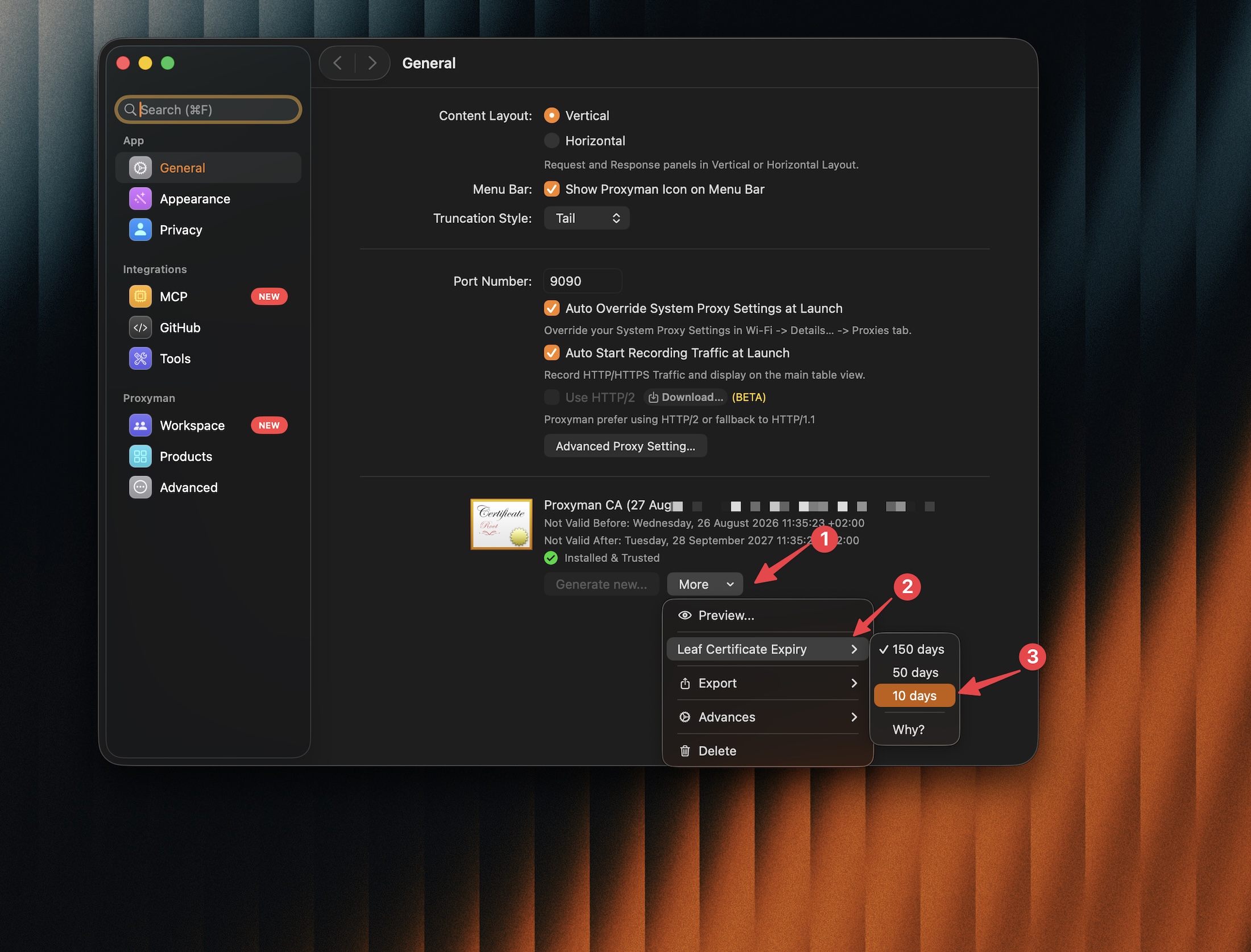
You can change the leaf certificate's expiry in Proxyman Settings -> General -> More (next to the certificate) -> Leaf Certificate Expiry, then select a shorter expiry, such as 10 days.