Block List
Use the Proxyman Block List to block or hide requests by domain, wildcard, regex, or app, so ads, analytics, and noisy pings stay out of your session.
1. What's it?
The Block List Tool is useful when you would like to block or hide certain domains during a debugging session.
For instance, you can use Block List in the following situations:
- Block all ad requests from particular domains
- Block all analytics requests that flood your workspace
- Block all annoying ping requests from your app, so fewer requests show in Proxyman
- Hide analytics traffic from your website without blocking it
For all blocked domains in the Block List, Proxyman drops the connection.
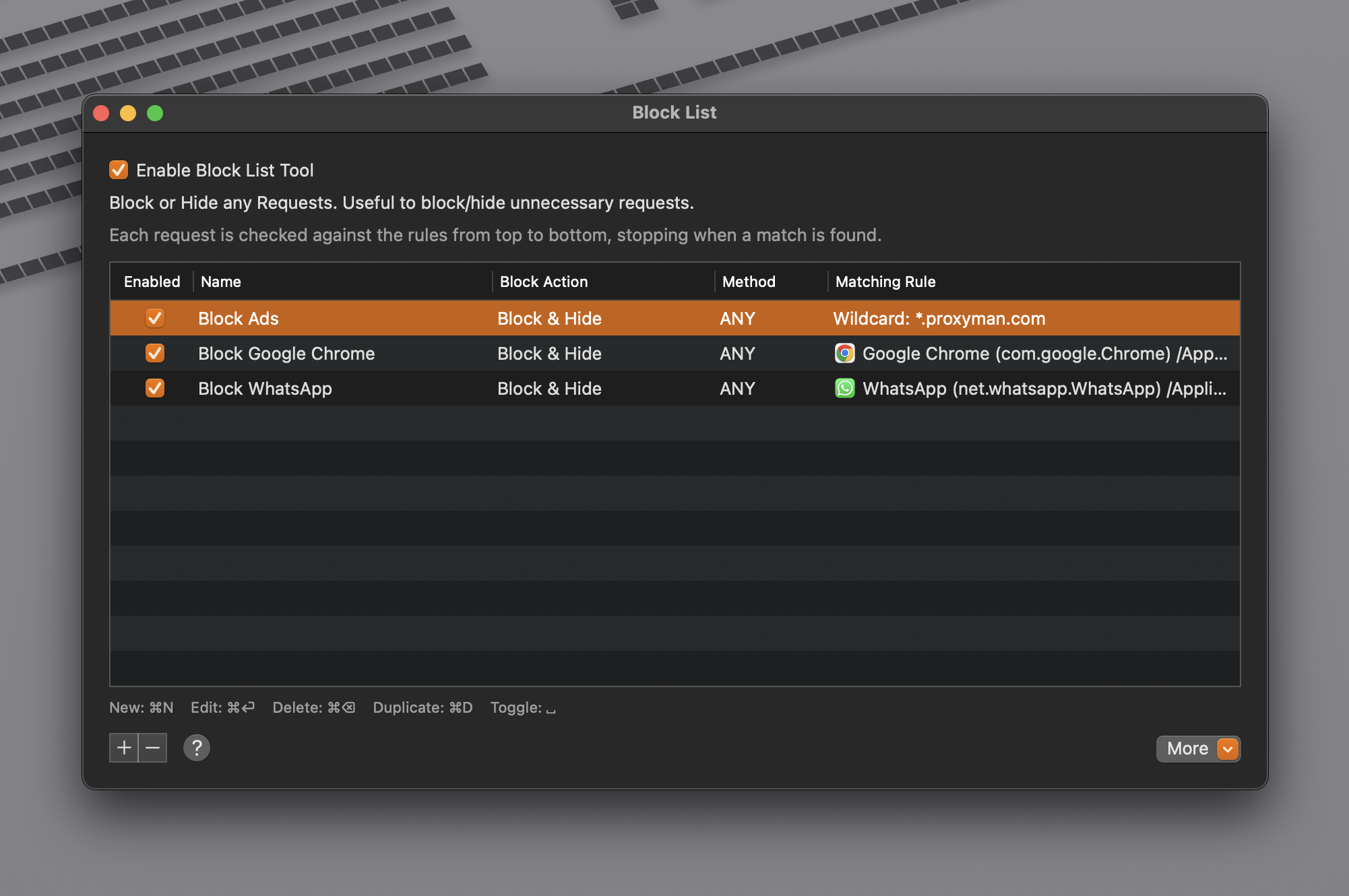
Block certain requests by domain or client
2. Block Actions
Block List supports a few block actions to suit your needs:
| Block Action | Description |
|---|---|
| Block & Hide Request | Matched requests are blocked and don't show in the app. |
| Block & Display Requests | Matched requests are blocked, but the blocked requests still show in the app. |
| Hide, but not Block | Only hides the matched requests without blocking them. Useful when you want to hide annoying requests but not block them. |
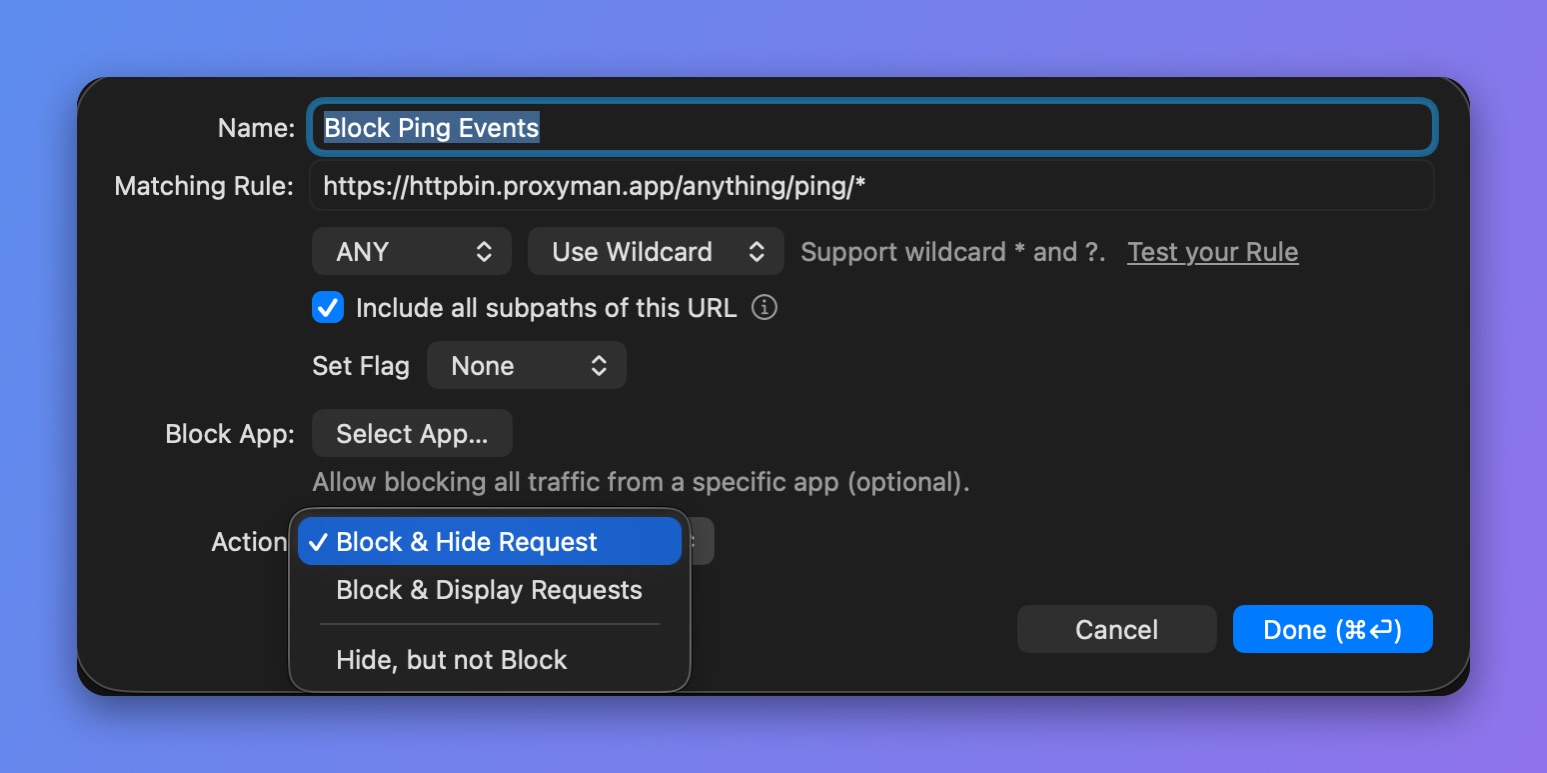
Choose a block action
3. How to use it?
- Tools Menu -> Block List
- Right-click on the requests or domains -> Tools -> Block List...
tip
⌥⌘[ to quickly open the Block List window
4. Block all traffic from a given App
- On Proxyman macOS 5.24.0 or later, you can select an app and block all of its traffic. In the rule editor, click Select App… next to Block App.
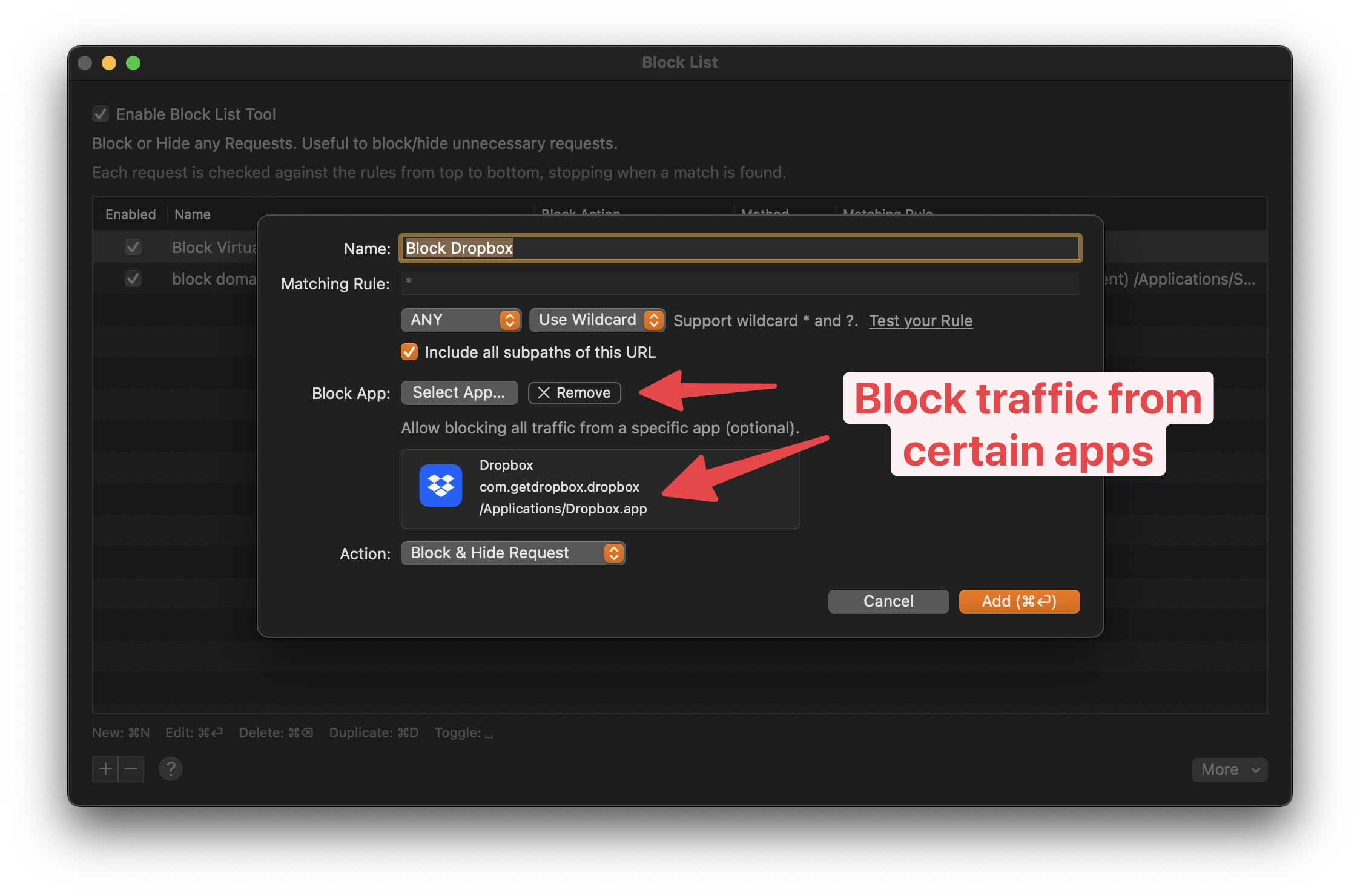
Block all traffic from an app