Network Conditions
Use Proxyman Network Conditions to simulate slow or lossy networks like 3G, 4G, or poor Wi-Fi for one host or all traffic, and test your app.
1. What's it?
Network Conditions (Network Throttling) lets developers simulate poor network environments. Proxyman provides various preset profiles:
| Profile | Description |
|---|---|
| 100% Loss | 100% of packets are dropped |
| Very Bad Network | Download/Upload: < 1mbps |
| Slow Network | Download/Upload: 5-10 mbps |
| Medium Network | Download/Upload: 10-20 mbps |
| 2G (EDGE) | Download: <240kbps, Upload <200kbps |
| 3G | Download: <780kbps, Upload <330kbps |
| 4G (LTE) | Download: 30-50mbps, Upload 5-10mbps |
| 5G | Download: 50-150mbps, Upload 10-50mbps |
| Wi-Fi | Download: 25-40mbps, Upload 15-30mbps |
| Wi-Fi 802.11ac | Download: 150-250mbps, Upload 70-100mbps |
2. Benefit?
- Various preset profiles: 3G, 4G, 5G, Wi-Fi, Bad/Medium Network, etc.
- Simulate different network conditions (download/upload bandwidth, packet drop rate, delay).
- Easily test your app under a particular network condition.
- Apply to all traffic that goes through Proxyman (Apply System-wide) or only to certain hosts.
From Proxyman 6.9.0, you can create your own profile. In the rule editor, click Custom Profile... next to the Network Profile dropdown, then set the download and upload bandwidth (Mbps), delay (ms), and packet loss (%). Proxyman saves your custom profiles so you can reuse them.
To better simulate real life, the download/upload bandwidth is not fixed. It changes randomly within the given range.
3. How to use it?
Open the Tools menu -> Network Conditions… (⌥⌘J), or right-click a request -> Tools -> Network Conditions…
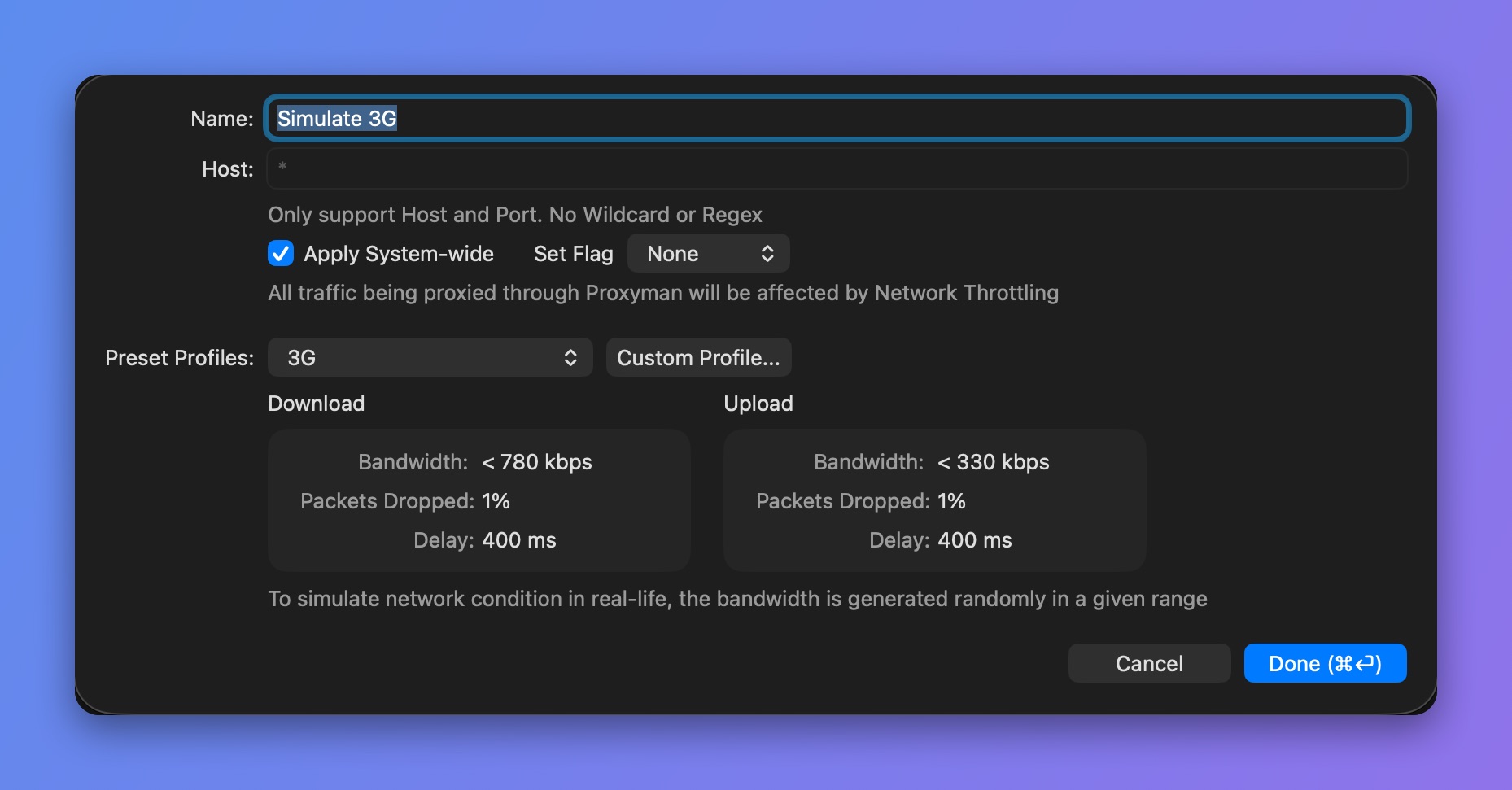
Simulate a 3G network
4. Alternative
- Network Link Conditioner for macOS: Network Link Conditioner guide on NSHipster