Install Certificate
Install and trust the Proxyman CA certificate on Windows 10 and 11, with the automatic script or by hand, so Proxyman can decrypt HTTPS traffic.
Install Certificates on Windows
To intercept encrypted HTTPS messages (Request or Response), you have to install the Proxyman CA Certificate on your Windows machine.
You can install the Proxyman CA Certificate from
- Certificate menu -> Install Certificate on this Windows...
The Proxyman Certificate is a self-signed certificate, which is generated on your machine. Proxyman never stores or sends any personal data to Proxyman's server or any 3rd party.
Please check out the Proxyman Privacy Statement to see what data Proxyman collects.
If you'd like to generate a Certificate on your machine by hand and then add it to Proxyman, please check out the Custom Certificate Doc
1. Automatic mode
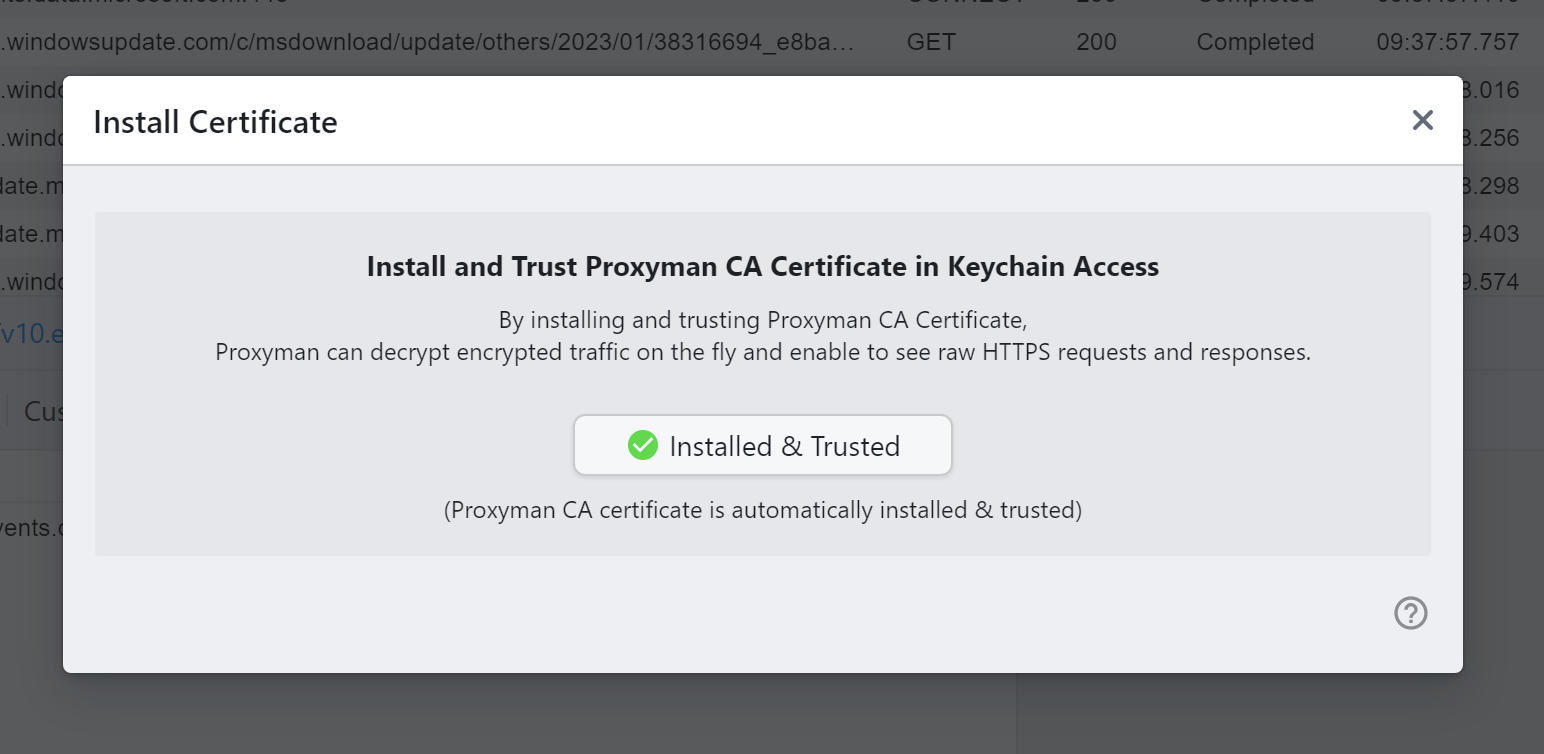
Auto install the certificate on Windows machine
Proxyman provides an automatic script to install and trust the Proxyman CA Certificate in the System.
- Certificate Menu -> Install Certificate for this Windows -> Click on the "Install & Trust" button
- Click YES on the System Prompt
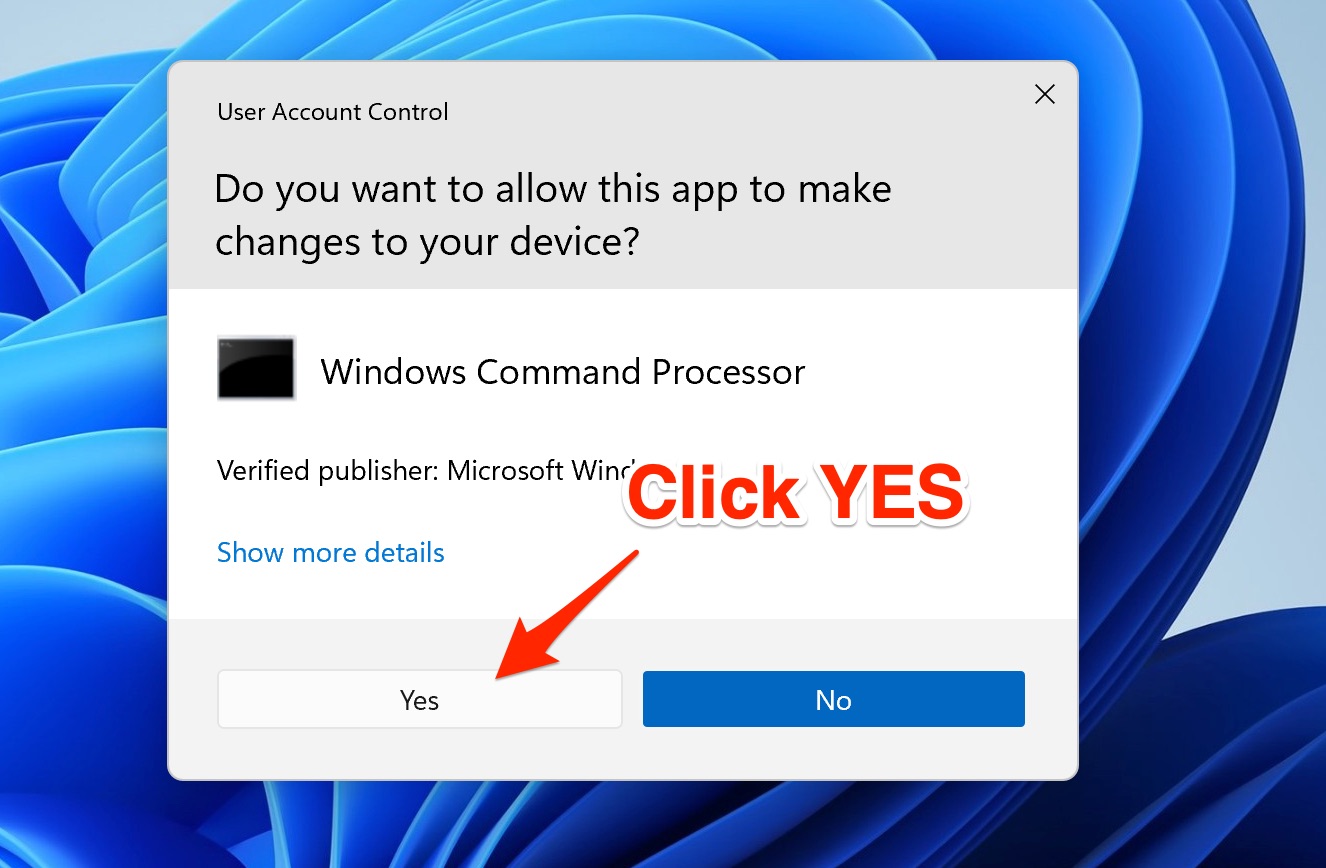
Grant permission to run the Automatic Script
Why do I need to grant permission?
Behind the scenes, Proxyman runs the following command as Administrator:
$ certutil -addstore "Root" <Certificate_Path>
certutil is a built-in Windows command line to manage the certificate.
2. Manual Mode
If you don't have permission to run the script, please follow these steps:
- Close Proxyman
- Find a Proxyman CA Certificate at "C:\Users\<your_username>\AppData\Roaming\Proxyman\certificate\certs\ca.cer"
- Double-click to open it
- Install Certificate -> Select "Current User" -> Select "Place all certificates in the following store" -> "Browse..." -> Select "Trusted Root Certification Authorities" -> OK
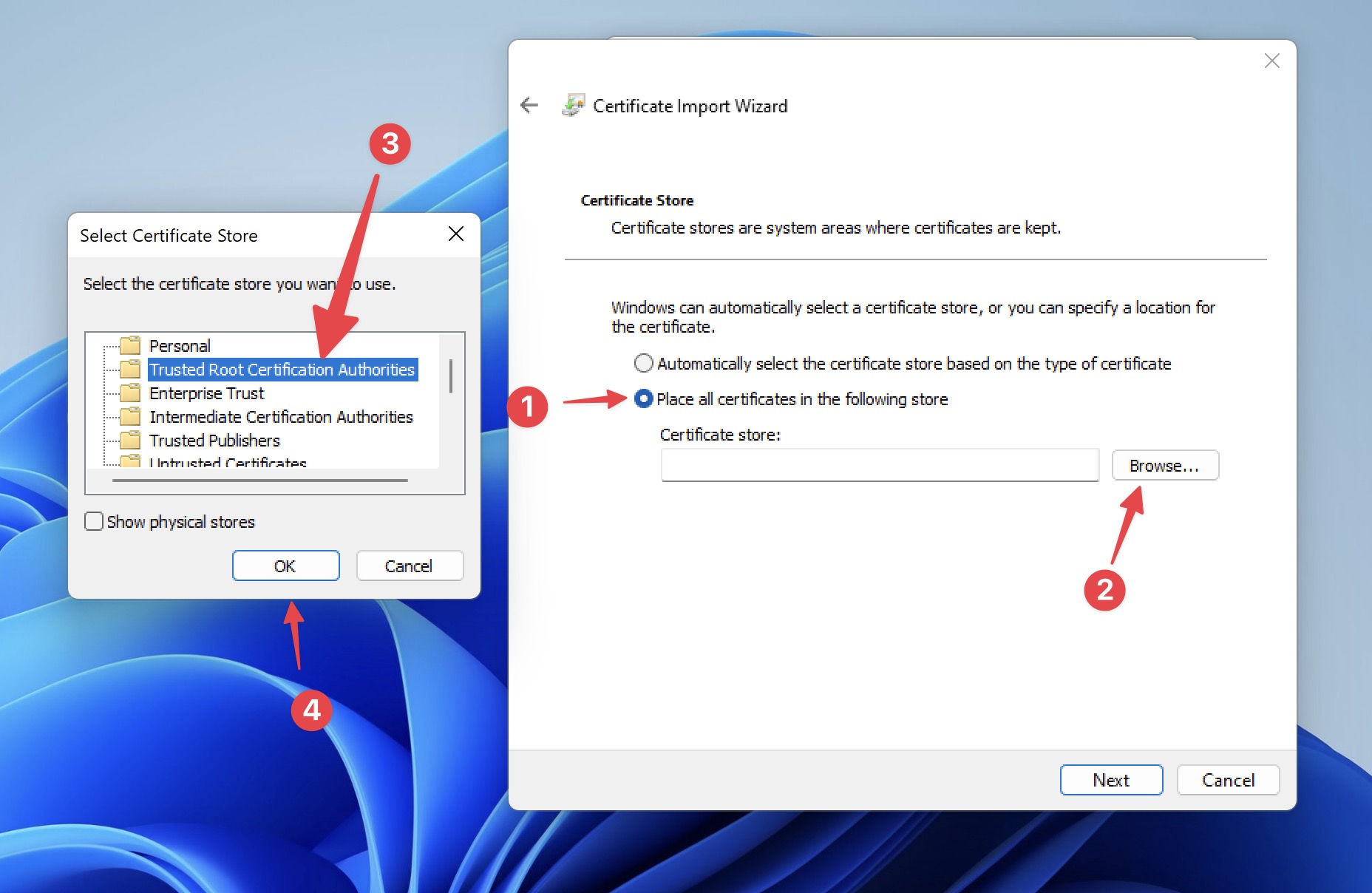
Steps to install the certificate
5. Select Next -> Finish
6. Select "YES" on the System Prompt.