Custom Certificates
Add custom root, server, and client certificates to Proxyman for SSL pinning and mutual TLS, and generate a self-signed root certificate Apple trusts.
1. What's it?
Proxyman supports custom Root Certificates, Server Certificates, and Client Certificates. You can add your own certificates, and Proxyman uses them to set up the SSL connection between your clients, your servers, and the Proxyman app.
| Custom Certificate Type | Purpose | How Proxyman uses |
|---|---|---|
| Server Certificate | For intercepting HTTPS Traffic from clients that use SSL-Pinning | Use this certificate for SSL-Handshake to your Clients |
| Client Certificate | For intercepting HTTPS Traffic from clients that use Mutual Authentication | Use this certificate for SSL-Handshake to specific Server |
| Root Certificate | For intercepting HTTPS Traffic from clients and servers without using local Proxyman certificates | SSL Handshake for both clients & servers |
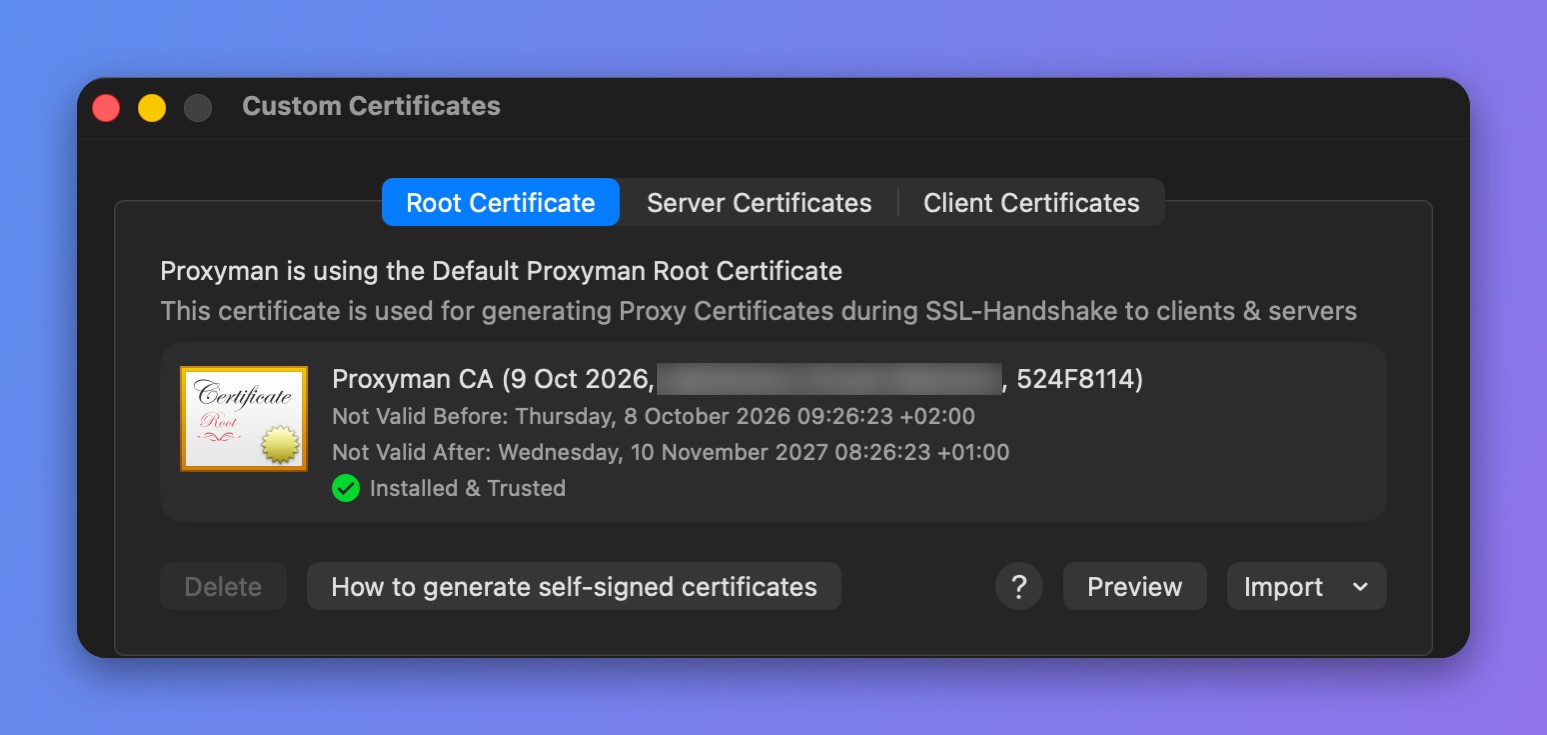
Root Certificate tab
The Proxyman Root Certificate is generated locally on your Mac. You can also generate your own root certificate and add it to Proxyman. See how to generate a self-signed root certificate.
2. Certificate Formats
Proxyman accepts the following formats:
| Custom Certificate | PEM or DER | PKCS #12 (p12) |
|---|---|---|
| Root Certificate | Not Supported | Supported |
| Client Certificate | Supported | Supported |
| Server Certificate | Supported | Supported |
- PKCS #12 (p12).
- PEM or DER Private Key and Certificate file.
- Proxyman automatically detects the format of the Private Key and Certificate file (PEM or DER).
- Proxyman asks for the password when you import an encrypted Private Key or PKCS #12 file.
- All passphrases are securely stored in Proxyman Keychain.
If your certificates are in a format that Proxyman doesn't support, convert them to p12 or PEM/DER before importing.
3. Certificate Requirement on macOS 10.15+ and iOS 13+
If you use a custom Root Certificate or Server Certificate on macOS 10.15 or later, or iOS 13 or later, the SSL handshake can fail in Safari or on iOS devices unless the certificate meets these requirements:
- RSA keys must use a key size of 2048 bits or more
- The hash algorithm must be in the SHA-2 family
- The DNS name of the server must be in the Subject Alternative Name (SAN). The Common Name (CN) is no longer trusted
- The certificate must be valid (today is between the Not Before and Not After dates)
- TLS server certificates must contain an ExtendedKeyUsage (EKU) extension containing the id-kp-serverAuth OID.
Read more: Requirements for trusted certificates in iOS 13 and macOS 10.15
If this is too complicated, let Proxyman do it for you. Open the Certificate menu -> Install Certificate on this Mac… -> select the Automatic tab.
4. Common issues
| Problem | Solution |
|---|---|
| Private Key and Certificate are not matched | Try different certificates and private keys and make sure they match |
| Get SSL Handshake Error for custom certificates |
|
| Could not import certificate due to invalid passphrase | Ask your team lead for the correct passphrase to open the encrypted Private Key or P12 file |
5. How to use
- Open the Certificate menu -> Add Custom Certificates…
6. How to generate self-signed certificates for Custom Root Certificate that comply with new Apple's Security Requirements
Because of Apple's requirements from iOS 13 and macOS Catalina (10.15), you need some extra configuration to generate a self-signed certificate that works.
Follow these steps:
- Create a
cert.configfile in your Desktop folder
[ ca ]
default_ca    = CA_default
[ CA_default ]
default_md    = sha256
[ v3_ca ]
subjectKeyIdentifier=hash
authorityKeyIdentifier=keyid:always,issuer
basicConstraints = critical,CA:true
keyUsage=critical,keyCertSign
extendedKeyUsage = serverAuth,clientAuth
[ req ]
prompt = no
distinguished_name    = req_distinguished_name
[ req_distinguished_name ]
C=US
L=US
O=Proxyman LLC
CN=proxyman.dev
OU=Proxyman
- Update the values of the C, L, O, CN, and OU parameters.
2. Generate an RSA key in the Terminal app. (Replace your_password with any password, e.g. 123456)
cd ~/Desktop
openssl genrsa -aes256 -passout pass:your_password -out key.pem 2048
3. Generate the self-signed certificate and private key. (Replace your_password with the password in step 2)
openssl req -x509 -new -nodes -passin pass:your_password -config cert.config -key key.pem -sha256 -extensions v3_ca -days 825 -out root-ca.pem
4. Convert to p12 format. (Replace your_password with the password in step 2)
openssl pkcs12 -export -legacy -out root-ca.p12 -in root-ca.pem -inkey key.pem -passin pass:your_password -passout pass:your_password
5. You now have a root-ca.p12 file. Move on to the next step.
If you can't import your custom certificate on macOS 14 (OpenSSL v3) or later, use the `-legacy` flag in step 4.
Reference: MAC verification failed during PKCS12 import (Stack Overflow)
7. Import as a Custom Root Certificate
- Open the Certificate menu -> Add Custom Certificates… -> select the Root Certificate tab
- Click the Import button -> Import P12...
- Select the root-ca.p12 file and enter the password.
- Trust your custom certificate in the Keychain Access app:
- Open the Keychain Access app
- Search for the certificate you've added. The name might be the common name (CN) of the certificate
- Double-click it to open it, then select Always Trust
- Close the window to save the change
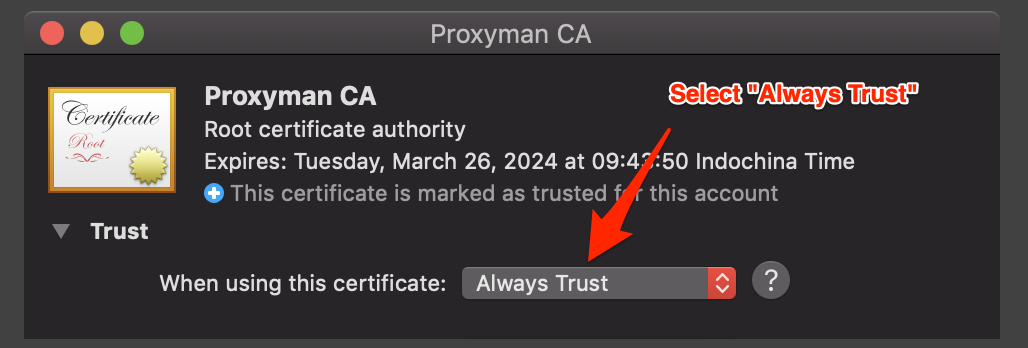
5. Check that you see the green check mark, which means the certificate is installed and trusted.
8. Import as a Server/Client Certificate
For custom Server or Client certificates, don't generate a self-signed certificate. Ask your teammate or team lead for the certificate your company uses. It can be in DER/PEM or P12 format.
Then import it in the Server Certificates or Client Certificates tab of the Custom Certificates window.
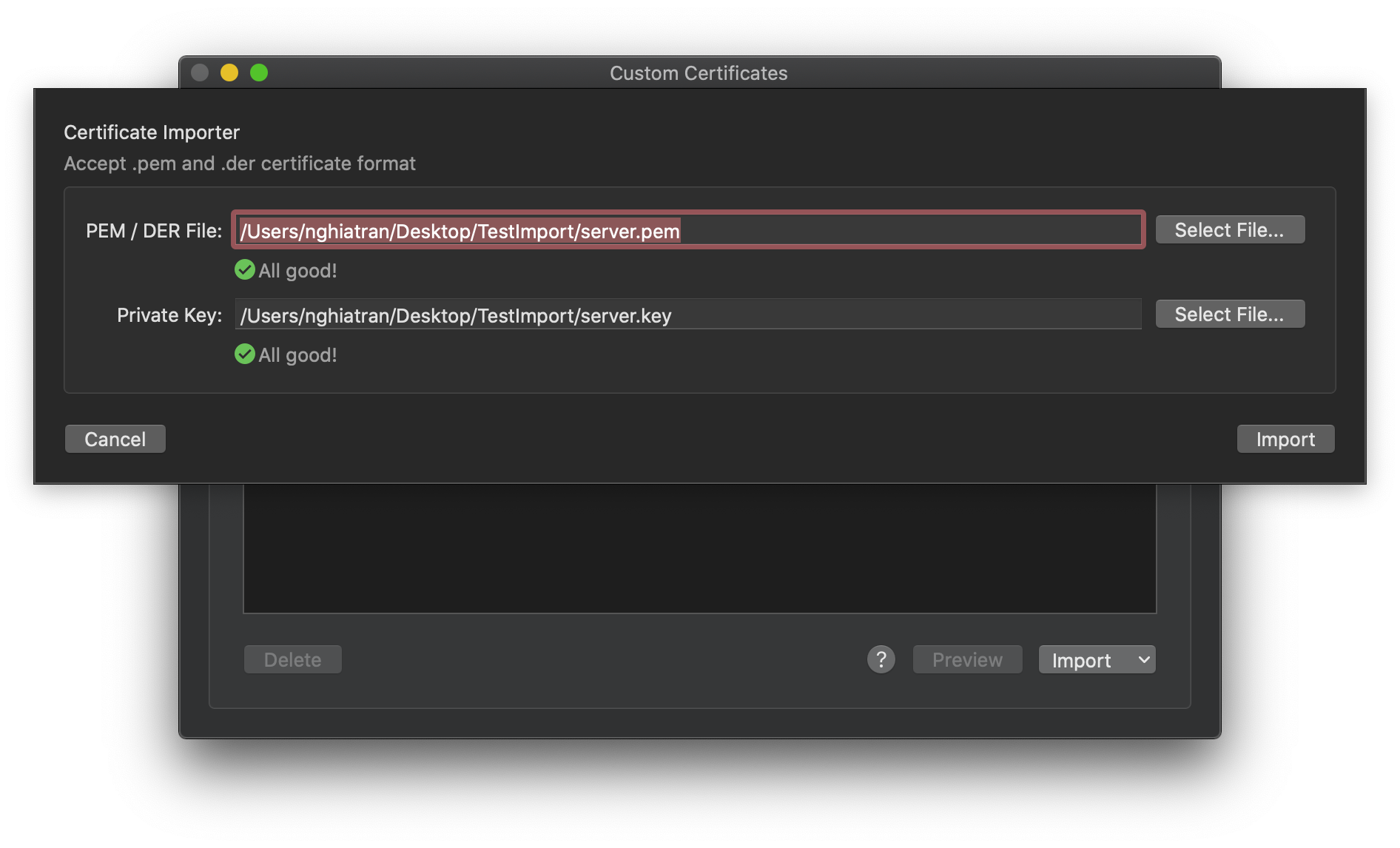
You don't need to trust the certificate in the System Keychain because it's not a Root Certificate.