WebSocket
Capture and decrypt WebSocket (WS/WSS) traffic with Proxyman from web browsers, iOS devices and simulators, Android, and NodeJS or Python servers.
1. What's it?
Proxyman can capture WebSocket (WS) and Secure WebSocket (WSS) traffic and lets you preview it easily.
- Capture WS/WSS from iOS Physical devices and iOS Simulator (Required Atlantis framework)
- Capture WS/WSS from Web Browser and Mac applications.
- Capture WS/WSS from Android Physical devices or Android Emulators.
- Pretty-print WebSocket messages.
- Filter All / Sent / Received messages.
- See the content in JSON / Tree Preview / HEX format.
- Customize Columns: Frame, Length, Data, Time, ...
- Auto-decode binary messages to JSON if possible.
- Open WebSocket messages in external editors, such as Sublime or VS Code.
- Edit, drop, or send WebSocket messages with Scripting (macOS Proxyman 26.2.0 or later, Windows/Linux Proxyman 26.1.0 or later).
2. Capture WS/WSS from Web Browsers
Localhost websocket
Proxyman can capture a localhost WebSocket, such as ws://localhost:3000, from Google Chrome with Automatic Setup.
- Go to the Setup menu -> Automatic Setup…
- Select Google Chrome (New Profile or Current Profile). A new Google Chrome window opens.
- Open your localhost WebSocket page in this window. Proxyman will capture it.
Production websocket
Proxyman automatically captures your WS/WSS traffic from Google Chrome, without any setup.
- Open Proxyman and Google Chrome
- Make some WS/WSS traffic, for example on https://echo.websocket.org/.ws
- Inspect the WS/WSS data in Proxyman
Websocket with Protobuf Payload
From Proxyman macOS 6.5.0 or later, Proxyman can decode Protobuf in your WebSocket messages.
- Make sure Proxyman can capture your WebSocket traffic first
- Right-click on a WebSocket Protobuf message -> Protobuf -> Decode Raw Text… or Decode with Message Type…
- Raw mode: Useful if you don't have a Protobuf desc file.
- Message Type: Use a Message Type from your Protobuf desc file.
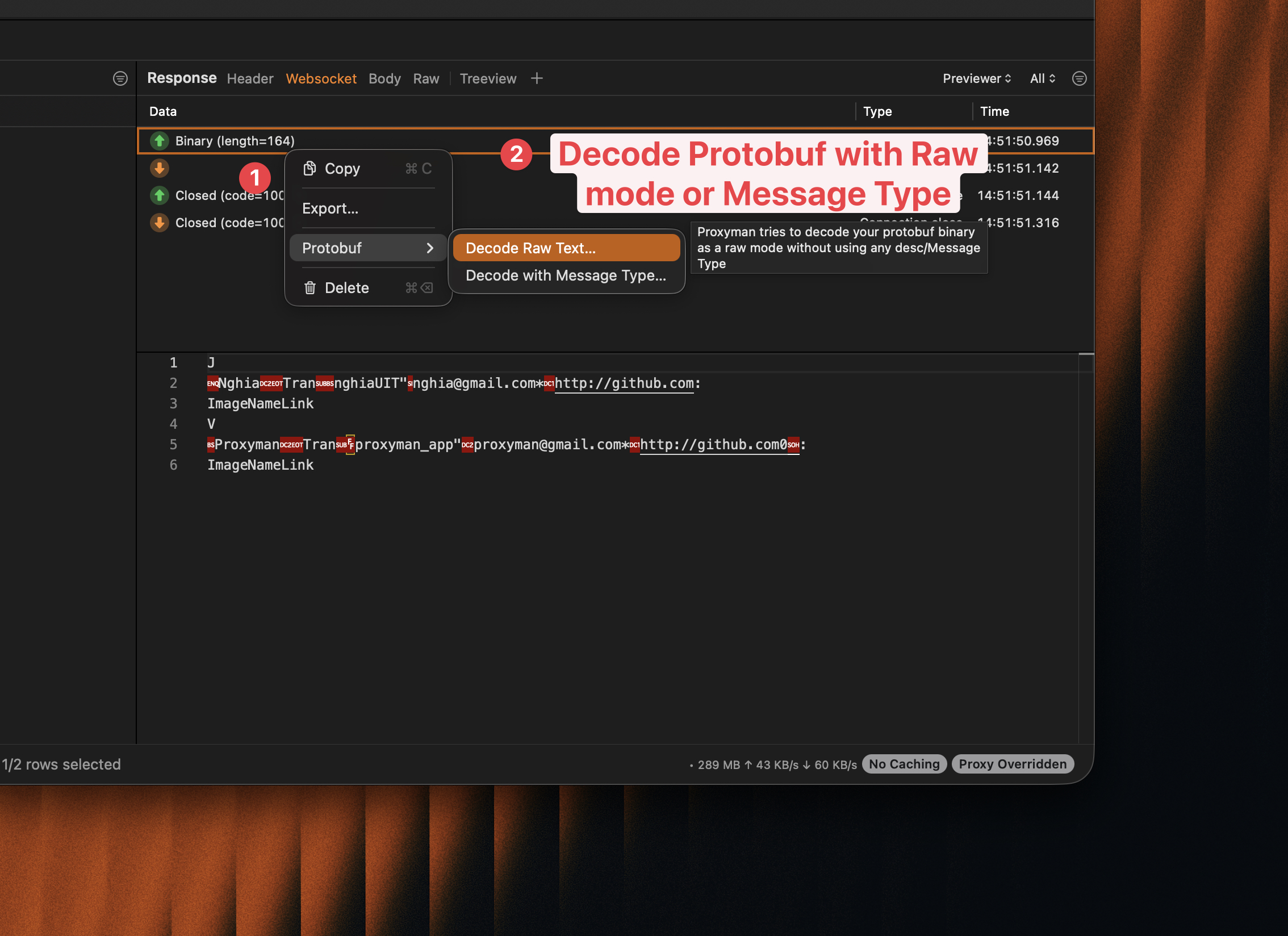
Decode WebSocket payload with Protobuf
3. Capture WS/WSS from iOS
If your iOS app uses URLSessionWebSocketTask or iOS WebSocket libraries, such as Starscream or SocketRocket, Proxyman might not be able to capture WS/WSS traffic.
- Reason: This is by Apple's design. URLSessionWebSocketTask doesn't respect the System HTTP Proxy. All WS/WSS traffic goes directly to the Internet, so Proxyman or Charles Proxy can't capture it.
- Example App: https://github.com/ProxymanApp/websocket-example-ios-app
✅ Solution 1 (Recommended for iOS 17 or later)
- Follow the setup guide for your iOS Devices or iOS Simulators. Make sure the certificate is installed and trusted on your device.
- In Proxyman: Tools -> Proxy Settings -> SOCKS Proxy Settings… -> enable it. Take note of the port.
- In the main Proxyman window, take note of the current IP in the toolbar.
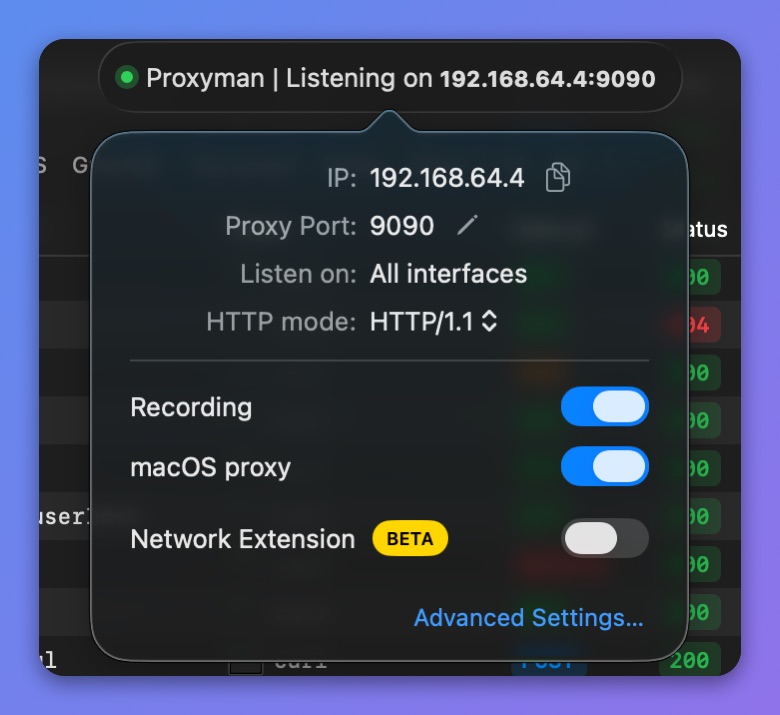
Get Proxyman current IP
- In your app: Configure a SOCKS proxy. Make sure it's only on for debug builds, for example with a switch. You don't want this setting in your release build.
- For NWConnection
let parameters = webSocketURL.scheme == "wss" ? NWParameters.tls : NWParameters.tcp

let options = NWProtocolWebSocket.Options()
options.autoReplyPing = true

parameters.defaultProtocolStack.applicationProtocols.insert(options, at: 0)

if #available(iOS 17.0, *) {
    let socksv5Proxy = NWEndpoint.hostPort(host: "x.x.x.x", port: 8889) //  Please replace x.x.x.x with a real Proxyman IP
    let config = ProxyConfiguration.init(socksv5Proxy: socksv5Proxy)
    let context = NWParameters.PrivacyContext(description: "my socksv5Proxy")
    context.proxyConfigurations = [config]

    parameters.setPrivacyContext(context)
}

let connection = NWConnection(to: .url(webSocketURL), using: parameters)
connection.start(queue: .main)
- For URLSession and URLSessionWebSocketTask
private lazy var urlSession: URLSession = {
    let config = URLSessionConfiguration.default
    if #available(iOS 17.0, *) {
        let socksv5Proxy = NWEndpoint.hostPort(host: "x.x.x.x", port: 8889) //  Please replace x.x.x.x with a real Proxyman IP
        let proxyConfig = ProxyConfiguration.init(socksv5Proxy: socksv5Proxy)
        config.proxyConfigurations = [proxyConfig]
    }

    return URLSession(configuration: config, delegate: nil, delegateQueue: nil)
}()
- Done ✅
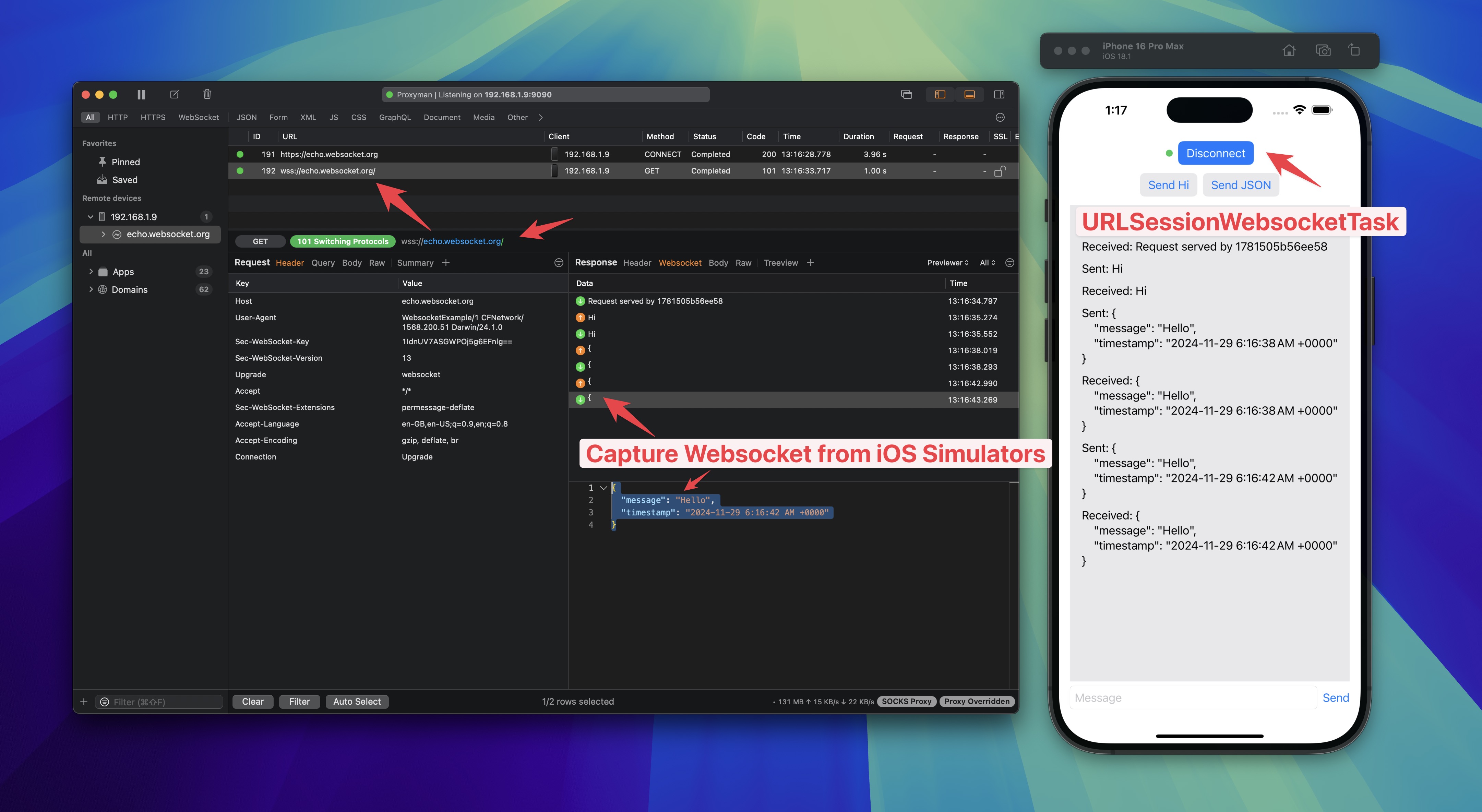
Capture WebSocket from iOS with Proxyman
- Credit to FranklinSamboni -> https://github.com/ProxymanApp/Proxyman/issues/586#issuecomment-2125082129
- Tutorial: How to intercept and debug WebSocket from iOS simulators or devices
✅ Solution 2
Use Atlantis Framework (developed by Proxyman) to capture WS/WSS URLSessionWebSocketTask traffic from iOS.
Read more in the Atlantis WS/WSS traffic guide.
4. Capture WebSockets from your Web Browser (Chrome, Safari, etc)
- Proxyman can capture WS/WSS from a web browser out of the box. No need to configure anything.
- How to use: Open Google Chrome -> Visit your website that makes a WS/WSS connection -> Open Proxyman -> Find your WebSocket domains -> On the Response panel, click Enable SSL Proxying for these domains. Reload your website in the browser. Proxyman will capture and decrypt WS/WSS ✅
5. Capture Websocket from NodeJS, Golang, Python Server
- Proxyman can capture WS/WSS from your NodeJS, Golang, Python, and Ruby server.
- How to use: Read automatic-setup.md to start your server in the Terminal it opens -> Make a WS/WSS connection -> Proxyman automatically captures and decrypts it ✅
6. Map Websocket from Localhost <-> Production
You can map WebSocket traffic from localhost <-> Production. Please check out the Map Remote Tool.
7. Modify WebSocket Messages with Scripting
From Proxyman 26.2.0 for macOS and Proxyman 26.1.0 for Windows/Linux, you can change WebSocket messages on the fly with a few lines of JavaScript. Check Modify WebSocket Messages on a Scripting rule, then use onWebsocket() to:
- Edit a text or binary message, in both directions.
- Drop a message, so the other side never sees it.
- Send a new message to the client or the server.
- Close the WebSocket to test how your app reconnects.
function onWebsocket(context, url, request, response, message) {
  if (message.from === "server" && message.type === "text") {
    message.data = message.data.replace("staging.example.com", "api.example.com");
  }
  return message;
}