Manual Setup
Use Proxyman Manual Setup to capture HTTPS traffic from NodeJS, Python, Ruby and cURL in your own Terminal app, such as iTerm2, with Bash, Zsh or Fish.
1. Problems
Proxyman could not capture HTTP/HTTPS traffic from the following setup:
- NodeJS: Axios, got, superagent, fetch, and node-fetch
- Python: http, https, aiohttp, requests
- Ruby: http, net/http, net/https, faraday, httparty and fastlane
- cURL
It's a known issue: NodeJS, Python, Ruby, and cURL run from the Terminal app don't use the system HTTP proxy. So there is no traffic in Proxyman.
You have to read the technical documentation of each library and manually configure:
- The HTTP Proxy
- Trust for a self-signed certificate
=> Time-consuming and error-prone ❌
2. Solution: Manual Setup
Benefit:
- ✅ Run on your favorite Terminal app: iTerm2 with Bash, Zsh, and Fish Shell
- Capture HTTP(s) traffic from NodeJS, Python, Ruby, Terminal or Web Browser, etc.
- Safe. It works in your current session and doesn't affect your OS
How to use:
- Open Proxyman -> Setup menu -> Manual Setup…
- Open your favorite Terminal app, such as iTerm2
- Click Copy to Clipboard, then paste the command into your Terminal and run it
- Done ✅
- Start your backend server or run a script => Proxyman automatically captures all HTTP/HTTPS traffic
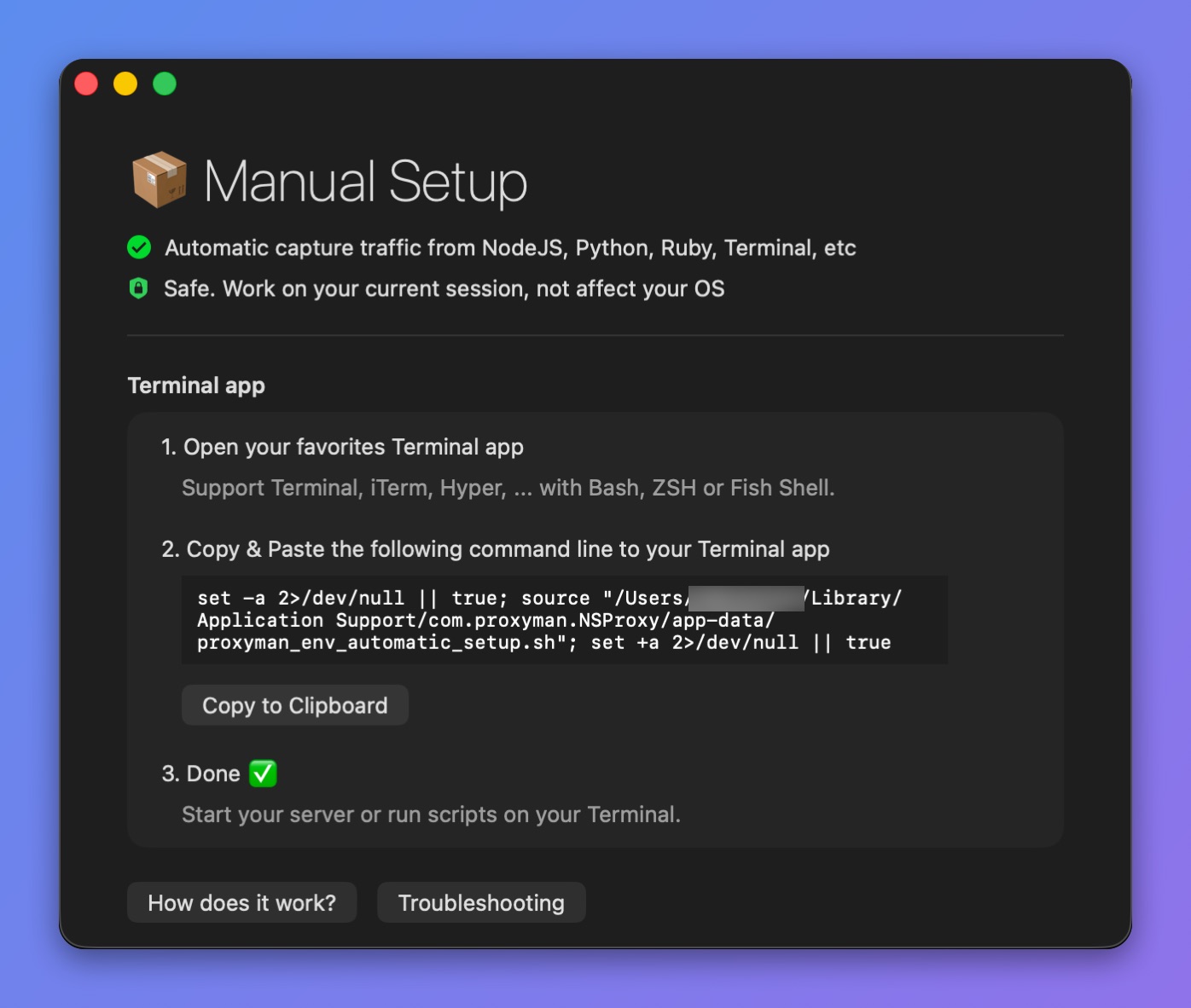
Copy the command to your Terminal
Support Libraries:
Proxyman (with Manual Setup) works out of the box with the following network libraries.
- NodeJS: axios, fetch (v18+), node-fetch, got, https, and superagent
- Ruby: http, net/http, net/https, httparty, faraday, and fastlane
- Python: requests, aiohttp, http.client, urllib3 and httpx
- cURL without --proxy flag
3. Advanced: How does it work?
See Automatic Setup: How does it work?
4. Troubleshooting
See the Troubleshooting page.