License
Learn what Proxyman Pro includes, how the trial works, and how to buy, activate, move or remove a Proxyman license key on Mac, Windows, Linux and iOS.
Proxyman Pro
You can try all debugging tools with the Trial version, which is limited to 2 pinned domains, 2 rules for each debugging tool, and no new tabs.
The Pro version comes with:
- A year’s worth of macOS, Windows, and Linux updates
- 1 Mac device per seat
- Premium Proxyman for iOS (2 devices per seat)
- Tab View
- Split View for macOS
- Unlimited Pinned Domains / Apps
- Unlimited rules for all Advanced Debugging Tools (e.g., SSL Proxying List, Map Local, Map Remote, Breakpoint, Allow/Block List, Protobuf, Scripting, Network Conditions, Multiple Filters, Reverse Proxy, Request/Response Diff, etc).
Trial Evaluation Duration
- Personal Purpose: No time limit.
- Business Purpose: 2 weeks. After that, please consider buying a license.
Demo Key
If you're a team or a company, you can request a 2-week demo key. Please contact support@proxyman.com.
Buy Proxyman License
Go to the Proxyman Pricing page to buy Proxyman licenses.
Manage Proxyman License
If you're the owner of the Proxyman license key, you can manage your devices by using the License Manager.
Activate License
macOS/Windows/Linux app
- After you buy a Proxyman license, you will receive a license key by email.
- To activate it, open the Proxyman app (macOS/Windows/Linux) -> Proxyman Menu -> Buy Proxyman Pro.
- Click the "Activate License" button and enter your license key.
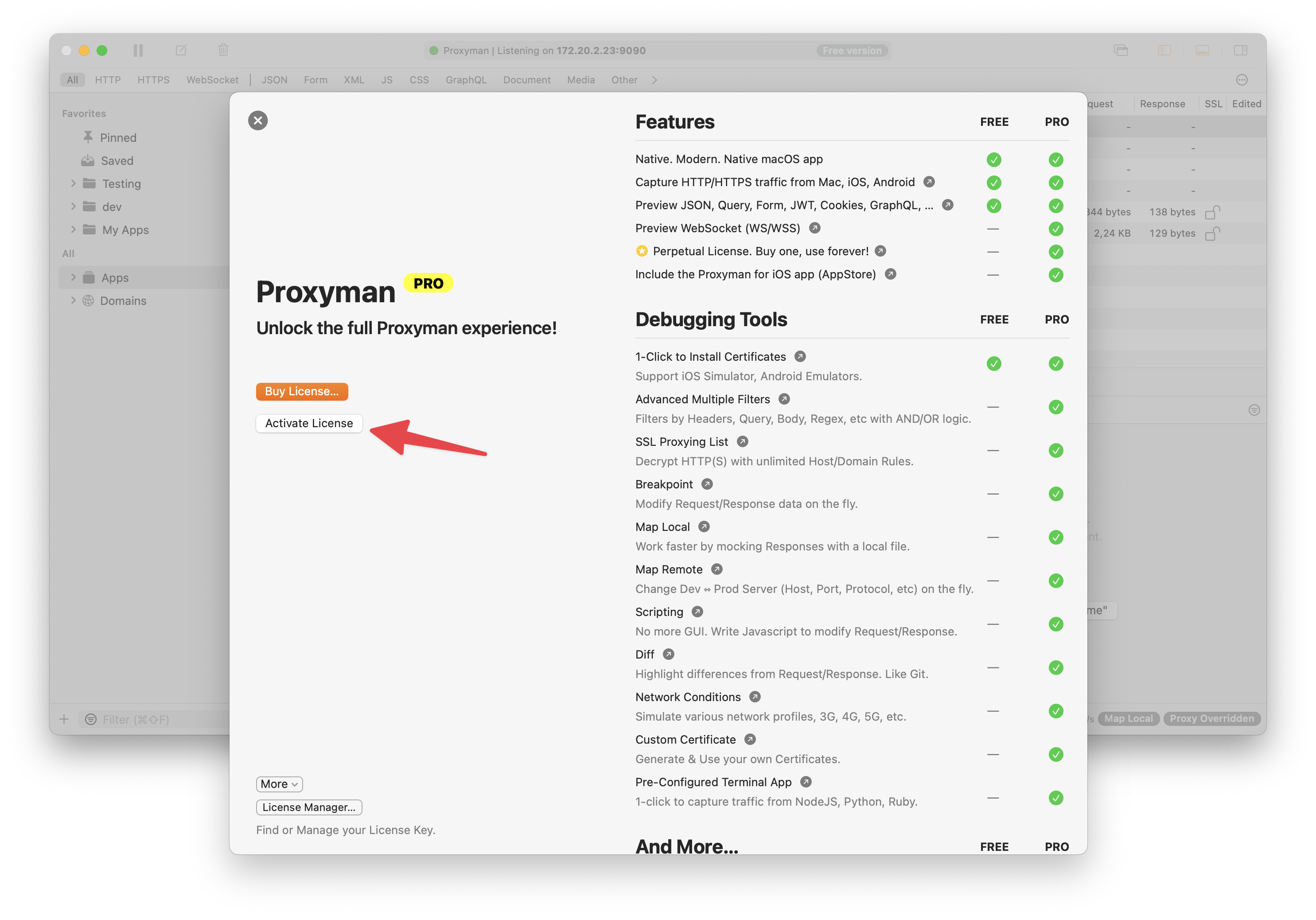
Activate License Key on macOS/Windows/Linux app
Activate the License key with your Corporate proxy
- Available from Proxyman macOS 5.5.0 or later
- Some companies use a Corporate Proxy, so Proxyman can't reach the license server to activate the key. To fix it, follow these steps:
- Open Tools -> Proxy Settings -> External Proxy Settings…
- Check "Enable External Proxy Tool"
- Check the HTTP and HTTPS checkboxes
- For each of HTTP and HTTPS: Enter your Proxy Host and Port.
- If your corporate proxy needs authentication, enter the username and password.
- Done ✅
- Try to activate the License Key again.
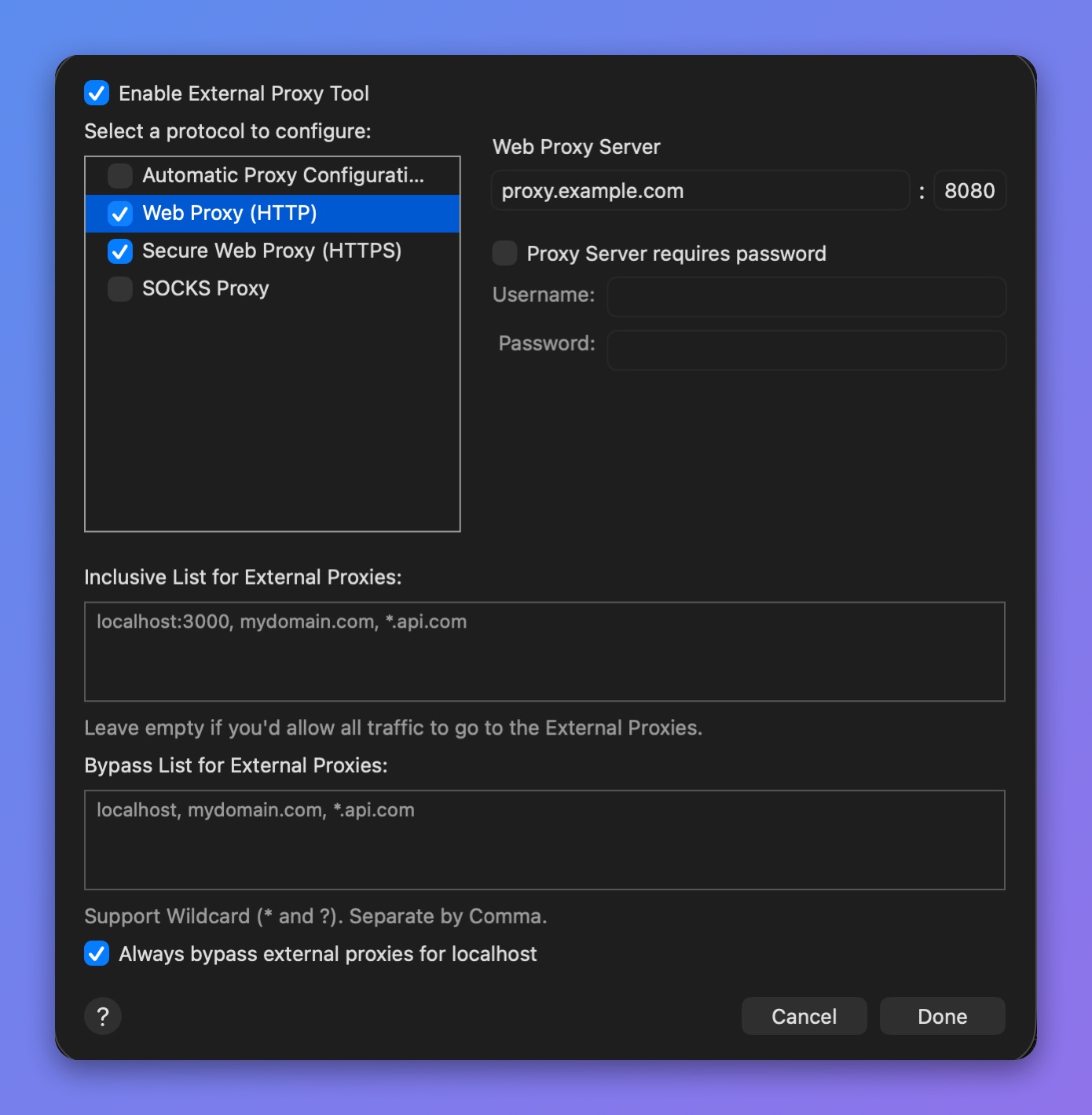
Use External Proxy to activate your license key
iOS app
Your Proxyman license key also works with the Proxyman iOS app. 1 seat can be activated on 2 iOS devices.
- Download the iOS app from the App Store: https://apps.apple.com/us/app/proxyman-network-debug-tool/id1551292695
- Open the More Tab (on the Right-Bottom TabBar) -> Face ID & Passcode -> Unlock -> Enter your license key.
- Done
Activate License by CLI (macOS Only)
If you have many licenses, you can activate them automatically from the command line.
- Download the Proxyman app and copy it to the
/Applicationsfolder - Open and close the app at least once. This sets up some required configuration.
- Open Terminal and run the following command:
To Activate:
$ /Applications/Proxyman.app/Contents/MacOS/proxyman-cli activate <key>
To Unlink device:
$ /Applications/Proxyman.app/Contents/MacOS/proxyman-cli unlink
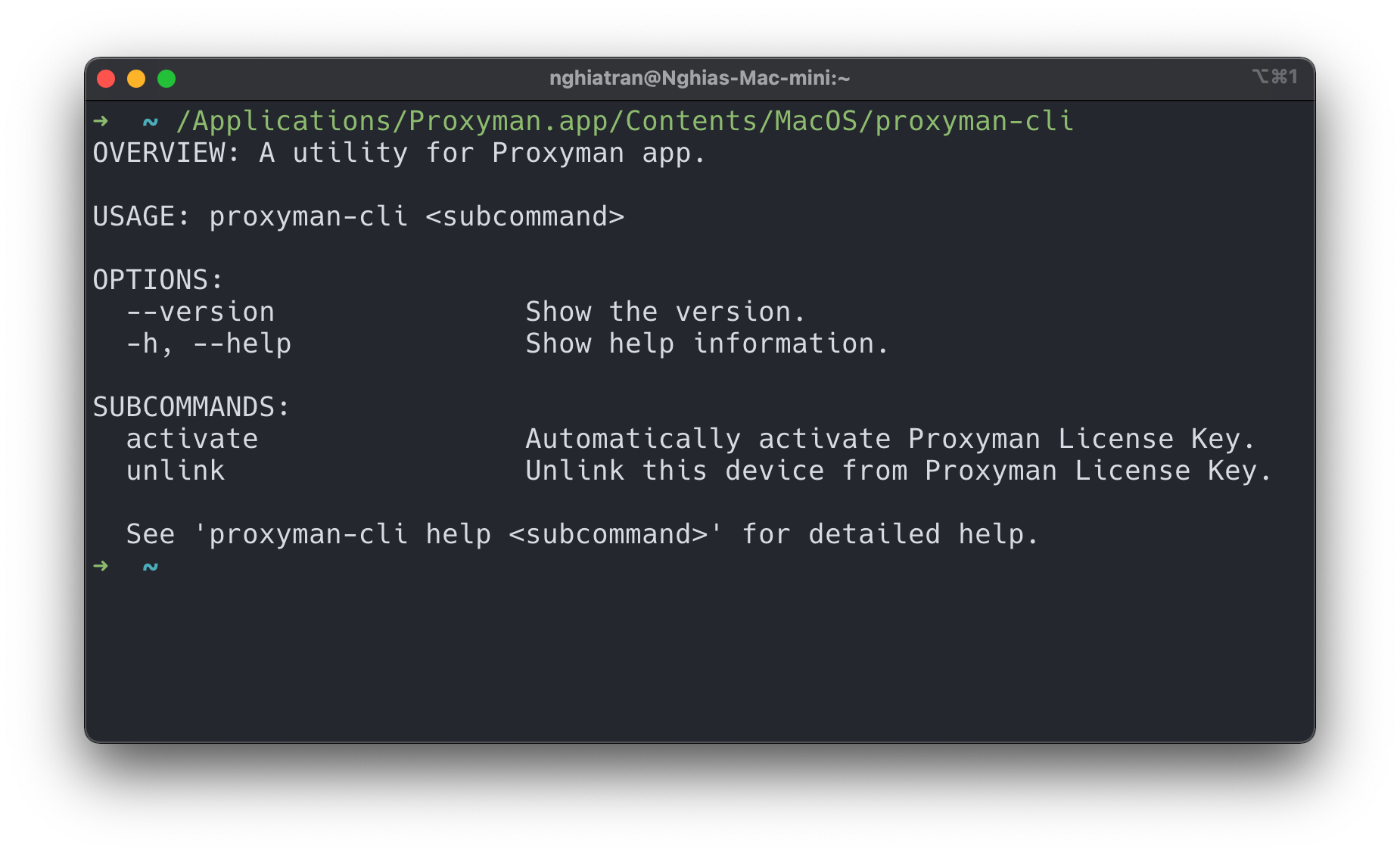
See the Proxyman command-line tool page for all proxyman-cli commands.
Activate by URL
You can also activate a Proxyman license with a URL:
- Download and open Proxyman at least once.
- Open the URL in Safari or Google Chrome.
proxyman://activate?key=<key>
Remove License
You can remove your license from your devices and then activate it on your new devices as long as you have enough available seats.
From your current devices
On macOS, open Proxyman -> Proxyman Menu -> Proxyman Pro… -> click the "More" button -> "Revoke this Device…".
With License Manager
- Open the License Manager
- Enter the email address that you used to buy the license
- Open the access link from your email.
- Click on the device to remove it.
Activate License with Corporate Proxy Server
From Proxyman 4.12.0 or later, you can make Proxyman use your Corporate Proxy in Tools Menu -> Proxy Settings -> External Proxy Settings… -> Set the HTTP / HTTPS Proxy. See Activate the License key with your Corporate proxy for the steps.