macOS
Install and trust the Proxyman CA certificate on macOS, verify HTTPS capture, or use manual Keychain setup when automatic installation fails.
To inspect HTTPS traffic on your Mac, install and trust the Proxyman CA certificate, then enable SSL Proxying for the domain you want to inspect. Start with automatic installation below, or use Manual Mode if you need to manage trust in Keychain Access yourself.
Install & Trust Proxyman Certificates on your Mac
To intercept encrypted HTTPS messages (request or response), you have to install the Proxyman CA Certificate on your current machine. This step is also required for iOS devices, Android devices, iOS simulators, Java VMs, and Firefox.
The Proxyman Certificate is a self-signed certificate that is generated on your machine. Proxyman never stores or sends any personal data to Proxyman's servers or to third parties.
Please check out the Privacy Statement to see what data Proxyman collects and what it does not.
If you'd like to generate a certificate on your machine yourself and add it to Proxyman, please check out the Custom Certificate Doc.
Proxyman's certificate is stored locally at ~/Library/Application\ Support/com.proxyman.NSProxy/app-data/
1. Automatic mode (recommended)
Proxyman can automatically install and trust the certificate in Keychain. Follow these steps:
- Open the Certificate menu
- Select Install Certificate on this Mac…
- In the Automatic tab, click Install & Trust Certificate and enter your Mac's password (root privileges)
- Verify the status: ✅
Installed & Trustedin the button (If not, try the Manual tab, or contact us for further support) - Done :white_check_mark:
To verify capture, make a new HTTPS request from your browser with Proxyman running and SSL Proxying enabled for that domain. Confirm that you can read the request and response. If nothing appears, use the missing-traffic checklist; if certificate installation fails, continue with Manual Mode below.
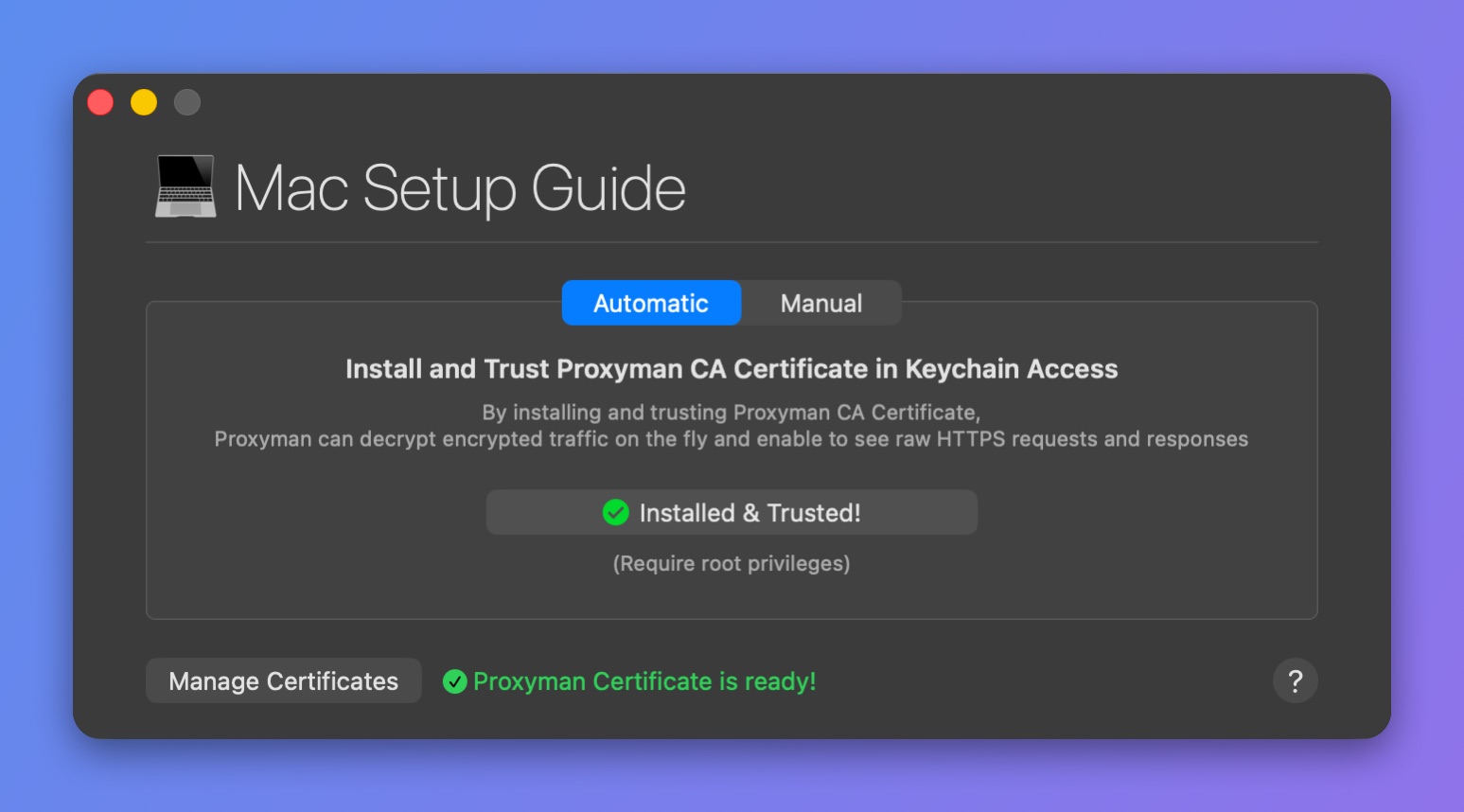
Certificate installed and trusted
Automatic mode requires root privileges to run the installation script. If you're not sure, please consider using Manual mode.
How does it work?
In automatic mode, Proxyman performs two steps:
- Generate a local Proxyman Certificate at
~/Library/Application\ Support/com.proxyman.NSProxy/app-data/proxyman-ca.pem - Install and trust the certificate in the System keychain. It requires root privileges to run the following command:
sudo security add-trusted-cert -d -r trustRoot -k /Library/Keychains/System.keychain ~/Library/Application\ Support/com.proxyman.NSProxy/app-data/proxyman-ca.pem
2. Manual Mode (Advanced)
Manual mode gives advanced users more control if they want to install and trust the certificate themselves.
- Open the Certificate menu
- Select Install Certificate on this Mac… -> Select the Manual tab
- Click the Generate and Add… button (Proxyman generates the certificate locally and adds it to Keychain, but does not trust it. No password required)
- In some cases, macOS asks which keychain to use -> Select System Keychain
- Open the Keychain Access app on your Mac -> Search "Proxyman CA" -> Open it -> Select "Always Trust" -> Close the window and save
If you've done it correctly, Proxyman will display the " ✅ Installed and Trusted" status.
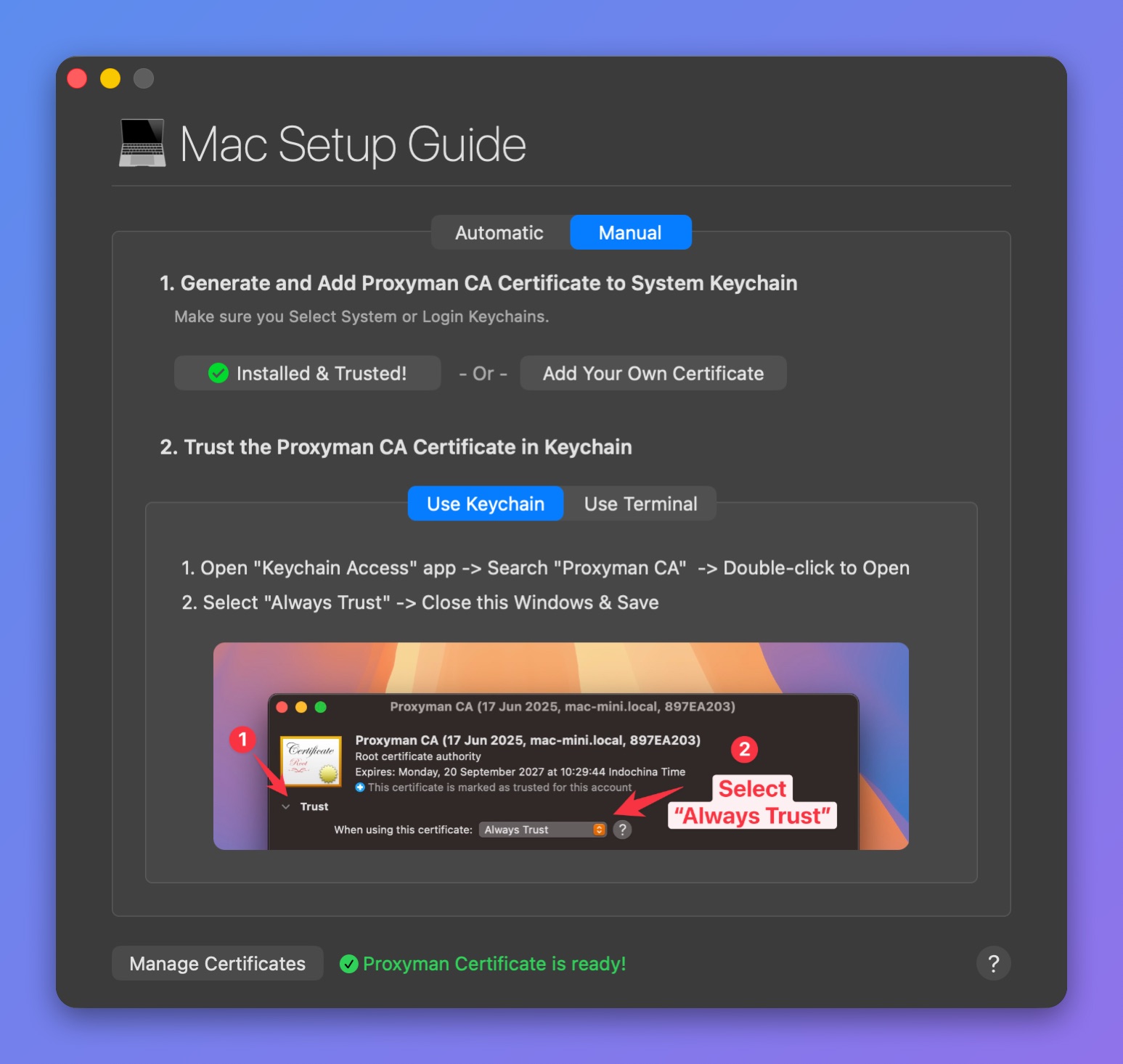
Manual mode: trust the certificate in Keychain
If you'd like to use your own custom Root Certificate, please check out the Custom Certificate Doc
If you're not sure how to trust the certificate in the Keychain Access app, open the Terminal app and run this command:
sudo security add-trusted-cert -d -r trustRoot -k /Library/Keychains/System.keychain ~/Library/Application\ Support/com.proxyman.NSProxy/app-data/proxyman-ca.pem
Make sure that you delete the Proxyman Certificate in the Keychain Access app if you're not using Proxyman anymore. If not, anyone who has the Proxyman Certificate can intercept HTTP/HTTPS requests from your Mac.
3. Uninstall Proxyman Certificate
- Open the Certificate menu
- Select Reset all Proxyman Certificates
- Enter your Mac password and done