Import / Export Settings
Back up and share Proxyman settings and debugging rules, import rules from Proxyman or Charles Proxy, and open Charles Proxy session files.
1. Import Settings
From Proxyman 2.26.0, you can import tool settings from colleagues who use Proxyman or Charles Proxy.
To import settings, go to Tools → Import / Export Settings → Import, then choose From Proxyman or From Charles Proxy:
- From Proxyman → From Backup File: Import a
.configbackup file made with Export (Backup). Choose Override to replace your current settings, or Append to add to them. - From Proxyman → Single Rule (Deprecated), or From Charles Proxy: Select the tool you want to import.
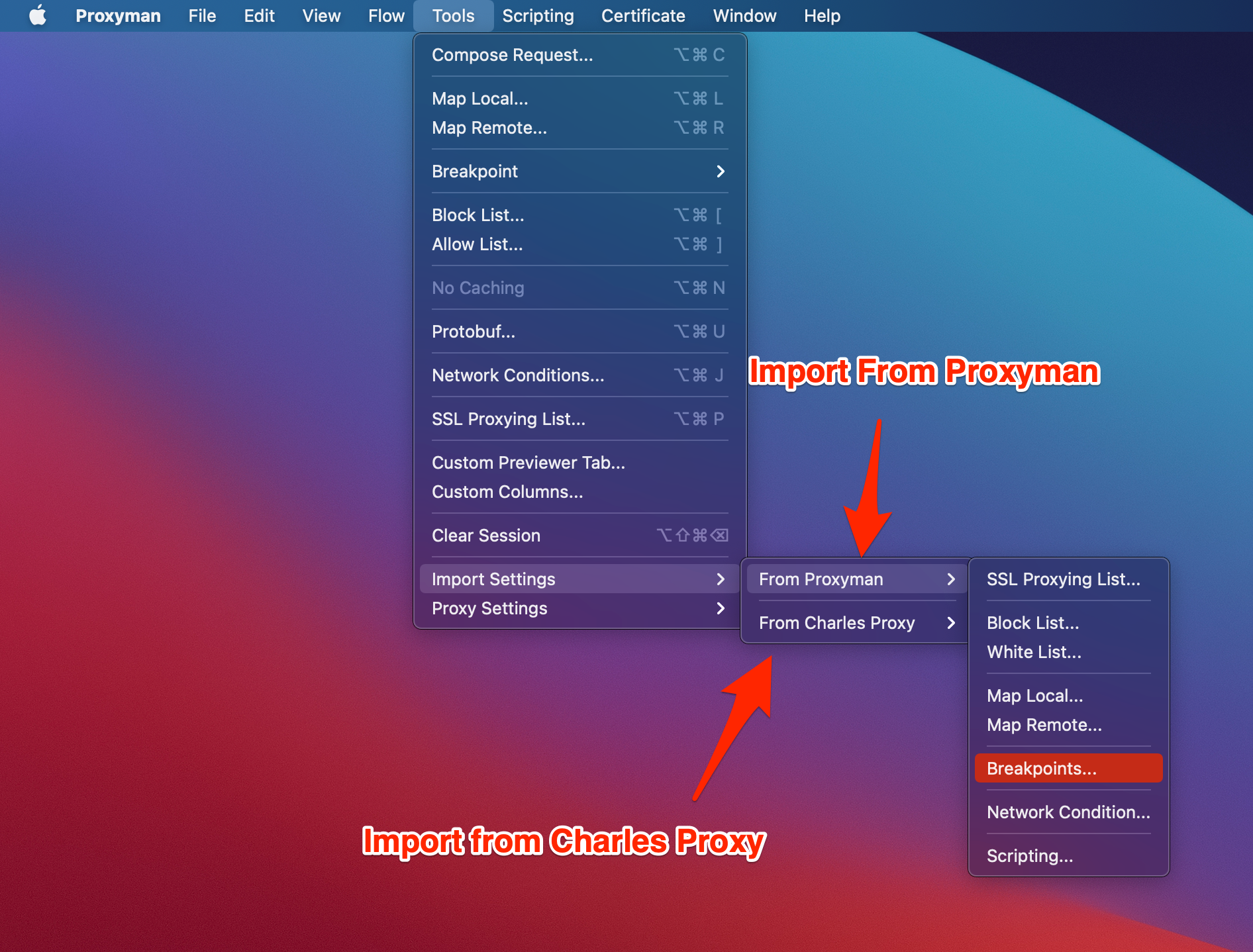
You can import settings for these tools:
Proxyman
- SSL Proxying List
- Block List
- Allow List (White List)
- Map Local
- Map Remote
- Breakpoint
- Network Conditions
- Scripting
- Reverse Proxy
- DNS Spoofing
- Protobuf
Charles Proxy
- SSL Proxying List
- Block List
- Allow List (White List)
- Map Local
- Map Remote
- Breakpoint
- Reverse Proxy
- DNS Spoofing
2. Export Settings
You can also export your tool settings and share them with your colleagues.
Back up all settings
From Proxyman 6.4.0, you can save your app settings and debugging tools in one backup file:
- Go to Tools → Import / Export Settings → Export (Backup)…
- Select App Settings and the debugging tools you want to include
- Click Export and save the
.configfile
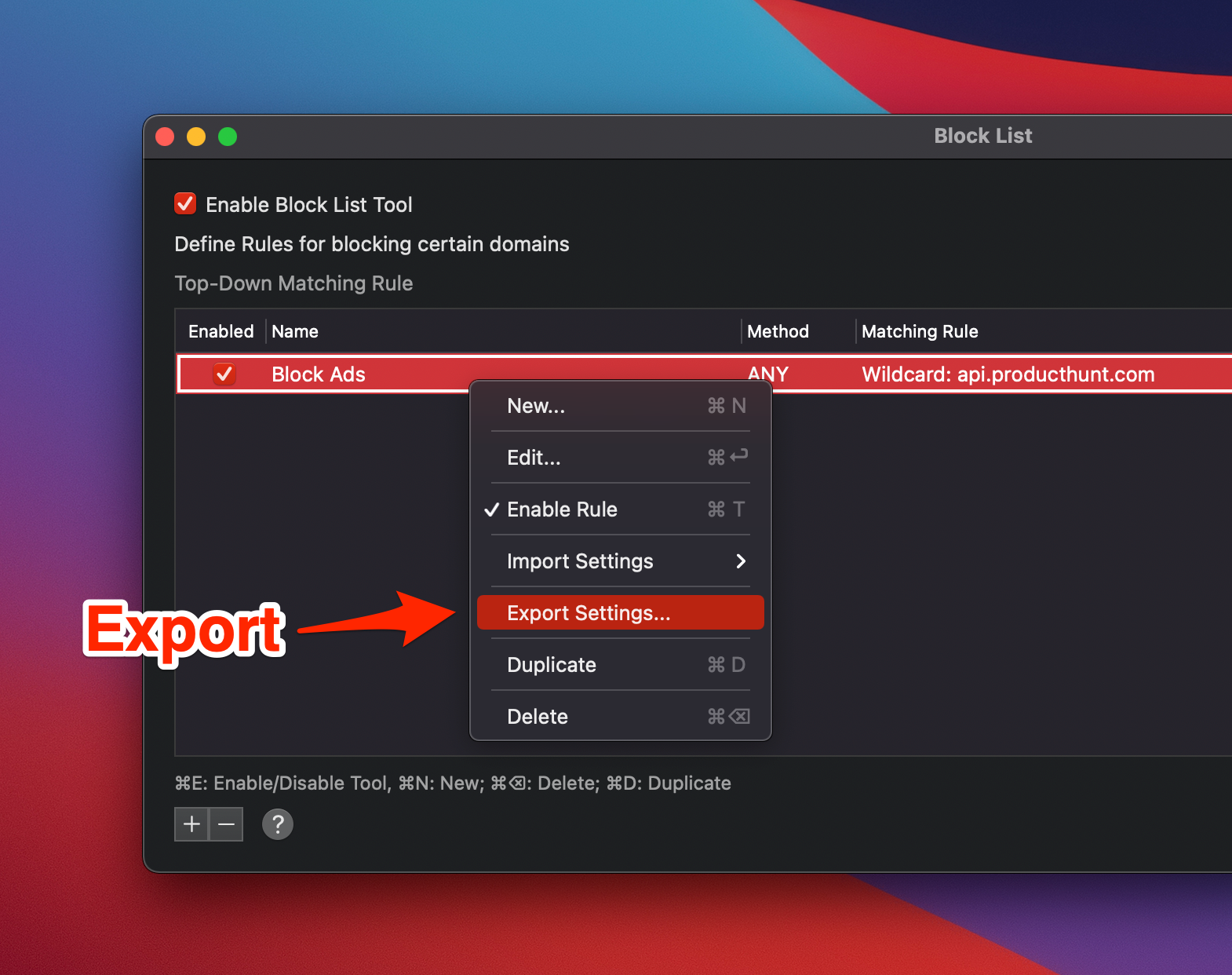
Export rules from one tool
- Open the tool you want to export
- Select the rules
- Right-click → Export Settings…
3. Open Charles Proxy Log File (*.chls)
Proxyman can open Charles Proxy log files that you export from the Charles Proxy app. Read the Charles Proxy Converter page.