Python
Capture HTTP/HTTPS traffic from Python scripts and servers with Proxyman Automatic Setup. Works with requests, http.client, urllib3, httpx and aiohttp.
1. New Automatic Solution (v4.7.0 or later) ✅
Proxyman v4.7.0 or later can capture HTTP/HTTPS traffic from Python with 1 click.
- 1-click solution: No need to set the HTTP Proxy config or trust the self-signed certificate manually.
- Supports many Python libraries: requests, http.client, urllib3, httpx and aiohttp
How to use:
- Open Proxyman -> Setup Menu -> Automatic Setup
- Click "Open New Terminal"
- Accept the AppleScript permission prompt if needed
- A new Terminal window opens -> Start your Python backend server or run your scripts there => Proxyman captures all traffic automatically.
- Done ✅
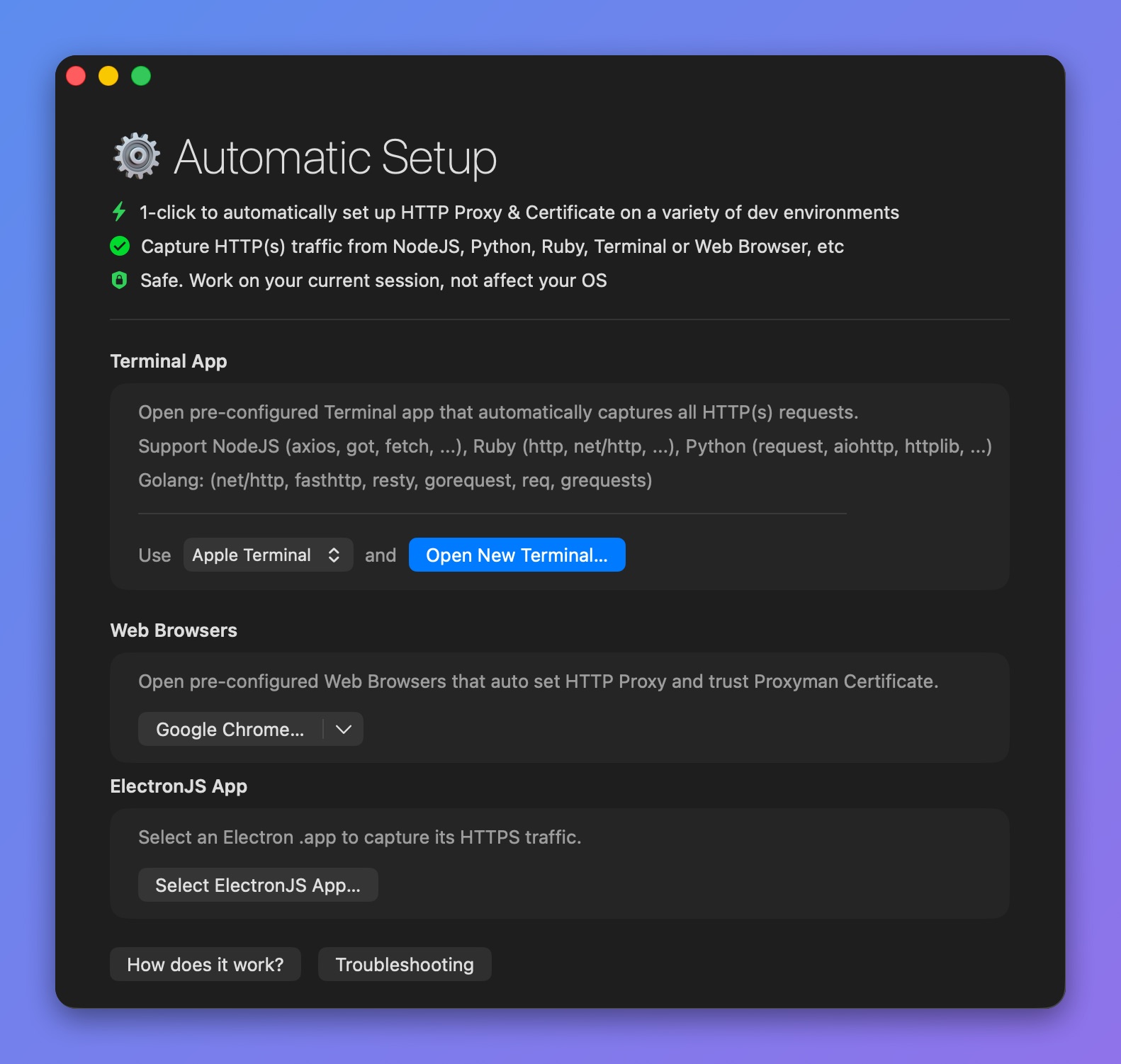
Capture Python traffic with Proxyman Automatic Setup
Please check out the Automatic Setup page:
2. Old Solution (Not recommended) ❌
1. Script Approach
- Use this script from GitHub issue #1220 to install or remove the certificate for Python automatically.
- Save the script to your Desktop folder as
script.py
- Add Certificate:
$ python3 script.py add
- Remove Certificate
$ python3 script.py remove
For macOS 12.2 or later, make sure you use python3
Credit to @novitae
2. Manual Approach
Install the Proxyman certificate in the Python environment
By default, Python on macOS doesn't trust the Proxyman self-signed certificate. As a result, you might get an SSL error when you intercept HTTPS traffic.
To intercept HTTPS traffic from your Python script, you have to explicitly tell Python to use the Proxyman Root Certificate at ~/.proxyman/proxyman-ca.pem
Newer Proxyman versions store the certificate at ~/Library/Application Support/com.proxyman.NSProxy/app-data/proxyman-ca.pem. If ~/.proxyman/proxyman-ca.pem does not exist on your Mac, use that path in the commands below, or export the certificate from the Certificate menu -> Export -> Root Certificate as PEM.
Please follow the guideline:
- Install the Proxyman Certificate on your Mac (If you've done it, skip this step. If not, check out the macOS guide).
- Run the following commands in your Terminal app
$ export SSL_CERT_FILE=~/.proxyman/proxyman-ca.pem
$ export REQUESTS_CA_BUNDLE=~/.proxyman/proxyman-ca.pem
$ echo "export REQUESTS_CA_BUNDLE=~/.proxyman/proxyman-ca.pem" >> ~/.bash_profile ; source ~/.bash_profile
3. Done.
Revert the change
If you don't use Proxyman, please revert the change by commenting out:
# export REQUESTS_CA_BUNDLE=~/.proxyman/proxyman-ca.pem
in ~/.bash_profile
3. Troubleshooting
3.1 Proxyman could not capture HTTP traffic from my Python code.
Solution: Please use the Automatic Setup.
Reference
- https://github.com/ProxymanApp/Proxyman/issues/948#issuecomment-890520435
- https://github.com/ProxymanApp/Proxyman/issues/1220