Content Filter
Use the Proxyman Content Filter to find requests fast by type, status code, URL, header, body and more, with contains, wildcard and regex matching.
Proxyman offers the Primary and Secondary Filters to quickly find the requests or responses you're looking for.
info
⌘F: Open the Filter Bar
ESC: Close the Filter Bar
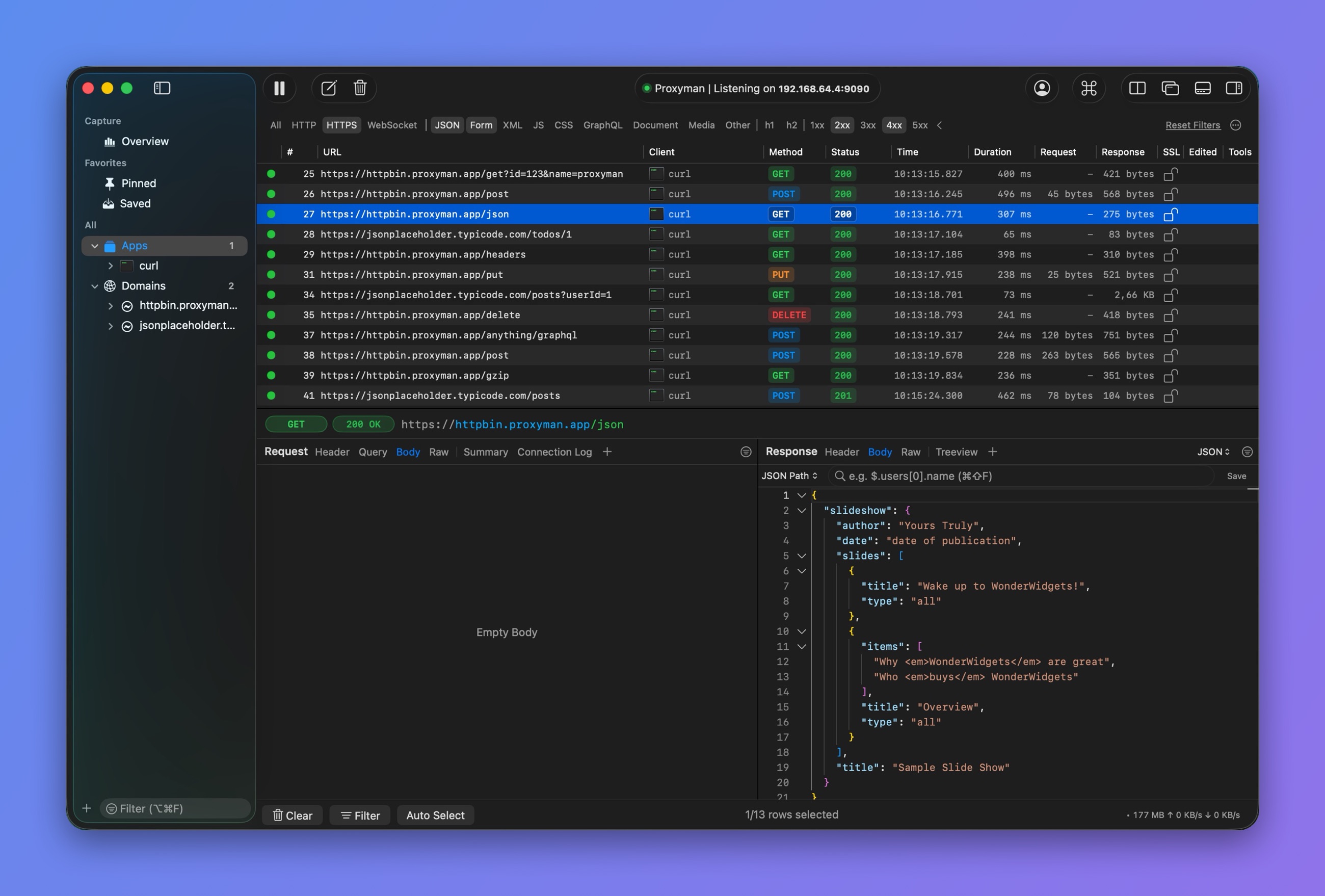
Select several filters at once
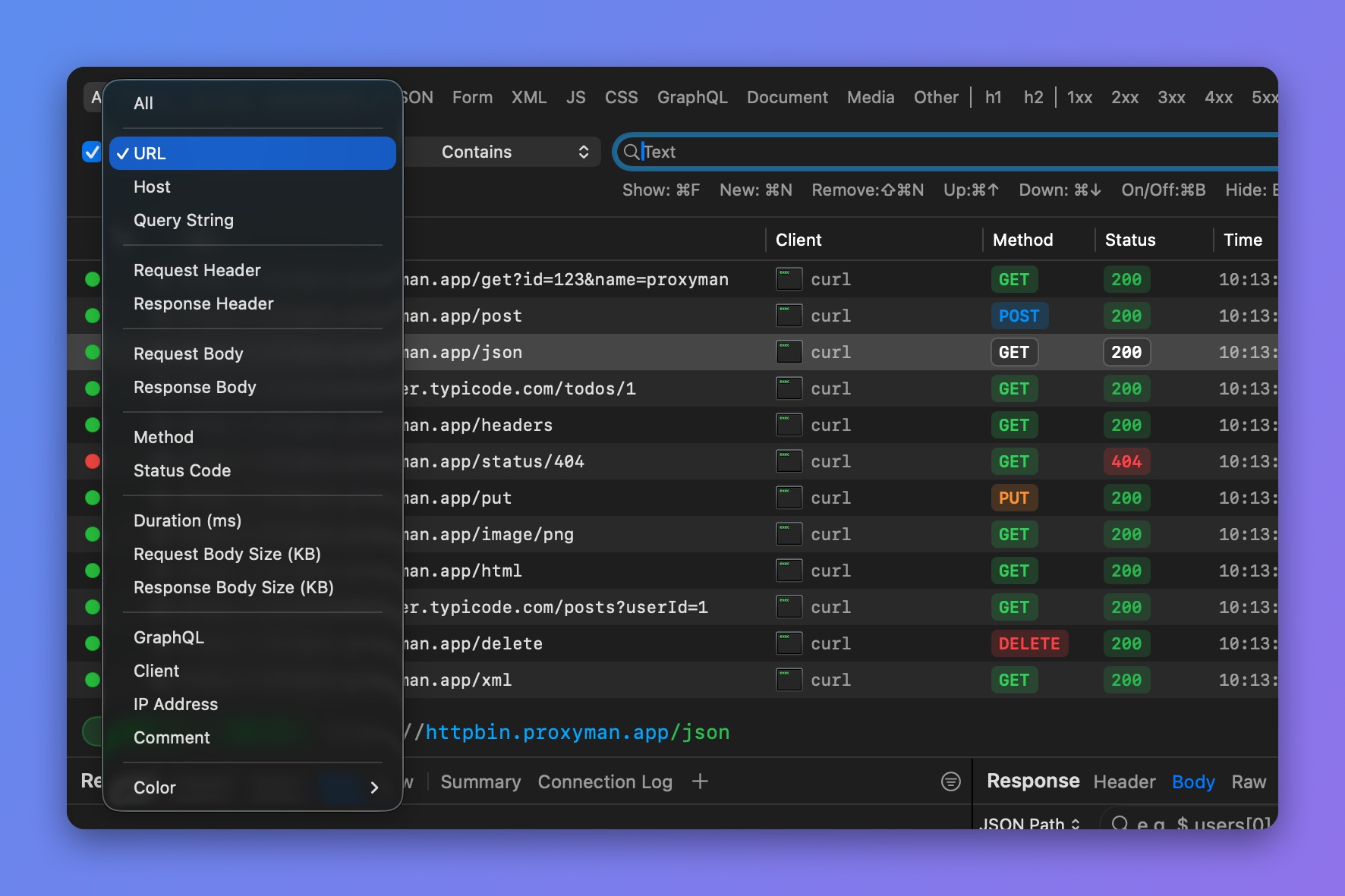
Choose what to filter
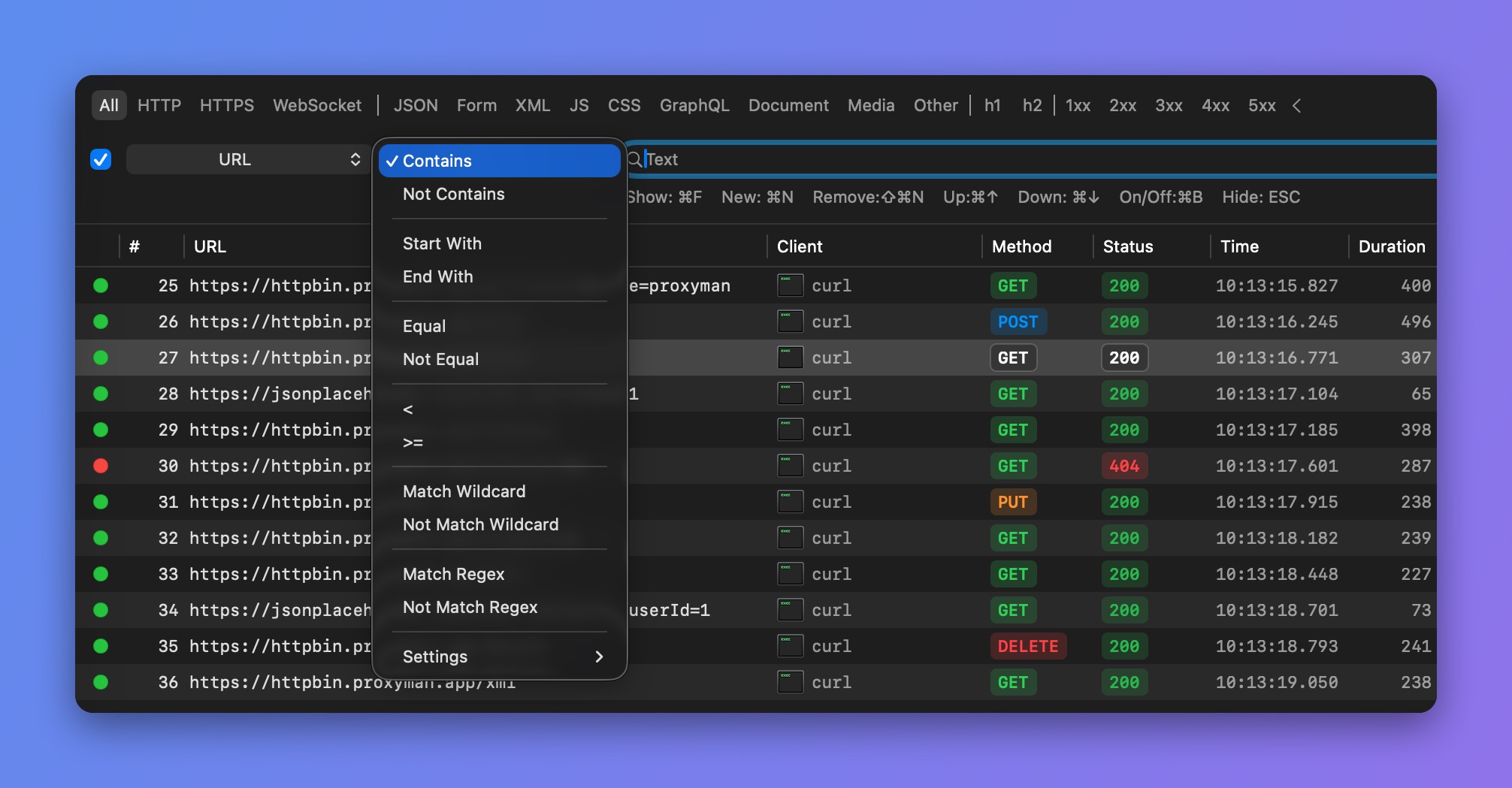
Choose how to match
Primary Filter
| Filter | Description |
|---|---|
| All | All Requests and Responses |
| HTTP | Only HTTP |
| HTTPS | Only HTTPS |
| WebSocket | Only WebSocket and Secure WebSocket |
| JSON | Content-Type is application/json or JSON contents |
| Form | Only Form Body in Request / Response |
| XML | Only XML |
| JS | Only JavaScript content |
| CSS | Only CSS content |
| GraphQL | GraphQL requests (the URL contains /graphql) |
| Document | Document content: HTML, ... |
| Media | Image, audio and video content: PNG, JPG, GIF, ... |
| Other | Other content that doesn't match any of the above |
| h1 | Only HTTP/1.x requests |
| h2 | Only HTTP/2 requests |
Status Filters
| Filter | Description |
|---|---|
| 1xx | Status codes from 100 to 199 |
| 2xx | Status codes from 200 to 299 |
| 3xx | Status codes from 300 to 399 |
| 4xx | Status codes from 400 to 499 |
| 5xx | Status codes 500 and above |
info
Hold the ⌘ key and click to select multiple types.
Secondary Filter
Content
- URL
- Host
- Query String
- Request Header
- Response Header
- Request Body
- Response Body
- Method
- Status Code
- Duration (ms)
- Request Body Size (KB)
- Response Body Size (KB)
- GraphQL
- Client
- IP Address
- Comment
- Color
Matching
- Contains
- Not Contains
- Start With
- End With
- Equal
- Not Equal
<(less than, for numbers)>=(greater than or equal, for numbers)- Match Wildcard
- Not Match Wildcard
- Match Regex
- Not Match Regex
Header, Query, Auth, Form Filter
From Proxyman 2.34.0+, you can quickly filter the Header, Query, Auth, and Form content of the selected request and response.
- Click the view (e.g. the Header tab of the Request)
- Press ⌘F or right-click → Show Filter to open the filter