WSL
Install WSL, Chocolatey (choco) and adb on Windows 10 or 11 so you can use the Proxyman automatic script for Android Emulators.
1. What's it?
To use the Automatic Script for Android Emulator in Proxyman for Windows, the following command-line tools must be installed on your Windows machine:
- wsl
- choco (package manager for Windows)
- adb (Android Debug Bridge)
2. Install WSL on Windows 10/11
- On Windows 10/11, search: Command Prompt app
- Right-click on the app -> Select Run as administrator option.
- When the app opens, copy and paste the following command:
wsl --install
- Restart Windows to apply the change -> After restarting, Windows opens the Command Prompt and asks you to create a new Username / Password -> Follow the instructions
- Open the Command Prompt app again and run:
wsl
- Verify that the command is successful, with no errors:
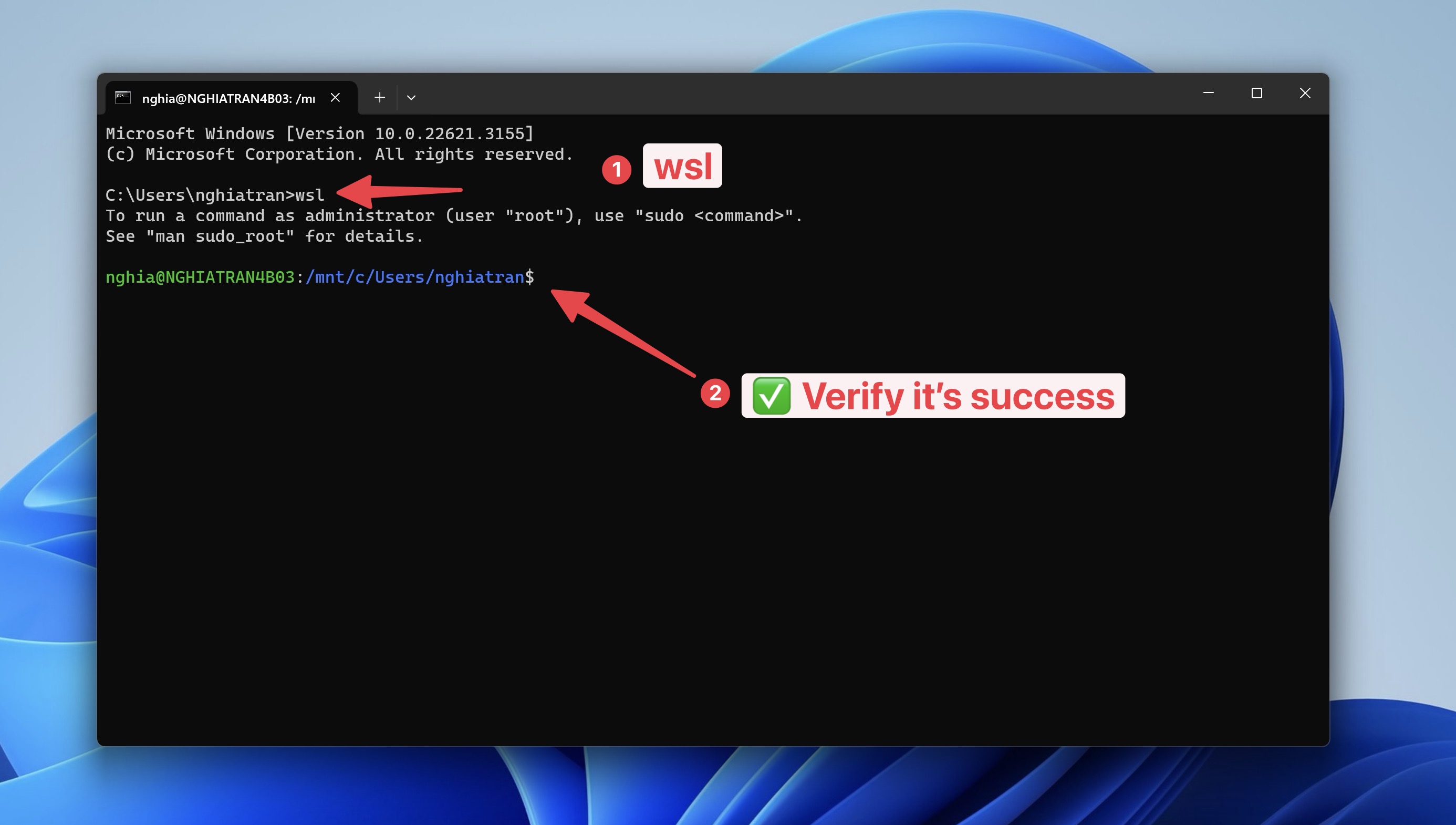
- Done ✅
3. Install Choco on Windows 10/11
- Open PowerShell with Run as Administrator
- Paste and run it:
Set-ExecutionPolicy Bypass -Scope Process -Force; [System.Net.ServicePointManager]::SecurityProtocol = [System.Net.ServicePointManager]::SecurityProtocol -bor 3072; iex ((New-Object System.Net.WebClient).DownloadString('https://community.chocolatey.org/install.ps1'))
- Wait a few seconds for the command to complete.
- If you don't see any errors, you are ready to use Chocolatey! Type
chocoorchoco -?to check it.
Choco Installation Guide: https://chocolatey.org/install#individual
4. Install adb on Windows 10/11
- Open PowerShell with Run as Administrator
- Run:
choco install adb -y
- Verify that adb is installed and there is no error