Request / Response Previewer
Inspect requests and responses in Proxyman with Header, Cookies, Query, Body, Raw and JSON Tree View tabs, and arrange the panels to fit your work.
After installing the Certificate and enabling SSL Proxying on domains or apps, your network traffic shows up immediately in the Proxyman window. The window has three main areas:
- The Source List on the left panel
- The Flow List on the middle panel
- The Flow Content on the right panel
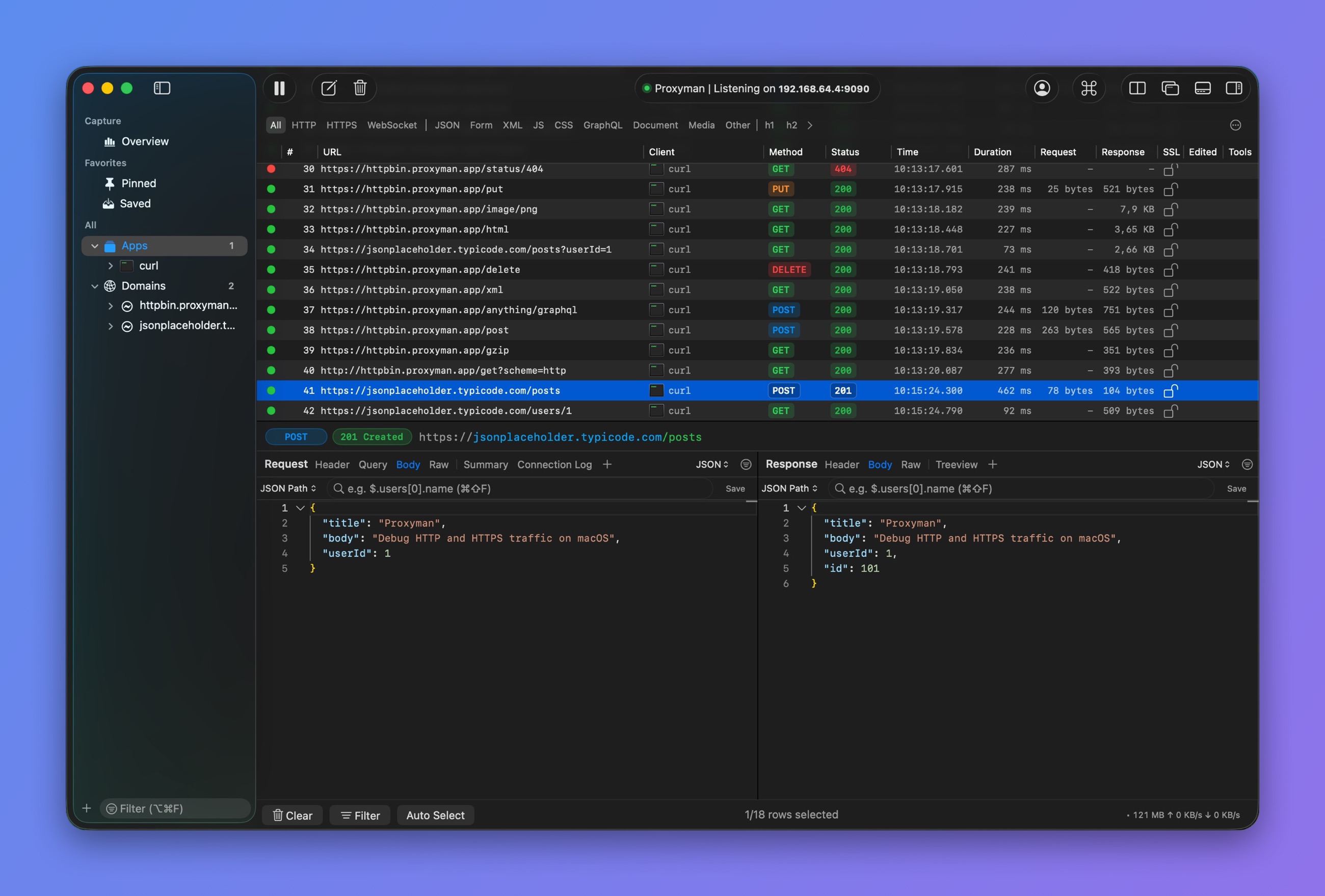
Proxyman main window
Body Content Previewer
Depending on the content of the request or response, Proxyman automatically shows it in separate tabs:
- Header: All headers (key-value table)
- Cookies: The Cookie header of the request
- Set-Cookie: The Set-Cookie header of the response
- Auth: The Authorization header
- Body: The body of the message. Proxyman automatically formats and beautifies the body based on the Content-Type, such as JSON, PNG, GIF, Raw Data, ...
- Query: All query parameters of the request
- Raw: The raw HTTP message
- Protobuf Message
- MessagePack
- Multipart/form-data
Custom Previewer Tab
You can choose which previewer tabs you would like to see:
- Custom tabs stay on the Request/Response panel
- Proxyman tries to decode and beautify the content in the selected format
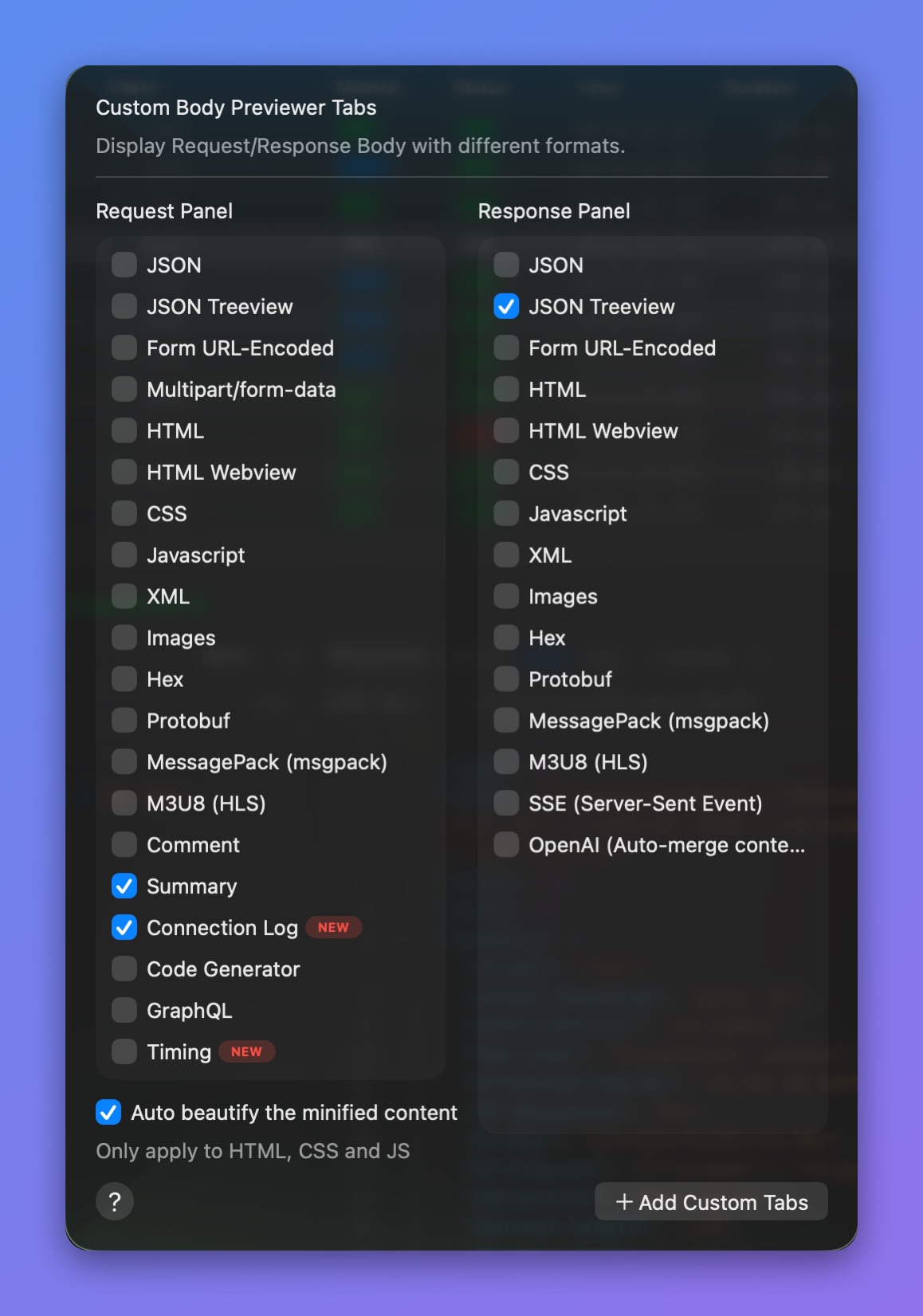
Choose your previewer tabs
Layout mode
There are two ways to arrange the Request / Response panels: Vertical or Horizontal layout.
Customize Workspace
Use the layout buttons in the top-right corner of the app to arrange the content the way you like:
- Collapse/Expand the Source List panel
- Open the Request/Response panel in a new window
- Show the Request/Response panel in Horizontal layout
- Show the Request/Response panel in Vertical layout

Layout buttons in the toolbar
Shortcuts
All sections support Copy (⌘C) and multiple selection.
Read more in our Proxyman keyboard shortcuts blog post.
Body Previewer
The Body previewer automatically beautifies the content and offers handy extra features:
- Tree View: Show the JSON in Tree View mode
- Hex: Show the body in Hex format
- Export only body: Export the body content to a file. Useful for raw or binary data
- Open With: Open the body content in your favorite editor. Sublime Text is mine 😍
JSON Tree View mode
Proxyman has a native JSON Tree View mode for JSON bodies. It lets you:
- Search JSON by JSON Path
- Copy a JSON node, like in Google Chrome DevTools