Filter JSON Response
Filter JSON responses in Proxyman with text search, regex, JSONPath and jq, or show only the keys and values that match in the Treeview tab.
You can quickly filter a JSON response in these ways:
1. Filter on JSON Previewer
- Press ⌘F in the Body tab to search
- Supports Regex
- Jump to the next match
2. JSONPath
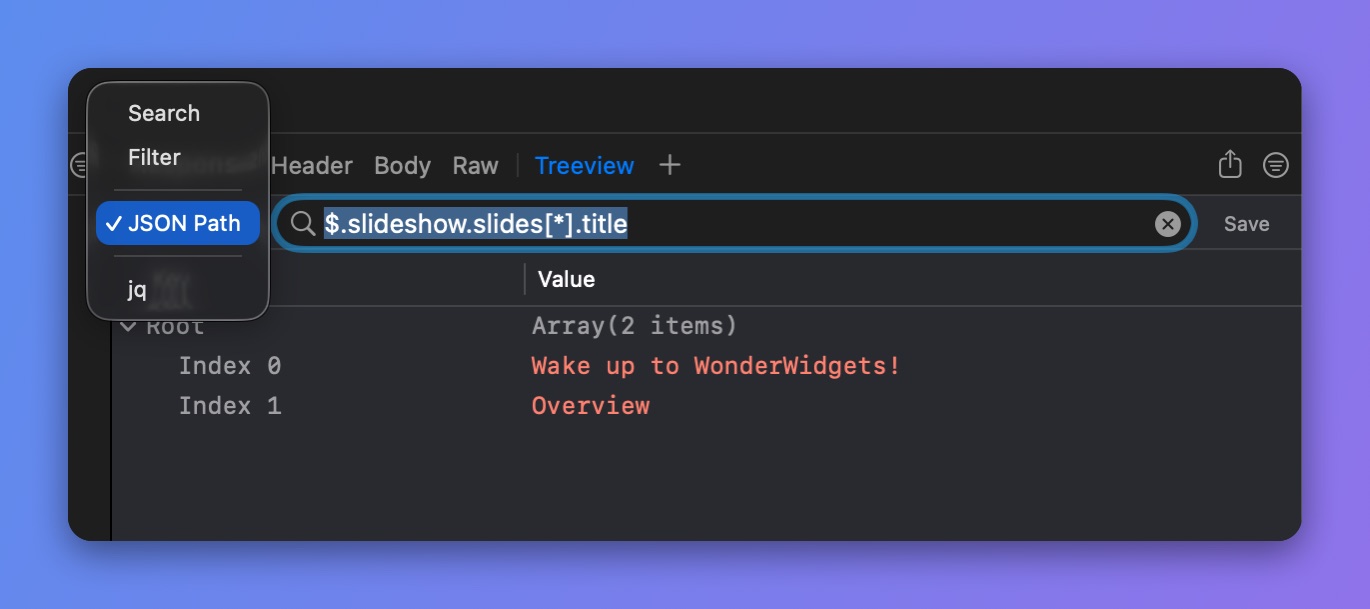
Proxyman supports JSONPath to quickly query data in a JSON document.
![Proxyman Treeview tab with the JSON Path $.slideshow.slides[*].title returning two slide titles](/docs/assets/proxyman-treeview-jsonpath-filter.jpg)
Filter JSON with JSON Path
Read the JSONPath page to learn the syntax.
You can also filter JSON with jq. Read the jq page.
3. Search in the Treeview
- Press ⌘F in the Treeview tab and choose a mode: Search, Filter, JSON Path, or jq.
- Search highlights the keys and values that contain the search text.
4. Filter by Keys or Values
- Filter shows only the nodes whose key or value contains the search text.
Pick a filter mode