Custom Previewer Tab
Add Proxyman Custom Previewer Tabs to show a request or response body as JSON, Protobuf, HTML or MessagePack, or to add the Connection Log tab.
1. What's it?
Custom Previewer Tabs let you add extra tabs to the Request and Response panels. Each tab always renders the content in one format.
This handy tool helps in the following cases:
- Format the BODY as JSON, but the Content-Type isn't
application/json - Format the body as Protobuf, but the Content-Type isn't
application/x-protobuf - Render an HTML page in a Web View
- Beautify the minified files (HTML, CSS, JS)
- Multipart/form-data
- Try to format the body as the selected type regardless of the
Content-Type - Convert MessagePack (msgpack) to JSON
- Code Generator to Swift, Node, Javascript, cURL, ...
- GraphQL Query Prettier
- Connection Log to inspect DNS, TCP, TLS, and HTTP details
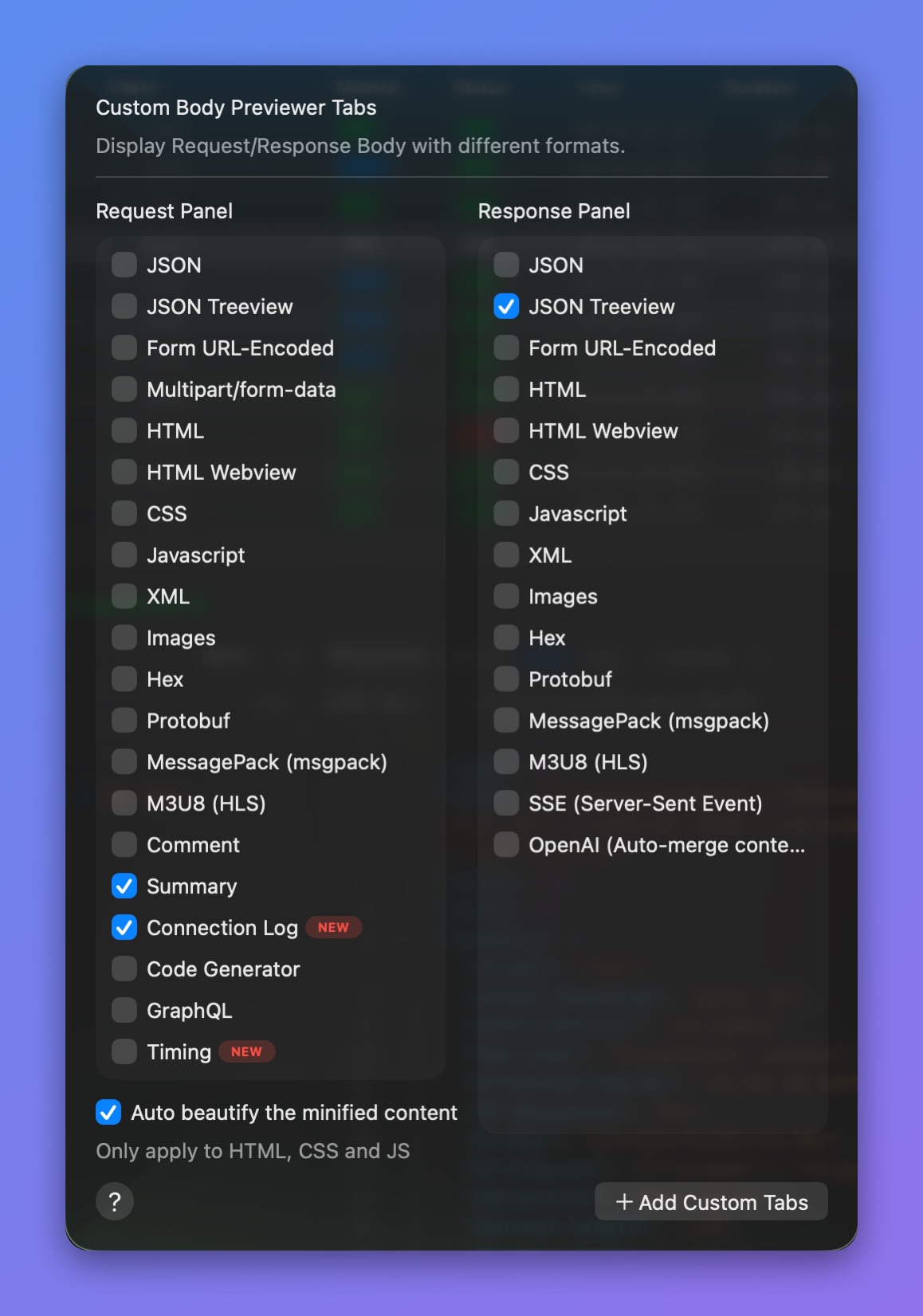
Select Custom Tabs for Request / Response Panel
The selected custom tabs are added to the right side of the Request or Response view
2. How to use it?
To open the Custom Previewer Tab window:
- Click the "+" button on the Request/Response tab bar, or go to Tools → Custom Previewer Tab…
- Check or uncheck a checkbox to show or hide your custom tab
- The new tab appears on the Request or Response panel ✅
2.1 Server-Sent Events and OpenAI Tabs
From Proxyman 5.22.0 or later, Proxyman supports:
- SSE tab for Server-Sent Events from OpenAI endpoints: Auto-prettify the inline JSON of each data event
- OpenAI tab: Auto-merge the streamed content and show the final result, similar to the output in your chat view.
2.2 Connection Log
- Connection Log shows connection info for the selected request, including DNS lookups, TCP connections, TLS negotiation, certificates, and HTTP headers.
- Click + in the Request tab bar. Under Request, check Connection Log to show it or uncheck it to hide it.
- The tab appears next to Summary in the Request panel. It is enabled by default, and Proxyman remembers your choice.
- See the HTTP/2 guide for a sample log, or the Connection Log guide for all fields.
3. ⚡️ Advanced: Create a custom Tab with the Scripting Tool
- ✅ Show your own data on your tab
- Useful when you want to decode your body or show part of the body in your own tab
How to use
- Click the "+" button on the Request/Response tab bar, or go to Tools → Custom Previewer Tab…
- Click the Add Custom Tabs button
- Select the Request or Response panel and set a name for your tab
- Click the "..." button to show the JavaScript code
- Open Scripting → Script List…, create a new script, and use this code to display your own data
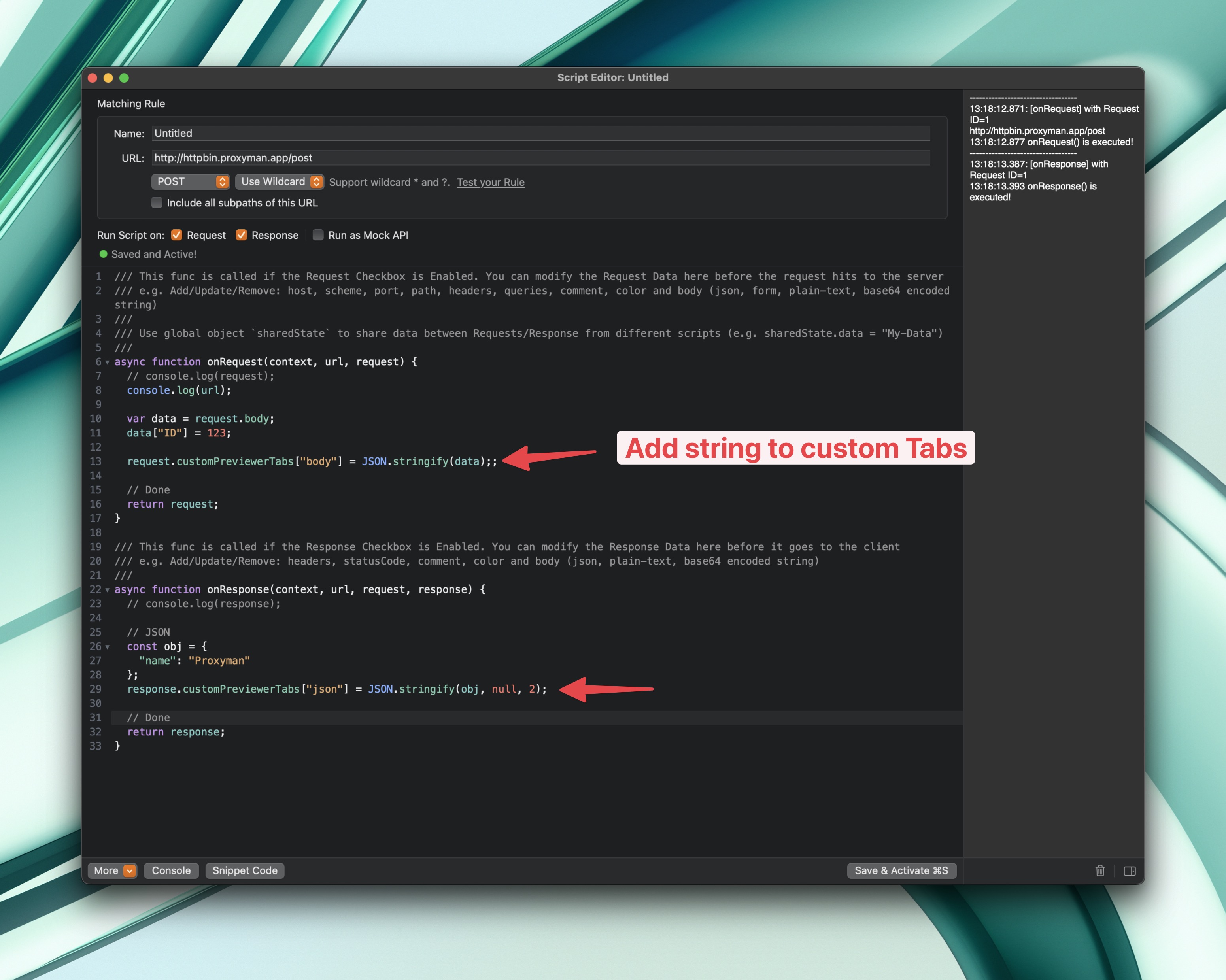
Write your code to display data
- Done
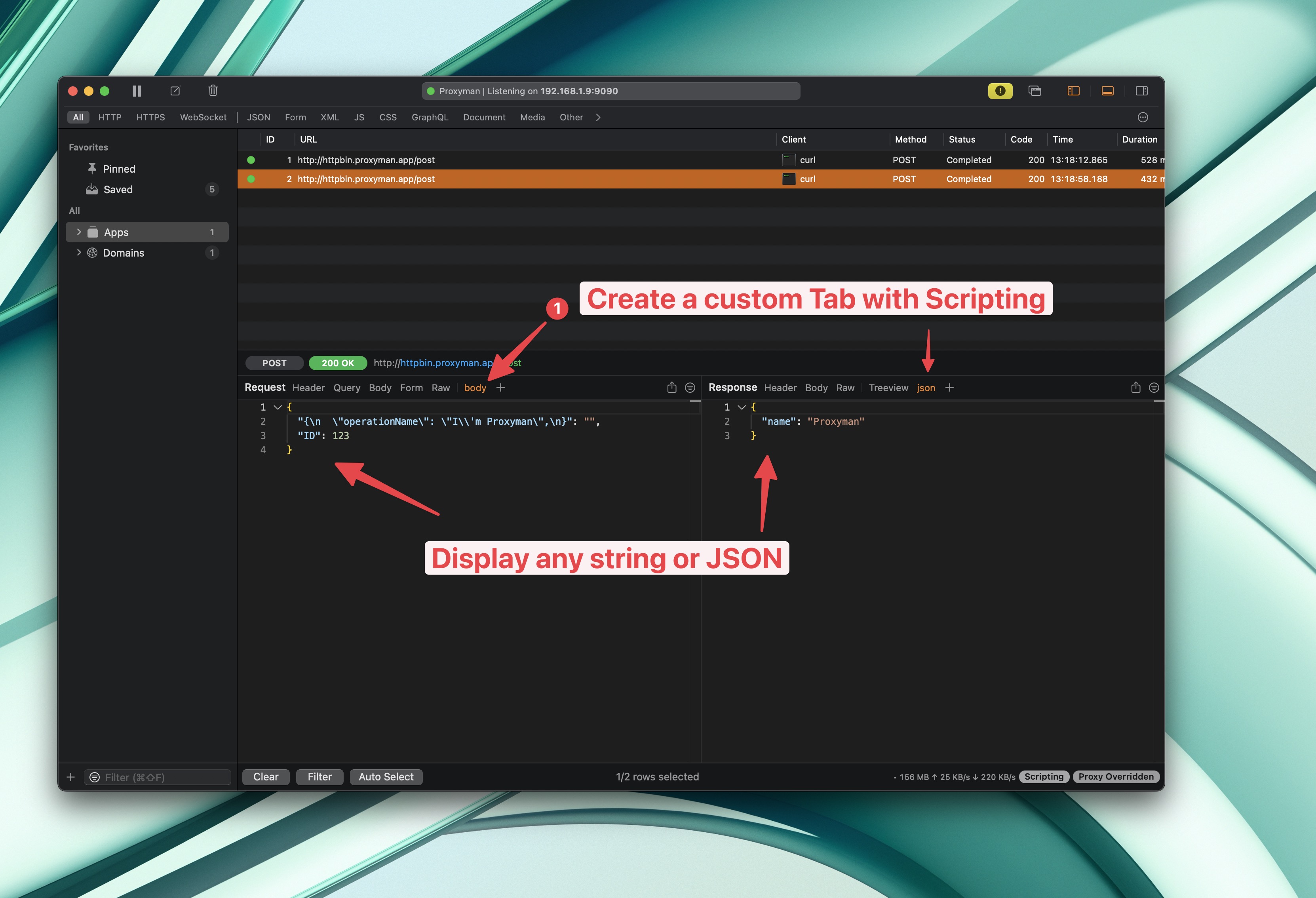
Display your data on a new tab
4. Examples
Force render JSON TreeView
Proxyman supports JSON Tree View for better visualization
You can show or hide a column by right-clicking the column header
Force render HTML Page
Check HTML Webview in the Response panel list to render an HTML response as a web page, instead of reading the raw HTML.
Beautify the Javascript files
Check Auto beautify the minified content at the bottom of the Custom Previewer Tab window. Proxyman then formats minified HTML, CSS and JavaScript so you can read it.