Network Extension
Use Proxyman Network Extension to capture HTTP and HTTPS traffic from every app on your Mac, including apps and scripts that ignore proxy settings.
1. What's it?
Network Extension captures HTTP/HTTPS traffic from apps on your Mac, including apps that ignore the system proxy.
It's built on Apple's transparent proxy Network Extension API. It runs as a macOS system extension, signed with our TablePlus Inc Developer ID certificate and notarized by Apple.
It works similarly to Network Capture mode in Fiddler Everywhere and Local Capture mode in mitmproxy. You don't need to set a proxy in each app.
Network Extension is BETA and off by default. It requires Proxyman PRO, the direct Proxyman edition, and macOS 26 or later. It is not available in Setapp.
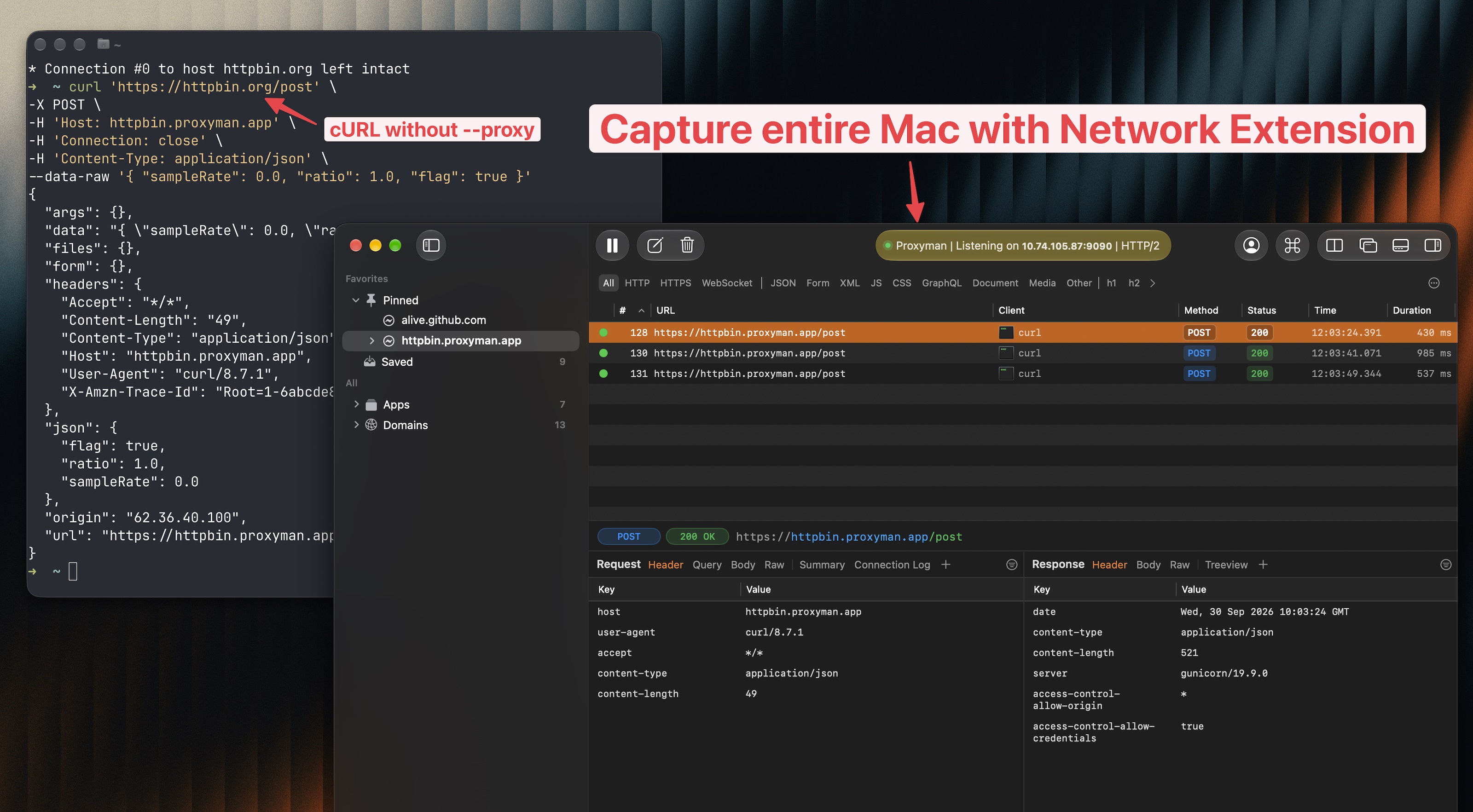
Capture cURL requests without the --proxy flag
2. Problem
Regular proxy mode relies on apps sending their requests through the proxy.
- Some apps and scripts ignore macOS's system proxy, so Proxyman misses their requests.
- NodeJS, Ruby, and Python libraries may need separate proxy settings, code changes, or Automatic Setup.
- Setting up each app or library by hand takes time and can lead to mistakes.
3. Benefits
- Capture traffic from apps and scripts that ignore proxy settings.
- Skip manual proxy setup for each app.
- Use existing tools such as Map Local, Breakpoint, and Scripting on captured requests.
4. How to install the Network Extension?
- Turn on Network Extension in one of two ways:
- Open Proxyman -> Settings -> Network Extension. Turn on Enable Network Extension. Click Install and Enable if shown.
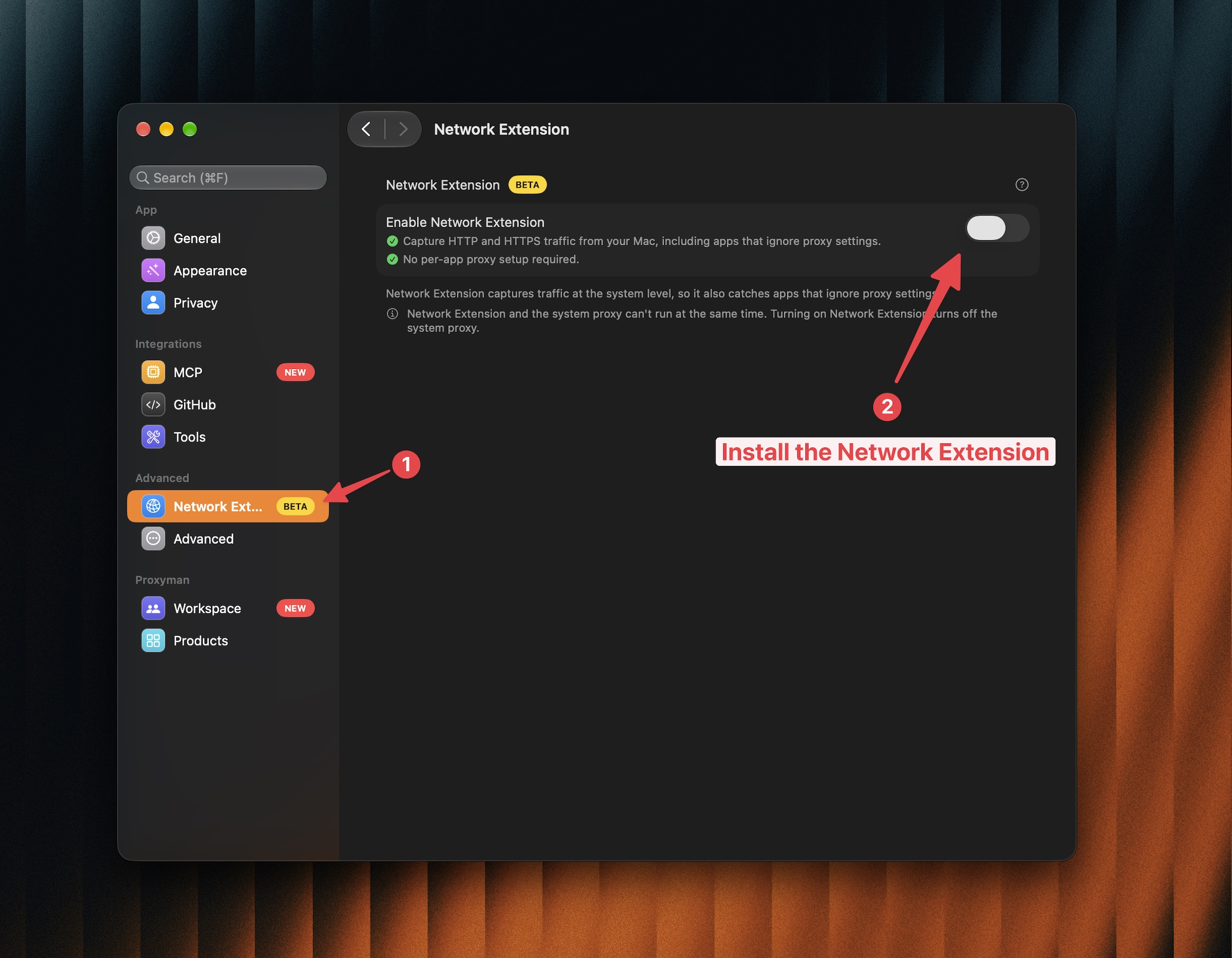
Turn on Network Extension in Settings
- Or click the status bar at the top of the main window (Proxyman | Listening on ...) and turn on Network Extension.
- Open System Settings -> General -> Login Items & Extensions. Under Extensions, select By Category -> Network Extensions, then enable Proxyman.
- When macOS asks to add the network configuration, click Allow.
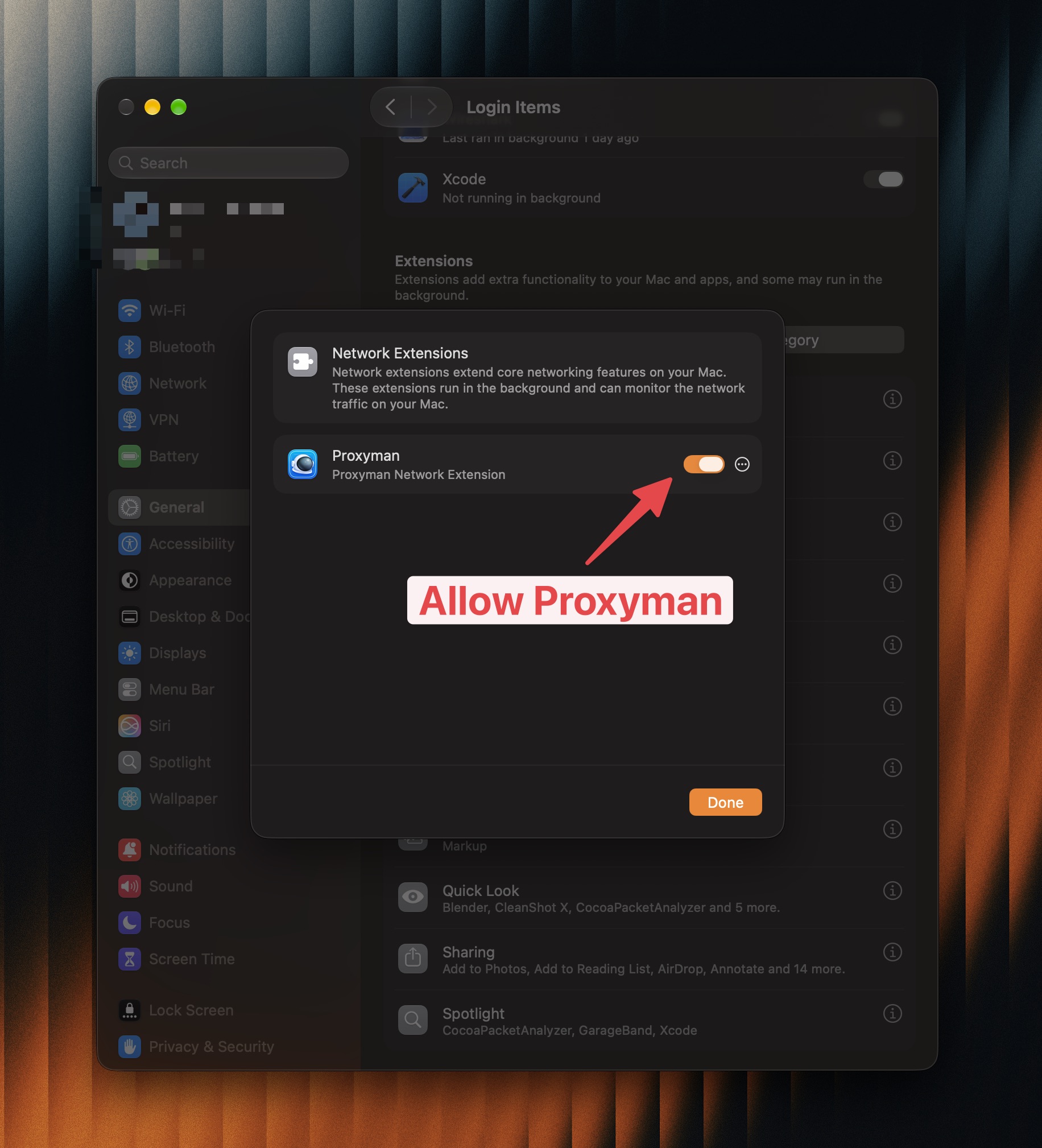
Allow Proxyman Network Extension
- Wait until Proxyman shows "Capturing HTTP and HTTPS from local applications."
5. How to use?
- Keep Proxyman open with Network Extension enabled.
- Network Extension now captures traffic from the apps on your Mac and sends it to Proxyman.
- To read HTTPS content, install and trust the Proxyman certificate, then enable SSL Proxying for the app or domain.
- Make a new request from your app, browser, or script. The request appears in Proxyman.
If an app was already running before you enabled the extension, restart it to capture new connections.
To stop capture without uninstalling, turn off Enable Network Extension in Settings.
6. Troubleshooting
SSL errors in NodeJS, Ruby, or Python
These runtimes may not trust Proxyman's self-signed certificate, even when you trust it in macOS. Network Extension captures their traffic, but certificate trust still needs setup.
Use Automatic Setup to set up certificate trust for supported libraries:
- Open Proxyman -> Setup -> Automatic Setup.
- Click Open New Terminal and accept the permission prompt if needed.
- Run your script or restart your server in that new terminal.
If you're using Automatic Setup or Manual Setup, you can turn off Enable Network Extension in Settings -> Network Extension. Keep running your script or server in the terminal configured by that setup.
If the error continues, check the Automatic Setup troubleshooting guide.
7. How to uninstall the Network Extension?
- Open Proxyman -> Settings -> Network Extension.
- Click Uninstall, then confirm.
- Enter your Mac password if asked, and restart your Mac if requested.
Uninstalling stops capture and closes connections using the extension. It also removes the network configuration.
8. Command-line
Use proxyman-cli network-extension to read status, install, uninstall, enable, disable, or retry. Proxyman must be open. Use install to install without turning capture on, or enable to start capture and install the extension if needed. macOS approval or a restart may still be required.
See the Network Extension command-line guide for commands, JSON status fields, and exit codes.